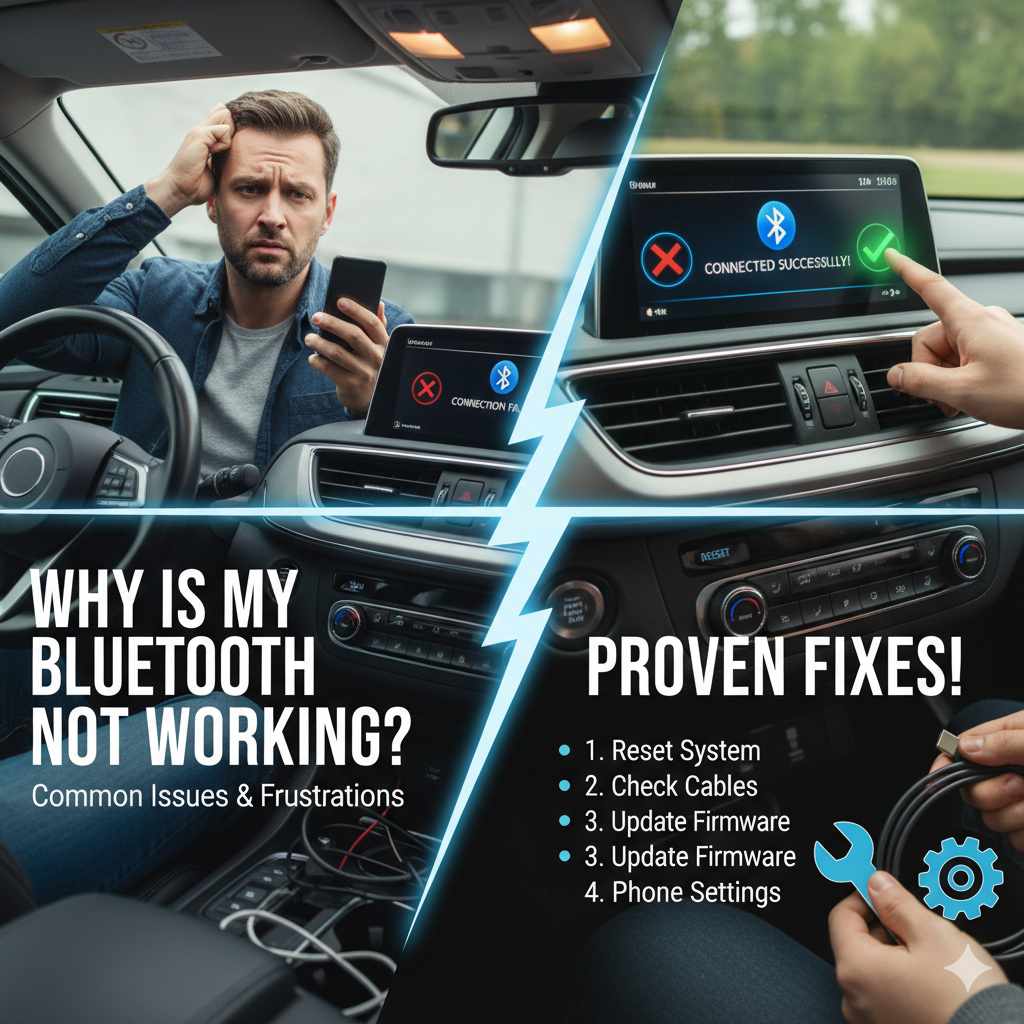
Why Is My Bluetooth Not Working In My Car? Proven Fixes!
If your car’s Bluetooth isn’t working, try restarting your phone and car, re-pairing your device, checking for software updates, and ensuring Bluetooth is enabled. Often, a simple reset or re-connection fixes the issue.
It’s frustrating when your car’s Bluetooth suddenly stops connecting. You want to stream music, take hands-free calls, or use your navigation app, but your phone just won’t pair. This is a common problem, but don’t worry! Most of the time, it’s a simple fix that you can handle yourself. Let’s explore the common reasons why your Bluetooth might not be working and walk through easy, proven solutions to get you back on the road connected.
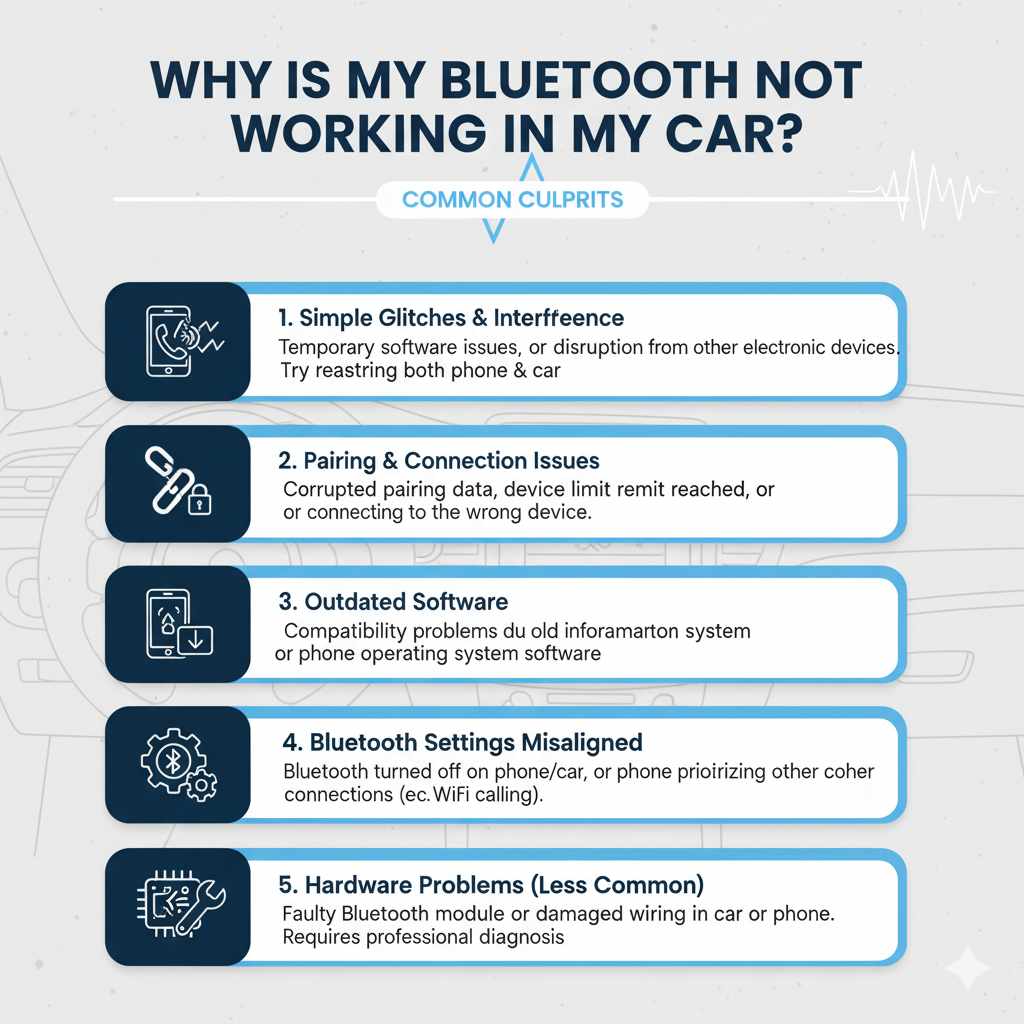
Why Is My Bluetooth Not Working In My Car? Common Culprits
Several things can prevent your car’s Bluetooth from connecting to your phone. It could be a setting on your phone, an issue with your car’s infotainment system, or even something as simple as a temporary glitch. Understanding these common culprits can help us pinpoint the exact problem.
1. Simple Glitches and Interference
Sometimes, electronics just need a quick refresh. Like restarting your computer when it acts up, your phone and car’s infotainment system can benefit from a restart. Bluetooth signals can also be disrupted by other electronic devices or even by the physical distance between your phone and the car’s receiver.
2. Pairing and Connection Issues
Your phone and car have to “talk” the same language. This is done through a process called pairing. If the pairing information becomes corrupted or if your phone is trying to connect to too many devices, it can cause problems. Over time, your car’s system might have a limit on the number of devices it can remember, or your phone might be trying to connect to a nearby speaker instead of the car.
3. Outdated Software
Just like your smartphone needs updates to fix bugs and improve performance, your car’s infotainment system and your phone’s operating system also need occasional updates. An outdated system can lead to compatibility issues with newer Bluetooth versions or specific phone models.
4. Bluetooth Settings Misaligned
It sounds obvious, but sometimes Bluetooth might simply be turned off on your phone or in your car’s settings. Or, perhaps your phone is set to prioritize Wi-Fi calling over Bluetooth for calls, causing confusion.
5. Hardware Problems (Less Common)
While less frequent, there’s a small chance the Bluetooth module in your car or your phone might be experiencing a hardware fault. This usually requires professional attention, but it’s good to rule out the simpler fixes first.
Proven Fixes: Step-by-Step Solutions to Get Your Bluetooth Working
Now that we know what might be causing the trouble, let’s go through the solutions. We’ll start with the easiest fixes and move to slightly more involved ones. You don’t need to be a mechanic to do these!
Step 1: The Universal Fix – Restart Everything
This is the tried-and-true first step for almost any electronic hiccup. It clears temporary memory and can resolve many minor glitches.
- Restart Your Phone: Turn your smartphone completely off, wait about 30 seconds, and then turn it back on.
-
Restart Your Car’s Infotainment System: This can be done in a couple of ways, depending on your car model.
- Turn the Car Off and On: Simply switch off your car’s engine, remove the key (if applicable), open and close the driver’s door (this often forces more systems to shut down), wait a minute or two, and then restart the engine.
- Infotainment System Reset: Some cars have a specific procedure to reset just the infotainment screen. Check your car’s owner’s manual for instructions. Sometimes, holding down the power button on the screen for several seconds can trigger a reset.
Once both devices are back on, try connecting your phone via Bluetooth again.
Step 2: Forget and Re-pair Your Device
If a restart doesn’t work, the connection data between your phone and car might be corrupted. Think of it like a lost handshake; it needs to be re-established.
On Your Phone:
- Go to your phone’s Settings.
- Tap on Bluetooth.
- Find your car’s name in the list of paired devices.
- Tap on “Forget Device,” “Unpair,” or the “i” icon next to your car’s name and select the option to remove or forget the device.
On Your Car’s Infotainment System:
- Navigate to the Bluetooth settings on your car’s screen.
- Look for a list of “Paired Devices” or “Connected Devices.”
- Find your phone’s name and select the option to “Delete,” “Remove,” or “Unpair.” Refer to your car’s owner manual if you’re unsure how to do this.
Re-pair Your Devices:
- Make sure Bluetooth is enabled on both your phone and in your car.
- On your phone, search for available Bluetooth devices.
- On your car’s system, initiate a search for new devices or make it discoverable.
- Select your car from your phone’s list of devices to pair, or select your phone from your car’s list.
- Follow any on-screen prompts, which often include confirming a PIN or code displayed on both screens.
Step 3: Check Your Bluetooth Settings
It’s easy for settings to get accidentally changed. Let’s make sure everything is set up correctly.
On Your Phone:
- Go to Settings > Bluetooth.
- Ensure the Bluetooth toggle is switched ON.
- Look for your car in the list of devices. If it’s listed but not connected, tap on it to try and connect.
- Check for specific settings related to media audio or phone calls. Sometimes, you can toggle these off and on for a specific device.
On Your Car’s Infotainment System:
- Navigate to the Bluetooth menu.
- Ensure the Bluetooth function is turned ON.
- Sometimes, you can set which functions Bluetooth is used for (e.g., phone calls, music streaming). Make sure the desired functions are enabled.
Step 4: Update Software and Firmware
Outdated software is a frequent cause of connectivity problems. Keeping both your phone and your car’s system up-to-date can resolve many compatibility issues.
For Your Smartphone:
- iOS (iPhones): Go to Settings > General > Software Update.
- Android: Go to Settings > System > System Update (the exact path may vary by manufacturer).
Install any available updates and restart your phone.
For Your Car’s Infotainment System:
This can be a bit trickier as it often requires visiting a dealership or following a specific DIY procedure. Some manufacturers allow over-the-air updates, while others require a USB drive with the latest firmware downloaded from their website.
- Check Your Owner’s Manual: This is the best place to start. It will tell you if updates are possible and how to do them.
- Manufacturer’s Website: Visit the official website for your car’s make and model. Look for a “Support” or “Owner” section, and you might find information on infotainment system updates. Some manufacturers, like NHTSA, also list recalls which might include software fixes.
- Dealership: If you can’t find information or prefer professional help, your dealership can check for and install the latest software for your car’s system.
After updating, try connecting your phone again.
Step 5: Check Your Car’s Device Limit
Most car Bluetooth systems can store a limited number of paired devices, often between 5 and 10. If your car’s memory is full, it won’t be able to add a new device or reliably connect to an existing one.
How to Check and Clear:
- Go into your car’s Bluetooth settings menu.
- Look for a list of “Paired Devices” or “Connected Devices.”
- Count how many devices are listed.
- If it’s at its limit, or if there are old devices you no longer use (like an old phone), delete them. You can usually select multiple devices to delete at once.
Once you’ve cleared some space, try pairing your current phone again.
Step 6: Clear Your Phone’s Bluetooth Cache (Android)
For Android users, the Bluetooth system has a cache that stores temporary data. Clearing this cache can sometimes resolve persistent connection issues.
Steps for clearing Bluetooth cache on Android:
- Go to your phone’s Settings.
- Tap on Apps or Application Manager (this may vary slightly).
- You might need to tap the three dots menu or “Show system apps” to see all applications.
- Find and tap on Bluetooth.
- Tap on Storage.
- Tap on Clear Cache. You may also see an option for “Clear Data”; using this will be more like a reset and might require re-pairing all Bluetooth devices. Start with “Clear Cache” first.
Restart your phone after clearing the cache and try connecting to your car.
Step 7: Check Your Phone’s “Forget Other Devices” Setting (iOS)
iPhones don’t have a direct “clear Bluetooth cache” option like Android. However, sometimes an iPhone might be trying to connect to a nearby Bluetooth accessory (like headphones or a speaker) automatically. You can check and manage this by ensuring your car is prioritized or by simply turning off Bluetooth on other nearby devices.
Tip: If you have many Bluetooth devices paired to your iPhone, consider removing older or unused ones from the list in Settings > Bluetooth to minimize potential conflicts.
Step 8: Test with Another Phone or Device
To help determine if the problem is with your phone or your car, try pairing a different smartphone to your car’s Bluetooth system. If the other phone connects successfully, the issue is likely with your original phone.
Conversely, if the other phone also fails to connect, the problem is more likely with the car’s infotainment system.
Step 9: Check for Vehicle-Specific Recalls or TSBs
Sometimes, car manufacturers release Technical Service Bulletins (TSBs) or even recall certain models for specific issues, including problems with infotainment or Bluetooth systems. These are official documents that detail known problems and solutions.
You can often find this information by:
- Checking your car manufacturer’s official website for recalls or service bulletins related to your vehicle’s year, make, and model.
- Visiting the National Highway Traffic Safety Administration (NHTSA) website in the US, which provides a database of recalls and safety issues.
If your car is under warranty and there’s a known issue, the fix might be covered.
Step 10: Consider Factory Reset (Last Resort)
This is a more drastic step and should only be considered if all other solutions have failed. A factory reset will erase all custom settings and data from your car’s infotainment system or phone, returning them to their original settings.
For Your Car’s Infotainment System:
- This process varies greatly by car model. You’ll need to consult your owner’s manual or the manufacturer’s website for the specific procedure.
- Be aware that this will erase all saved radio stations, navigation destinations, and paired devices.
For Your Smartphone:
- iOS: Go to Settings > General > Transfer or Reset iPhone > Erase All Content and Settings.
- Android: Go to Settings > System > Reset options > Erase all data (factory reset) (this path can vary).
Important: Before performing a factory reset on your phone, make sure to back up all your important data (photos, contacts, messages, etc.) as this process will delete everything.
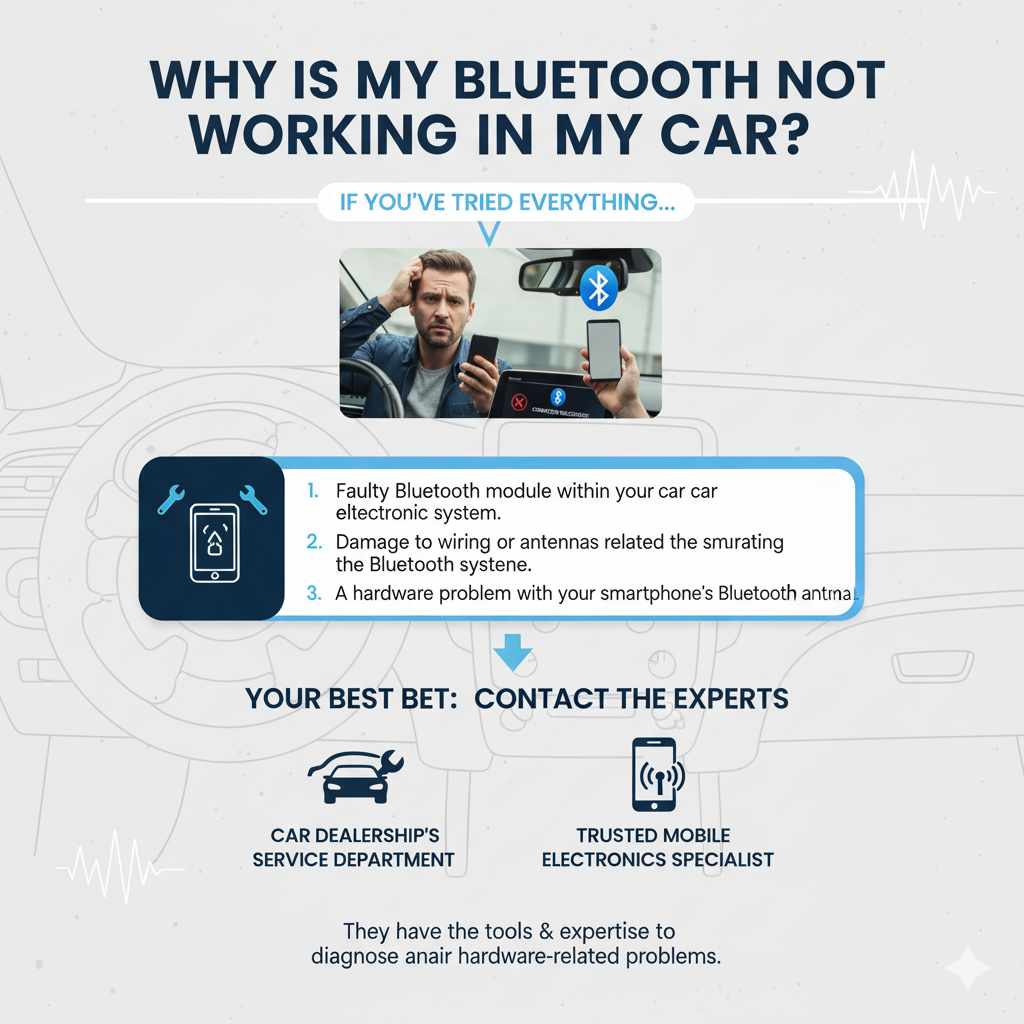
When to Seek Professional Help
If you’ve tried all these steps and your Bluetooth still isn’t working, it’s possible there’s a more complex issue. This could include:
- A faulty Bluetooth module within your car’s infotainment system.
- Damage to wiring or antennas related to the Bluetooth system.
- A hardware problem with your smartphone’s Bluetooth antenna.
In these cases, your best bet is to contact your car dealership’s service department or a trusted mobile electronics specialist. They have the tools and expertise to diagnose and repair hardware-related problems.
Troubleshooting Table: Quick Reference
Here’s a quick table to help you identify the problem and the suggested fix.
| Symptom | Possible Cause | Recommended Fix |
|---|---|---|
| Bluetooth won’t connect at all. | Glitch, interference, incorrect settings. | Restart phone and car, re-pair device, check settings. |
| Car shows as paired but won’t connect. | Corrupted pairing data, device limit reached. | Forget and re-pair, clear old devices from car. |
| Intermittent connection or dropped calls. | Software issues, interference, low battery on phone. | Update software, check for updates, move away from interference, ensure phone is charged. |
| Can’t find car’s Bluetooth on phone (or vice-versa). | Bluetooth is off, car is not discoverable. | Ensure Bluetooth is ON on both devices, make car discoverable. |
| Audio playback issues (stuttering, no sound). | Software bug, app conflict, poor connection quality. | Restart devices, update apps/OS, test with different audio source/app. |
Frequently Asked Questions (FAQ)
Q1: How often should I restart my car’s infotainment system for Bluetooth?
A1: You don’t need to restart it regularly. Only do so if you experience Bluetooth issues or performance lag. It’s a troubleshooting step, not routine maintenance.
Q2: My phone connects to other Bluetooth devices but not my car. What’s wrong?
A2: This often points to an issue with the car’s system or the specific pairing between your phone and car. Try forgetting and re-pairing the device, checking for car software updates, or seeing if another phone pairs successfully with your car.
Q3: Can my car’s navigation system interfere with Bluetooth?
A3: While rare, a system trying to process multiple functions can sometimes cause minor glitches. Ensure both your phone and car’s navigation and infotainment software are up to date. Restarting both devices usually resolves temporary conflicts.
Q4: My car’s Bluetooth is connected, but I can’t hear any audio. What should I do?
A4: First, check that the correct audio source is selected on your car’s stereo (ensure it’s set to Bluetooth Audio). Also, verify that your phone’s media audio output is set to your car and that the volume is up on both your phone and the car system.
Q5: I get a “pairing failed” message. What does that mean?
A5: This means the two devices couldn’t establish a secure connection during the pairing process. Try moving your phone closer to the car’s infotainment system, ensure no other Bluetooth devices are actively trying to connect, and re-attempt the pairing process. Sometimes, it helps to delete both devices from each other’s paired lists first.
Q6: Does extreme weather affect Bluetooth connection?
A6: Extreme temperatures can affect electronic components, but it’s usually a more severe performance issue rather than a complete connection failure.