How to Connect Bluetooth to My Car: iPhone & Android Steps
To connect Bluetooth to your car, put the car in pairing mode, open Bluetooth settings on your phone, tap the car’s name, and confirm any PIN. Apple says an iPhone must be within about 33 feet (10 meters) of the accessory to pair, and Google says to check your car manual to learn whether to pair from the phone or from the car. Menu names vary by make, model and phone, so this guide only states what Apple, Google and a Toyota guide actually say.
What You Need Before You Pair Bluetooth to Your Car
You need a car with a Bluetooth or phone menu, a phone with Bluetooth turned on, and your car manual nearby. Both Apple and Google send you to the manual for the car-side steps, because the car’s menu is the one part a phone maker does not control. If the car has no Bluetooth menu at all, an AUX Bluetooth receiver is one low-cost way in, covered in our guide to adding Bluetooth to a car.
Best No-Bluetooth Fix Pick
 |
COMSOON Bluetooth Receiver for Car, 3.5mm AUX Bluetooth Car Adapter
|
As an Amazon Associate we earn from qualifying purchases. Spec-based pick from the listing, not a hands-on test.
Activating Bluetooth On Devices
Start on the phone. The path differs by phone type, and Google notes that some Android steps depend on the Android version and that layouts can differ by manufacturer. The table lists the paths exactly as each page gives them.
| Phone type | Turn Bluetooth on | Open the pairing screen | Source |
|---|---|---|---|
| iPhone | Settings, then Bluetooth, and make sure Bluetooth is turned on | The accessory name appears below the devices list: tap it | Apple iPhone User Guide, Connect iPhone to Bluetooth accessories |
| Android (Google says some steps need Android 15 and up) | Swipe down from the top of the screen and tap Bluetooth | Touch and hold Bluetooth, tap Pair new device, then tap the device name. If there is no Pair new device, check Available devices | Android Help, Find and set up Bluetooth devices |
| Pixel phone | Settings, Connected devices, Connection preferences, Bluetooth, then turn Use Bluetooth on | Tap Pair new device, then tap the name of the device | Pixel Phone Help, Connect through Bluetooth |
| Android phone in a 2019 Toyota Entune guide | Settings, Connections, Bluetooth (the guide says layouts differ by manufacturer and Android version) | Select your phone device to make it discoverable while the car is set up | 2019 Toyota Entune System Quick Reference Guide |
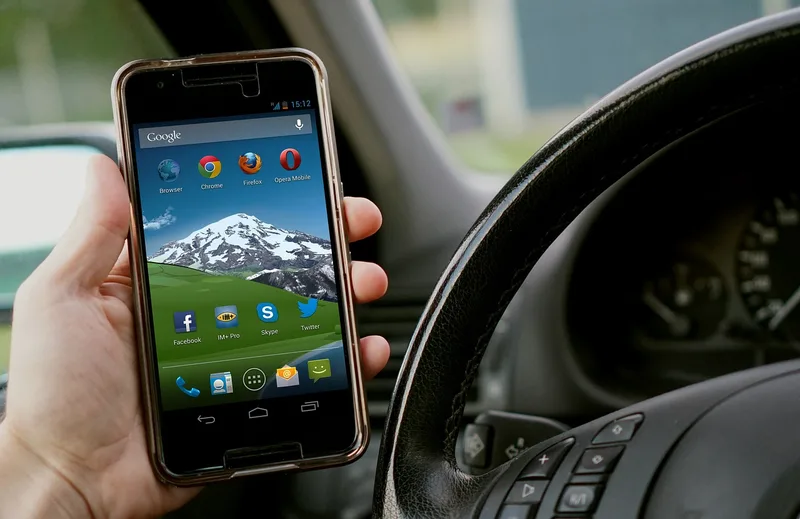
Google’s Pixel page adds that while Bluetooth settings are open, nearby devices can find your phone, so keep that screen open while the car searches. Google’s Android page also says Bluetooth is off in Airplane mode.
Pairing Devices
Google splits the job into two steps on a Pixel: Step 1 is to pair, Step 2 is to connect. After the first pairing, Google says your devices can connect automatically, and the devices stay paired until you unpair them.
Initiating Pairing Process
- Park the car first. This is our suggestion, not a quote from a pairing page; the safety section below explains why.
- Turn Bluetooth on at the phone using the table above.
- Open the car’s Bluetooth or phone menu and choose the add-device option. The 2019 Toyota Entune guide says to select SETUP on the home screen (or press the SETUP button on the faceplate of the Entune Audio system), choose BLUETOOTH, then select ADD. Other makes use other names.
- Select the car on the phone. The Toyota guide says to select your Toyota vehicle in the phone’s Bluetooth settings. Apple says to tap the accessory name when it appears below the devices list.
- Confirm the code if one appears (next section).
- Allow access if asked. The Toyota guide says you may need to allow access to messaging and contacts on the phone.
- Wait for the confirmation. The Toyota guide says a confirmation appears once the phone is paired and connected, and that the system then tries to connect audio and contacts.
Google adds one choice: to learn whether to pair from your phone or from the car, check the car’s manual. Pairing from the car means keeping the phone’s Bluetooth screen open and picking the phone’s name on the car’s device list.
Entering Pairing Codes
Apple says you might need to enter the accessory’s PIN or passcode and to check the instructions that came with it. For cars, Google’s fix page says that if you are asked, check that the PINs shown on the phone and the car’s screen match, then tap Allow access to your contacts and call history, and tap Pair, Accept or Confirm. The Toyota guide says you may need to enter the Bluetooth PIN the car provides on your phone. In each case the code comes from the car’s screen or manual.
Google’s Android page also has a tip for accessories: if you are asked for a passcode and do not have it, try 0000 or 1234, the most common ones. That tip is written for accessories in general, so for a car read the screen and the manual first and treat those two codes as a last resort, not a rule.
The Toyota guide adds two phone-side details for its 2019 system: on Android it recommends ticking Don’t ask again so you do not press OK on every connection, and on iPhone only current text messages can be viewed on the head unit, with no text reply.
What Your Car Manual Decides
Several pages hand the decision to the manual rather than to the phone.
| Question | Who answers it | What the page says | Source |
|---|---|---|---|
| Pair from the phone or from the car? | The car manual | Check your car’s manual to learn which | Android Help, fix Bluetooth problems |
| Where is the add-device menu? | The car manual | Apple says most cars require a phone setup on the car display and to check the manual for how to pair | Apple Support, connect an iPhone to a car |
| How do I clear old phones from the car? | The car manual | Follow your car’s manual to clear phones paired with the car, including any you are not using | Android Help, fix Bluetooth problems |
| Can this car play music or take calls over Bluetooth? | The car manual | Not all cars can play music or make and get calls by Bluetooth | Android Help, fix Bluetooth problems |
The Toyota guide adds that you do not need an Entune App Suite compatible phone to use Bluetooth hands-free, Bluetooth audio or navigation, and that phone performance depends on software, coverage and carrier. If you also want a screen-based connection, see whether your car supports wireless CarPlay, because Apple lists CarPlay and Bluetooth as separate ways to connect an iPhone.
Auto-Connect, Multiple Phones, and Forgetting a Device
Once a phone is paired, most daily problems are about which phone the car picks, or a stale entry. The table shows the phone-side actions in the words of the pages.
| Action | iPhone | Android | Source |
|---|---|---|---|
| Rename the phone so the car list is clearer | Settings, General, About, Name (Apple suggests this if multiple phones are connected to the car stereo) | Connected devices, Connection preferences, Bluetooth, Device name, Rename | Apple Support; Pixel Phone Help |
| Disconnect without forgetting | Control Center disconnects all Bluetooth accessories until the next day | Open the device Settings, then Disconnect | Apple iPhone User Guide; Android Help |
| Forget the car | Settings, Bluetooth, tap the icon next to the accessory, Forget This Device, then confirm | Open the device Settings next to the car name (See all if none under Saved devices), then Forget | Apple iPhone User Guide; Android Help |
The practical point is that forgetting is two-sided. Forgetting the car on the phone does not touch the list inside the car, and Google’s fix steps ask you to clear the car’s memory too, per the manual.
Troubleshooting Common Issues
The order below combines Apple and Google’s own lists from the cheapest step to the most disruptive one.
| Step | What to do | Source |
|---|---|---|
| 1 | Make sure the phone and car are close, and that the car is in pairing or discovery mode if you have not paired before | Apple Support, accessory will not connect |
| 2 | Turn Bluetooth off, wait about 5 seconds, turn it back on | Apple Support (car page); Android Help |
| 3 | Restart the phone, and restart the other device | Apple Support (car page); Android Help |
| 4 | Forget the car on the phone, clear the phone from the car’s memory per the manual, and put the car back in pairing mode | Android Help; Apple Support |
| 5 | Refresh the device list and pair again, from the phone or from the car as the manual says | Android Help |
| 6 | If the accessory pairs with other devices but not your phone, unpair it from those other devices and try again | Apple Support, accessory will not connect |
| 7 | Update the phone, and make sure the stereo has the latest manufacturer firmware (check the manual) | Apple Support (car page) |
| 8 | Contact the maker: Apple Support if Bluetooth will not turn on or is greyed out, or the car maker per the owner’s manual | Apple Support; 2019 Toyota Entune guide |
Connection Failures
If the car never shows up in the phone’s list, steps 1 to 4 cover it. If the phone pairs but you hear nothing, Google’s fix page says to check that the volume is up on the phone and the car, that other devices paired with your phone are not playing the music, and that Media audio is turned on. On Android it sits in the car’s device settings under Saved devices, and Phone audio is the switch for calls. Google repeats that not all cars can do either.
If a pairing that worked for months now fails, read our guide to Bluetooth not working in a car or, for the reset side, how to reset car Bluetooth.
Interference Problems
Apple says the use of certain accessories with iPhone may affect wireless performance, that Airplane Mode may eliminate audio interference between iPhone and an accessory, and that reorienting or relocating the iPhone and the connected accessory may improve performance. Those are the only interference tips on the pages read, so we do not list other causes here.
Bluetooth Pairing Myths and Mistakes
| Myth or mistake | What the pages say | Source |
|---|---|---|
| Paired means connected | Google lists pair and connect as two steps: a paired phone can still show as not connected until you tap it | Pixel Phone Help |
| Every car plays music and takes calls over Bluetooth | Google says not all cars can; check the car manual | Android Help |
| Forgetting the car on the phone resets everything | Google also asks you to clear phones from the car’s memory | Android Help |
| CarPlay and Bluetooth pairing are the same thing | Apple lists CarPlay, Bluetooth and USB playback as separate ways to connect | Apple Support |
Pair Before You Drive: What NHTSA Says
The NHTSA distracted driving page says distracted driving is any activity that diverts attention from driving, and its examples include fiddling with the stereo, entertainment or navigation system. It reports 3,208 deaths in 2024 in crashes involving distracted drivers. The page does not tell you to pair while parked, so that part is our own suggestion, but the Toyota guide also says concentrating on the road is the first priority and not to use the hands-free phone system if it will distract you.
If You Are Choosing Between Pairing, Wired, and Adapters
This page covers the Bluetooth pairing steps and what the car manual decides. For the full list of ways to get music playing, see how to play music in the car. If your iPhone has no working Bluetooth connection and you want a cable, how to connect an iPhone to a car stereo covers the wired route. For the source pages, see the Apple Support page on connecting an iPhone to a car and the Android Help page on fixing Bluetooth problems.
Frequently Asked Questions
How Do I Connect My Bluetooth Phone To My Car?
Put the car in pairing mode through its Bluetooth or phone menu, open Bluetooth settings on your phone, tap the car’s name, and confirm any PIN. The exact menu names come from your car manual.
Why Is My Bluetooth Not Connecting To Car?
Work through the order in the troubleshooting table: check distance and pairing mode, turn Bluetooth off for about 5 seconds and back on, restart the phone, then forget the car on the phone and clear the phone from the car’s memory per the car manual before pairing again.
How Can I Bluetooth Music To My Car?
Pair the phone first, then make sure the car is on its Bluetooth audio source. Google says some cars cannot play music over Bluetooth at all, and on Android Media audio must be on for the car.
How To Enable Bluetooth In Car?
There is no single path. A 2019 Toyota Entune guide uses SETUP, then BLUETOOTH, then ADD on the head unit, but other cars use different menus. Apple and Google both point you to the car manual for the car-side steps.
How Do I Remove A Phone From My Car’s Bluetooth?
Forget the car on the phone (on iPhone, Forget This Device in Settings, Bluetooth; on Android, Forget in the device settings), and clear the phone from the car’s own list using the car manual.
Conclusion
Connecting Bluetooth to a car is the same short sequence on every phone: Bluetooth on, car in add-device mode, tap the name, confirm the code. What changes is the car’s menu, which is why Apple and Google both send you to the manual. When something fails, work through the troubleshooting order and remember that forgetting a phone has two sides.
Sources read for this page on 2026-10-14: Apple iPhone User Guide, two Apple Support articles, two Android Help pages, the 2019 Toyota Entune guide (Bluetooth pairing pages) and the NHTSA distracted driving page. Menus change with software updates, so check your own car manual.
Products related to this article
Sponsored / affiliate links. As an Amazon Associate I earn from qualifying purchases. I may earn additional commission from eligible campaigns.
 Bluetooth 5.0 Receiver & Adapter, NFC, 3.5mm AUX/RCA Output to Speaker, Amplifier, Car Audio, Headphone, Home Stereo System (Black)
 Aux Bluetooth 5.3 Adapter for Car, Bluetooth Receiver Aux Car Adapter, Auxiliar Audio Blue Tooth para Carro Wireless Dongle with 3.5mm Jack for Stereo Systems and Headphones