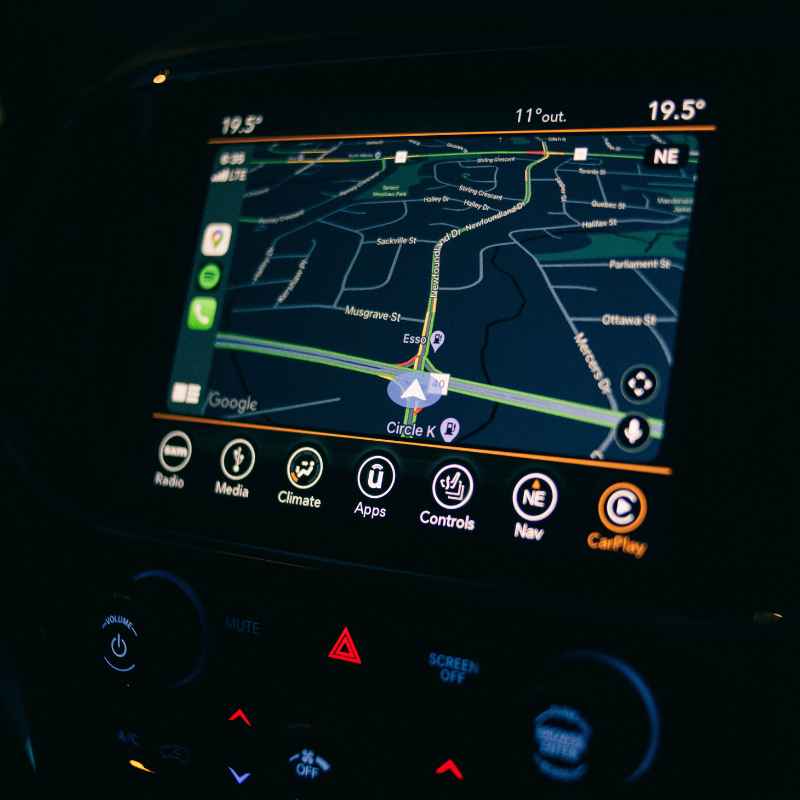
Does My Car Support Wireless Carplay? Find Out Now
It’s a common question for many car owners today. You get a new car, or maybe a slightly older one, and you’ve heard all about the magic of wireless CarPlay. It means your iPhone can connect to your car’s screen without any wires.
You can get maps, music, and calls right there. But then you wonder, “Does my car actually do this?” It can feel a bit like a puzzle. This guide is here to help you solve it.
Most modern cars with a good infotainment system can support wireless CarPlay, especially if they came out after 2017. The key is checking your car’s specific features and ensuring your iPhone model is also compatible. This guide will walk you through exactly how to figure that out.
What is Wireless CarPlay?
CarPlay is Apple’s system. It lets you use certain iPhone apps on your car’s built-in display. Think of it as a smarter, safer way to use your phone while driving.
You can see maps, listen to music, send texts, and make calls. All this appears on your car’s screen. It looks and feels like part of the car.
Wireless CarPlay takes this a step further. Instead of plugging your iPhone in with a USB cable, the connection happens through Bluetooth and Wi-Fi. This means you can get all the benefits of CarPlay without the mess of cables.
You just hop in your car, and if your phone is close, it connects automatically.
This is a big deal for convenience. No more fumbling for cables. No more worrying about a cable not being long enough.
Your phone can stay in your pocket or a cup holder. The car’s screen shows everything clearly. You can control it with touch or voice commands.
Why did this become a thing? Well, people wanted more ease. They also wanted cleaner car interiors.
Cables can get tangled. They can wear out. Wireless tech removes those problems.
It makes the whole experience feel more modern and seamless. Many drivers find it makes their commute or road trips much more enjoyable.
The technology itself relies on a few things. Your car’s infotainment system needs to be built with wireless CarPlay capability. Your iPhone also needs to support this feature.
It’s not just about having a new iPhone; the car’s system is the main piece of hardware that needs to be ready.
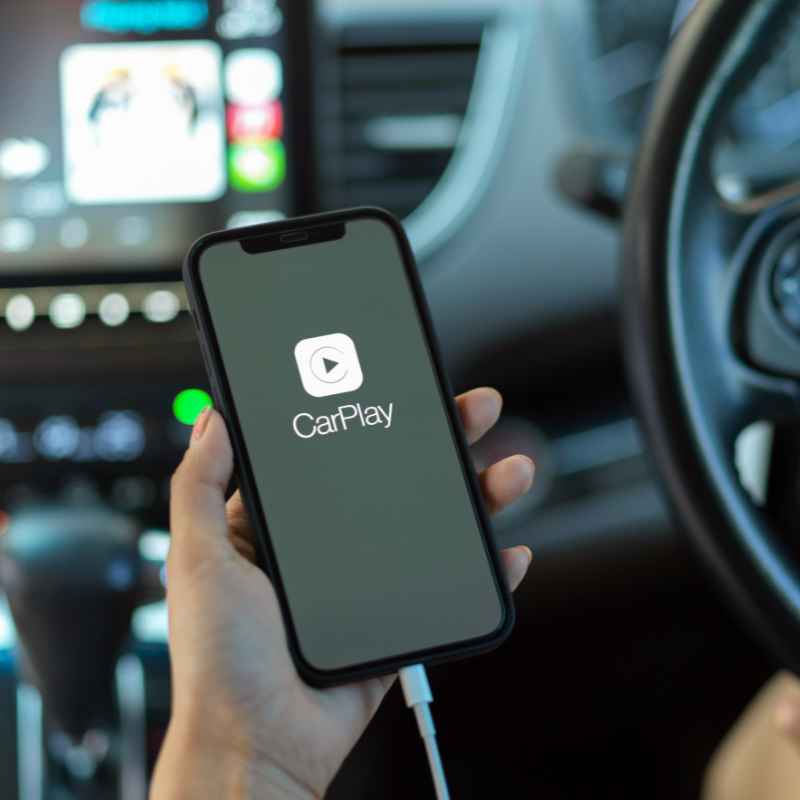
How to Check if Your Car Supports Wireless CarPlay
Finding out if your car has wireless CarPlay can feel like a treasure hunt. But don’t worry, there are clear steps you can take. Think of it as gathering clues.
The most reliable way is always to check your car’s manual. But often, you can figure it out faster.
First, look at your car’s infotainment screen. When you first start your car, does it show a CarPlay logo? Or maybe it prompts you to connect your phone?
This is a good sign. If it only shows options for “USB Connection” or “Bluetooth Audio,” it might not support wireless. But this isn’t always the whole story.
Another clue is the car’s year and model. Generally, cars made from 2017 onwards started to include CarPlay more often. But wireless CarPlay is a newer feature.
Many cars that support wired CarPlay don’t automatically support the wireless version. You often need a car made from 2019 or later for reliable wireless support.
Check your car’s user manual. This is the most trusted source. Look for sections on “Smartphone Integration,” “Apple CarPlay,” or “Infotainment System.” It will clearly state if wireless CarPlay is a feature.
If you don’t have the physical manual, you can usually find a digital version on the car manufacturer’s website.
You can also search online. Use your car’s exact year, make, and model. Add “wireless CarPlay” to your search.
For example, “2020 Toyota Camry wireless CarPlay.” You’ll often find articles or forum discussions from other owners. This can quickly tell you if it’s a known feature for your car.
Visit your car dealership. If you’re still unsure, the service department at your car’s dealership can tell you for sure. They know their vehicles inside and out.
They can also help you set it up if your car does have the feature.
Remember that even if your car supports wired CarPlay, it might not support wireless. The technology is slightly different in how the connection is made. It’s worth the effort to check carefully.
This way, you won’t be disappointed later. It’s all about knowing your car’s specific capabilities.
Quick Car Check Steps
1. Glance at Your Infotainment Screen: Look for a CarPlay icon or prompt on startup.
2. Consult Your Car’s Manual: Find the “Smartphone Integration” section.
3. Search Online: Use your car’s year, make, model, and “wireless CarPlay.”
4. Ask the Dealer: Your local dealership can confirm.
iPhone Compatibility for Wireless CarPlay
It’s not just about the car. Your iPhone also needs to be ready for wireless CarPlay. Apple has specific requirements for this feature.
If your iPhone is too old, it simply won’t work, no matter how new your car is. This is usually less of a problem for most people today.
The main requirement for wireless CarPlay is your iPhone’s Wi-Fi and Bluetooth. These need to be turned on. Your iPhone must also support iOS 9 or later.
Most iPhones that can run iOS 9 can actually run much newer versions. So, the age of your iPhone is less critical than its ability to run recent software.
Specifically, Apple states that wireless CarPlay requires an iPhone 5 or later. However, for the best experience and to run the latest iOS versions, it’s recommended to have a more recent model. iPhones that are several years old might still work but could be slower.
The key is that your iPhone needs to be able to maintain both a Wi-Fi and Bluetooth connection simultaneously with your car. This allows for the data transfer and communication needed for wireless CarPlay. Think of it like a handshake between your phone and the car’s system.
What if your iPhone is too old? You won’t see the option to connect wirelessly. You might only see the option for a USB connection.
Or, the CarPlay icon might not appear at all when you try to connect your phone. This is your phone’s way of telling you it can’t handle the wireless handshake.
So, the simple check is this: What iPhone are you using? Is it an iPhone 5 or newer? If yes, does it have the latest possible iOS updates installed?
If both are true, your iPhone is likely ready. The next step is to ensure your car’s system is also prepared for the wireless connection.
Most people who ask about wireless CarPlay already have iPhones that are more than capable. The iPhone 8, iPhone X, and newer models are definitely equipped for it. Even older models like the iPhone 6 or 7, if updated, should work fine for the basic functions.
iPhone Readiness Checklist
1. iPhone Model: Is it an iPhone 5 or newer?
2. iOS Version: Is your iPhone running the latest possible iOS update?
3. Wi-Fi & Bluetooth: Are both turned on and functioning?
4. First Connection: You may need to connect via USB the first time to activate wireless CarPlay.
How the Wireless Connection Works
You might be curious about the “magic” behind wireless CarPlay. It’s not really magic, but it is clever technology. It uses two common wireless methods together.
These are Bluetooth and Wi-Fi. Your car and iPhone use these to talk to each other without a cable.
The first time you set it up, you usually need a USB cable. This is a one-time setup for most cars. You plug your iPhone into the car’s USB port.
You’ll see a prompt on both your phone and the car’s screen. This prompt asks if you want to enable wireless CarPlay. You agree.
During this initial USB connection, your iPhone and car exchange important information. They pair their Bluetooth connections. They also set up a direct Wi-Fi network between them.
This Wi-Fi network is just for CarPlay communication. It’s separate from your home or office Wi-Fi.
Once this pairing is done, you can disconnect the USB cable. The next time you get in your car and turn it on, your iPhone will automatically look for the car’s Wi-Fi signal. It will also use its Bluetooth connection.
If both are found, CarPlay will launch on your car’s screen.
The Bluetooth connection is often used for the initial handshake and low-bandwidth tasks. Think of it like starting the engine. The Wi-Fi connection is used for the heavy lifting.
This includes streaming music, showing maps, and transferring data for the apps you see on your screen. It’s faster and more reliable for these tasks.
This dual-connection method is what makes it smooth. Bluetooth is good for pairing and initial contact. Wi-Fi is excellent for streaming and handling large amounts of data quickly.
Together, they provide a stable link for your iPhone to communicate with your car’s display.
It’s important that both your phone’s and car’s Wi-Fi and Bluetooth are enabled. If either is turned off, the connection won’t happen. Sometimes, a simple restart of your phone or car’s infotainment system can fix connection issues.
It’s like giving the technology a fresh start.
The data you use for CarPlay comes from your iPhone. So, if you’re using data-heavy apps like Google Maps or Spotify, it will use your iPhone’s data plan. Make sure you have a plan that can handle this if you plan on heavy usage.
Wi-Fi calling also works through this connection if your phone supports it.
Wireless Connection Flow
1. Initial USB Pairing: Connect phone via USB to activate wireless. (One-time setup)
2. Bluetooth Handshake: Phone and car pair for initial communication.
3. Dedicated Wi-Fi Link: A secure Wi-Fi network is created for CarPlay data.
4. Automatic Connection: On subsequent starts, phone connects wirelessly if in range.
5. Data Streaming: Wi-Fi handles maps, music, and app data.
Cars That Often Feature Wireless CarPlay
When you’re looking for a car that supports wireless CarPlay, certain makes and models stand out. Manufacturers started rolling out this feature more broadly around 2019 and later. This means if you’re buying a newer car, you have a very good chance of getting it.
German automakers like BMW, Mercedes-Benz, and Audi were early adopters for many of their models. They often include advanced tech features. So, if you’re looking at a luxury sedan or SUV from these brands, especially from 2019 onwards, wireless CarPlay is highly probable.
American car brands like Ford and Chevrolet also started offering it widely in their more popular models. For example, many Ford F-150 trucks, Explorers, and other vehicles made from 2020 onwards often have this feature. Chevrolet’s Silverado, Equinox, and Malibu are good examples too.
Japanese manufacturers like Toyota, Honda, and Nissan also joined the trend. While Toyota was a bit slower to adopt CarPlay in general, newer models like the Camry, RAV4, and Corolla from around 2020 and up often include wireless CarPlay. Honda’s Accord and CR-V are strong contenders, as are Nissan’s Altima and Rogue.
Korean brands, Hyundai and Kia, have also been equipping their vehicles with wireless CarPlay. Models like the Hyundai Sonata and Kia Sportage, particularly recent versions, commonly feature this convenience.
It’s important to remember that even within a car brand, not all models or trim levels will have it. Higher trim levels usually get the premium features first. So, a base model might only have wired CarPlay, while a top-tier trim of the same car might have wireless.
Here’s a general guide for cars made from 2019/2020 onwards:
- BMW: Most models (3 Series, 5 Series, X3, X5, etc.)
- Mercedes-Benz: Most models (C-Class, E-Class, GLC, GLE, etc.)
- Audi: Most models (A4, A6, Q5, Q7, etc.)
- Ford: Explorer, F-150, Escape, Mustang (higher trims)
- Chevrolet: Malibu, Equinox, Traverse, Silverado, Camaro
- Toyota: Camry, RAV4, Highlander (higher trims, newer years)
- Honda: Accord, CR-V, Civic (higher trims)
- Nissan: Altima, Rogue, Sentra (higher trims)
- Hyundai: Sonata, Tucson, Santa Fe (higher trims)
- Kia: Sportage, Sorento, Telluride (higher trims)
When you’re shopping for a car, always double-check the features list. Don’t assume. Ask the salesperson specifically about “wireless Apple CarPlay.” This will save you a lot of potential confusion and make sure you get the convenient, cable-free experience you’re looking for.
What if My Car Only Supports Wired CarPlay?
It’s quite common for cars to support wired CarPlay but not wireless. This was the initial way CarPlay was implemented. If your car falls into this category, don’t feel like you’re missing out completely.
Wired CarPlay is still a fantastic feature that offers many of the same benefits.
The core functions are the same. You get access to your maps, music apps, messaging, and calls. These appear on your car’s screen and are controlled by touch or voice.
The main difference is the need for a USB cable to connect your iPhone.
So, what do you need to make wired CarPlay work well? A good quality USB cable is essential. Not all USB cables are created equal.
Some cheap ones can cause connection issues, slow data transfer, or even stop working after a while. Apple’s own cables are generally reliable, as are many reputable third-party brands that are certified for Apple devices.
Make sure the USB port in your car is designated for CarPlay. Many cars have multiple USB ports. One might be for charging only, while another is specifically for data transfer and smartphone integration.
Check your car’s manual to identify the correct port.
When you plug your iPhone in, ensure your car’s infotainment system is set up to recognize it. You might need to go into your car’s settings and enable “iPhone USB Connection” or “CarPlay.” Sometimes, you’ll need to give permission on your iPhone the first time you connect.
Wired CarPlay actually has a couple of advantages. One is that it charges your iPhone as you use it. This means you won’t end up with a dead phone after a long drive, which is a common concern with wireless connections that drain the battery.
Another is that the connection is often seen as more stable because there’s a physical link.
If your car supports wired CarPlay, you’re still getting a great experience. It’s just a matter of plugging in your phone. Many people find that plugging in their phone for a drive is a small price to pay for access to their favorite apps on a larger, car-integrated screen.
It’s a trade-off between cable-free convenience and consistent charging.
Consider adapters if your iPhone no longer has a USB-A port. If you have an iPhone 15 or newer, you’ll use a USB-C cable. Make sure your car’s USB port and cable are compatible.
You might need a USB-C to USB-A adapter or a USB-C to USB-C cable if your car has a USB-C port.
Making the Most of Wired CarPlay
1. Use a Quality USB Cable: Invest in a certified, durable cable.
2. Find the Right Port: Identify the car’s data-transfer USB port using your manual.
3. Enable Settings: Check your car’s infotainment system for CarPlay/USB connection options.
4. Charge as You Go: Enjoy your phone charging while it’s connected.
Troubleshooting Wireless CarPlay Connection Issues
Even with the best technology, sometimes wireless CarPlay can be a bit fussy. If you’re having trouble connecting or staying connected, don’t panic. Most issues have simple fixes.
It’s often about a small setting or a quick reset.
First, check the basics. Make sure your iPhone’s Wi-Fi and Bluetooth are turned on. This sounds obvious, but it’s the most common reason for connection failure.
Also, ensure your iPhone is updated to the latest iOS version. Software glitches are often fixed in updates.
Check your car’s settings too. Look for the “CarPlay” or “Smartphone Integration” menu. Make sure wireless CarPlay is enabled there.
Sometimes, you might need to “forget” your car from your iPhone’s Bluetooth settings and then “forget” your iPhone from your car’s Bluetooth settings. Then, try re-pairing them.
If the connection drops, try turning your iPhone’s Wi-Fi and Bluetooth off and then on again. Do the same for your car’s infotainment system. Many car systems have a restart option in their settings.
If not, turning the car off and on again can sometimes reset the system.
A common solution for many tech problems is simply restarting your devices. Turn your iPhone completely off and then back on. Do the same for your car.
This can clear out temporary glitches that might be preventing the connection.
Ensure your iPhone isn’t connected to other Wi-Fi networks or Bluetooth devices that might interfere. For example, if your phone is trying to connect to your home Wi-Fi automatically, it might cause conflicts. Try disconnecting from other networks temporarily.
When you first set up wireless CarPlay, you usually need to connect via USB. If this initial setup didn’t complete correctly, you might have ongoing wireless issues. You may need to connect via USB again and go through the pairing process from the beginning.
Look for an option to “reset” or “forget” previous CarPlay connections in your car’s settings.
If you continue to have problems, check if your car’s infotainment software needs an update. Car manufacturers sometimes release updates to improve system performance and fix bugs. You can usually check for these updates through your car’s settings menu or by visiting a dealership.
Consider the environment. Sometimes, strong radio interference in certain areas can affect wireless signals. While less common for CarPlay, it’s a remote possibility if you’re in a very congested signal area.
Finally, if you’ve tried everything and still can’t get it to work, it might be a hardware issue. Either with your iPhone or your car’s system. In this case, contacting Apple Support or your car dealership’s service department would be the next logical step.
They can diagnose specific hardware problems.
Common Fixes for Wireless CarPlay
1. Check Wi-Fi & Bluetooth: Ensure they are ON on your iPhone.
2. Update Everything: Latest iOS and car software are crucial.
3. Re-pair Devices: Forget and re-add Bluetooth connections.
4. Restart Devices: Turn your phone and car off and on.
5. Initial USB Connection: Re-do the first-time USB setup if needed.
What Features Can I Use with Wireless CarPlay?
Once you have wireless CarPlay up and running, you’ll find it offers a rich experience. It’s designed to give you access to the most useful iPhone features without distraction. The goal is to keep your eyes on the road.
Navigation: This is a big one. You can use Apple Maps, Google Maps, or Waze. Your chosen map appears clearly on your car’s screen.
You get turn-by-turn directions. Traffic updates are shown. You can easily search for destinations using voice or touch.
Music & Audio: Play your favorite tunes from Apple Music, Spotify, Pandora, or other audio apps. You can browse playlists, albums, and artists. Podcasts and audiobooks are also easily accessible.
The car’s audio system plays everything through its speakers.
Phone Calls: Make and receive calls without picking up your phone. Your contacts are visible on the screen. You can dial numbers or select from recent calls.
Voice commands are very effective for this.
Messaging: Send and receive text messages using Siri. You can have messages read aloud to you. You can dictate replies.
This is a safer way to stay in touch on the go.
Siri Voice Assistant: Siri is your main controller for many functions. You can ask Siri to play music, navigate somewhere, send a text, make a call, or get information. Just say “Hey Siri” or press and hold the voice command button on your steering wheel.
Other Apps: CarPlay supports a range of other apps. These include news apps, audiobook apps, and certain third-party navigation apps. However, Apple vets these apps to ensure they are safe for driving.
Not every app from your iPhone will be available on CarPlay.
Dashboard View: Newer versions of CarPlay feature a “Dashboard” view. This screen shows a mix of useful information at a glance. You might see your map, music controls, and upcoming calendar events all on one screen.
It’s designed for maximum information without clutter.
The interface is kept simple. Icons are large. Menus are easy to navigate.
The focus is always on minimizing driver distraction. You won’t find complex settings or anything that requires a lot of deep interaction. It’s all about quick access to essential functions.
Remember that the way CarPlay looks and functions can vary slightly depending on your car’s screen size and shape. But the core features and capabilities remain the same across compatible vehicles.
Key Wireless CarPlay Features
Navigation: Apple Maps, Google Maps, Waze.
Audio: Music, Podcasts, Audiobooks.
Communication: Phone calls and text messages via Siri.
Voice Control: Siri for most functions.
Dashboard View: At-a-glance information.
Benefits of Going Wireless
The move to wireless CarPlay offers several key advantages that make driving more enjoyable and convenient. It’s not just about having the latest tech; it’s about a better user experience.
Ultimate Convenience: The most obvious benefit is not needing to plug in your phone. You can just get into your car, and your iPhone connects automatically. This saves time and hassle, especially if you’re in a hurry.
It makes jumping in for a quick trip much smoother.
Cleaner Interior: Say goodbye to tangled USB cables cluttering your dashboard or center console. Wireless CarPlay contributes to a tidier and more organized car interior. This can make the cabin feel more pleasant and less distracting.
Always Connected: Since your phone is likely to stay in your pocket or bag, it’s less tempting to pick it up and get distracted. The information you need is right there on the car’s screen. This can help drivers focus more on the road.
Faster Integration: While the initial setup requires a cable, subsequent connections are very quick. Your phone links up almost instantly when you start the car. This means you can get your navigation or music going without delay.
Sleeker Driving Experience: The overall feeling is more modern and integrated. It makes your car’s infotainment system feel like a natural extension of your iPhone. This seamlessness enhances the overall driving experience.
Reduced Wear and Tear: Constantly plugging and unplugging USB cables can lead to wear and tear on both the cable and the car’s port. Wireless CarPlay eliminates this physical connection, potentially extending the life of your cables and ports.
Many people who switch to wireless CarPlay find it hard to go back. The freedom from cables is a significant upgrade. It simplifies the process of using your phone in the car, making every journey a little bit easier and more pleasant.
It’s a small change that makes a big difference in daily driving.
Why Go Wireless?
Effortless Connection: No plugging in required after initial setup.
Tidy Cabin: Eliminates cable clutter.
Improved Focus: Keeps phone out of sight, encouraging safer driving.
Quick Access: Starts up fast on every drive.
Modern Feel: Enhances the car’s tech integration.
When is Wireless CarPlay Not Supported?
While wireless CarPlay is becoming more common, there are definitely times when it won’t be an option. Understanding these limitations helps manage expectations.
Older Cars: This is the biggest factor. If your car was made before roughly 2019, it’s unlikely to have wireless CarPlay. Many older cars might not even have wired CarPlay.
Base Trim Models: Sometimes, manufacturers include wireless CarPlay only in higher trim levels of a vehicle. The base model might have wired CarPlay, or perhaps no CarPlay at all, relying only on Bluetooth for phone functions.
Specific Manufacturers/Models: While many brands have adopted it, a few might still be lagging. Or, a specific popular model from a brand might not have been equipped with it yet, even if other models in the lineup do.
Aftermarket Head Units: If you’ve installed an aftermarket stereo system in your car, its CarPlay capabilities depend entirely on that unit. You’d need to check the specifications of the aftermarket stereo itself.
Regional Differences: In rare cases, features can vary by country or region. A car sold in the US might have wireless CarPlay, while the same model sold elsewhere might not, due to different market demands or regulations.
Software Limitations: Even if the hardware in the car is capable, the software might not be programmed for it. Car manufacturers control the infotainment software, and updates can sometimes add features, but this isn’t always the case for older models.
iPhone Limitations: As mentioned, your iPhone needs to be capable. If you have a very old iPhone model (like an iPhone 4 or earlier, though these are rare now), it won’t support CarPlay at all, wireless or wired.
Car System Not Activated: Sometimes, the feature might be present but needs to be activated. This is rare for wireless CarPlay but can happen with complex infotainment systems. You might need a dealership visit to enable it.
It’s always best to verify directly with your car’s specifications or by checking the vehicle’s infotainment system. Don’t assume. A quick search for your car’s exact year and model plus “wireless CarPlay” can often yield clear results from reviews or owner forums.
When Wireless CarPlay Might Not Be There
Older Vehicle Models: Typically pre-2019.
Base Trim Levels: Higher trims often get premium features.
Aftermarket Stereos: Depends on the unit’s specs.
Specific Car Choices: Not all manufacturers or models adopted it early.
Is it Worth Upgrading for Wireless CarPlay?
Deciding if it’s worth the effort or cost to get wireless CarPlay depends on your priorities. For some, it’s a game-changer. For others, wired is perfectly fine.
If convenience is a huge factor for you, and you often make short trips where you just hop in and out, then wireless CarPlay is fantastic. The ability to have your phone automatically connect without fiddling with cables makes a big difference in daily use. It truly adds to the modern feel of your car.
If you value a clean car interior and hate the sight of cables, wireless is a clear win. It contributes to a more minimalist and organized cabin space. Plus, it means less wear and tear on your phone’s charging port and cables.
However, if you primarily take longer drives where your phone needs charging anyway, wired CarPlay might be just as good. It provides the same core features and ensures your phone stays powered up. For many, the charging benefit of wired connections outweighs the cable-free convenience.
Also, consider the cost. If your current car doesn’t have it and you’re thinking of buying a new car, upgrading to a trim level that includes wireless CarPlay might cost a few thousand dollars more. Is that extra cost worth the wireless convenience to you?
That’s a personal decision.
If you have an older car and are considering an aftermarket stereo, a unit with wireless CarPlay could cost a few hundred dollars plus installation. This is a more affordable way to get the feature if your car’s current system doesn’t support it.
Think about your daily driving habits. Do you find yourself frustrated by plugging in your phone? Do you often forget to unplug it?
If so, wireless CarPlay could significantly improve your driving experience. If not, you might be perfectly happy with wired CarPlay or even just Bluetooth.
Ultimately, it’s about what brings you more joy and ease. For many, the seamlessness of wireless CarPlay is a valuable upgrade. For others, the core functionality of wired CarPlay is sufficient.
There’s no single right answer, just what’s right for you and your driving needs.
Can I Add Wireless CarPlay to My Existing Car?
This is a question many people ask. If your car didn’t come with wireless CarPlay, can you add it? The answer is yes, but with some caveats.
The most common way to add wireless CarPlay to a car that doesn’t have it is by installing an aftermarket head unit. These are car stereos that
When buying an aftermarket unit, make sure to check its specifications carefully. Look for “Wireless Apple CarPlay” explicitly listed. Some units might only offer wired CarPlay.
Brands like Kenwood, Pioneer, Sony, JVC, and BOSS Audio (see our comparison of Android Auto car stereos) offer a wide range of aftermarket stereos with various features. The cost can vary widely depending on the brand, screen size, and additional features (like GPS, backup camera input, etc.). You’re typically looking at anywhere from $200 to $1000+ for the unit itself, plus installation costs.
Installation can be straightforward for some DIYers, but for most people, it’s best to have it done by a professional installer. This ensures it’s done correctly and safely, integrating well with your car’s electrical system.
There are also smaller, dongle-like devices that claim to enable wireless CarPlay on cars that only have wired CarPlay. These devices plug into your car’s existing USB port and your iPhone’s lightning port (or USB-C). They then create a wireless bridge.
However, the reliability and performance of these can be hit or miss.
Some users report good experiences with these dongles, while others find them buggy, slow, or prone to disconnecting. They are generally much cheaper than a full head unit replacement ($30-$100). If you want to try a cheaper option first, research specific dongle models and read reviews carefully.
It’s crucial to remember that these dongles typically work by tricking your car’s existing wired CarPlay system into thinking it’s a wireless connection. So, your car must already support wired CarPlay for these dongles to function.
If your car has no CarPlay support at all (wired or wireless), your only real option for a fully integrated experience is a new aftermarket head unit that includes CarPlay functionality. You’ll likely want to confirm if it specifically supports wireless CarPlay.
Options for Adding Wireless CarPlay
Aftermarket Head Unit: Replaces your car’s stereo, often includes wireless CarPlay.
Wireless CarPlay Dongle: Plugs into existing wired CarPlay systems to enable wireless.
DIY vs. Professional Install: Consider your skills and the complexity.
When to Worry About Your CarPlay Connection
Most of the time, wireless CarPlay is a smooth and reliable feature. However, there are a few situations where you might want to pay closer attention or seek help.
Constant Disconnections: If your CarPlay connection drops multiple times during a single drive, it’s not normal. This suggests an underlying issue with the wireless signal or the devices themselves.
Failure to Connect After Setup: If you successfully paired your iPhone wirelessly once, but it now refuses to connect automatically on subsequent drives, something is preventing the handshake. This could be a software glitch or a change in settings.
Audio or Visual Glitches: While some minor lag can happen, if you experience severe audio dropouts, distorted sound, or a frozen screen regularly, it indicates a problem. This could be related to data transfer issues or a bug in the system.
Carplay Not Appearing at All: If the CarPlay icon or option simply never shows up on your car’s screen, even after trying to connect your compatible iPhone, it suggests the car’s system isn’t recognizing or activating CarPlay.
Erratic Behavior with Specific Apps: If only one or two apps are causing problems while others work fine, the issue might be with those specific apps. But if multiple apps are affected, it points to a system-wide problem.
Warning Messages: If your car’s infotainment system displays any error messages related to phone connection or CarPlay, don’t ignore them. Look up what the message means in your car’s manual.
No Connection Despite All Checks: If you’ve gone through all the troubleshooting steps (checking Wi-Fi/Bluetooth, updating software, re-pairing devices, restarting) and still cannot connect, it’s time to investigate further. This could mean a deeper software issue or a hardware problem with your car’s module or your iPhone.
For most users, these issues are rare. But if they do occur, it’s best to address them promptly. Persistent connection problems can be frustrating and detract from the convenience that wireless CarPlay is supposed to provide.
A visit to the dealership or contacting Apple Support might be necessary in stubborn cases.
Frequently Asked Questions about Wireless CarPlay
Do I need a special cable for wireless CarPlay?
No, the beauty of wireless CarPlay is that you don’t need any cable for the connection once it’s initially set up. You might need a USB cable for the very first pairing process, but after that, it’s all wireless.
Will wireless CarPlay drain my iPhone battery faster?
Yes, wireless CarPlay can drain your iPhone battery faster than a wired connection because it’s constantly using Wi-Fi and Bluetooth. However, most modern cars that support wireless CarPlay also have USB ports available. You can plug your phone in to charge while using wireless CarPlay if needed.
Can I use wireless CarPlay with my Android phone?
No, wireless CarPlay is an Apple-specific technology. It only works with iPhones. If you have an Android phone, you’ll need to use Android Auto, which is Google’s equivalent system.
Some cars support both CarPlay and Android Auto, but they are separate systems.
Is the first-time setup for wireless CarPlay difficult?
The initial setup typically involves connecting your iPhone to your car’s USB port for the first time. You’ll follow on-screen prompts on both your phone and the car’s display to pair the devices and enable wireless CarPlay. It’s usually a straightforward process that takes only a few minutes.
What if my car supports wired CarPlay but not wireless?
If your car only supports wired CarPlay, you’ll need to plug your iPhone into the car’s USB port using a Lightning cable (or USB-C for newer iPhones) to use CarPlay. It still offers the same core features like navigation, music, and calls, just with a cable connection.
How do I know if my car’s infotainment software is up to date for CarPlay?
You can usually check for software updates within your car’s infotainment system settings. Look for options like “System Updates,” “Software Information,” or “About Device.” If an update is available, follow the on-screen instructions. Sometimes, updates require a visit to the dealership.
Can I use wireless CarPlay in any car?
No, your car must be equipped with the hardware and software to support wireless CarPlay. This feature is generally found in cars made from around 2019 onwards, though it varies by manufacturer and model. Older cars or base trim models may not have it.
Final Thoughts on Wireless CarPlay
Figuring out if your car supports wireless CarPlay is mostly about checking your car’s specific features and your iPhone’s compatibility. Modern cars, especially those from 2019 and newer, are increasingly offering this convenient feature. It truly enhances the driving experience by keeping your phone connected without the hassle of cables.
Remember to consult your car’s manual and double-check your infotainment system. If your car doesn’t have it, an aftermarket solution might be an option. Enjoy a more seamless and connected drive!
Products related to this article
Sponsored / affiliate links. As an Amazon Associate I earn from qualifying purchases. I may earn additional commission from eligible campaigns.
 Wireless CarPlay Screen Android Auto for Car, 7" Car Stereo Touch Screen Naivgation Portable CarPlay Bluetooth Mirror Link, Siri, AirPlay, AUX, Voice Assistant for All Vehicles
 Wireless CarPlay Adapter 2 IN 1 Plug and Play Wired to Wireless Car Play Adapter Android Auto Dongle, Aux Compatible All Car Models Smart Carplay Box Support iPhone 6+/iOS 10+/Android 11.0+