Genie Garage Opener: Essential Car Connect Guide
Connect your Genie garage door opener to your car with this simple guide. Learn how to use the Car Connect feature for effortless access, enhancing your garage security and convenience.
Ever wished you didn’t have to dig for your garage door remote every time you pull up to your house? It’s a common wish! Fumbling for a remote while you’re in the car can be a bit of a hassle, especially in bad weather or when your hands are full. But what if your car could do the job for you? With Genie’s Car Connect, it practically can! This handy technology lets you control your garage door right from your car’s dashboard, making your comings and goings so much smoother. Don’t worry if this sounds complicated; we’re going to break it down step-by-step, making it easy for anyone to get this connected.
What is Genie Car Connect?
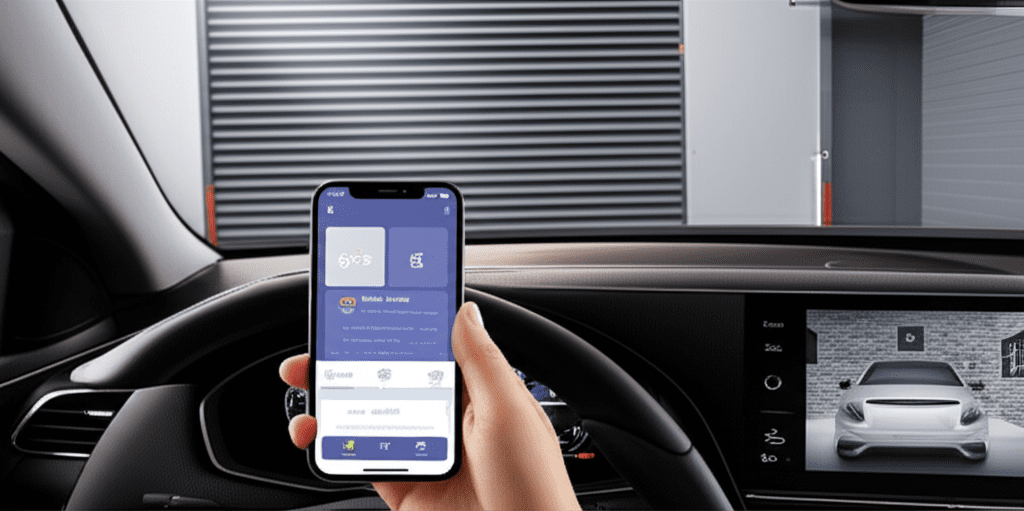
Genie Car Connect is a brilliant system that bridges the gap between your smart garage door opener and your vehicle. Think of it as a secure link that allows you to operate your garage door opener using your car. Instead of a traditional remote, you’ll be using an integrated system, often built into newer vehicles or available through aftermarket connectivity modules.
This system is designed for convenience and security. It uses a unique code transmitted from your car to your Genie garage door opener, ensuring only your vehicle can activate it. This technology aims to simplify your daily routine, providing seamless access to your garage without needing a separate physical remote.
Why Use Genie Car Connect?
The benefits of integrating your Genie garage door opener with your car are numerous, focusing on ease of use and enhanced security.
- Convenience: No more searching for misplaced remotes. Your car becomes your key to the garage.
- Security: Car Connect uses advanced security protocols, often with rolling codes, to prevent unauthorized access, which is a significant upgrade from older remote systems.
- Modernization: It’s a step into the future of smart homes and connected vehicles, making your garage more intelligent.
- Reduced Clutter: Free up space on your keychain or visor by eliminating the need for a separate garage door remote.
Understanding Your Genie Garage Opener and Car Compatibility
Before you dive into the connection process, it’s crucial to understand your existing setup. Not all Genie garage door openers are compatible with the Car Connect system, and similarly, not all cars can directly integrate with it.
Is Your Genie Garage Door Opener Compatible?
Genie has been a leading name in garage door openers for decades, and they’ve kept pace with technology. Generally, Car Connect is designed for Genie’s smart, Wi-Fi-enabled openers or those that can be retrofitted with a compatible smart module. Look for models that mention “Intelligent” or “Smart” features, or check your opener’s manual for Wi-Fi and smartphone app compatibility.
To be sure, you can check the model number of your Genie garage door opener. Websites like Genie’s official support page or the manual that came with your opener are excellent resources. You’re typically looking for models that work with the “Genie Skill” for Amazon Alexa or the “myQ” platform (though Genie has its own app now, myQ is a good indicator of smart capabilities).
What About Your Car?
Vehicle compatibility is the other key piece of the puzzle. Many modern cars come with integrated systems that can be programmed to operate garage doors. This is often part of the vehicle’s built-in HomeLink system or a similar branded connectivity feature.
If your car has buttons on the visor or dashboard that are labeled with words like “HomeLink” or have a universal remote icon, it’s likely compatible. These systems are designed to learn the signals from various garage door remotes.
Alternatively, some manufacturers offer connected car services or aftermarket devices that can enable this functionality for cars that don’t have it built-in, though this is less common for direct garage door opener integration and more for broader smart home control. For the most straightforward experience, having a car with an integrated system like HomeLink is ideal.
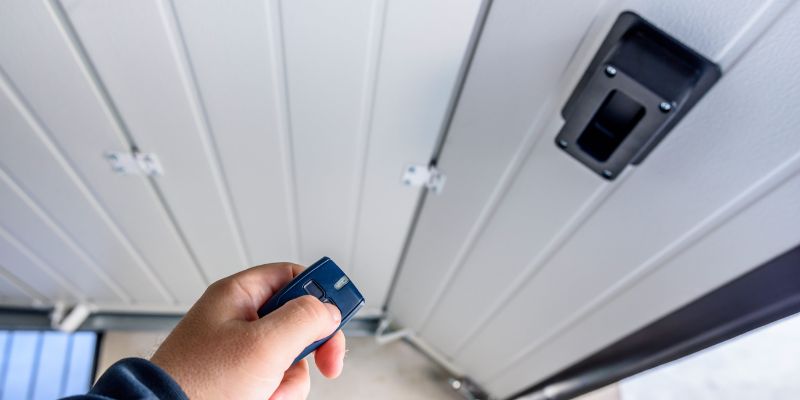
How to Connect Genie Garage Door Opener to Car: Step-by-Step
Connecting your Genie garage door opener to your car typically involves programming your car’s built-in system or using a Genie-specific module. The most common method relies on your car’s existing remote access features, like HomeLink.
Method 1: Using Your Car’s Built-In Remote System (e.g., HomeLink)
This is the most common and user-friendly method for newer vehicles. HomeLink is a widely adopted in-car system found in millions of vehicles, allowing you to program garage doors, gates, and lights to your car’s buttons.
Tools You’ll Need:
- Your car key
- Your Genie garage door opener remote
- Your car’s owner’s manual (for button locations and programming steps)
- Your Genie garage door opener manual (to locate the Learn button)
Step-by-Step Guide:
- Locate the HomeLink Buttons: These are usually found on the driver’s side visor, overhead console, or rearview mirror. Refer to your car’s manual if you’re unsure.
- Clear Existing HomeLink Codes (Optional but Recommended): To avoid interference, it’s often best to clear any previously programmed devices. To do this, press and hold the two outer HomeLink buttons for at least 10 seconds until the indicator light changes from a slow blink to a rapid blink.
- Prepare the Genie Remote: Take the original Genie garage door opener remote. You will need to hold it near the HomeLink buttons in your car during programming. Ensure it has a working battery.
-
Program the First Button:
- Press and hold the desired HomeLink button you want to assign to your garage door.
- While holding the HomeLink button, bring the Genie remote about 1-3 inches away from the HomeLink buttons.
- Press and hold the button on the Genie remote that you use to open your garage door.
- Continue holding both the HomeLink button and the remote button until the HomeLink indicator light starts to flash rapidly, then becomes solid. This usually takes 20-40 seconds.
-
Synchronize with the Opener: Some Genie openers, especially those with rolling code security, require an additional step to synchronize the HomeLink system with the opener’s motor unit.
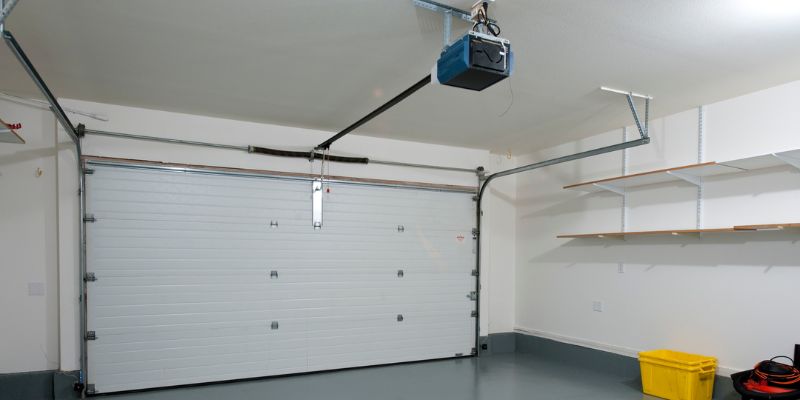
- Get out of your car and go to your Genie garage door opener motor unit in the garage.
- Locate the “Learn Code” or “Smart Set” button on the motor unit. This button is usually located near the antenna wire or on the back panel.
- Press and immediately release the “Learn Code” button. The indicator light on the motor unit will illuminate (usually green or red).
- You will have about 30 seconds to return to your car.
- Within those 30 seconds, press and hold the HomeLink button you just programmed. Hold it for a few seconds. The garage door should then activate (open or close).
- Test the Connection: Once the garage door moves, your HomeLink system is programmed. Get in your car and press the programmed HomeLink button. Your garage door should open or close.
- Troubleshooting: If it doesn’t work, try repositioning the Genie remote closer to the HomeLink buttons in step 4. You might also need to try a different Genie remote if you have multiple. Some vehicles may require the ignition to be turned to the “Accessory” (ACC) position. Always refer to your car’s manual for specific HomeLink programming instructions.
Method 2: Using Genie’s Digital Assistant or Smart Home Integration
Genie also offers advanced smart home solutions that allow control via smartphone apps and voice commands, which can sometimes integrate with car systems through platforms like Amazon Alexa or Google Assistant.
To use this method, you’ll typically need a Genie garage door opener that is Wi-Fi enabled or has a compatible smart module installed. This usually involves downloading the Genie app and creating an account.
- Set Up Your Genie Smart Opener: If you have a Wi-Fi enabled Genie opener, follow the instructions in your opener’s manual to connect it to your home Wi-Fi network and to the Genie Aladdin Connect app (or the current Genie smart home app).
- Ensure Your Car Supports Integration: This method is less about direct programming and more about using your car’s connectivity features (like Apple CarPlay, Android Auto, or specific manufacturer apps) to access smart home controls linked to your Genie account. Some newer car systems or companion apps allow you to link to smart home platforms.
-
Link Genie to Your Car’s System:
- If your car supports voice assistants, you might be able to link your Genie account to Alexa or Google Assistant via your car’s infotainment system.
- For example, if your car has Alexa built-in or supports Android Auto with Google Assistant, you can potentially link your Genie account through those platforms.
- Open the relevant voice assistant app on your smartphone, go to “Skills & Games” (Alexa) or “Works with Google” (Google Assistant), search for “Genie” or “Aladdin Connect,” and follow the prompts to link your Genie account.
- Operation: Once linked, you could potentially say commands like “Alexa, open the garage door” or “Hey Google, close the garage door” through your car’s system.
- Note: Direct voice control of garage doors for security reasons is often disabled or requires additional verification (like a PIN) for safety. Check the specific capabilities and security features of both your Genie system and your car’s integrated assistant.
Troubleshooting Common Issues
Even with clear instructions, sometimes things don’t go as planned. Here are some common issues and how to fix them.
| Problem | Possible Cause | Solution |
|---|---|---|
| HomeLink button does not program (no rapid flashing) | Incorrect remote positioning, wrong button pressed on Genie remote, or Genie remote battery is low. | Ensure Genie remote is 1-3 inches away. Try a different button on the Genie remote. Replace the Genie remote battery. Re-read your car’s HomeLink section. |
| HomeLink programs, but the door doesn’t open/close after sync | The “Learn Code” button was not pressed correctly, or the 30-second window was missed. Incorrect frequency. | Repeat step 5 carefully. Ensure you press and release the Learn button. Wait for the light, then press the HomeLink button. If it’s a very old opener or incompatible frequency, you might need a compatibility bridge. |
| Already programmed Genie remotes stop working | The programming of HomeLink overwrote the existing codes. | Reprogram your original Genie remotes to the opener’s motor unit. You may need to clear all remotes via the Learn button and then reprogram both HomeLink and original remotes. |
| HomeLink works sometimes but not always | Signal interference from other devices, or weak battery in Genie remote. | Ensure no other devices are transmitting nearby. Test with a fresh battery in your Genie remote. |
Tips for a Smooth Setup
To make the process as easy as possible:
- Read Both Manuals: Seriously, your car’s manual for HomeLink and your Genie opener’s manual are your best friends here.
- Fresh Batteries: Make sure both your car’s key fob and your Genie remote have fresh batteries.
- Clear and Start Over: If you’ve tried before, clearing existing codes on your HomeLink system is often the best first step.
- Patience: Sometimes it takes a couple of tries. Don’t get discouraged if it doesn’t work on the first attempt.
- Check Frequencies: Very old Genie openers might operate on different frequencies than newer systems. Modern HomeLink systems can typically handle multiple frequencies, but it’s something to be aware of if you encounter persistent issues. You can often find a list of compatible frequencies on the HomeLink website.
Security Considerations for Connected Garage Doors
When you connect your garage door opener to your car, security becomes a paramount concern. Genie’s modern systems, particularly those utilizing rolling codes, are significantly more secure than older fixed-code openers.
Rolling code technology means that each time you use your remote (or your connected car system), a new, unique code is generated. This prevents “code grabbing” where someone could capture your remote’s signal and use it to open your garage later. Genie’s Car Connect systems are designed with this in mind.
Best practices for maintaining garage security:
- Secure Your Car: Always lock your car doors, even when it’s parked in your garage, to prevent unauthorized access to your connected car systems.
- Update Software: If you’re using a Genie smart app or integrated vehicle system, ensure both your app and your car’s software are kept up to date. Updates often include security patches.
- Use Strong Passwords: For any associated Genie accounts or smart home platforms, use strong, unique passwords.
- Regularly Check Opener Security: Ensure your garage door opener unit itself is physically secure and that the keypad outside your garage is protected. You can learn more about general garage door security at the Consumer Product Safety Commission.
Frequently Asked Questions
Here are some common questions about connecting your Genie garage door opener to your car.
Q1: What if my car doesn’t have HomeLink?
A1: If your car lacks built-in systems like HomeLink, you might need to look into aftermarket solutions. These can sometimes involve a compatible smart garage door controller that can be accessed via your smartphone, and some advanced systems might offer integration with certain car infotainment platforms, but direct programming is usually not an option without a built-in receiver.
Q2: Can I program my Genie opener to more than one car?
A2: Yes, you can typically program the same Genie garage door opener to multiple cars, as long as each car has a compatible remote access system like HomeLink. Just repeat the programming steps for each vehicle.
Q3: My Genie remote opener is old. Can it still connect to my car?
A3: Older Genie openers might use fixed codes or different frequencies. While HomeLink can often adapt to various frequencies, older, fixed-code systems are less secure. You may need to check your HomeLink and Genie manuals, or consider upgrading to a more modern Genie opener or a compatibility bridge for older systems if direct programming fails.
Q4: How do I know if my Genie opener is a “smart” or Wi-Fi model?
A4: Look for Wi-Fi capabilities mentioned in the model name or specifications. Typically, smart Genie openers will have an indicator light for Wi-Fi connection and will be controllable via a smartphone app like Genie Aladdin Connect. If you’re unsure, check your opener’s manual or Genie’s website with your model number.
Q5: What is the difference between the Genie remote and using my car’s system?
A5: The Genie remote is a standalone device. Using your car’s system (like HomeLink) means you’re programming your car’s internal transmitter to mimic the signal of your Genie remote. Both activate the opener, but the car system provides integration into your vehicle’s controls.
Q6: Do I need an internet connection for HomeLink to work?
A6: No, the HomeLink system uses radio frequencies to communicate directly with your garage door opener’s motor unit. It does not require an internet connection or Wi-Fi to function.
Conclusion
Connecting your Genie garage door opener to your car is a fantastic way to streamline your daily routine and add a touch of modern convenience to your home. Whether you’re using the familiar HomeLink system or exploring Genie’s smart home integrations, the process, when followed step-by-step, is achievable for most car owners. Remember to consult your specific manuals for the most accurate instructions tailored to your vehicle and opener model.
By taking a little time to set this up, you’ll enjoy the simple pleasure of your garage door opening as you arrive home, and you’ll have peace of mind knowing you’ve enhanced both your convenience and your home security. Happy connecting!