Why Is My Apple CarPlay Screen Black: Genius Fix
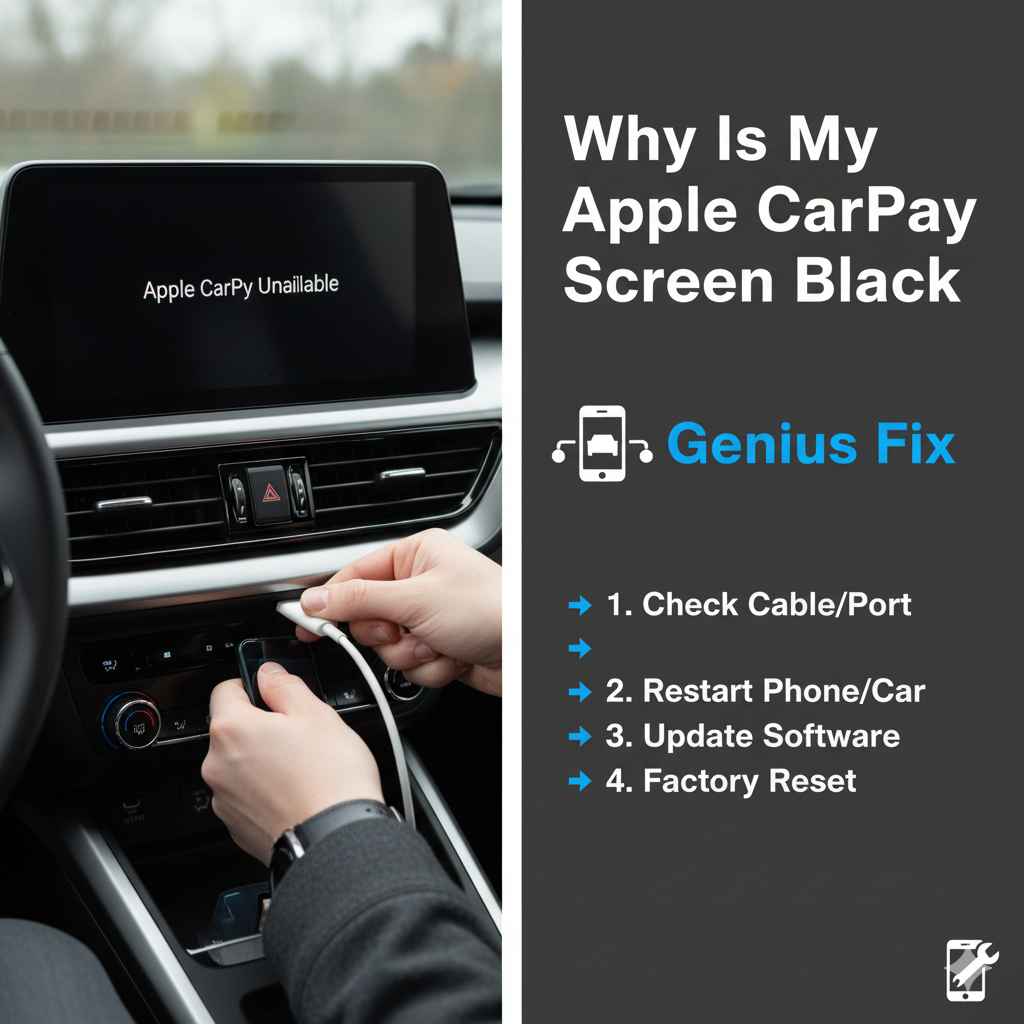
A black Apple CarPlay screen is often a simple glitch. Try restarting your phone and car infotainment system. Check your USB cable and ensure software is updated. If these simple steps don’t work, explore basic troubleshooting for a quick fix.
It’s incredibly frustrating when you plug in your iPhone to use Apple CarPlay, only to be met with a blank, black screen. You rely on it for navigation, music, and staying connected, and suddenly, it’s not working. This is a common problem many drivers face, and it can feel like a mystery. But don’t worry! Most of the time, this issue has a straightforward solution. We’ll walk you through easy steps to get your CarPlay screen back up and running, so you can get back to enjoying your drive with all your favorite apps at your fingertips. Let’s dive in and solve this together!
Understanding the Black CarPlay Screen Issue
A black screen on your Apple CarPlay is more common than you might think. It can happen for a variety of reasons, from minor software hiccups to physical connection problems. Since CarPlay is a digital bridge between your iPhone and your car’s display, anything that disrupts this connection can cause the screen to go black. Fortunately, most of these disruptions are fixable without needing a trip to the mechanic or an expensive dealership visit. We’ll break down the most likely causes in simple terms.
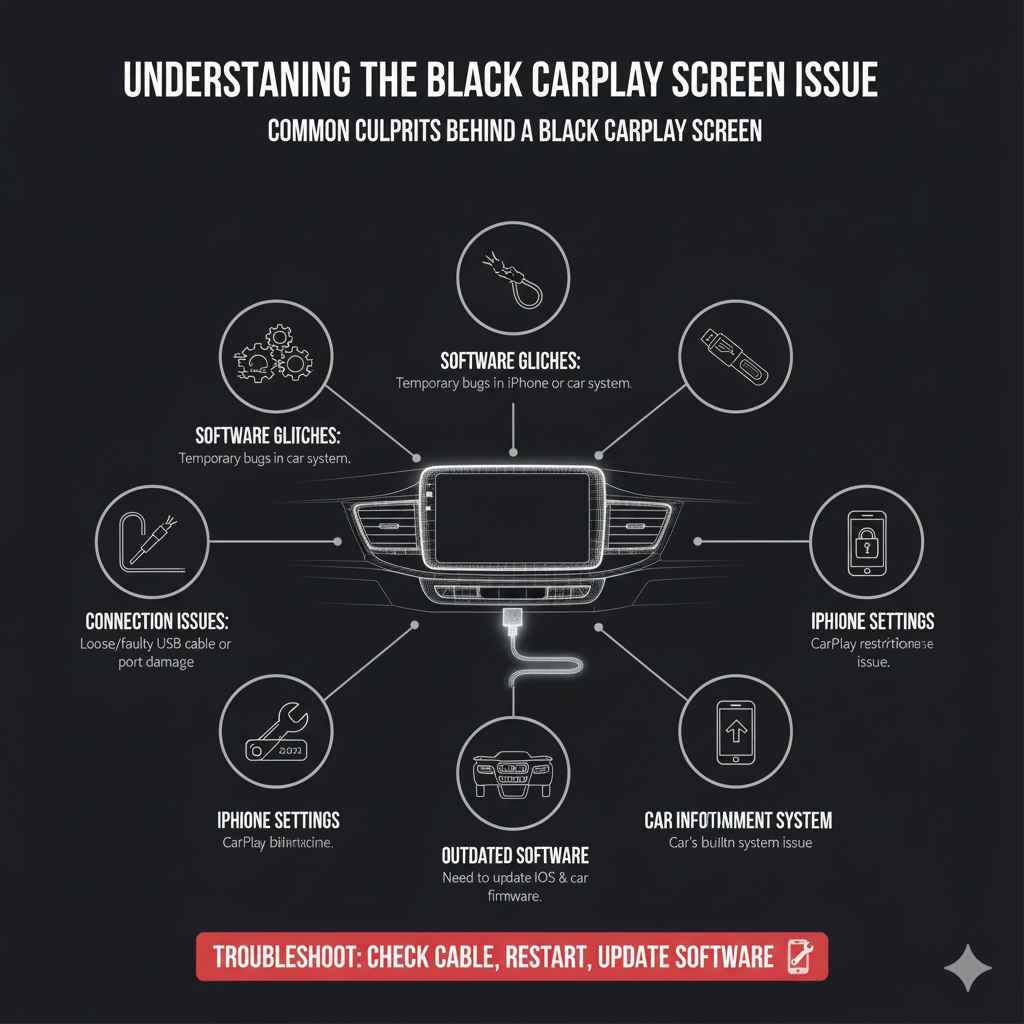
Common Culprits Behind a Black CarPlay Screen
- Software Glitches: Your iPhone or your car’s infotainment system might have a temporary software glitch that prevents CarPlay from launching correctly.
- Connection Issues: A loose or faulty USB cable is a frequent offender. The cable might look fine but have internal damage preventing data transfer.
- iPhone Settings: Sometimes, settings on your iPhone can interfere with CarPlay. If CarPlay is restricted, it won’t appear.
- Car Infotainment System: Less commonly, the car’s built-in system might be experiencing an issue, or it might need a software update.
- Outdated Software: Both your iPhone’s operating system (iOS) and your car’s infotainment system software need to be reasonably up-to-date for CarPlay to function smoothly.
Step-by-Step Genius Fixes for Your Black CarPlay Screen
Let’s start with the easiest solutions and work our way up. These steps are designed for anyone, even if you’re not familiar with car tech. Remember to always be in a safe place, like Park, before you try any troubleshooting steps.
Step 1: The Universal Fix – Reboot Everything!
The first and often most effective step for any tech issue is a simple restart. This clears out temporary glitches in both your phone and your car’s system.
-
Restart Your iPhone:
- For iPhones with Face ID: Press and hold the side button and either volume button until the power off slider appears. Drag the slider, then wait for your iPhone to turn off. To turn it back on, press and hold the side button until you see the Apple logo.
- For iPhones with a Home Button: Press and hold the top or side button until the power off slider appears. Drag the slider, then wait for your iPhone to turn off. To turn it back on, press and hold the top or side button until you see the Apple logo.
-
Restart Your Car’s Infotainment System: This varies by car model.
- Common Method: Turn your car completely off, remove the key (if applicable), open the driver’s door and close it, then wait for about 1-2 minutes. This allows the car’s electrical systems, including the infotainment screen, to fully power down. Then, restart your car.
- Consult Your Car Manual: If you’re unsure, your car’s owner’s manual will often have specific instructions for rebooting the infotainment system. Look for a section on “infotainment system” or “display.”
Step 2: Check Your USB Cable and Port
The connection between your iPhone and the car is usually via a USB cable. A damaged or low-quality cable is one of the most common reasons for CarPlay failure.
- Inspect the Cable: Look for any visible fraying, kinks, or damage to the connectors on both ends of the USB cable. If you see any damage, it’s time for a new cable.
- Use an Apple-Certified (MFi) Cable: Always use an official Apple Lightning cable or another cable that is “Made For iPhone” (MFi) certified. These cables are designed to work reliably with Apple devices and car systems. Cheaper, uncertified cables are notorious for causing connectivity issues. You can check for the MFi logo on the packaging. Apple has more information about this here.
- Try a Different Cable: Even if your current cable looks fine, try using a different, known-good MFi-certified cable. This is a quick way to rule out cable failure.
- Clean the Ports: Gently clean both the Lightning port on your iPhone and the USB port in your car. Sometimes dust or debris can build up and prevent a solid connection. You can use a dry, non-metallic item like a wooden or plastic toothpick cautiously, or even a blast of compressed air.
Step 3: Verify iPhone Settings for CarPlay
Your iPhone has settings that control CarPlay. If these are accidentally turned off or restricted, your screen will remain black.
-
Navigate to CarPlay Settings:
- Go to your iPhone’s Settings app.
- Tap on General.
- Tap on CarPlay.
-
Ensure CarPlay is Enabled:
- If your car is listed, tap on it and ensure it’s showing as connected. If it’s not listed, you might need to connect your car first.
- Look for any restrictions. Sometimes, especially after an iOS update or if “Screen Time” was enabled, CarPlay access might be limited.
-
Check Restrictions (Screen Time):
- Go to Settings > Screen Time.
- Tap on Content & Privacy Restrictions.
- If Content & Privacy Restrictions are ON, tap on Allowed Apps.
- Make sure CarPlay is toggled ON (green). If it’s off, toggle it on and then try connecting your iPhone again.
Step 4: Forget and Re-Pair Your Car in iPhone Settings
Sometimes, the direct connection profile between your iPhone and your car can get corrupted. “Forgetting” your car and re-pairing it can fix this.
- Go to CarPlay Settings: On your iPhone, navigate to Settings > General > CarPlay.
- Forget Your Car: Tap on your car’s name in the list. Then, tap “Forget This Car” and confirm.
- Reconnect: Now, plug your iPhone back into the car’s USB port. Your car’s infotainment system should prompt you to connect to CarPlay. Follow the on-screen instructions on both your phone and your car. You might need to acknowledge the connection on your car’s display.
Step 5: Update Your iPhone’s Software (iOS)
Outdated software can lead to compatibility issues. Apple regularly releases updates that can fix bugs and improve performance, including for CarPlay.
-
Check for Updates:
- Go to Settings > General > Software Update.
- Download and Install: If an update is available, download and install it. Make sure your iPhone is connected to Wi-Fi and has enough battery power or is plugged in. This process might take some time.
- Reconnect: Once your iPhone has restarted after the update, try connecting it to CarPlay again.
Step 6: Update Your Car’s Infotainment System Software
Just like your iPhone, your car’s infotainment system runs on software that can also be updated. This is crucial for maintaining compatibility with new phone software versions and fixing known CarPlay bugs.
How to Update Your Car’s Software:
- Consult Your Owner’s Manual: The method for updating your car’s system is entirely dependent on your vehicle’s make and model. Your owner’s manual is the best place to start.
- Dealership or Manufacturer Website: Some manufacturers require you to visit a dealership for these updates, while others allow you to download them onto a USB drive from their official website and perform the update yourself.
- Check Your Infotainment Menu: Look in your car’s main settings menu for an “About,” “System Information,” or “Software Update” section. This might tell you your current version and if an update is available or how to check for one.
What to look for: Reputable sources like NHTSA (National Highway Traffic Safety Administration) often list vehicle recalls or technical service bulletins (TSBs) that might involve infotainment system updates, which is a good place to check for broader vehicle issues.
Step 7: Reset Network Settings on Your iPhone
This is a more drastic step that resets all network-related settings on your iPhone, including Wi-Fi passwords, cellular settings, and VPN configurations that might be interfering with CarPlay. You’ll need to re-enter Wi-Fi passwords afterward.
- Go to General Settings: On your iPhone, go to Settings > General.
- Transfer or Reset iPhone: Scroll down and tap on Transfer or Reset iPhone.
- Reset Network Settings: Tap Reset, then select Reset Network Settings. You’ll need to enter your iPhone passcode.
- Confirm: Confirm that you want to reset network settings. Your iPhone will restart.
- Reconnect: After the restart, try connecting your iPhone to your car via USB again.
Step 8: Check for CarPlay Specific Issues with Your Car Manufacturer
Sometimes, specific car models or even particular model years can have known issues with Apple CarPlay that the manufacturer has addressed with a software update or a fix.
- Visit Manufacturer’s Website: Go to the official website of your car brand and look for a “Support” or “Owner” section. You might find FAQs or forums related to infotainment system issues.
- Contact Dealership: If you suspect a car-specific problem or are uncomfortable with software updates, your car dealership’s service department can provide specific guidance or perform necessary updates.
- Online Forums: Many car enthusiast forums discuss common problems and solutions. Searching for your car’s make and model alongside “CarPlay black screen” might yield helpful insights from other owners.
When to Seek Professional Help
If you’ve gone through all the troubleshooting steps above and your Apple CarPlay screen is still black, it might be time to call in the experts. This could indicate a more serious hardware issue within your car’s infotainment system or a problem with the car’s USB interface itself.
- Car Dealership: They have the specialized tools and knowledge to diagnose and repair complex automotive electronic systems.
- Certified Auto Electrician: For older vehicles or if you prefer an independent specialist, a certified auto electrician can be a great resource.
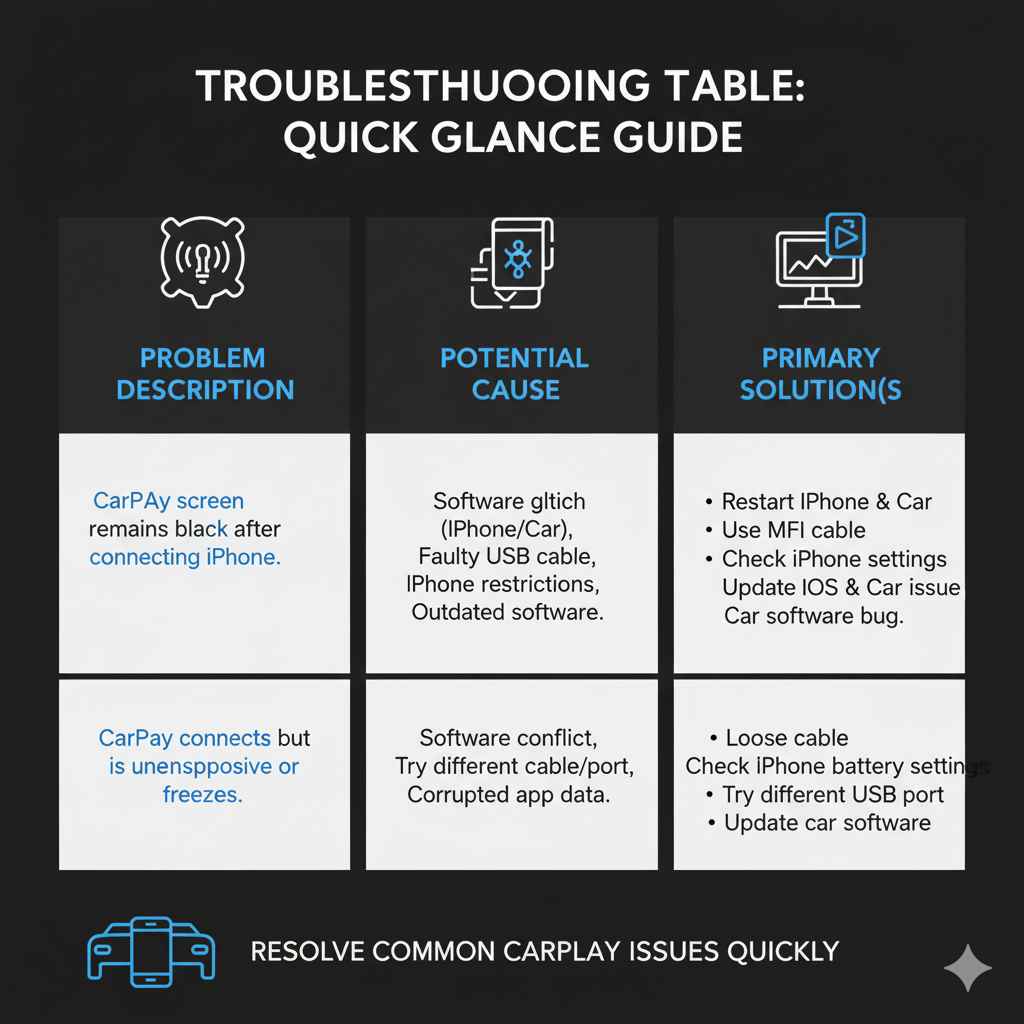
Troubleshooting Table: Quick Glance Guide
Here’s a handy table to quickly review potential causes and their most likely solutions.
| Problem Description | Potential Cause | Primary Solution(s) |
|---|---|---|
| CarPlay screen remains black after connecting iPhone. | Software glitch (iPhone/Car), Faulty USB cable, iPhone restrictions, Outdated software. | Restart iPhone & Car, Use MFi cable, Check iPhone settings, Update iOS & Car software. |
| CarPlay connects but is unresponsive or freezes. | Software conflict, Poor connection, Corrupted app data. | Restart iPhone & Car, Try different cable/port, Forget and re-pair car. |
| CarPlay disconnects randomly. | Loose cable, Power saving on iPhone, USB port issue, Car software bug. | Secure cable, Check iPhone battery settings, Try different USB port, Update car software. |
Frequently Asked Questions (FAQ)
Here are answers to some common questions about a black Apple CarPlay screen.
Why does my CarPlay screen turn black after a few minutes?
This often points to a connection issue. The USB cable might be faulty or not making consistent contact, or there could be a power saving setting on your iPhone or car that’s causing it to disconnect. Try a different, MFi-certified cable and ensure both your iPhone and car aren’t set to aggressively power down ports/connections.
Can a dirty iPhone charging port cause CarPlay to be black?
Yes, it absolutely can. If the Lightning port on your iPhone is blocked with lint or debris, it can prevent a solid data connection needed for CarPlay. Gently cleaning the port with a dry, non-metallic tool or compressed air can often resolve this.
Do I need to have Wi-Fi on for Apple CarPlay?
No, you do not need Wi-Fi to operate Apple CarPlay. CarPlay uses your iPhone’s cellular data connection for internet-based services like navigation (maps), streaming music, and sending/receiving messages. Wi-Fi is only used for initial setup of some features or for downloading software updates for your iPhone.
Is it safe to reset network settings on my iPhone for CarPlay?
Yes, it is generally safe. Resetting network settings will remove all saved Wi-Fi networks and passwords, cellular settings, and VPN configurations. You will need to re-enter your Wi-Fi passwords afterward. It does not delete your personal data, apps, or any other iPhone settings, so it’s a good troubleshooting step if other methods fail.
What does “Made For iPhone” (MFi) mean for my USB cable?
It means the cable has been certified by Apple to meet their performance and quality standards. MFi-certified cables are made with specific components that ensure proper data transfer and charging for Apple devices. Non-certified cables, often cheaper ones, might not have the necessary components, leading to unreliable connections, charging issues, and problems with features like CarPlay.
How do I know if my car’s infotainment system needs an update?
Your car’s manual is the best resource. You can also often check within the infotainment system’s settings menu for an “About” or “Software Information” screen. Some manufacturers provide a way to check for updates on their official websites, or you can inquire at a dealership. Many infotainment updates are released to improve compatibility with newer iPhones and operating systems, and to fix bugs.
Conclusion
Dealing with a black Apple CarPlay screen can be a head-scratcher, but as we’ve seen, most of the time, the solution is surprisingly simple and within your reach. By systematically working through these troubleshooting steps—from rebooting your devices and checking your cables to verifying iPhone settings and performing software updates—you can often bring your CarPlay screen back to life. Remember the power of a simple restart, the importance of using a quality, MFi-certified USB cable, and ensuring your software is up-to-date. If you’ve tried everything and the screen remains black, don’t hesitate to seek help from your car dealership or a trusted automotive technician. You’ve got this, and soon you’ll be back to enjoying a seamless and connected driving experience!