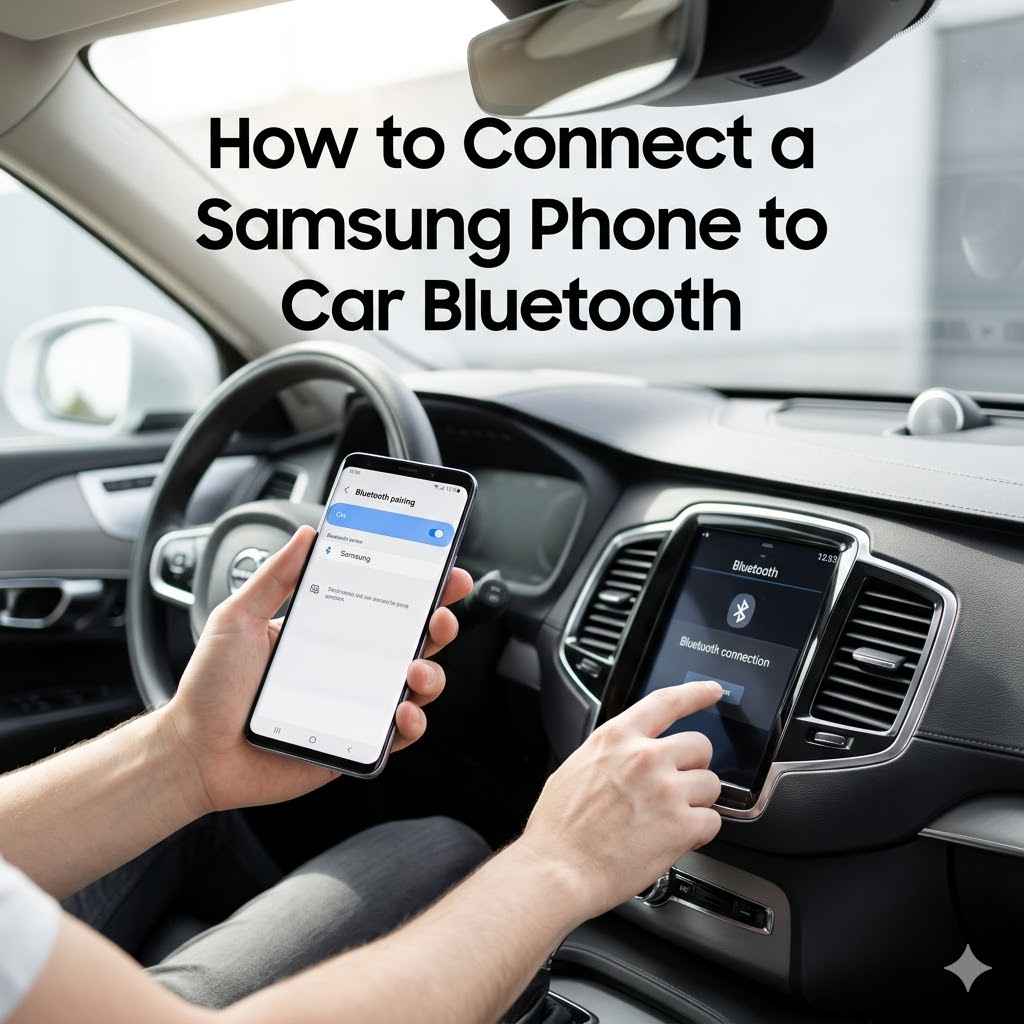
How to Connect a Samsung Phone to Car Bluetooth
Many people want to link their Samsung phone to their car’s Bluetooth. It seems simple, but sometimes it can be a little tricky, especially if you are new to it. You want to play music or use hands-free calls while driving safely.
Do not worry! This guide will show you exactly how to connect a Samsung phone to car Bluetooth step-by-step. We will cover everything you need to know to get your phone and car talking to each other easily.
Pairing Your Samsung Phone To Car Bluetooth
This section explains the basic process of making your Samsung phone and car Bluetooth systems recognize each other. It covers the initial setup and common ways these devices communicate. Getting this first connection right is key to enjoying all the benefits of Bluetooth in your car, like safe calls and music streaming.
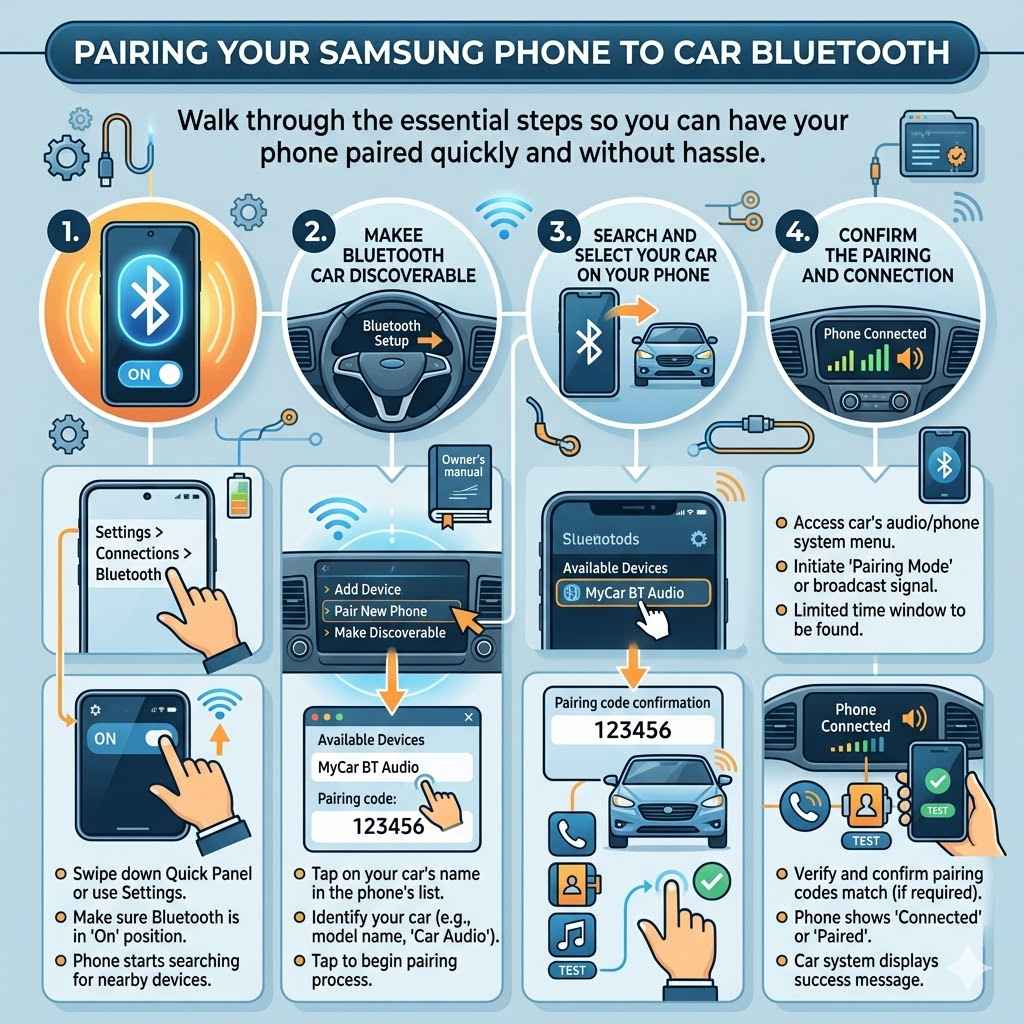
We will walk through the essential steps so you can have your phone paired quickly and without hassle.
Enabling Bluetooth on Your Samsung Phone
The first step is to make sure your Samsung phone’s Bluetooth is turned on. Most phones have a quick way to access this setting. You usually find it in the main settings menu under “Connections” or “Bluetooth.” Tapping on the Bluetooth option will reveal a toggle switch.
Make sure this switch is in the “On” position.
When Bluetooth is on, your phone starts looking for other devices nearby that are also broadcasting their Bluetooth signal. This is like your phone saying, “I’m ready to connect!” It is important to note that keeping Bluetooth on all the time can use a little more battery power. However, for the purpose of connecting to your car, you will need it active.
Some Samsung phones also offer a “Quick Panel” or “Notification Shade” that you can swipe down from the top of the screen. This panel often has a Bluetooth icon that you can tap directly to turn it on or off, which is a faster method for most users.
Making Your Car Discoverable
Your car’s infotainment system needs to be in a mode where it can be found by your phone. This is often called “pairing mode” or “discoverable mode.” The exact steps to activate this vary greatly depending on your car’s make and model. Usually, you will find this setting within the car’s audio or phone system menu.
Look for options like “Bluetooth,” “Phone Setup,” or “Connect Device.” Once you find the Bluetooth menu in your car, there should be an option to “Add Device,” “Pair New Phone,” or “Make Discoverable.” Selecting this will broadcast your car’s Bluetooth signal for a limited time, allowing your Samsung phone to find it.
Some cars might require you to press a specific button on the dashboard or steering wheel to enter pairing mode. If you are unsure, consulting your car’s owner’s manual is the best approach. The manual will provide precise instructions for your specific vehicle.
Searching and Selecting Your Car on Your Phone
With Bluetooth on your Samsung phone and your car set to discoverable, your phone will now begin scanning for available Bluetooth devices. On your Samsung phone’s Bluetooth screen, you will see a list of “Available Devices.” Your car’s Bluetooth system should appear in this list, often identified by its model name or a generic name like “Car Audio” or “My Car.”
Tap on your car’s name in the list. This action tells your phone that you want to attempt a connection with that specific device. The phone and car system will then begin the pairing process.
You might see a confirmation screen on both your phone and your car’s display. This screen will often show a pairing code or a prompt to confirm that the codes match. It is important to verify that the codes are the same to ensure you are pairing with the correct device and for security.
Confirming the Pairing and Connection
Once you have confirmed the pairing code on both devices, the connection should be established. Your phone will typically indicate that it is “Connected” or “Paired” to your car’s Bluetooth. Your car’s system will also likely display a message confirming the successful connection.
At this point, you should be able to access features like making and receiving phone calls through your car’s speakers and microphone, as well as streaming audio from your phone. You might also be prompted to grant your car access to your phone’s contacts and call history for full functionality.
It is a good idea to test the connection immediately. Try playing a song from your music app or making a short test call to ensure everything is working as expected. If the connection is not successful, you may need to repeat the steps or troubleshoot common issues.
Troubleshooting Common Connection Issues
Even with clear instructions, sometimes things do not connect perfectly the first time. This section addresses common hiccups people encounter when trying to connect their Samsung phone to car Bluetooth. We will look at why these issues happen and how to fix them so you can get back to enjoying your drive.
Do not get frustrated; most problems are easy to solve with a few simple checks.
Bluetooth Devices Limit Reached
Many car systems have a limit on how many devices they can remember or connect to. If you have paired many phones to your car in the past, you might have reached this limit. When this happens, the car system cannot save a new connection, even if you try to pair a new phone.
To fix this, you need to go into your car’s Bluetooth settings and “delete” or “forget” old, unused devices from its memory. Look for a list of paired devices and select the ones you no longer use. This frees up space for your Samsung phone to connect successfully.
Similarly, your Samsung phone also keeps a list of previously paired Bluetooth devices. If this list is very long, it can sometimes cause conflicts. It is good practice to periodically remove old device pairings from your phone as well.
This helps ensure a cleaner and more reliable Bluetooth connection.
Incompatible Bluetooth Versions
Bluetooth technology has different versions, and sometimes older cars might have older Bluetooth versions that are not fully compatible with newer Samsung phones. While most modern phones and cars use relatively recent versions of Bluetooth, such as Bluetooth 4.0 or 5.0, older systems might still be using Bluetooth 2.0 or 3.0.
If your car has a very old Bluetooth system, it might not support the advanced features or even basic pairing with your newer Samsung phone. This can lead to connection failures or unstable connections where audio cuts out.
Unfortunately, if the Bluetooth versions are too different, the only real solution is to update your car’s infotainment system if possible, or to use an alternative method for audio streaming, like an auxiliary cable. Most cars manufactured in the last 5-10 years should have compatible Bluetooth versions.
Software Glitches and Updates
Like any electronic device, both your Samsung phone and your car’s infotainment system can sometimes experience temporary software glitches. These glitches can prevent Bluetooth from functioning correctly. A simple restart of both devices can often resolve these temporary issues.
For your Samsung phone, a restart is easy. Just press and hold the power button and select “Restart.” For your car, turn the engine off, remove the key (if applicable), open and close the driver’s door, and then wait a minute before starting the car again. This forces the car’s computer systems to reset.
It is also important to keep your phone’s software up to date. Manufacturers like Samsung regularly release software updates that can fix bugs and improve performance, including Bluetooth connectivity. Check your phone’s settings for “Software Update” and install any available updates.
For cars, software updates are less frequent and might require a visit to the dealership.
Interference From Other Devices
Other wireless devices can sometimes interfere with Bluetooth signals. Devices like Wi-Fi hotspots, other Bluetooth devices nearby, or even certain electronic components in your car can cause disruptions. Bluetooth operates on the 2.4 GHz frequency, which is a crowded radio spectrum.
If you are experiencing frequent disconnections or poor audio quality, try turning off other nearby Bluetooth devices that you are not actively using. Also, ensure that your Samsung phone is not too far from the car’s Bluetooth receiver.
Sometimes, the physical location of the Bluetooth antenna in your car can also play a role. If your phone is buried deep in a bag or in a console, it might be harder for the signal to reach the car’s system. Keeping your phone in a more open location, like a cup holder or mounted on the dashboard, can sometimes improve signal strength.
Advanced Connection Tips and Features
Once you have successfully connected your Samsung phone to your car’s Bluetooth, there are additional settings and features you can explore. This section provides tips to enhance your experience and ensure you are getting the most out of your car’s Bluetooth system. Learning about these can make your daily drives more convenient and enjoyable.
Managing Paired Devices
As mentioned earlier, your car likely remembers multiple devices. You can usually access a list of these devices through your car’s Bluetooth menu. From this list, you can select which device to connect to if multiple phones are in the car.
You can also prioritize which device the car should try to connect to automatically when you start the car.
On your Samsung phone, you can also manage your Bluetooth connections. Go to Settings > Connections > Bluetooth. Here, you will see a list of “Paired devices.” You can tap on your car’s name to disconnect, forget the device (which removes it from your phone’s memory), or access its settings, such as renaming it or enabling/disabling specific profiles like audio or call sharing.
This management is useful if you share a car with family members or if you frequently switch between cars. Keeping your paired devices list clean on both your phone and car helps prevent confusion and ensures the correct device connects automatically.
Automatic Reconnection
Most modern cars and Samsung phones are designed to reconnect automatically. Once you have successfully paired your phone, you should find that it reconnects to your car’s Bluetooth every time you start the car and your phone’s Bluetooth is enabled. This feature is incredibly convenient, saving you the trouble of re-pairing each time.
If automatic reconnection is not happening, double-check the settings on both your phone and your car. Ensure that Bluetooth is enabled on your phone before you start the car. Some cars might have a specific setting to enable or disable automatic connection for paired devices.
Sometimes, the order in which you start things matters. Try starting your car first, then ensuring your phone’s Bluetooth is on. Other times, having your phone’s Bluetooth on before starting the car might work better.
Experiment to see what works reliably for your setup.
Using Hands-Free Calling
One of the primary benefits of connecting your Samsung phone via Bluetooth is for hands-free calling. Once paired, you can make and receive calls directly through your car’s audio system. When a call comes in, your car’s stereo will usually pause any audio playback and ring, displaying the caller ID if available.
You can answer or reject calls using buttons on your steering wheel or the car’s infotainment screen. When making a call, you can typically use your car’s voice commands or dial directly from your phone and the audio will automatically switch to the car. Ensure you have granted your car access to your contacts for this to work seamlessly.
For a smooth experience, speak clearly and at a normal volume. The car’s microphone is designed to pick up your voice, but loud road noise can sometimes make it difficult for the other person to hear you. Positioning your phone closer to you might help if you are having trouble with call quality.
Streaming Music and Podcasts
Beyond calls, Bluetooth allows you to stream audio from your Samsung phone to your car’s speakers. This includes music apps like Spotify or YouTube Music, podcasts, audiobooks, and even navigation voice prompts from apps like Google Maps. The car’s audio system acts as a speaker for your phone.
To stream music, simply open your preferred audio app on your phone and start playing something. Your car’s audio system should automatically switch to the Bluetooth audio source. You can often control playback – play, pause, skip tracks – using your car’s audio controls.
The quality of the audio streaming can vary depending on the Bluetooth version and the audio codecs supported by both your phone and your car. Newer Bluetooth versions generally offer better audio quality and less compression.
Connecting Your Samsung Phone To Car Bluetooth Examples
Seeing how others have successfully connected their phones can provide helpful context and reassurance. These real-world examples illustrate the process and highlight the benefits of a stable Bluetooth connection between a Samsung phone and various car systems. They show that with a little patience, most connections can be made smoothly.
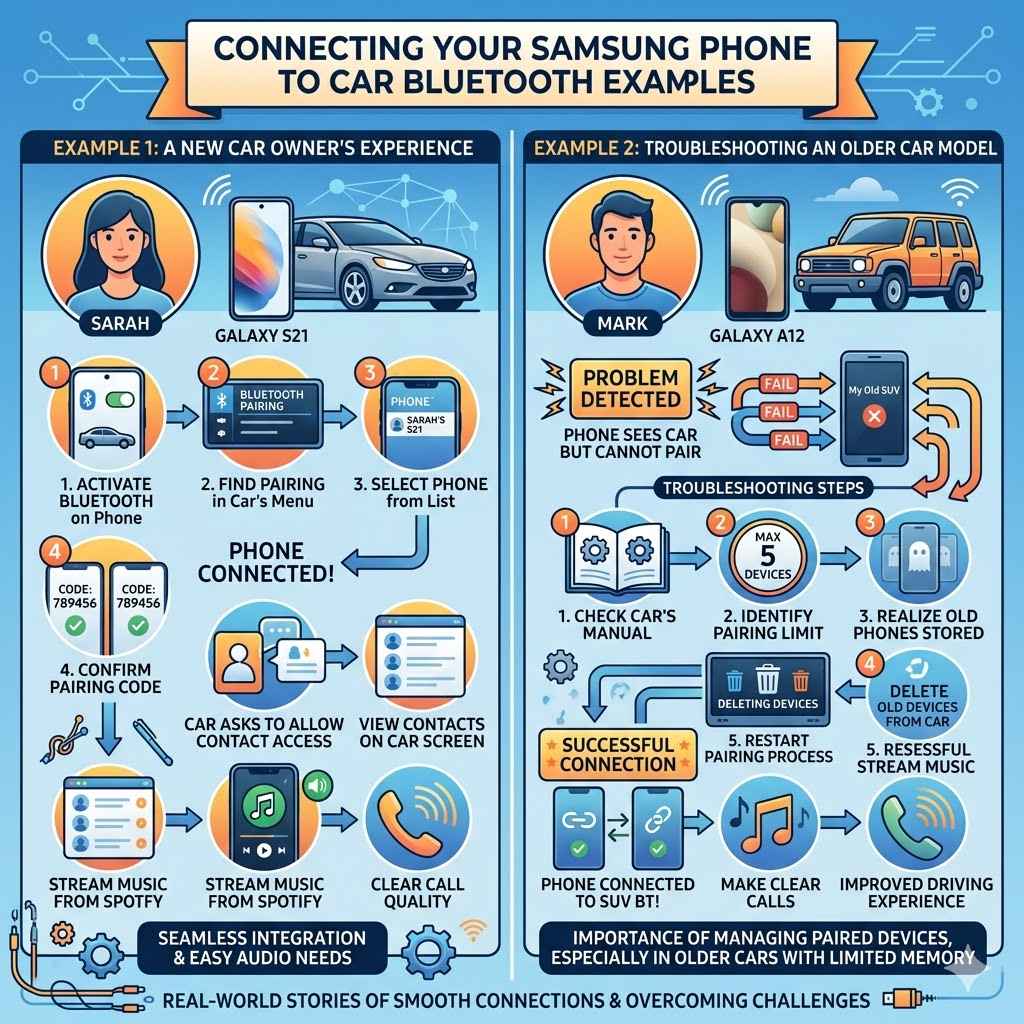
Example 1 A New Car Owner’s Experience
Sarah recently bought a new sedan equipped with a modern infotainment system. She wanted to connect her Samsung Galaxy S21 to the car for music and calls. She followed the steps: she turned on Bluetooth on her phone, found the pairing option in her car’s touchscreen menu, and selected her phone from the list.
The car displayed a pairing code, which she confirmed on her phone.
Within a minute, her phone was connected. The car immediately asked if she wanted to allow access to her contacts. She agreed, and she could see her contacts and recent calls on the car’s screen.
When she played music from Spotify, the sound came clearly through the car speakers. She also tested a call, and the person on the other end could hear her clearly.
Sarah found the process straightforward and was pleased with how seamlessly her phone integrated with her new car’s system. She now uses Bluetooth for all her driving audio needs.
Example 2 Troubleshooting an Older Car Model
Mark had a Samsung Galaxy A12 and an older SUV that was about 8 years old. He found that his phone could see the car’s Bluetooth (“My Old SUV”) but would not pair. After trying multiple times, he checked his car’s manual and found that its Bluetooth system could only store 5 devices.
He realized he had paired many old phones over the years.
Mark went into his car’s infotainment system and deleted all the old paired devices. Then, he restarted the pairing process. This time, after confirming the code, his Samsung phone successfully connected to the SUV’s Bluetooth.
He could now stream music and make calls, which significantly improved his driving experience in the older vehicle.
This example shows the importance of managing paired devices, especially in older car models with limited memory.
Frequently Asked Questions
Question: How long does it take to connect a Samsung phone to car Bluetooth?
Answer: Typically, it takes only a few minutes to establish a Bluetooth connection for the first time. Once paired, most phones and cars will reconnect automatically in seconds each time you start your vehicle.
Question: Do I need a special app to connect my Samsung phone to my car?
Answer: No, you do not need a special app. The connection is made through the built-in Bluetooth settings on both your Samsung phone and your car’s infotainment system.
Question: Can I connect multiple Samsung phones to my car at once?
Answer: Most cars can only be actively connected to one phone via Bluetooth at a time for calls and audio. However, many cars can store multiple paired devices, allowing you to switch between them.
Question: Why does my car not see my Samsung phone’s Bluetooth?
Answer: This could be due to Bluetooth being turned off on your phone, your car not being in discoverable mode, or your car’s device limit being reached. Ensure Bluetooth is on, make your car discoverable, and clear old device pairings if needed.
Question: Will connecting via Bluetooth drain my Samsung phone’s battery faster?
Answer: Yes, keeping Bluetooth on does use some battery power. However, modern phones and Bluetooth technology are quite efficient, and the battery drain is usually minimal for regular use. It is often less than leaving Wi-Fi on constantly.
Summary
Connecting your Samsung phone to your car’s Bluetooth is a straightforward process. You enable Bluetooth on your phone, make your car discoverable, and then pair the two devices. This allows for safe hands-free calls and easy music streaming.
If you encounter issues, check for device limits, software updates, or interference. By following these steps, you can enjoy a connected driving experience.