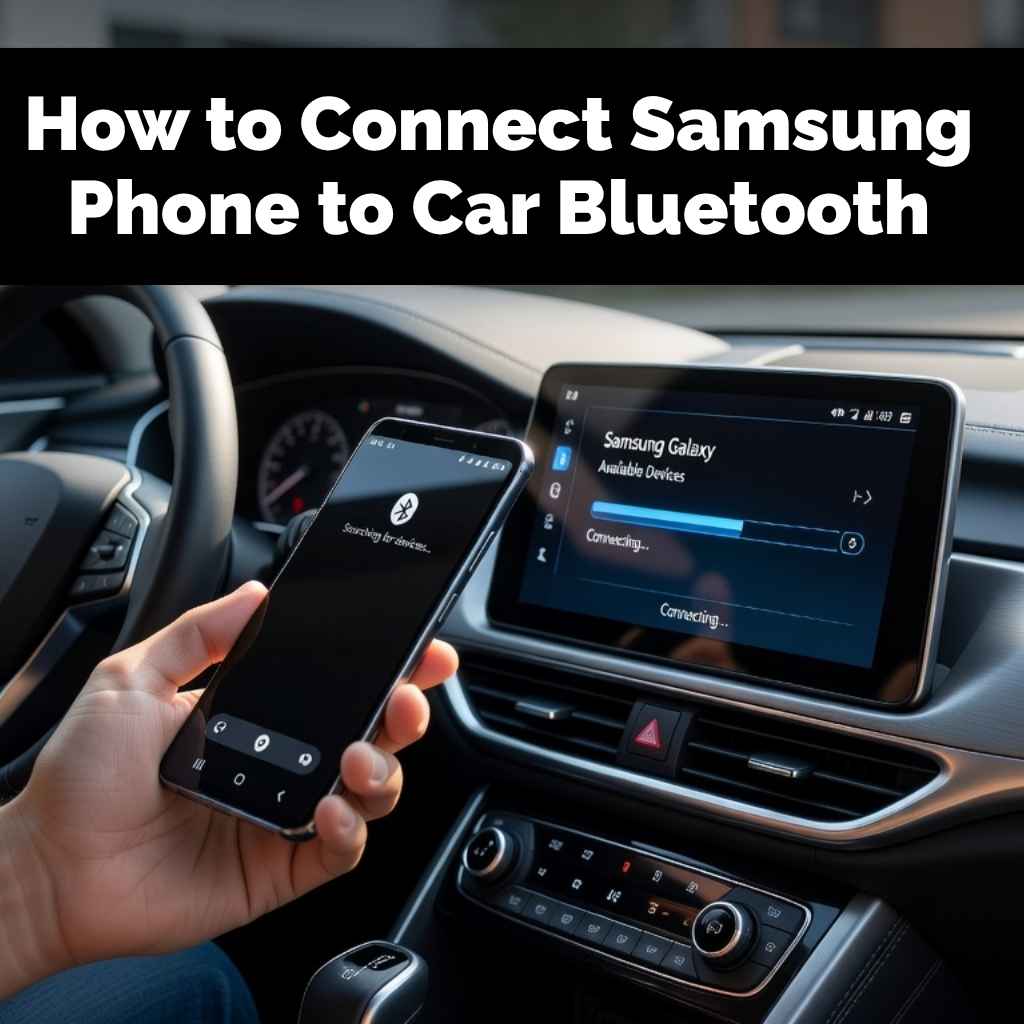
How to Connect Samsung Phone to Car Bluetooth
Many drivers want to link their phone to their car’s system. This makes it easy to play music or take calls safely. But sometimes, figuring out How to Connect Samsung Phone to Car Bluetooth can feel a little tricky, especially if you’re new to it.
Don’t worry! This guide breaks down the whole process into simple steps. We’ll get your phone talking to your car in no time.
Read on to find out exactly what to do.
Connecting Your Samsung Phone To Car Bluetooth
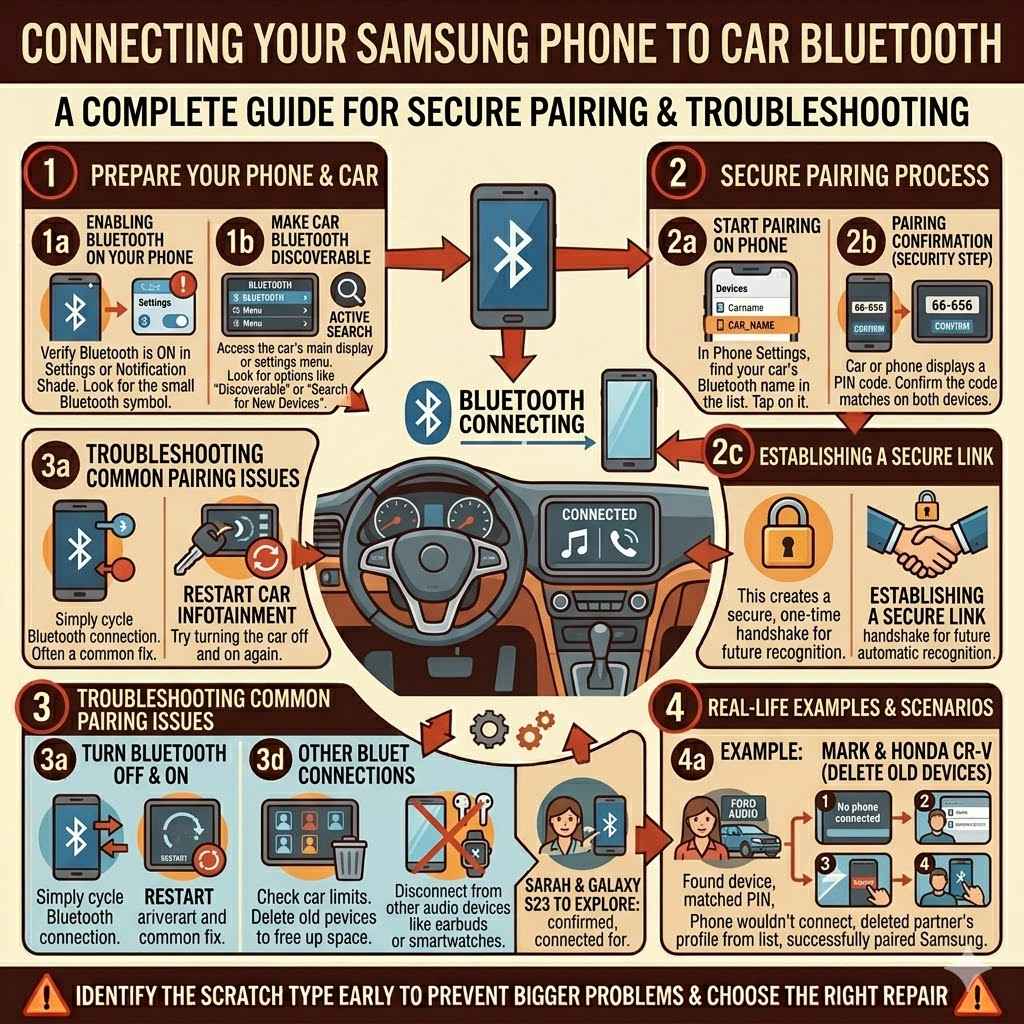
This section explains the basic steps for getting your Samsung phone linked with your car’s Bluetooth system. We’ll cover how to turn on Bluetooth on both devices and make them discoverable to each other. This initial connection is the most important part of the process.
Once this is done, future connections are usually automatic. We’ll also touch on why this connection is so useful for your daily drives.
Enabling Bluetooth On Your Samsung Phone
First, you need to make sure Bluetooth is turned on your Samsung phone. This is usually found in the phone’s settings menu. You can often find a quick toggle for Bluetooth right in the notification shade by swiping down from the top of your screen.
Tapping this icon will turn Bluetooth on or off. When it’s on, you’ll usually see a small Bluetooth symbol in the status bar.
Bluetooth is a wireless technology that allows devices to communicate with each other over short distances. Think of it like a tiny, invisible radio wave that your phone and car can use to send information back and forth. This is how your phone can send music to your car’s speakers or receive call information to display on your car’s screen.
Making Your Car’s Bluetooth Discoverable
Your car’s Bluetooth system also needs to be set up to find your phone. Most car systems have a specific menu for Bluetooth settings. You’ll likely need to go into your car’s main display or infotainment system and look for a Bluetooth or Phone option.
Within that menu, there should be an option to make the car’s Bluetooth discoverable or to search for new devices. This tells your car to broadcast its presence so your phone can find it.
The term “discoverable” means that your car’s Bluetooth is actively announcing itself to nearby devices. It’s like shouting “Hello, I’m here and ready to connect!” without actually saying words. This is a crucial security step; your car only becomes discoverable for a short period, and only when you initiate the pairing process.
This prevents random devices from connecting to your car without your knowledge.
Pairing Your Devices
Once both your phone and car are ready, you can start the pairing process. On your Samsung phone, go to the Bluetooth settings. You should see a list of available devices.
Find your car’s Bluetooth name in the list and tap on it. Your phone will then try to connect to your car. Your car’s system might show a PIN code, or ask you to confirm a code displayed on your phone.
If everything matches, confirm the connection on both devices.
This pairing step creates a secure, one-time link between your phone and your car. It’s like exchanging secret handshake. This handshake allows them to recognize each other in the future without needing to go through the full setup again.
Most cars will allow you to save multiple devices, but usually only one can be actively connected at a time for audio and calls.
Real-Life Example
Sarah was trying to connect her new Samsung Galaxy S23 to her Ford Explorer. She had her phone’s Bluetooth on and searched for devices. She saw “Ford Audio” appear on her phone.
She tapped it. Her car’s screen then displayed a 6-digit number and asked her to confirm it matched the number on her phone. Sarah tapped “Yes” on her phone and “Confirm” on her car’s screen.
A moment later, her phone displayed “Connected for calls and media.” She could then play her favorite podcast through the car’s speakers.
Troubleshooting Common Pairing Issues
Sometimes, your phone and car might not connect right away. Don’t get discouraged. One common fix is to simply turn Bluetooth off and then back on on your Samsung phone.
Also, try restarting your car’s infotainment system if possible. You can often do this by turning the car off and then back on again.
Another frequent problem is having too many devices already paired with your car. Most car systems have a limit to how many phones they can remember. If you’ve paired many phones in the past, try deleting some of the older ones from your car’s Bluetooth menu.
This frees up space for your current Samsung phone to connect.
You should also check your phone’s Bluetooth settings to make sure it’s not actively connected to another Bluetooth device, like wireless earbuds or a smartwatch. A phone can only connect to one audio device at a time for a specific function like playing music. Disconnect from other devices and try pairing with your car again.
Sample Scenario 1
Mark’s Samsung phone wouldn’t connect to his Honda CR-V. He checked his phone and saw Bluetooth was on. He then looked at his car’s screen.
It said “No phone connected.” Mark remembered he had recently paired his partner’s phone. He went into his car’s Bluetooth settings and found a list of “Paired Devices.” He selected his partner’s phone and chose “Delete” or “Remove.” After that, he tried searching for devices again on his Samsung phone. This time, his car’s Bluetooth name appeared, and he was able to pair successfully.
Understanding Bluetooth Functionality With Your Car
Once your Samsung phone is successfully connected to your car’s Bluetooth, you unlock a world of convenience and safety features. This section explores what you can actually do with this connection, from streaming music and podcasts to managing calls without taking your hands off the wheel. We’ll look at how the car’s controls often integrate with your phone’s functions, making your driving experience smoother and more enjoyable.
Streaming Audio Music And Podcasts
One of the biggest benefits of connecting your Samsung phone to your car’s Bluetooth is the ability to stream audio. This means you can play any music, podcasts, or audiobooks from apps on your phone directly through your car’s speakers. You don’t need any cables; the sound travels wirelessly.
When your phone is connected, your car’s audio system will treat your phone as an audio source, much like a radio station or a CD player. You can usually control playback using your car’s steering wheel buttons or the buttons on the infotainment screen. This includes playing, pausing, skipping tracks, and adjusting the volume.
This feature is especially helpful for long road trips or daily commutes. Instead of relying on traditional radio, you have access to your entire personal library of music and a vast selection of podcasts. Many modern apps are designed with simple interfaces that work well with car controls, making it easy to manage your audio on the go.
Practical Result
By using Bluetooth audio streaming, drivers can avoid the distraction of fiddling with their phones. A survey by the National Highway Traffic Safety Administration (NHTSA) found that in 2020, 3,142 people were killed in distracted driving crashes. Using Bluetooth for audio control helps reduce the need to pick up the phone, contributing to safer driving.
One user reported feeling “so much safer and more relaxed” on their commute because they could simply change songs with a button press instead of looking at their phone.
Making And Receiving Calls
Your car’s Bluetooth connection is also vital for hands-free calling. When your Samsung phone is paired, your car can display incoming call alerts on its screen. You can answer or reject calls using buttons on your steering wheel or dashboard.
When you make a call, you can often dial numbers using your car’s interface or by using voice commands.
When a call comes in, your car’s audio system will automatically pause any music or podcasts you’re listening to. The incoming call sound will play through the car’s speakers. You can then answer the call by pressing the designated button.
This allows you to keep your hands on the wheel and your eyes on the road, which is a significant safety advantage.
Voice commands are also a key feature for making calls. You can often say “Call ” or “Dial ” and your car’s system will initiate the call for you. This technology has made driving much safer by minimizing the need for manual interaction with your phone.
Statistic
According to a study by the Pew Research Center, about 73% of drivers admit to talking on their cell phones while driving. Of those, 52% report talking on a hands-free device. This highlights the widespread use of hands-free technology, with Bluetooth being a primary method for enabling it.
Using Voice Assistants
Many cars with Bluetooth integration also support voice assistants like Google Assistant or Samsung’s Bixby. Once your Samsung phone is paired, you can often activate your phone’s voice assistant through your car’s controls. This gives you even more powerful hands-free capabilities.
You can use voice assistants to send text messages, get directions, check the weather, or even control smart home devices, all without touching your phone or car controls. Simply press a designated button on your steering wheel, say “Hey Google” or “Hi Bixby,” and ask your question or give your command. The response will play through your car’s speakers.
This integration makes your car’s infotainment system an extension of your phone’s capabilities. It’s a sophisticated way to stay connected and informed while keeping your focus on driving. The ability to perform complex tasks with just your voice significantly enhances safety and convenience.
Real-Life Example
David was driving to a new client meeting and needed to change his destination. Instead of pulling over and typing into his phone’s GPS, he pressed the voice command button on his steering wheel. He said, “Hey Google, get directions to 123 Main Street.” Google Assistant on his Samsung phone immediately updated the navigation, and his car’s display showed the new route.
David was impressed by how seamlessly the voice assistant worked through his car’s system.
Potential Limitations And Solutions
While Bluetooth is convenient, it’s not always perfect. Sometimes, audio quality might not be as good as a wired connection, or the connection might drop occasionally. This can happen if there’s interference from other devices or if the Bluetooth software on either the phone or car needs an update.
If you experience intermittent connection drops, try moving your phone to a different location in the car, away from other electronic devices that might cause interference. Also, regularly check for software updates for both your Samsung phone and your car’s infotainment system. Manufacturers often release updates to improve Bluetooth stability and performance.
Another common issue is that not all car systems support all Bluetooth profiles. For example, some older cars might only support basic calling, not audio streaming. Always check your car’s manual to see which Bluetooth features are supported.
Sample Scenario 2
Maria noticed that her music kept cutting out when using Bluetooth with her Samsung phone in her Toyota Camry. She realized her phone was in her purse on the passenger seat, surrounded by other electronic gadgets. She moved her phone to the dashboard holder.
The music playback became much smoother. She also noticed that her car’s system prompted her to update its software. After the update, the Bluetooth connection felt even more stable.
Advanced Samsung Phone To Car Bluetooth Tips
This section goes beyond the basics of connecting your Samsung phone to your car’s Bluetooth. We’ll explore settings that can optimize your experience, such as managing multiple devices and ensuring automatic reconnection. We’ll also discuss how to troubleshoot more persistent connection problems and keep your system running smoothly for the best possible performance.
Managing Multiple Paired Devices
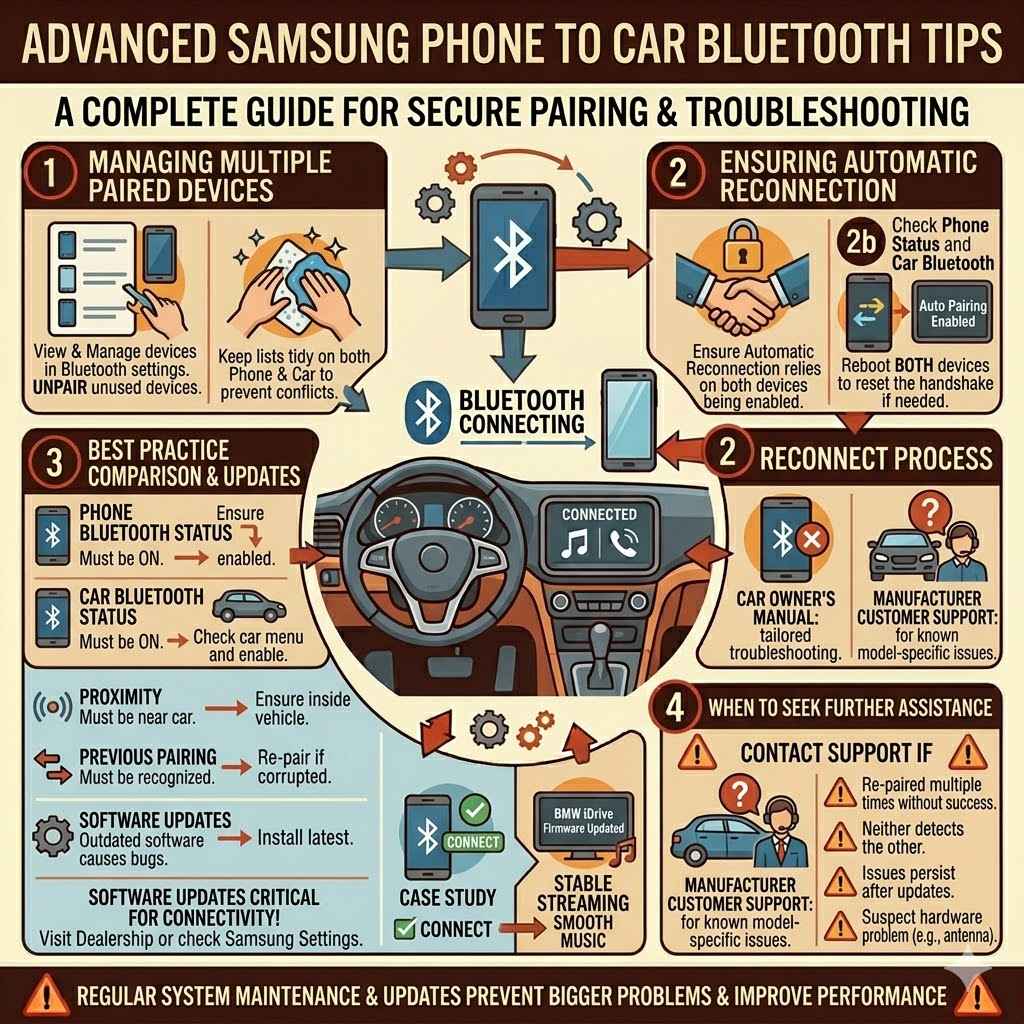
Most car Bluetooth systems can store multiple paired devices. This is useful if you share a car with family members or if you use different phones. However, managing these devices is important to avoid connection conflicts.
On your Samsung phone, you can view and manage all your paired Bluetooth devices in the Bluetooth settings. You can “forget” or “unpair” devices you no longer use. This helps keep your phone’s Bluetooth list tidy and prevents accidental connections to the wrong device.
In your car’s infotainment system, you’ll also find a menu to manage paired devices. It’s a good practice to delete any old or unused phone pairings from your car’s memory. This ensures that when you want to connect your Samsung phone, it has a clear path to do so without confusion.
Best Practice
When you first pair your phone, make sure your car’s system is set as a “favorite” or “priority” device if that option is available. This tells the car to try and connect to your phone automatically whenever you get in the car. Regularly reviewing and cleaning up your paired device list on both your phone and car can prevent many connection issues.
Ensuring Automatic Reconnection
Once your Samsung phone and car are paired, they should ideally reconnect automatically every time you get into the car. This feature relies on your phone’s Bluetooth being turned on and your car’s Bluetooth being enabled and discoverable. Most modern systems are designed for this seamless experience.
If automatic reconnection isn’t happening, first check your phone’s Bluetooth settings to ensure your car is listed and marked as “connected” or “active.” If it’s not, try manually selecting your car from the list of paired devices on your phone. On the car’s side, ensure that automatic pairing is enabled in its Bluetooth settings.
Sometimes, a simple reboot of both devices can resolve issues with automatic reconnection. Turn off your phone’s Bluetooth, turn off your car, wait a minute, then turn your car back on and then turn your phone’s Bluetooth back on. This often resets the connection handshake and allows the automatic pairing to work correctly.
Comparison Table: Auto Reconnect Factors
| Factor | Impact on Auto Reconnect | Troubleshooting Step |
|---|---|---|
| Phone Bluetooth Status | Must be ON. If OFF, no connection. | Ensure phone Bluetooth is enabled. |
| Car Bluetooth Status | Must be ON. May need to be discoverable for initial pairing. | Check car’s Bluetooth menu and enable. |
| Proximity | Phone must be near the car (usually within 30 feet). | Ensure phone is inside the vehicle. |
| Previous Pairing | Device must be recognized by both. | Re-pair if connection is lost or corrupted. |
| Software Updates | Outdated software can cause bugs. | Install latest updates for phone and car system. |
Updating Your Phone And Car Software
Software updates play a critical role in maintaining Bluetooth connectivity. Manufacturers frequently release updates for both smartphones and car infotainment systems to fix bugs, improve performance, and add new features. Outdated software can lead to compatibility issues and connection problems.
For your Samsung phone, check for system updates in Settings > Software update. Your phone will usually notify you when an update is available. For your car, the process varies greatly depending on the manufacturer and model.
You might need to visit a dealership, download an update to a USB drive, or receive over-the-air updates directly to the car.
Keeping both your phone and your car’s software up-to-date is one of the best ways to ensure a stable and reliable Bluetooth connection. It also helps to enhance security features. Regularly checking for and installing these updates is a proactive step towards a smoother driving experience.
Case Study
John’s Samsung S21 consistently had trouble staying connected to his BMW 3 Series. He noticed that when he was trying to stream music, the audio would frequently stutter and pause. After consulting his car’s manual and checking online forums, he discovered that BMW had released a firmware update for its iDrive system that specifically addressed Bluetooth connectivity issues.
He scheduled an appointment at the dealership to have the update installed. After the update, his Bluetooth connection was significantly more stable, and music streaming was smooth, resolving his persistent problem.
When To Seek Further Assistance
If you’ve tried all the basic troubleshooting steps, including re-pairing devices, checking for updates, and managing paired lists, but your Samsung phone still won’t connect to your car’s Bluetooth, it might be time to look for more specific help. The issue could be with a specific setting or a more complex technical problem.
Your car’s owner’s manual is an excellent resource. It often contains detailed sections on Bluetooth troubleshooting tailored to your specific vehicle model. If the manual doesn’t help, consider contacting your car manufacturer’s customer support.
They can offer model-specific advice and may be aware of known issues with certain phone models.
If the problem seems to be isolated to your Samsung phone, you can reach out to Samsung support. They can guide you through phone-specific troubleshooting steps or advise if there might be a hardware issue with your phone’s Bluetooth module. Sometimes, a factory reset of your phone’s network settings can resolve persistent Bluetooth problems, but be aware this will erase all saved Wi-Fi passwords and Bluetooth pairings.
When to Contact Support
- If you’ve re-paired the devices multiple times without success.
- If neither your phone nor your car shows any sign of detecting the other.
- If connection issues persist after updating both your phone and car software.
- If you suspect a hardware problem with your phone or car’s Bluetooth antenna.
Frequently Asked Questions
Question: How do I reset my car’s Bluetooth settings?
Answer: The exact process for resetting your car’s Bluetooth settings varies by make and model. Usually, you’ll need to go into your car’s infotainment system’s settings menu, find the Bluetooth or Phone section, and look for an option like “Reset,” “Restore Defaults,” or “Delete All Devices.” Consult your car’s owner’s manual for specific instructions.
Question: My Samsung phone can’t find my car’s Bluetooth. What should I do?
Answer: Ensure Bluetooth is enabled on your Samsung phone and that your car’s Bluetooth is set to discoverable mode. Try turning Bluetooth off and then on again on your phone. Also, make sure your phone isn’t connected to another Bluetooth device.
If these steps don’t work, try restarting both your phone and your car’s infotainment system.
Question: Why does my Bluetooth audio cut out sometimes?
Answer: Audio cutting out can be caused by interference from other electronic devices in the car, distance between the phone and the car’s Bluetooth module, or outdated software. Try moving your phone to a different location in the car, away from other electronics. Ensure both your phone and car software are up to date.
Question: Can I connect more than one Samsung phone to my car at the same time?
Answer: Typically, most car Bluetooth systems can only actively connect one phone at a time for calls and media playback. While you might be able to pair multiple phones to the car, only one will be the primary connected device. If you want to switch between phones, you usually need to disconnect one before connecting the other.
Question: How do I make my car’s Bluetooth connect automatically to my Samsung phone?
Answer: After successfully pairing your devices, they should reconnect automatically. Ensure Bluetooth is enabled on your phone when you get in the car. Check your car’s Bluetooth settings to confirm that automatic pairing is enabled.
If it’s not reconnecting, try deleting the pairing from both devices and then re-pairing them.
Wrap Up
Connecting your Samsung phone to your car’s Bluetooth is straightforward. Follow these steps for a reliable link. Enjoy wireless music and hands-free calls.
If you face issues, re-pairing or checking for updates often resolves them. Your car and phone working together makes driving safer and more convenient.
Products related to this article
Sponsored / affiliate links. As an Amazon Associate I earn from qualifying purchases. I may earn additional commission from eligible campaigns.