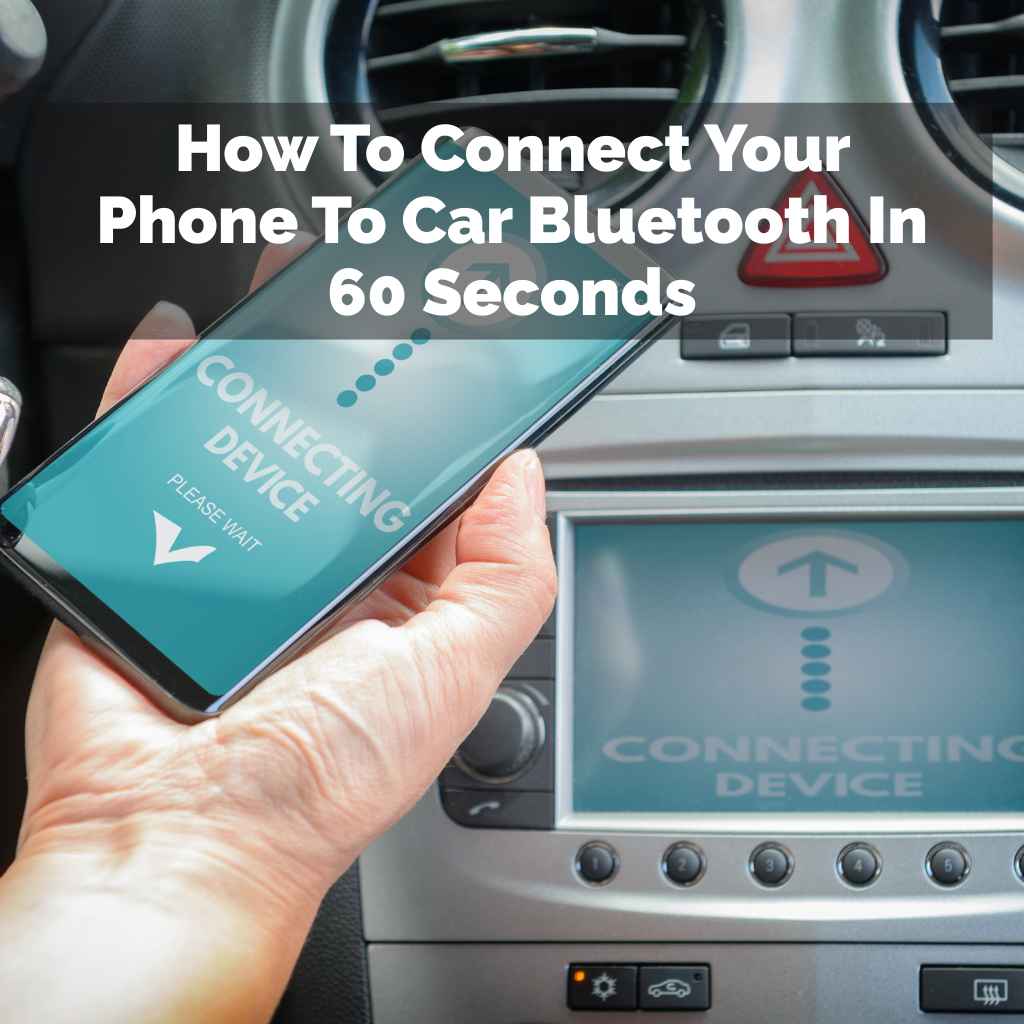
How To Pair A Samsung Phone With Your Vehicle In Minutes
It can be really frustrating when your new phone won’t talk to your car. You get into your vehicle, ready to hit the road, and that moment of connection, that seamless link between your digital life and your drive, just doesn’t happen. You might have tried a few things, feeling a bit lost. This guide is here to help. We’ll walk through how to pair your Samsung phone with your vehicle, step by simple step. You’ll learn the easy ways to get your music, calls, and navigation working right.
Connecting your Samsung phone to your car is usually a straightforward process. The most common methods involve using Bluetooth for calls and audio, or Android Auto for a more integrated experience. Both offer simple ways to keep you connected safely while driving.
Understanding How Your Phone and Car Talk to Each Other
For your Samsung phone to work with your car, they need a way to communicate. Think of it like them speaking the same language. The main ways they do this are through Bluetooth and something called Android Auto.
Bluetooth is like a short-range radio. It lets devices send small amounts of data back and forth. Your phone can use it to send music to your car speakers. It can also handle phone calls. This means you can chat without holding your phone.
Android Auto is a bit more advanced. It’s an app on your phone that makes your car’s screen show a simplified version of your phone’s features. It’s designed for driving. You can see big icons for navigation, music, and calls. You can often control it with your voice. This makes it safer to use your phone’s features while you’re on the move. Most cars made in the last few years support one or both of these.
Why Pairing Matters for Your Drive
Pairing your phone means unlocking a better driving experience. You get to stream your favorite podcasts or playlists. You can take important calls hands-free. Navigation apps on your car screen make finding your way much easier and safer. Without pairing, you miss out on all these helpful features. It can make a long drive feel shorter. It also keeps your attention on the road, not on your phone.
The Two Main Ways: Bluetooth vs. Android Auto
It’s helpful to know the difference between the two main ways to connect.
Bluetooth: The Basics
Bluetooth is great for basic functions. It’s easy to set up and works for music and calls. You don’t need a special app for this.
Your phone and car just need to have Bluetooth built-in.
Android Auto: The Smarter Connection
Android Auto takes things further. It mirrors your phone’s apps onto your car’s display. This includes Google Maps, Spotify, and messaging apps.
It needs the Android Auto app on your phone. It often works best with a USB cable, though wireless options are becoming more common.
My Own Brush with a “Unconnected” Car
I remember one time, not too long ago, I got a brand new car. It had all the fancy screens and buttons. I was so excited. I plugged in my Samsung phone, expecting my usual playlists to pop up. Nothing. I tried Bluetooth. It saw the car, but it wouldn’t connect. I felt a little wave of panic. I had a long drive ahead, and I really wanted my music.
I started digging through the car’s manual, which felt like reading a foreign language. Then I looked at my phone. I realized the Android Auto app wasn’t even open. I tapped it. The car’s screen blinked, and then, like magic, it showed me the familiar Google Maps interface. I had been so focused on just getting a connection, I forgot about getting the right connection for the features I wanted. That moment taught me that sometimes, the solution isn’t just about finding the button, but understanding which button to push and why.
Connecting Via Bluetooth: A Step-by-Step Guide
Let’s start with the most common method: Bluetooth. This is usually the first thing most people try.
Step 1: Make Sure Bluetooth is On
On your Samsung phone, you need to turn on Bluetooth. Swipe down from the top of your screen to open the quick settings panel. Look for the Bluetooth icon. It usually looks like a stylized “B”. Tap it to turn it on. You’ll see it light up or change color.
Step 2: Put Your Car in Pairing Mode
This is the part that can be a little different for every car. You need to tell your car that it’s ready to find new devices. Look for a “Settings” or “Setup” menu on your car’s infotainment screen. Inside that, you should find a “Bluetooth” option. Select it. You’ll likely see an option like “Pair Device,” “Add Phone,” or “Connect New Device.” Choose that. Your car will then start searching for nearby Bluetooth devices.
Step 3: Find Your Car on Your Phone
Now, go back to the Bluetooth settings on your Samsung phone. You should see a list of “Available Devices.” Your car’s Bluetooth name will appear here. It might be something like “My Ford,” “Uconnect,” or “Car Multimedia.” Tap on your car’s name.
Step 4: Confirm the Pairing Code
Your phone and car will probably show you a pairing code, often a series of numbers. This code needs to match on both devices. If they match, confirm the pairing on both your phone and your car’s screen. This is a security step. It makes sure you’re connecting to the correct device.
Step 5: Allow Permissions
Once paired, your phone might ask for permission to access your contacts, call history, and messages. It’s a good idea to allow these. This lets you see who’s calling on your car’s screen. It also lets you make calls directly from your car’s system. You might also be asked about message access. This allows your car to read text messages aloud and for you to reply by voice.
Quick Bluetooth Check
- Phone: Bluetooth ON.
- Car: Bluetooth menu open, seeking new devices.
- Phone: Select car’s name from available devices.
- Both: Confirm matching PIN/code.
- Phone: Grant necessary permissions.
Using Android Auto for a Deeper Connection
If your car supports Android Auto, it offers a much richer experience. It’s like bringing a piece of your phone’s smart features right into your dashboard.
Step 1: Get the Android Auto App
On your Samsung phone, go to the Google Play Store. Search for “Android Auto.” If it’s not already installed, download and install it. Most newer Samsung phones come with it pre-installed.
Step 2: Connect Your Phone to the Car
This is usually done with a USB cable. Use a high-quality USB cable that came with your phone or a reputable brand. Plug one end into your phone and the other into a USB port in your car. Some newer cars can do this wirelessly, but you’ll need to check your car’s manual and phone settings for that.
Step 3: Start the Android Auto App
Once connected via USB, your phone should recognize the car. You might see a prompt on your phone asking to start Android Auto. Tap “Start.” On your car’s screen, it should also prompt you to launch Android Auto. Follow the on-screen instructions.
Step 4: Accept Terms and Conditions
Android Auto has terms of service and privacy policies you’ll need to agree to. Read them if you wish, then accept. This is similar to accepting terms when you install any new app.
Step 5: Grant Permissions
Just like with Bluetooth, Android Auto will ask for various permissions. These include access to your location (for navigation), contacts, microphone (for voice commands), and more. Granting these is essential for Android Auto to function correctly.
Step 6: Customize Your Experience
Once set up, you can often customize which apps appear on your Android Auto home screen. You can also set default navigation or music apps. This makes the system work the way you want it to.
Android Auto Setup Flow
Phone: Install/Open Android Auto app.
Connection: Use a quality USB cable (or wireless if supported).
Car Screen: Follow prompts to launch Android Auto.
Agreement: Accept terms and conditions.
Permissions: Grant necessary access.
Personalize: Set up your preferred apps.
Troubleshooting Common Connection Problems
Sometimes, things don’t go as smoothly as planned. It’s very common to run into little snags.
“My Car Doesn’t Show Up in My Phone’s Bluetooth List”
This usually means your car isn’t in pairing mode. Go back to your car’s Bluetooth settings and make sure you’ve selected the option to “Add Device” or “Pair New Device.” Also, ensure your phone’s Bluetooth is on and it’s close enough to the car.
“The Pairing Code Won’t Match”
This is rare, but if it happens, try canceling the pairing process on both devices and start over. Make sure you’re not accidentally confirming a code for a different device that might be nearby.
“Bluetooth Connects, But No Sound or Calls”
Check your phone’s media and call audio settings for Bluetooth. Make sure both are toggled on for your car. Also, check your car’s audio source. Ensure it’s set to “Bluetooth Audio” and not something else like “Radio” or “Aux.” Sometimes, simply disconnecting and reconnecting the Bluetooth can fix this.
“Android Auto Won’t Launch”
First, try a different, high-quality USB cable. A faulty or low-quality cable is a very common cause. Ensure your phone’s software and the Android Auto app are updated. Restart both your phone and your car’s infotainment system. If your car supports it, try the wireless connection if the USB isn’t working.
“My Phone Won’t Charge While Connected via USB for Android Auto”
This can sometimes happen if the USB port in your car isn’t designed for both data and charging, or if the cable is old. Using a data-transfer-capable USB cable is crucial for Android Auto. Some cars have separate ports for charging and data.
Troubleshooting Checklist
Check 1: Bluetooth/Android Auto Enabled on Both Devices?
Check 2: Car in Pairing/Setup Mode?
Check 3: Using a High-Quality USB Cable (for Android Auto)?
Check 4: Software/App Updates for Phone and Car?
Check 5: Correct Audio Source Selected in Car?
Check 6: Permissions Granted on Phone?
When to Consider a Wireless Connection
Many newer cars are now offering wireless Android Auto. This is a game-changer for convenience. You don’t need to fumble with cables every time you get in the car.
How Wireless Android Auto Works
Wireless Android Auto uses Wi-Fi and Bluetooth. Your phone connects to your car’s Wi-Fi network and uses Bluetooth for initial setup and voice commands. It makes the connection feel very seamless.
Setting Up Wireless Android Auto
The setup process is usually similar to wired Android Auto, but you’ll be prompted to set up the wireless connection.
1. Make sure your car supports wireless Android Auto.
2. Enable Wi-Fi and Bluetooth on your Samsung phone.
3. In your car’s infotainment system, go to the Android Auto settings and select “Start wireless setup” or similar.
4. Your phone should prompt you to connect to the car’s Wi-Fi network.
5. Follow the on-screen instructions to complete the pairing.
Once set up, your phone should connect automatically whenever you get into your car, as long as Wi-Fi and Bluetooth are on.
Integrating Your Samsung Phone with Car Features
Once paired, you can start using your phone’s features through your car’s system.
Using Voice Commands
Both Bluetooth and Android Auto support voice commands. For Bluetooth, you might press a button on your steering wheel to activate your phone’s voice assistant (like Bixby or Google Assistant). For Android Auto, you can often say “Hey Google” or tap the microphone icon. You can ask it to “Call Mom,” “Navigate home,” or “Play relaxing music.”
Managing Calls and Texts
With a Bluetooth connection, you’ll see incoming calls on your car screen. You can answer or decline them using your car’s controls. You can also initiate calls from your car’s contact list. For texts, if you allowed permissions, your car might read them to you. You can often reply by voice. Android Auto makes this even smoother, displaying messages clearly and allowing for quick voice replies.
Navigation Made Easy
Google Maps or Waze through Android Auto is a fantastic way to navigate. You get turn-by-turn directions on your car’s screen, often with traffic updates. You can set your destination by voice or by typing it into the search bar. Some cars also support navigation apps that integrate directly with the car’s built-in navigation system.
Key Integrated Features
- Hands-Free Calling: Make and receive calls safely.
- Voice Assistant Access: Control your phone with your voice.
- Music Streaming: Play music from apps like Spotify or YouTube Music.
- Navigation: Get directions on a larger screen.
- Message Alerts: See and reply to texts hands-free.
When is Your Phone “Connected” Enough?
You’ll know your phone is properly connected when you see clear indications on both your phone and your car’s screen.
On your phone, look at the status bar. You should see a Bluetooth icon if you’re connected via Bluetooth. If you’re using Android Auto, you’ll likely see a notification or the Android Auto app will be running.
On your car’s screen, you should see your phone listed as a connected device in the Bluetooth menu. If using Android Auto, the Android Auto interface will be displayed. You should be able to access music controls, navigation, and make calls.
It’s also about the experience. Can you play music from your phone through the car speakers? Can you answer a call using the car’s controls? Can you ask your voice assistant a question? If these things work, you’re connected.
What Happens If My Car Doesn’t Support Android Auto?
Don’t worry if your car doesn’t have Android Auto. Most cars made in the last decade have Bluetooth. You can still get a great experience for calls and music.
For navigation, many people use their phone’s mount. They’ll use their phone’s GPS directly. This is still a safe option if you set it up before you start driving. Just make sure the mount is secure and doesn’t obstruct your view.
Some car manufacturers also offer their own apps that can mirror basic phone functions onto the car’s screen, even without full Android Auto or Apple CarPlay. Check your car’s manual or the manufacturer’s website to see if this is an option.
What This Means For Your Driving Habits
Having your Samsung phone connected to your car can change how you interact with technology while driving.
Normal Use Cases
It’s normal to use your connected phone for:
Listening to music or podcasts.
Getting turn-by-turn directions.
Making and receiving calls safely.
Sending quick voice replies to texts.
This makes driving more enjoyable and can help you stay on schedule. It also allows you to be reachable for important calls without compromising safety.
When to Be Cautious
While connectivity is great, it’s important to remember the primary purpose of your drive is to get from point A to point B safely.
Avoid complex tasks. Don’t try to write long messages or browse the web on your car’s screen.
Set up your music or navigation before you start moving.
If a call or text can wait, let it wait. The car’s system is for essential communication.
Be aware of your car’s display and controls, but keep your main focus on the road.
Quick Tips for a Smooth Connection
Here are a few extra tips to keep your phone and car talking nicely.
Keep Software Updated: Make sure your Samsung phone’s operating system and the Android Auto app are always up to date. Car manufacturers also release updates for their infotainment systems.
Use Quality Cables: For Android Auto, invest in a good USB cable. Cheap or old cables can cause connection issues and slow charging.
Restart Devices: If you’re having trouble, try restarting both your phone and your car’s infotainment system. It’s a simple fix that often works wonders.
Clear Cache: For Android Auto, clearing the app’s cache and data in your phone’s settings can sometimes resolve persistent bugs.
Check Your Car’s Manual: Every car is a little different. Your car’s manual is the best resource for specific instructions related to its infotainment system.
Frequently Asked Questions About Connecting Your Phone to Your Car
Do I need a special app to connect my Samsung phone via Bluetooth?
No, you do not need a special app to connect your Samsung phone to your car via Bluetooth. Bluetooth is a built-in feature on most smartphones and modern vehicles. You just need to ensure Bluetooth is turned on on both devices and follow the pairing steps.
Is Android Auto free to use?
Yes, Android Auto itself is a free app provided by Google. You do not need to pay to download or use the Android Auto app. However, using navigation and streaming services within Android Auto will still require their respective subscriptions or data usage.
Can I connect more than one phone to my car?
Most cars allow you to pair multiple phones via Bluetooth. However, usually, only one phone can be actively connected for calls and media at a time. When you enter the car, it typically connects to the last used phone or the phone that is prioritized in its settings.
My car has a touchscreen, but it doesn’t say “Android Auto.” Can I still use it?
Not all touchscreens support Android Auto. Some car manufacturers have their own proprietary infotainment systems that may look similar but do not have Android Auto integration. Check your car’s manual or the manufacturer’s website to confirm if your vehicle supports Android Auto.
How do I know if my Samsung phone is compatible with Android Auto?
Most Samsung phones running Android 6.0 Marshmallow or later are compatible with Android Auto. You can verify by checking the specifications of your phone model or by searching for “Android Auto compatibility” on the Samsung website. The Google Play Store also indicates if an app is compatible with your device.
What’s the difference between MirrorLink and Android Auto?
MirrorLink and Android Auto are both systems that allow your phone to connect to your car’s infotainment screen. However, Android Auto is developed by Google and offers a more integrated experience with Google services like Maps and Assistant. MirrorLink is an older standard that may have more limited functionality and app support compared to Android Auto.
Bringing It All Together: A Connected Drive Awaits
Getting your Samsung phone connected to your car might seem like a technical hurdle, but it’s really about opening up your drive. Whether it’s the simple, reliable connection of Bluetooth or the full-featured experience of Android Auto, the steps are designed to be clear. By understanding these methods and a few simple troubleshooting tricks, you can ensure your phone works seamlessly with your vehicle. This means safer calls, better navigation, and your favorite tunes always ready to go. Enjoy the drive!
Still hitting Bluetooth drops or Android Auto disconnects? Our full troubleshooting guide covers wireless Android Auto requirements and the most common fixes in detail.
Products related to this article
Sponsored / affiliate links. As an Amazon Associate I earn from qualifying purchases. I may earn additional commission from eligible campaigns.