How To Connect Your Phone To Car Bluetooth (Step-By-Step)
Connecting your phone to your car’s Bluetooth might seem tricky. But it’s usually pretty simple once you know the steps. This guide will walk you through it.
We’ll make sure you can enjoy your music and calls on the go, safely.
Connecting your phone to car Bluetooth involves pairing the devices. This process typically requires enabling Bluetooth on both your phone and car, making them discoverable, and then selecting each other to establish a secure link. Once paired, they should connect automatically.
Understanding Car Bluetooth Connections
Most cars made in the last decade or so have a Bluetooth system. This system lets your phone talk to your car’s speakers and microphone wirelessly. It’s super handy for music streaming and making calls.
Your car’s system acts like a small computer. It can store other phones too. When you pair your phone, it creates a special link.
This link is just between your phone and your car.
The system in your car usually has a name. You’ll see this name when you look for devices on your phone. It might be your car’s brand, like “Ford Audio” or “HondaLink.” Sometimes it’s something generic like “Car Multimedia.”
Your phone also has its own Bluetooth name. This is the name other devices see. You can often change this name in your phone’s Bluetooth settings.
But you don’t need to for connecting to your car.
The whole point is to share audio. Your phone sends music or call audio. Your car plays it.
It also lets your car’s microphone pick up your voice for calls. It’s a neat piece of technology.
My Own Bluetooth Blunder
I remember one time, on a long road trip with my buddy, we were trying to switch who was in charge of the music. My phone was connected fine. His phone, however, just wouldn’t show up on my car’s screen.
He swore he had Bluetooth on. I was getting a little frustrated, watching the minutes tick by with silence instead of our road trip playlist.
He’d tap his phone. I’d tap my car’s screen. We even tried turning both devices off and on again, a classic IT move that sometimes works wonders.
He was convinced his phone was broken. I was starting to think my car’s system was acting up. The sun was starting to set, and the mood was getting a little tense.
We almost gave up and just used the car’s radio.
Then, I remembered something my dad told me about pairing. He said sometimes you have to “forget” a device and start over. So, I went into my car’s Bluetooth menu.
I found his phone listed, even though it wasn’t connected. I told the car to “forget” his phone. We tried searching again.
And bam! His phone popped right up. It was a simple fix, but it felt like a huge win.
Phone Not Showing Up? Try This Quick Check
Check Visibility: Make sure your phone’s Bluetooth is set to be “discoverable” or “visible.” Some phones turn this off after a while to save power. Look for an option in your phone’s Bluetooth settings.
Getting Started: The Basics of Pairing
To connect your phone to your car, you need to do a few things first. These steps are pretty much the same for most phones and cars. Think of it like introducing two new friends.
First, you need to make sure Bluetooth is turned on. This is true for both your phone and your car. If it’s off, they can’t find each other.
Next, you need to make your car’s system ready to find new devices. Cars usually have a button or a menu option for this. It might say “Pair Device,” “Add Phone,” or “Bluetooth Setup.”
At the same time, your phone needs to be looking for new Bluetooth devices. You do this in your phone’s settings. You’ll see a list of available devices.
It’s like a game of hide-and-seek. Your car is hiding its Bluetooth signal, and your phone is seeking it. Once your phone finds the car’s signal, you can start the actual pairing.
This part usually involves confirming a code or PIN. You might see a number on your phone’s screen and on your car’s screen. If they match, you tap “Pair” or “Connect” on both.
Once that’s done, your phone and car are linked! They’ll usually remember each other for the next time. This makes connecting much faster later on.
Step-by-Step: Connecting Your Phone
Let’s break down the process into clear steps. Follow along closely, and you’ll be connected in no time.
Step 1: Turn On Bluetooth on Your Phone
This is the first and easiest step. Go to your phone’s settings. Find the “Bluetooth” option.
Make sure the switch is turned on. You’ll usually see a blue icon or a switch in the “on” position.
For iPhones, it’s under Settings > Bluetooth. For Android phones, it’s usually Settings > Connected devices > Connection preferences > Bluetooth.
Step 2: Access Your Car’s Bluetooth Menu
Now, turn to your car. You need to find its Bluetooth settings. This is often in the main infotainment screen.
Look for a button that says “Phone,” “Audio,” “Settings,” or “Setup.”
Once you’re in the right menu, look for an option related to Bluetooth. It might be called “Bluetooth Setup,” “Pair Device,” or “Manage Devices.” Select this option.
Some cars might require you to turn on the car’s ignition to access these settings. Others let you do it while the car is parked.
Step 3: Make Your Car Discoverable
Inside the car’s Bluetooth menu, you need to tell it to look for new phones. There’s usually an option like “Add New Device,” “Pair Device,” or “Search for Devices.” Select this.
Your car is now broadcasting its Bluetooth signal. It’s waiting for your phone to find it. On your phone, the Bluetooth list should start showing available devices.
If you don’t see an option to “Add New Device,” look for a button that says “Make Discoverable” or “Visibility.” Sometimes you need to enable this first.
Step 4: Search for Devices on Your Phone
Go back to your phone’s Bluetooth settings. Make sure it’s scanning for devices. You might see a “Scan” or “Refresh” button.
Tap it if needed.
Your phone will start looking for nearby Bluetooth signals. This might take a few seconds. You should see a list of devices appear.
Look for the name of your car’s Bluetooth system. It’s often something like “My Car,” “Car Audio,” or the car’s brand name. If you’re unsure of the name, check your car’s manual.
Sometimes, your phone might be in “pairing mode” automatically when Bluetooth is on. Other times, you need to explicitly select “pair new device.”
Phone’s Bluetooth Not Visible?
Visibility Settings: On your phone, ensure Bluetooth is fully enabled and that it’s set to be discoverable. On Android, this might be under “Advanced” settings. For iPhones, it’s usually visible when the Bluetooth menu is open.
Step 5: Select Your Car’s System on Your Phone
Once you see your car’s name in the list on your phone, tap on it. This tells your phone you want to connect to that specific system.
Now, a PIN or passkey might appear. This is a security step. You’ll likely see a four or six-digit number.
It should appear on both your phone’s screen and your car’s screen.
Important: If the numbers don’t match, stop. Do NOT proceed. This could indicate a security risk.
Restart the process.
Step 6: Confirm the PIN and Pair
If the numbers on your phone and car match, confirm them. On your phone, you’ll usually tap “Pair,” “Connect,” or “OK.” Your car’s system will likely ask you to confirm as well.
Some cars have a default PIN like “0000” or “1234” if a code doesn’t appear automatically. Check your car’s manual if you need this.
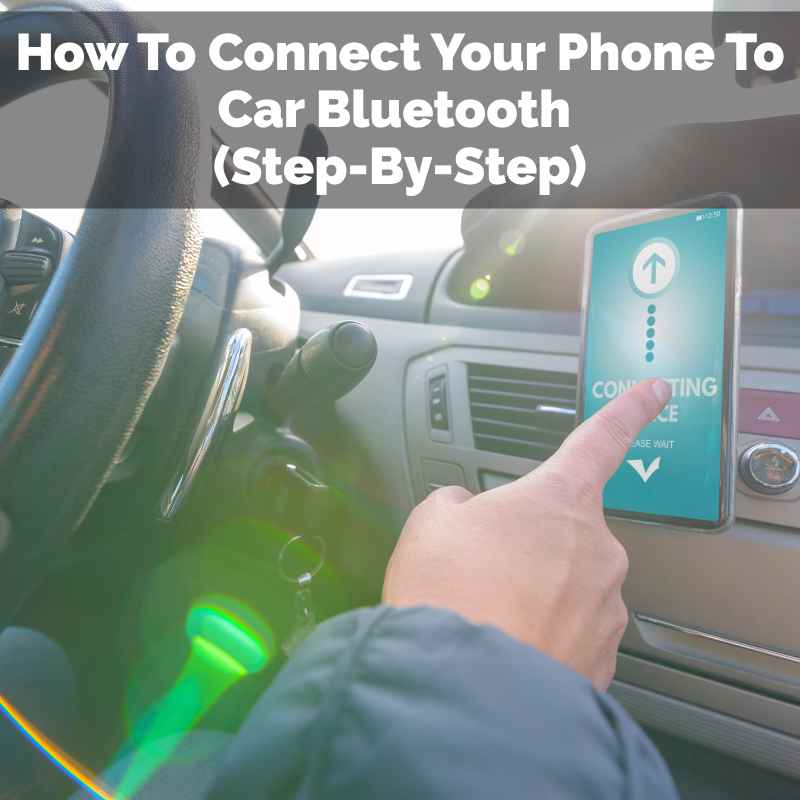
Once you confirm, the devices will attempt to establish a secure connection. This might take a few moments. You’ll often see a “Connecting.” message.
If it works, you’ll get a confirmation. Your phone will show that it’s connected. Your car’s screen will usually show your phone’s name and maybe signal strength.
Step 7: Allow Access (Contacts & Messages)
Your car might ask for permission to access your contacts, call history, and text messages. This is what allows you to make calls using your car’s controls or hear text messages read aloud.
It’s generally safe to allow these permissions for full functionality. Read the prompts carefully. For example, your phone might ask “Allow ‘Car Bluetooth’ to access contacts?” Tap “Allow.”
This step is crucial for features like voice dialing and seeing incoming call IDs on your car’s display. Without it, you might only get audio streaming.
Step 8: Test the Connection
You’re connected! But let’s make sure it’s working. Try playing some music from your phone.
It should now play through your car’s speakers.
Make a test call. You can call a friend or a voicemail service. Speak into your phone or your car’s microphone.
See if the other person can hear you clearly. Listen to the call through your car’s speakers.
If everything sounds good, congratulations! You’ve successfully connected your phone to your car’s Bluetooth.
Car Doesn’t Show Up on Phone?
Check Car System: Ensure your car’s Bluetooth system is actually turned on and in “pairing mode.” Sometimes it needs a specific button press or menu selection to become discoverable.
Restart Devices: Try turning off Bluetooth on your phone and then turning it back on. Also, try turning your car’s infotainment system off and on, or even turning the car completely off and restarting it.
Common Issues and How to Solve Them
Even with the steps, sometimes things don’t go perfectly. Don’t worry, most problems are easy to fix. Here are some common hiccups.
Issue 1: Phone Won’t Find the Car
This is when your phone’s Bluetooth list is empty or your car’s name just isn’t there. First, double-check that Bluetooth is on for both devices. Make sure your car is in pairing mode.
Some car systems only allow pairing when the car is in Park.
Try refreshing the scan on your phone. If that doesn’t work, try restarting both your phone and your car’s infotainment system. Sometimes, a simple reboot is all it takes to clear a glitch.
Also, check your car’s manual. It might have specific instructions or a unique name for its Bluetooth system.
Issue 2: Pairing Fails or Connection Drops
You see the car, you select it, but the PIN doesn’t match or the connection fails. Or maybe it connects, but then disconnects after a few minutes. This is frustrating.
First, ensure the PINs match exactly. If they don’t, cancel and try again. If it keeps failing, try deleting any previous pairings of your phone from the car’s system, and vice-versa.
Too many devices can sometimes cause issues. If your car’s system has a limit on how many phones it can remember, try removing old, unused phones. Similarly, on your phone, “forget” your car and re-pair.
Interference from other devices can also be a problem. Things like other Bluetooth devices or even some phone chargers can sometimes cause interference. Try disabling other Bluetooth devices temporarily.
Issue 3: Audio Issues (Choppy, No Sound)
You’re connected, but the music sounds like a broken record, or there’s no sound at all. If there’s no sound, check your car’s audio source. Make sure it’s set to Bluetooth Audio, not FM radio or CD.
If the audio is choppy, it could be a signal strength problem or interference. Try moving your phone closer to the car’s Bluetooth receiver. Make sure it’s not buried deep in a bag or console.
Restarting both devices can often help with audio glitches. Also, ensure your phone’s volume is turned up. Sometimes, the phone volume and car volume work separately.
Issue 4: Can’t Make or Receive Calls
Music works, but calls don’t. This usually means the “phone profile” of Bluetooth didn’t connect properly. This is often tied to contact and call log permissions.
Go back into your phone’s Bluetooth settings for your car. Look for options related to “Call Audio” or “Contact Sharing.” Make sure these are enabled.
You might need to “forget” the car from your phone and re-pair, making sure to grant all necessary permissions during the setup process. Your car’s system might also have a “phone settings” menu where you can manage paired devices and their permissions.
Troubleshooting Table
| Problem | What to Check | Action |
|---|---|---|
| Phone not found | Bluetooth on? Car discoverable? | Turn on both, restart, check manual |
| Pairing fails | PIN correct? Previous pairings? | Re-enter PIN, “forget” device, re-pair |
| Choppy audio | Interference? Signal strength? | Move phone closer, turn off other devices |
| Calls not working | Permissions set? Call audio enabled? | Grant permissions, re-pair, check car phone settings |
Real-World Context: Where and When This Matters
Connecting your phone to your car’s Bluetooth isn’t just about convenience. It’s about safety and staying connected legally. In many places, using a handheld phone while driving is illegal and dangerous.
Think about a busy commute. You need to navigate, listen to traffic updates, and maybe take an urgent call. Bluetooth lets you do this hands-free.
Your eyes stay on the road, and your hands stay on the wheel.
It’s also about enjoying your journey. Whether it’s a road trip with friends or a daily drive to work, your music or podcasts can make the time fly by. Bluetooth makes this seamless, without fumbling with cords.
Consider different car types. A brand-new SUV will have a sophisticated infotainment system. An older car might have an aftermarket Bluetooth adapter.
The basic principles are the same, but the menus and options can look very different.
The environment matters too. In a busy city, you might have more sources of wireless interference. Out on a long, open highway, the connection might be more stable.
User habits are key. Some people set up their car’s Bluetooth once and forget about it. Others frequently swap between phones or devices, which can lead to more frequent pairing needs.
Bluetooth in Different Scenarios
Daily Commute: Essential for hands-free calls and traffic updates.
Road Trips: Great for sharing music and podcasts with passengers.
New Car Purchase: You’ll likely pair your phone during the dealership setup.
Older Car: May require an aftermarket Bluetooth adapter or system.
What This Means for You: When to Be Happy, When to Worry
Most of the time, connecting your phone to car Bluetooth is a smooth process. You connect it, and it just works for months or even years.
When It’s Normal:
- Your phone connects automatically every time you get in the car.
- You can play music and make/receive calls without issues.
- You see your phone’s name in the car’s paired device list.
When to Worry (Slightly):
- Your phone won’t connect at all, despite trying multiple times.
- The connection is very unreliable, dropping frequently.
- Audio quality is consistently bad (static, choppy).
- You can’t access contacts or make calls.
These “worry” signs usually point to a configuration issue, a software glitch, or sometimes a hardware problem. Luckily, most of them can be resolved with the troubleshooting steps we’ve covered.
A simple check is to see if your phone’s operating system and your car’s infotainment system are up to date. Manufacturers often release updates to fix bugs and improve connectivity.
If you’ve tried everything and it’s still not working, it might be time to consult your car’s owner’s manual or contact your car dealership. They might have specific insights for your vehicle model.
Quick Tips for a Better Connection
Here are a few handy tips to make your Bluetooth experience even better.
- Keep Phone Charged: A low phone battery can sometimes affect Bluetooth performance.
- Update Software: Regularly check for updates for both your phone’s OS and your car’s infotainment system.
- One Device at a Time: While many cars can remember multiple phones, only actively connect one at a time for the best performance.
- Clear Clutter: Ensure there aren’t too many other active Bluetooth devices nearby that could cause interference.
- Know Your Car’s Manual: It’s your best friend for specific features and troubleshooting steps for your exact car model.
Quick Scan: Pairing Success Factors
Phone: Bluetooth ON, Discoverable, Sufficient Battery
Car: Bluetooth ON, Pairing Mode Active, Ignition ON (if required)
Process: Correct PIN confirmation, Permissions granted
Environment: Minimal interference, Devices within range
Frequently Asked Questions
How do I know if my car has Bluetooth?
Most cars manufactured after 2010 have Bluetooth. Look for a Bluetooth symbol (often a stylized ‘B’) on your dashboard or steering wheel. Check your car’s infotainment system for a “Phone” or “Bluetooth” menu.
Your car’s owner’s manual is the definitive source.
Can I connect more than one phone to my car?
Yes, most modern car systems can remember multiple phones. However, it’s usually best to have only one phone actively connected at a time for optimal performance. You can typically switch between paired phones in your car’s Bluetooth menu.
My phone is connected, but no sound comes out. What’s wrong?
Make sure your car’s audio source is set to “Bluetooth Audio.” Also, check that your phone’s volume is turned up. Sometimes, the car’s volume and phone’s volume are separate. Ensure you haven’t muted the media volume on your phone.
Why does my car ask to sync contacts?
Syncing contacts allows your car’s system to display your contact list on its screen. This lets you make calls by selecting a contact, rather than manually dialing. It also enables features like caller ID for incoming calls.
Is it safe to use Bluetooth while driving?
Bluetooth is designed for hands-free use, which is much safer than holding your phone. However, any distraction can be dangerous. It’s best to set up your connection before you start driving and use voice commands whenever possible.
My car won’t forget an old phone. What can I do?
If your car’s system is acting up about forgetting devices, try a full reset of the infotainment system if your car allows it. This usually involves going into a hidden “service” menu or contacting the dealership. On your phone, ensure you’ve “forgotten” the car.
Conclusion
Connecting your phone to your car’s Bluetooth is a key feature for modern driving. It brings music, calls, and navigation to your fingertips. While it might seem daunting at first, following these steps should make the process clear and simple.
Remember to be patient, check your manuals, and don’t be afraid to restart devices. Enjoy your connected drive!
Products related to this article
Sponsored / affiliate links. As an Amazon Associate I earn from qualifying purchases. I may earn additional commission from eligible campaigns.
 Aux Bluetooth 5.3 Adapter for Car, Bluetooth Receiver Aux Car Adapter, Auxiliar Audio Blue Tooth para Carro Wireless Dongle with 3.5mm Jack for Stereo Systems and Headphones
 sdidzad BT 5.3 USB Car Bluetooth Receiver, Wireless Audio Adapter for Car Aux 3.5mm Stereo, Plug and Play Stable Connection Audio Receiver, Universal for Most Cars SUVs Trucks (Black)