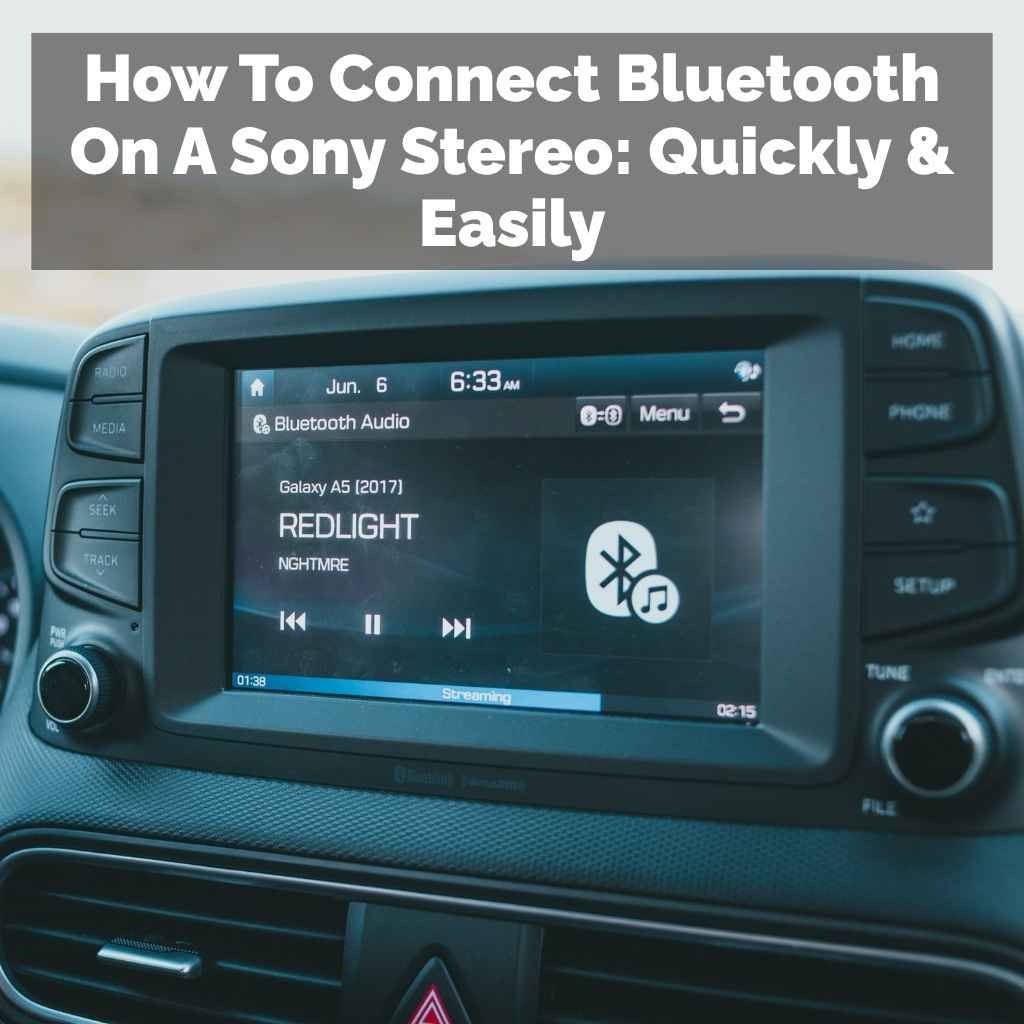
How To Connect Bluetooth On A Sony Stereo: Quickly & Easily
To connect Bluetooth on a Sony stereo, first ensure both devices are on and Bluetooth is enabled. Put your Sony stereo into pairing mode, usually by pressing and holding a Bluetooth button. Then, on your phone or other device, go to Bluetooth settings and select your Sony stereo from the list of available devices.
Confirm the pairing if prompted.
Understanding Bluetooth Connections on Sony Stereos
Bluetooth is a wireless technology. It lets devices talk to each other. Think of it like a short-range radio signal.
This signal connects your phone to your stereo. You can then play music from your phone. You can also make calls.
This makes listening much easier. No more wires getting tangled.
Sony stereos use Bluetooth for convenience. Most new models have it. Older ones might not.
It’s important to check your stereo’s features. Look for the Bluetooth symbol. It looks like a little ‘B’.
This symbol means it has Bluetooth.
There are different types of Bluetooth. Most stereos use a version that allows audio streaming. This is called A2DP.
Some also support hands-free calling (HFP). Knowing this helps understand what your stereo can do. It can stream music.
It can also let you chat on the phone. All wirelessly.
The process involves two main steps. First, you put your stereo in “pairing mode.” This makes it discoverable. Second, you find the stereo on your other device.
This is usually your smartphone or tablet. Then, you connect them.
Sometimes, devices already paired can cause issues. If your stereo can only connect to one device, it might not see new ones. You might need to “forget” old devices.
This is a common step. We will cover it later.

My Own Bluetooth Blunder: A True Story
I remember the first time I tried to connect my new Sony soundbar to my phone. It was a Saturday morning. I had just bought it.
I was so excited to try out the Bluetooth. I wanted to play my favorite playlist. I pushed the little Bluetooth button.
Nothing happened. I looked at my phone. My soundbar wasn’t showing up.
I tried again. Still no luck. I started to feel a bit silly.
Then, a wave of annoyance hit me. I thought I had wasted my money. I looked at the manual.
It was thick. I scanned it quickly. I found the section on Bluetooth.
It said to press and hold the button. Not just press it. Ah, a simple mistake!
I tried again, holding the button. A light blinked on the soundbar. My phone found it right away.
The music started playing. Relief washed over me. It was just a small detail.
But it made all the difference. It taught me to be patient.
Bluetooth Connection Basics
What is Pairing?
Pairing is like an introduction. Your stereo and your device say hello. They agree to talk to each other.
This connection is usually secured. It means only your devices can communicate.
How to Enter Pairing Mode?
Most Sony stereos have a dedicated button. It often has the Bluetooth symbol. Pressing it usually starts pairing.
Sometimes, you need to hold it down. Check your stereo’s manual if unsure.
Device Limits?
Some stereos can only pair with one device at a time. If yours can’t find a new device, try disconnecting others. Or, remove old pairings from the stereo’s memory.
Getting Your Sony Stereo Ready for Pairing
The first step is always preparing your Sony stereo. You need to make it ready to find. This means turning it on.
Make sure it’s plugged in and powered up. Some stereos turn on automatically. Others need a button press.
Next, find the Bluetooth button. It often has the classic Bluetooth symbol. Sometimes, it’s a small icon.
It might be on the front panel. Or it could be on the remote control. Look carefully.
If you can’t find it, check your stereo’s user manual. The manual is your best friend here.
Once you find the button, you need to activate pairing mode. For many Sony models, a quick press won’t do it. You usually need to press and hold the Bluetooth button.
Hold it for a few seconds. A light on the stereo will often start to blink. This blinking light is a signal.
It means the stereo is now looking for a device to connect to. It’s ready to be found.
The color of the blinking light can matter. Some lights blink blue. Some might flash white.
Some may even change color. Refer to your manual for specific light indicators. It will tell you what the lights mean.
For example, a rapidly blinking light often means it’s in pairing mode. A solid light might mean it’s already connected to something.
If your stereo has a screen, it might show “Pairing” or “Searching.” This makes it even clearer. But not all stereos have screens. So, the blinking light is the most common sign.
If holding the button doesn’t work, try a different method. Some stereos require you to navigate menus. You might use the stereo’s buttons.
Or the remote. Look for a “Setup” or “Settings” menu. Then find “Bluetooth.” Within that, look for “Pairing” or “Add Device.”
It’s also a good idea to clear out old connections. If your stereo has been paired with many devices before, it might get confused. You can often reset the Bluetooth memory.
This is usually done through the settings menu. Look for an option like “Clear List” or “Delete Devices.” This gives you a fresh start.
Quick Stereo Setup Checklist
Power On: Is your stereo plugged in and turned on?
Locate Button: Can you find the Bluetooth button on the stereo or remote?
Press & Hold: Have you pressed and held the button until a light blinks?
Check Manual: If unsure, consult your stereo’s user guide.
Clear History: Consider clearing old pairings if you suspect issues.
Finding Your Sony Stereo on Your Device
Once your Sony stereo is in pairing mode, the next step is on your phone, tablet, or computer. You need to tell your device to look for Bluetooth signals. This is done in your device’s settings.
For most smartphones and tablets (both iPhone and Android), you’ll go to the main “Settings” app. Inside Settings, look for “Bluetooth.” Tap on it. Make sure the Bluetooth toggle switch is turned ON.
If it’s off, your device won’t see any other Bluetooth devices.
When Bluetooth is on, your device will start scanning. It will search for any nearby devices that are discoverable. This scanning process might happen automatically.
Or, you might need to tap a button that says “Scan” or “Refresh.”
On your screen, you should see a list of available devices. This list might be called “Available Devices,” “Other Devices,” or something similar. You are looking for the name of your Sony stereo.
Sony names their devices in a standard way. It often includes “Sony” followed by the model number or a description.
For example, it might appear as “Sony SRS-XB23” or “Sony Soundbar X.” If you’re not sure of the exact name, check the stereo’s manual. It will usually list the default Bluetooth name. Sometimes, the name is on a sticker on the stereo itself.
What if you don’t see your stereo listed? Don’t panic. First, double-check that your stereo is still in pairing mode.
Is the light still blinking? If the light stopped blinking, you might need to re-enter pairing mode on the stereo. Go back to that step.
Also, make sure your phone or device is close enough to the stereo. Bluetooth has a limited range, usually about 30 feet. Walls and other objects can interfere.
Try moving closer. Make sure there are no big metal objects between them.
Another thing to consider is other Bluetooth devices. If your phone is already connected to your car’s Bluetooth, it might not be able to scan for others easily. Disconnect from any other Bluetooth devices temporarily.
Then try scanning again.
Once you see your Sony stereo’s name in the list, tap on it. This tells your device to try and connect. This is the “pairing” step.
Finding Your Device – A Quick Guide
Enable Bluetooth: On your phone/tablet, go to Settings > Bluetooth and turn it ON.
Scan for Devices: Your device should scan automatically. If not, tap “Scan.”
Look for Name: Find your Sony stereo’s name in the list. It usually starts with “Sony.”
Tap to Connect: Select the stereo’s name to start the pairing process.
Proximity Matters: Ensure your device and stereo are close to each other.
Confirming the Connection and Playing Audio
When you tap on your Sony stereo’s name on your device, the connection process begins. This is the actual pairing. Sometimes, a message will pop up.
It might say “Pairing.” or “Connecting.”
On your stereo, you might hear a sound. Or see a light change. The blinking light might turn solid.
Or a different color. This indicates it’s no longer searching. It’s now connected.
Your device might also show a message like “Connected” or “Connected for calls and audio.”
Some older or specific models might ask you to confirm a code. This code is usually four digits. It might appear on your device’s screen.
You might also see it on the stereo’s display if it has one. You’ll need to enter this code on your device to complete the pairing. Most modern devices use a simpler “tap to confirm” method, especially if the same code appears on both screens.
If you’re asked to confirm, make sure the code matches. If it doesn’t match, cancel the pairing. Start over.
This is a security feature to make sure you’re connecting to the right device.
Once paired, you should be able to play audio. Open your music app, podcast app, or video player on your phone. Start playing something.
The sound should now come from your Sony stereo, not your phone’s speaker. It’s that simple when it works!
What if the sound doesn’t come out of the stereo? First, check the volume. Is the volume up on both your device and your stereo?
They are often controlled separately. Make sure the volume isn’t too low on either. Also, check that your device is set to output audio to the stereo.
Sometimes, when you connect, you get a prompt asking where you want audio to play.
If you still don’t hear anything, try disconnecting and reconnecting. Go back to your device’s Bluetooth settings. Find your Sony stereo in the “Paired Devices” list.
Tap on it. You should see an option to “Disconnect” or “Forget Device.” Try disconnecting first. Then tap on it again to reconnect.
If disconnecting doesn’t work, try “forgetting” the device. This removes the pairing completely from your device. Then, you’ll have to go through the entire pairing process again from the beginning.
This often solves stubborn connection issues. It’s like starting fresh.
For computers, the process is similar. Go to your computer’s Settings. Find “Devices” or “Bluetooth & other devices.” Make sure Bluetooth is on.
Then click “Add Bluetooth or other device.” Select “Bluetooth.” Your computer will scan. Find your Sony stereo in the list and click to connect.
Remember, your Sony stereo might have multiple ways to connect. Some can connect to two devices at once. Others can only handle one.
If you’re having trouble connecting a new device, it might be because another device is already connected and using the Bluetooth channel.
Audio Playback Success!
Volume Check: Ensure volume is up on both your device and the stereo.
Output Selection: Confirm your device is sending audio to the stereo.
Reconnect: Try disconnecting and reconnecting from Bluetooth settings.
Forget and Re-Pair: Remove the stereo from your device’s list and start over.
Multi-Device? If your stereo connects to two devices, ensure the first isn’t hogging the connection.
Troubleshooting Common Bluetooth Issues
Even with clear steps, sometimes Bluetooth acts up. It’s a common frustration. Don’t worry, most issues have simple fixes.
Let’s look at what else might be going wrong.
Issue: Stereo not showing up in device list.
As we touched on, this is usually because the stereo isn’t in pairing mode. Double-check that the Bluetooth light is blinking. If it stopped, hold the button again.
Also, ensure the device and stereo are close. Obstacles can block the signal.
Issue: Device shows “Connection Failed” or “Pairing Unsuccessful.”
This can happen if the devices can’t agree on how to connect. Try turning Bluetooth off and then on again on your device. Restart your Sony stereo.
Restart your phone or tablet. A simple restart often clears temporary glitches.
If it fails, “forget” the stereo from your device’s Bluetooth list. Then, try pairing from scratch. Make sure you’re using the correct name for your stereo.
Sometimes, a very similar name might appear. You could accidentally try to pair with the wrong one.
Issue: Connected, but no sound or choppy audio.
This is very annoying. First, check the volume levels. Are they high enough on both ends?
Next, consider interference. Other wireless devices can cause problems. Microwaves, other Bluetooth devices, or even Wi-Fi routers can sometimes interfere.
Try moving your devices away from potential sources of interference.
If the audio is choppy, it could mean the signal is weak. Are you too far from the stereo? Are there many walls in between?
Move closer to the stereo. Try to minimize obstructions.
Restarting both devices is a good step here too. It can help re-establish a cleaner connection. Sometimes, the stereo might need a firmware update.
Check Sony’s support website for your model. Updates can fix bugs and improve performance.
Issue: Stereo connects automatically to the wrong device.
If your stereo always tries to connect to your old phone, you need to tell it not to. On your old phone, go to Bluetooth settings and “forget” the stereo. On the stereo itself, you might be able to clear its memory of paired devices.
Check your manual for how to do this. It often involves holding a combination of buttons.
Issue: Pairing code required, but none appears.
This is less common now. If your device asks for a code and none appears, try entering “0000” or “1234.” These are common default codes. If that doesn’t work, you may need to consult your stereo’s manual.
Or look up the specific model online.
Remember, the goal is a stable connection. If you consistently face issues, consult Sony’s official support. They have detailed FAQs and troubleshooting guides for specific models.
Common Problems & Solutions
Stereo Not Seen: Stereo not in pairing mode? Too far away? Obstacles?
Connection Fails: Restart devices. “Forget” stereo and re-pair. Check stereo name.
No Sound/Choppy: Check volume. Reduce interference. Move closer.
Restart devices.
Auto-Connect Issues: “Forget” stereo on old devices. Clear stereo’s pairing history.
Pairing Code: Try “0000” or “1234.” Check manual for default codes.
Connecting to Different Types of Devices
The basic steps for connecting to a Sony stereo remain the same. But the specifics on your device might vary. Let’s look at common device types.
Smartphones (Android & iPhone):
These are the most common. Go to Settings > Bluetooth. Turn Bluetooth on.
Your phone scans. Look for your Sony stereo. Tap it to pair.
You might need to confirm a code or just tap “Pair.” Once connected, sound from music, videos, or calls will route to the stereo.
Tablets:
Tablets are very similar to smartphones. Find the Settings app. Go to Bluetooth.
Ensure it’s on. Scan for devices. Tap your Sony stereo’s name.
Confirm pairing. Then enjoy your audio.
Laptops (Windows):
On Windows 10 or 11, go to Start > Settings > Devices > Bluetooth & other devices. Turn Bluetooth on. Click “Add Bluetooth or other device.” Select “Bluetooth.” Your laptop will search.
Find your Sony stereo. Click “Connect.” You may need to approve the connection.
Laptops (macOS):
Click the Apple menu in the top-left corner. Select “System Settings” (or “System Preferences” on older macOS). Click “Bluetooth.” Turn Bluetooth on.
Your Mac will scan. Your Sony stereo should appear. Click “Connect” next to its name.
Smart TVs:
This varies a lot by TV brand. Generally, go to your TV’s Settings. Look for “Sound” or “Audio.” Then find “Bluetooth” or “External Devices.” You’ll likely need to put your Sony stereo in pairing mode.
Then, on the TV, select “Search for Devices” or “Add Device.” Your stereo should appear. Select it to connect.
Important Note for TVs: Some smart TVs have limited Bluetooth support. They might only support specific Bluetooth headsets. They might not work for stereos or soundbars.
Always check your TV’s manual or specifications.
Gaming Consoles:
Some consoles allow Bluetooth audio output. For example, the PlayStation 5 supports some Bluetooth headsets. However, it often doesn’t support general Bluetooth speakers or stereos directly.
You might need a separate Bluetooth transmitter if you want to connect a stereo to a console that doesn’t support it natively.
Always remember to put your Sony stereo into pairing mode before you start searching on your other device. This is the most crucial step for discovery.
Connecting Across Devices
Mobile Devices: Settings > Bluetooth > Scan > Tap Stereo Name.
Windows PCs: Settings > Devices > Bluetooth > Add Device > Bluetooth > Connect.
Macs: System Settings > Bluetooth > Turn On > Connect next to Stereo Name.
Smart TVs: TV Settings > Sound/Audio > Bluetooth > Search > Add Device.
Consoles: Check console specs for Bluetooth audio support. May need transmitter.
Advanced Bluetooth Features and Tips
Beyond basic playback, Sony stereos often have extra Bluetooth features. Knowing these can enhance your experience.
Multipoint Pairing:
Some Sony stereos support multipoint. This means they can stay connected to two devices at once. For example, your phone and your laptop.
If you’re listening to music from your laptop, and your phone rings, the stereo might switch to your phone for the call. This is super handy. Check your stereo’s manual to see if it has this feature.
You usually need to enable it in the settings.
Audio Codecs:
Bluetooth audio quality depends on codecs. Codecs are like translators for audio data. Common ones include SBC (Standard Bluetooth Codec), AAC (used by Apple devices), and aptX (used by many Android devices).
Higher-quality codecs can deliver better sound. Your stereo and your device need to support the same advanced codec for it to work. SBC is the universal fallback.
Most Sony stereos support SBC. High-end ones might support aptX HD or LDAC for near-lossless audio.
NFC Pairing:
Some Sony devices have NFC (Near Field Communication). This makes pairing even faster. If both your device and your stereo have NFC, you just touch them together briefly.
They will automatically pair. Look for the NFC logo (looks like a sideways ‘N’) on both devices. You’ll need to enable NFC on your phone too.
It’s usually in the settings under “Connections” or “More.”
Stereo vs. Speakerphone Mode:
When you connect, your stereo acts as an audio output. If it has a microphone, it can also function as a speakerphone for calls. Your device will switch to this mode when you make or receive a call.
Ensure the stereo’s microphone is not blocked if you plan to use it for calls.
Firmware Updates:
Like any tech, your Sony stereo might get better with software updates. Sony often releases updates to fix bugs or improve Bluetooth performance. Check Sony’s support website.
You might need to connect your stereo to a computer or use a specific app to apply updates. Updates can sometimes resolve persistent connection problems.
Customizing Sound:
Many Sony stereos come with companion apps. These apps allow you to customize sound settings. You can adjust EQ (equalizer) levels.
You might be able to set custom sound profiles. These apps can also sometimes help manage Bluetooth connections and firmware updates.
Keep your stereo’s firmware up to date. It’s a good practice for optimal performance and security.
Elevate Your Bluetooth Experience
Multipoint: Connect two devices simultaneously. Handy for calls and music.
Codecs: Better codecs (AAC, aptX, LDAC) mean better sound quality.
NFC: Tap-to-pair for super quick connections (if supported).
Speakerphone: Use the stereo’s mic for hands-free calls.
Firmware: Keep your stereo updated for best performance.
Companion App: Explore apps for sound customization and management.
When Bluetooth Isn’t the Best Option
While Bluetooth is convenient, it’s not always the perfect solution. Sometimes, other connection methods are better.
Sound Quality Needs:
For audiophiles seeking the absolute best sound quality, Bluetooth can sometimes compress audio. This means a slight loss of detail. If you have a high-fidelity music setup and very sensitive ears, a wired connection (like an AUX cable or optical cable) might provide a cleaner, uncompressed signal.
Range Limitations:
Bluetooth’s range is typically around 30 feet. If you need to control your music from another room, or your device is often far away, Bluetooth might drop out. A wired connection or a Wi-Fi-based streaming solution (like AirPlay or Chromecast) offers better range and stability.
Device Compatibility:
Not all devices have Bluetooth. Older MP3 players, CD players, or some computers might lack Bluetooth capabilities. In these cases, a wired connection is your only option.
Battery Drain:
Keeping Bluetooth active on your phone or tablet can use up battery faster. If you’re trying to conserve power, it might be better to use a wired connection.
Interference Issues:
In busy wireless environments (like an office or an apartment building), Bluetooth can be prone to interference. This can cause skips, dropouts, or connection failures. Wired connections are immune to this type of interference.
Complex Setups:
For complex home theater systems, connecting components via dedicated cables (HDMI, optical, coaxial) often offers more reliable performance and higher bandwidth for surround sound formats. Bluetooth is generally best for simpler, portable, or convenience-based audio setups.
So, while Bluetooth is fantastic for everyday use, always consider if a different method might be better for specific situations or for achieving top-tier audio fidelity.
When to Consider Other Connections
Absolute Best Sound: Wired connections (AUX, Optical) offer uncompressed audio.
Longer Range: Wi-Fi streaming (AirPlay, Chromecast) or wired connections are more reliable farther away.
No Bluetooth on Device: Older devices or specific equipment may require cables.
Battery Saving: Wired connections use less power on your mobile device.
High Interference Areas: Wired is immune to wireless noise.
Complex Audio Systems: HDMI and other dedicated cables are often best.
Frequently Asked Questions About Sony Bluetooth Stereos
How do I know if my Sony stereo has Bluetooth?
Look for a Bluetooth symbol (a stylized ‘B’) on the front panel of your stereo or on its remote control. You can also check the product specifications online or in the user manual. If it has this symbol or lists Bluetooth connectivity, it should have the feature.
Can I connect my Sony stereo to multiple devices at once?
Some higher-end Sony stereos support “multipoint pairing,” which allows connection to two devices simultaneously. Most basic models can only connect to one device at a time. Check your stereo’s user manual to see if it supports multipoint.
What should I do if my phone can’t find my Sony stereo?
Ensure your stereo is in Bluetooth pairing mode (usually indicated by a blinking light). Make sure your phone’s Bluetooth is turned on and that both devices are close to each other. Try restarting both your phone and your stereo, then attempt to pair again.
Why is the Bluetooth audio choppy or cutting out?
Choppy audio is often due to a weak signal or interference. Try moving your phone or device closer to the stereo. Minimize obstacles like walls or large furniture between them.
Other electronic devices, like microwaves or Wi-Fi routers, can also cause interference. Try moving away from these sources.
How do I update the Bluetooth firmware on my Sony stereo?
Firmware updates are usually done through a dedicated Sony app or by connecting the stereo to a computer. Check Sony’s official support website for your specific stereo model. They will provide instructions on how to check for and install any available updates.
Can I use my Sony stereo for hands-free calling?
Yes, if your Sony stereo supports HFP (Hands-Free Profile), it can be used for making and receiving calls. When connected, your phone should automatically route calls to the stereo. Ensure the stereo’s microphone is not obstructed for clear call quality.
Final Thoughts on Seamless Sound
Connecting your Sony stereo via Bluetooth doesn’t have to be a headache. By following these clear steps, you can get your music playing in no time. Remember to prepare your stereo, find it on your device, and confirm the connection.
Troubleshooting common issues is also key to a smooth experience. Enjoy your wireless audio!
Products related to this article
Sponsored / affiliate links. As an Amazon Associate I earn from qualifying purchases. I may earn additional commission from eligible campaigns.