How To Set Up Your Phone To Car Bluetooth In Minutes
Getting your phone to connect to your car’s Bluetooth system can seem tricky. This guide offers clear, simple steps and common troubleshooting tips to help you pair your device quickly. You’ll be streaming music and making calls hands-free in no time.
Understanding Car Bluetooth
Most modern cars come with built-in Bluetooth. This technology lets your phone and car communicate wirelessly. It’s like a short-range radio for your devices.
This lets you do cool things like play music from your phone through the car speakers. You can also make and take phone calls safely. Your car’s system handles the sound.
This keeps your hands on the wheel. It’s all about convenience and safety.
Your car’s Bluetooth system has a name. It might be something like “MyCar” or the car’s brand. Your phone also has a Bluetooth name.
When you pair them, they recognize each other. This creates a secure link. This link needs to be set up first.
After that, they often connect automatically. But sometimes, you need to do a little guiding.
The process usually involves putting your car’s Bluetooth in “discovery” or “pairing” mode. Then, you search for it using your phone. Once found, you confirm a code on both devices.
This ensures you’re connecting to the right car. It’s a security step. After this, the connection is usually stable.
My Own Bluetooth Battle
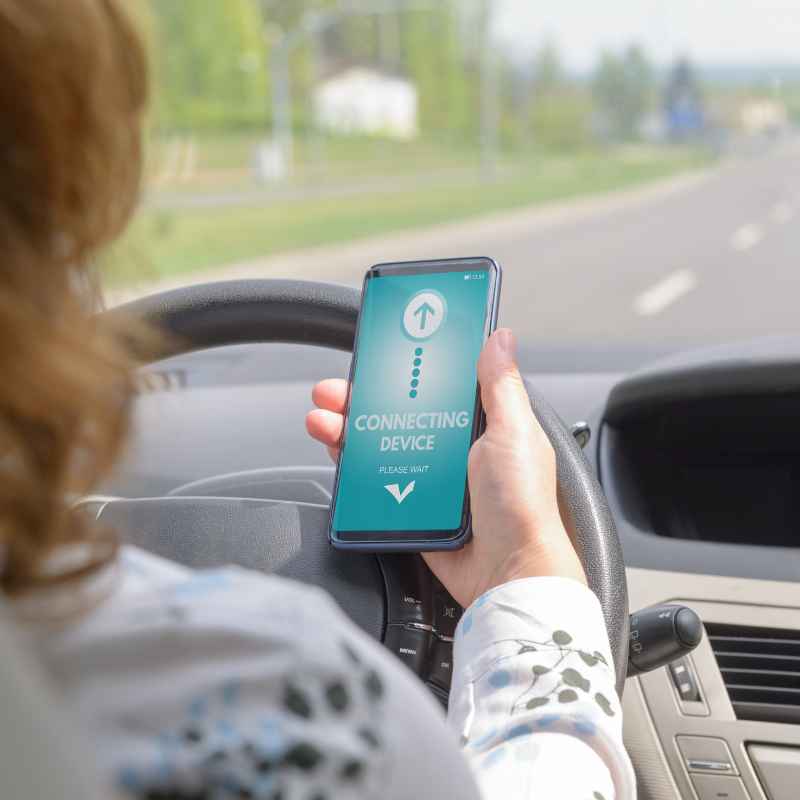
I remember one time, I bought a used car. It had this fancy touchscreen and promised full Bluetooth integration. I was so excited!
I popped in my phone, ready to sync up my favorite podcasts for my commute. I went through the car’s menu. I found the Bluetooth section.
It said “No Device Connected.” I tapped “Add Device.” The car screen just spun. My phone, meanwhile, was scanning for devices. It found my neighbor’s Bluetooth speaker, but not my car.
Panic started to set in. Was the car broken? Was my phone acting up?
I felt so silly, staring at these screens, stuck. I almost gave up and just used my aux cord. That’s when I took a deep breath and remembered one simple step I might have missed.
Step-by-Step: Pairing Your Phone
Let’s walk through the most common way to connect. Most cars follow a similar pattern. Don’t worry if your car’s screen looks a little different.
The basic idea is the same. We’ll focus on connecting your phone to the car.
1. Prepare Your Phone
First, make sure your phone’s Bluetooth is turned on. You can usually find this in your phone’s settings app. Look for “Bluetooth” or “Connections.” Tap on it.
There should be a switch to turn Bluetooth on. Make sure it’s glowing or shows “On.”
Also, ensure your phone is discoverable. This means other devices can see it. On most phones, this happens automatically when you open the Bluetooth settings.
Keep that screen open for a few minutes.
2. Prepare Your Car
Next, turn on your car. You don’t need to be driving. Just turn the ignition to the accessory mode or start the engine.
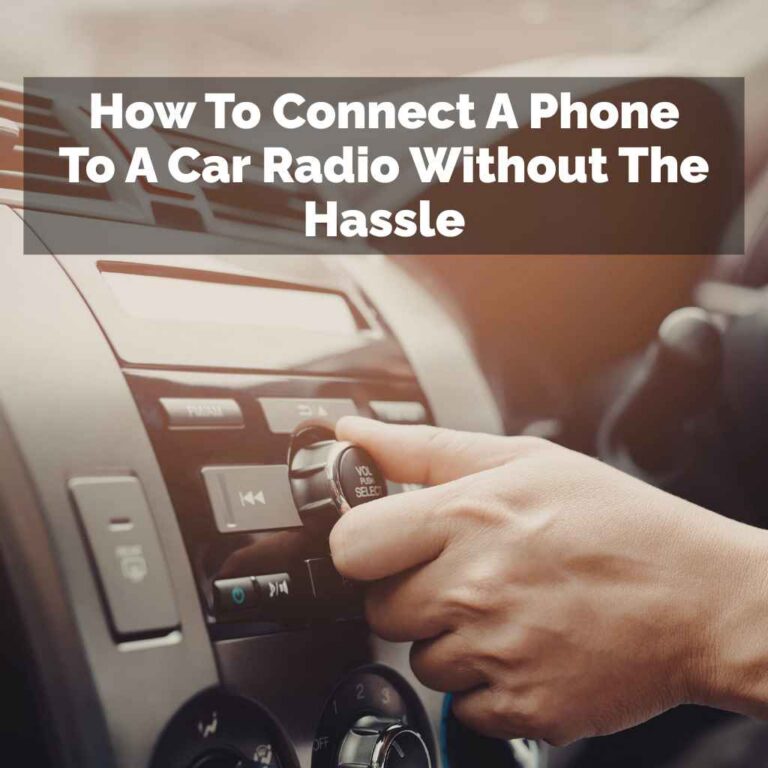
Then, find your car’s infotainment system or radio. Look for a button or menu option related to “Phone,” “Bluetooth,” or “Settings.”
Once you’re in the Bluetooth menu, you need to put the car’s system in pairing mode. This is key. It tells the car to look for new phones.
Sometimes, there’s a button that says “Pair Device” or “Add Phone.” Other times, you might need to go into a general “Settings” menu, then “Bluetooth,” and then find an “Add Device” option.
Your car’s screen might then say “Searching.” or “Ready to Pair.” This is good! It means the car is waiting for your phone.
3. Find Your Car on Your Phone
Now, go back to your phone. On the Bluetooth settings screen, you should see a list of available devices. Your car’s Bluetooth name should appear here soon.
It might take a minute or two.
If you don’t see your car’s name, try refreshing the list on your phone. You might need to tap a “Scan” or “Refresh” button. If it’s still not showing up, double-check that your car is definitely in pairing mode.
Some car systems only stay in pairing mode for a short time.
4. Connect and Confirm
When you see your car’s name on your phone’s list, tap on it. Your phone will try to connect. At this point, both your phone and your car might show a PIN code.
It could be a four-digit number like 1234 or 0000. Or, it might be a longer, random code. The important thing is that the code shown on your phone matches the code shown on your car’s screen.
If the codes match, confirm the connection on both your phone and your car. You might have to tap “Pair,” “Connect,” or “Yes.” Your car might then say “Connected” or “Paired.” Your phone will likely show the car’s name as a connected device.
5. Grant Permissions
After pairing, your car might ask for permission to access your contacts and call history. This is so you can make calls using the car’s system. It also lets you see incoming caller ID.
You’ll usually see a prompt on your phone asking for this. Tap “Allow” or “Grant” for each request if you want these features. This is totally normal.
Common Issues and Quick Fixes
Sometimes, the pairing process isn’t smooth. Here are common snags and how to fix them.
Troubleshooting Quick Guide
Issue: Phone won’t find car.
Try this: Ensure car is in pairing mode. Restart both phone and car Bluetooth.
Issue: Codes don’t match.
Try this: Cancel pairing on both devices. Start the process over.
Issue: Connection drops.
Try this: Make sure no other Bluetooth devices are interfering. Update phone software.
“Device Already Paired” Message
Have you paired this phone with this car before? Your car system might store a list of paired phones. If you see a message like “Device already paired,” it means your phone is already in the car’s memory.
You might just need to select your phone from the list of saved devices in the car’s Bluetooth menu.
If you want to pair a new phone, or if you’re having trouble, you might need to delete the old phone’s profile from the car’s system. Look for an option like “Delete Device” or “Manage Paired Phones.” Then, try pairing the new phone from scratch.
Connection Fails Repeatedly
If the connection keeps failing, try forgetting the device on both ends. On your phone, go to Bluetooth settings. Find your car’s name in the list of paired devices.
Tap the “i” or gear icon next to it. Select “Forget This Device” or “Unpair.”
Then, do the same in your car. Go to its Bluetooth settings and remove your phone’s profile. After doing this on both, restart both your phone and your car’s infotainment system.
Then, try pairing them again as if they were brand new.
Audio Not Working
You might be paired, but no sound comes out. Check your phone’s media output settings. When connected via Bluetooth, your phone should show the car as an audio output option.
Make sure it’s selected.
Also, check the audio source in your car. Ensure you’ve selected “Bluetooth Audio” or a similar option on your car’s radio. If your car has separate settings for phone calls and media audio, check both.
When Is It Normal?
It’s normal for your car’s Bluetooth to sometimes take a few seconds to connect after you start the car. It’s also normal for it to remember multiple phones if several people use the car. Some cars let you set a “preferred” phone for automatic connection.
If your car’s system has an update available, installing it might fix connection issues. Check your car manufacturer’s website for updates for your infotainment system. Similarly, keeping your phone’s operating system updated is always a good idea.
Updates often include improved Bluetooth compatibility.
Real-World Scenarios
Let’s look at different situations and how Bluetooth pairing fits in.
Understanding Connection Types
Phone Calls: Your car’s system handles microphone and speaker for calls. Clear voice, no wire needed.
Music Streaming: Your phone plays music, car speakers deliver sound. Enjoy your playlist!
App Audio: GPS directions, podcasts, audiobooks play through the car.
Contact Sync: Your car shows your phone’s contacts for easy dialing.
The New Phone Blues
You just got a shiny new smartphone. You’re eager to connect it to your car. Often, your old phone might still be listed in the car’s memory.
This can sometimes confuse the system. You’ll need to delete the old phone’s profile from the car. Then, pair the new phone.
This is a very common scenario.
Software Updates and Bluetooth
Have you ever noticed that after a phone software update, Bluetooth connections become a bit wonky? This happens. Software updates can change how Bluetooth protocols work.
Sometimes, it takes a little while for the car’s system to catch up. This is why re-pairing after an update can be so effective. It forces both devices to re-establish their connection using the new software rules.
Interference and Signal Strength
Bluetooth uses a 2.4 GHz radio frequency. This is the same band used by many other devices. Things like microwaves, Wi-Fi routers, and even some baby monitors can cause interference.
If you’re experiencing choppy audio or dropped connections, consider if other devices are nearby. Also, newer cars often have better Bluetooth range and signal processing than older ones.
When to Worry (and When Not To!)
It’s usually not a big deal if pairing takes a few tries. Don’t stress out if it doesn’t work on the first go. Most connection issues are software glitches or simple setup mistakes.
These are usually fixed by restarting, re-pairing, or updating.
However, if your car’s Bluetooth system has never worked, even after trying multiple phones and following all the steps, there might be a hardware problem with the car. In this case, it’s best to consult your car’s manual or take it to a dealership or a trusted mechanic. They can check if the Bluetooth module in your car is functioning correctly.
Another sign to watch for is if your car’s Bluetooth menu is completely unresponsive or shows error messages that you can’t clear. This could indicate a deeper issue with the car’s infotainment system.
Easy Tips for Smooth Connections
Here are some simple things you can do to make connecting easier.
Connection Best Practices
- Turn Bluetooth On: Always make sure your phone’s Bluetooth is ON before you get in the car.
- Car On First: Start your car and let the infotainment system boot up fully before trying to pair.
- One Device at a Time: If you’re having trouble, try pairing only one phone at a time to the car.
- Keep Software Updated: Regularly update your phone’s operating system and check for car infotainment updates.
- Read Your Manual: Your car’s owner’s manual has specific instructions for its Bluetooth system.
Keep your phone’s battery charged. Low battery can sometimes cause Bluetooth issues. It’s a good habit anyway for driving.
If your car supports it, consider enabling automatic connection. This feature allows your phone to connect to your car as soon as Bluetooth is turned on and you’re in range. This saves you the manual steps each time.
Frequently Asked Questions
How do I put my car’s Bluetooth into pairing mode?
This varies by car. Usually, you navigate to the Bluetooth or Phone menu on your car’s infotainment screen. Look for an option like “Add Device,” “Pair Phone,” or “Discovery Mode.” Your car’s manual will have the exact steps for your model.
My phone is connected, but I can’t hear music. What should I do?
Check your car’s audio source. Make sure “Bluetooth Audio” is selected. Also, check your phone’s media output settings to ensure it’s sending audio to the car.
Ensure the volume is up on both your phone and car stereo.
Can I connect more than one phone to my car’s Bluetooth?
Yes, most modern car systems can store multiple paired phones. However, usually, only one phone can be actively connected for calls and audio at a time. Your car might allow you to set a preferred phone for automatic connection.
Why does my car’s Bluetooth keep disconnecting?
This can be due to software glitches, interference from other devices, or an issue with the Bluetooth antenna. Try re-pairing the devices, updating software on both your phone and car, and ensuring no other strong Bluetooth signals are nearby.
How do I remove a phone from my car’s Bluetooth list?
Go to your car’s Bluetooth settings menu. You should find an option to “Delete Device,” “Unpair,” or “Manage Paired Phones.” Select the phone you want to remove and confirm the action. You might also need to “Forget” the car on your phone’s Bluetooth settings.
Is it safe to pair my phone to my car’s Bluetooth?
Yes, pairing is safe. The process uses secure codes to ensure you’re connecting to the intended device. It is designed to make driving safer by allowing hands-free operation.
Always ensure you are pairing to your car’s legitimate system.
Final Thoughts
Connecting your phone to car Bluetooth should be a breeze. By following these steps and knowing a few common fixes, you can get your system set up and running smoothly. Enjoy your music, calls, and a safer drive!
Products related to this article
Sponsored / affiliate links. As an Amazon Associate I earn from qualifying purchases. I may earn additional commission from eligible campaigns.