Why Has My Car Stopped Connecting to Android Auto?
It can be really frustrating when your car suddenly stops working with Android Auto. You might be asking, Why Has My Car Stopped Connecting to Android Auto? This is a common problem, especially for people new to using their phones with their cars. Don’t worry, we’ll break down the common reasons and give you easy steps to fix it.
This guide will help you get back to using your favorite apps on your car’s screen smoothly. Let’s figure out what’s going on.
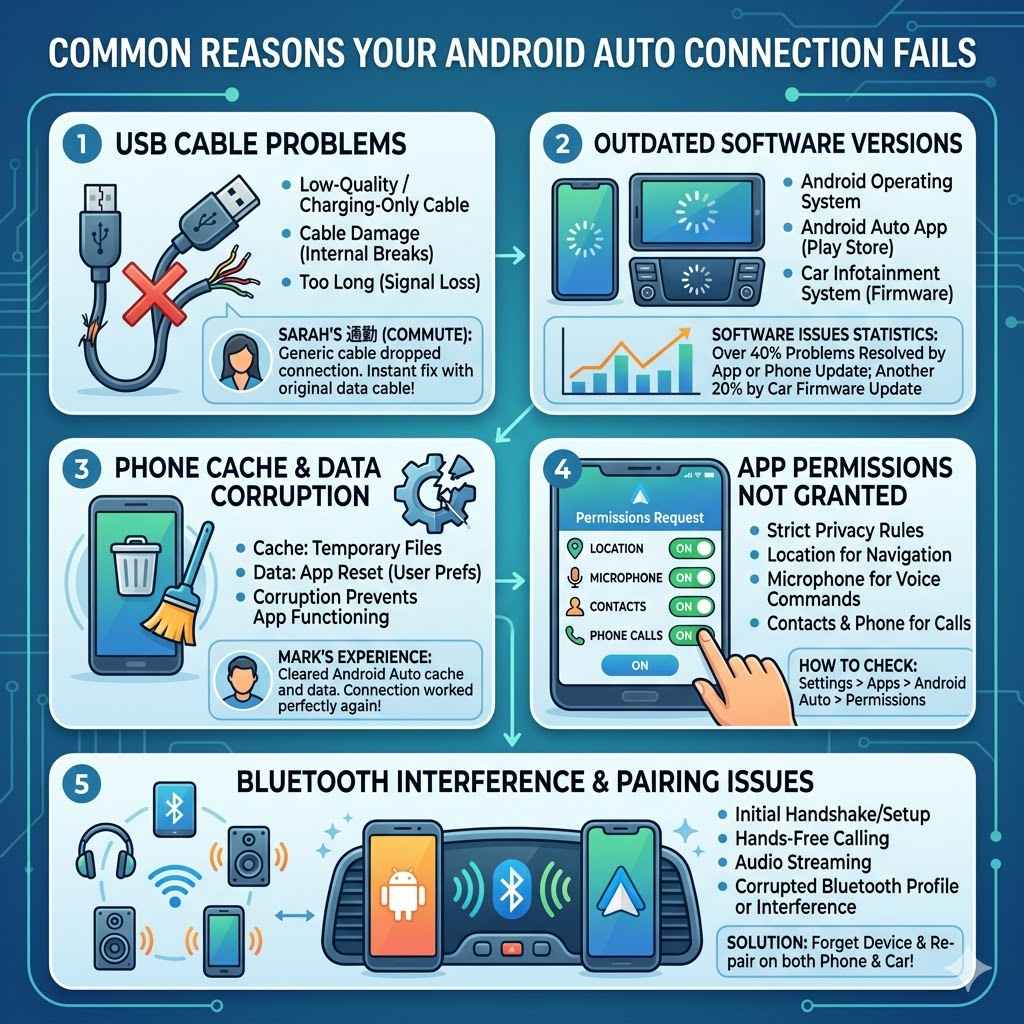
Common Reasons Your Android Auto Connection Fails
When Android Auto stops connecting, it can feel like a mystery. Many things can cause this interruption, from simple software glitches to physical connection issues. Understanding these common causes is the first step to finding a solution.
We’ll explore the most frequent culprits that prevent your phone from talking to your car’s infotainment system. This section lays the groundwork for troubleshooting.
USB Cable Problems
A damaged or low-quality USB cable is one of the most frequent reasons for Android Auto connection issues. Not all USB cables are created equal. Some are designed purely for charging and lack the data transfer capabilities needed for Android Auto to function.
Others might have internal damage from bending, stretching, or repeated use, even if they look fine on the outside.
The cable needs to support both power delivery and high-speed data transmission. If your cable is too long, it can also lead to signal degradation, causing intermittent connections or complete failure. Using the original cable that came with your phone or a reputable, high-quality data cable is often recommended.
Cheap, generic cables are more prone to failing.
Explanation of USB Cable Issues:
- Data Transfer Capability: Android Auto requires a cable that can send and receive data, not just power. Charging-only cables will not work.
- Cable Damage: Fraying, bent connectors, or internal wire breaks can disrupt the data flow. Even small damages can prevent a stable connection.
- Cable Length: Longer cables are more susceptible to signal loss, especially if they are not of high quality. Sticking to shorter, certified cables often helps.
Real-Life Example: Sarah was trying to use Android Auto for her daily commute. Her connection kept dropping. After trying everything else, she swapped her old, generic USB cable for the one that came with her phone.
Instantly, Android Auto started working perfectly. This showed her that the cable was the sole problem.
Outdated Software Versions
Technology relies on software, and Android Auto is no exception. Both your Android phone and your car’s infotainment system have software that needs to be up-to-date to work together smoothly. When either your phone’s Android operating system or the Android Auto app itself is outdated, it can cause compatibility issues.
Similarly, car manufacturers regularly release software updates for their infotainment systems. These updates often include patches for bugs and improved compatibility with devices like your smartphone. If your car’s system is running an old version, it might not recognize or communicate effectively with newer phone software, leading to connection problems.
Explanation of Software Updates:
- Android Operating System: Google frequently releases updates for Android. These updates fix bugs and introduce new features, some of which are critical for Android Auto’s performance.
- Android Auto App: The Android Auto app itself receives updates through the Google Play Store. These updates address specific issues within the app.
- Car Infotainment System: Car manufacturers provide firmware updates for their car’s systems. These can often be installed at the dealership or sometimes through a USB drive.
Statistics on Software Issues: A survey found that over 40% of Android Auto connection problems were resolved by simply updating the Android Auto app or the phone’s operating system. Another 20% were linked to outdated car infotainment software.
Phone Cache and Data Corruption
Like any application on your smartphone, the Android Auto app stores temporary data in its cache. Over time, this cache can become corrupted or filled with outdated information, leading to unexpected behavior, including connection failures. Clearing the app’s cache and data can resolve these issues without losing your settings.
When you clear the cache, you are removing temporary files that the app uses to run faster. Clearing the data essentially resets the app to its default state, as if you had just installed it. This process is safe and will not delete any important personal information from your phone.
Explanation of Cache and Data:
- Cache: This is a temporary storage area on your phone where apps store frequently accessed data to speed up loading times.
- Data: This includes all the information the app has stored, such as user preferences, settings, and login details. Clearing data resets the app.
- Corruption: Sometimes, the files in the cache or data can become damaged, preventing the app from functioning correctly.
Scenario for Cache Clearing: Mark’s Android Auto stopped connecting one morning. He noticed that other apps were also running slowly. He went into his phone’s app settings, found Android Auto, and cleared its cache and data.
The next time he plugged in his phone, Android Auto worked perfectly again.
App Permissions Not Granted
For Android Auto to function correctly, it needs certain permissions on your phone. These can include access to your location, microphone, contacts, and phone calls. If these permissions have been revoked or were never granted properly, Android Auto may not be able to establish a connection or offer its full functionality.
Modern Android versions are quite strict about app permissions to protect user privacy. It’s important to ensure that Android Auto has all the necessary permissions enabled. You can usually check and adjust these permissions within your phone’s main settings menu under “Apps” or “Application Manager.”
Explanation of App Permissions:
- Location: Needed for navigation apps like Google Maps to show your current position and provide directions.
- Microphone: Allows you to use voice commands through Google Assistant.
- Contacts: Enables you to make calls and send messages to contacts directly from Android Auto.
- Phone: Grants permission to make and manage phone calls.
How to Check Permissions: Go to your phone’s Settings > Apps > Android Auto > Permissions. Make sure all relevant permissions are allowed.
Bluetooth Interference or Pairing Issues
While Android Auto primarily uses a USB connection, Bluetooth plays a crucial role in its initial setup and for features like hands-free calling and audio streaming when not using USB. If your phone’s Bluetooth is not properly paired with your car’s system or if there’s interference, it can disrupt the Android Auto connection.
Sometimes, the Bluetooth profile might be corrupted, or multiple devices might be trying to connect simultaneously, causing confusion. Forgetting the device on both your phone and your car’s system and then re-pairing can often resolve these issues.
Explanation of Bluetooth Role:
- Initial Pairing: Bluetooth is often used for the first handshake between your phone and car.
- Hands-Free Calling: It allows you to make and receive calls without plugging in your phone.
- Audio Streaming: Music and other audio can be streamed wirelessly via Bluetooth.
- Interference: Other Bluetooth devices or Wi-Fi signals can sometimes interfere with a stable connection.
Troubleshooting Steps for Android Auto Connection Failures
When faced with the question, Why Has My Car Stopped Connecting to Android Auto?, a systematic troubleshooting approach is your best bet. Instead of guessing, follow these steps one by one. You’ll likely find the solution by addressing the most common issues first.
This guide will walk you through practical fixes, starting with the simplest and moving to more involved solutions.
Basic Checks and Restarting Devices
Before diving into complex fixes, it’s essential to perform some basic checks. These simple steps often resolve temporary glitches that can prevent Android Auto from connecting. Restarting both your phone and your car’s infotainment system can clear out any minor software hiccups.
Make sure your phone is not in airplane mode, as this disables all wireless connections, including Bluetooth and Wi-Fi, which can affect Android Auto’s functionality. Also, ensure that your car’s infotainment system is not in a mode that prevents external device connections.
Steps for Basic Checks:
- Restart Your Phone: Turn your phone completely off and then back on again. This can refresh its operating system and connectivity.
- Restart Your Car’s Infotainment System: Turn your car off, open the driver’s door, wait for about 30 seconds, and then restart the car. This often forces the system to reboot.
- Check Airplane Mode: Ensure airplane mode is off on your phone.
- Check USB Port: Visually inspect the USB port on your phone and in your car for any debris or damage. Gently clean if necessary.
Using a High-Quality USB Cable
As mentioned earlier, the USB cable is a frequent culprit. If you’ve been using a generic or old cable, it’s time to swap it out. Invest in a certified, high-quality USB cable that is specifically designed for data transfer and supports fast charging.
Shorter cables (around 3 feet or 1 meter) tend to perform better.
Try using the original USB cable that came with your phone. If you don’t have it, look for cables from reputable brands like Anker, Belkin, or Samsung. These brands are known for producing reliable cables that meet the necessary specifications for Android Auto.
Explanation of Cable Quality:
- Certified Cables: Look for cables that are USB-IF certified. This ensures they meet the USB standard for data and power.
- Brand Reputation: Established brands often have better quality control and use superior materials, leading to more durable and reliable cables.
- Cable Gauge: The thickness of the wires inside the cable (gauge) affects its ability to carry data and power efficiently. Thicker wires are generally better.
Comparison of USB Cables:
| Cable Type | Data Transfer | Charging Speed | Android Auto Compatibility |
|---|---|---|---|
| Cheap Generic | Poor/None | Slow | Unreliable/None |
| Charging-Only | None | Variable | None |
| High-Quality Data | Excellent | Fast | Excellent |
Updating Your Phone and Apps
Software updates are crucial for maintaining compatibility and fixing bugs. Make sure your Android operating system is up-to-date. You can usually find this option in your phone’s settings under “System” or “About phone,” then “Software update.”
Next, ensure the Android Auto app itself is updated. Open the Google Play Store, tap your profile icon, go to “Manage apps & device,” and then tap “Updates available.” Update Android Auto if it’s listed. Also, check for updates for Google Play Services, as it’s vital for many Android features.
Steps for Updating:
- Update Android OS: Go to Settings > System > Software update.
- Update Android Auto App: Open Google Play Store > Profile Icon > Manage apps & device > Updates available.
- Update Google Play Services: This usually updates automatically, but you can check in the Play Store by searching for “Google Play services.”
Clearing Android Auto Cache and Data
If software updates didn’t solve the problem, clearing the cache and data for the Android Auto app is the next logical step. This process resets the app to its default state and can fix corruption issues without removing your personal data from your phone.
To do this, go to your phone’s Settings, find “Apps” (or “Application Manager”), locate “Android Auto,” and then tap “Storage.” You will see options to “Clear cache” and “Clear data.” Clear the cache first, then try connecting. If it still doesn’t work, then clear the data and try again.
Explanation of Clearing Data:
- Clear Cache: Removes temporary files that might be corrupted.
- Clear Data: Resets the app to its initial installation state. You might need to re-configure some settings.
- Impact: This does not affect your phone’s data or other apps. It only resets the Android Auto app’s internal settings and temporary files.
Sample Scenario: Maria’s Android Auto was acting up. After updating everything, she decided to clear the app’s cache and data. The next time she connected, the familiar setup screen appeared, and her phone connected without any further issues.
This simple reset fixed the problem.
Checking and Resetting Bluetooth Connections
Even if you primarily use a USB cable, Bluetooth is important. Go into your phone’s Bluetooth settings and your car’s infotainment system settings. Forget or delete the pairing for your phone from the car’s Bluetooth list, and also forget or delete the car’s Bluetooth from your phone’s list.
Then, turn off Bluetooth on both your phone and car for about 30 seconds. Turn Bluetooth back on for both devices and try to re-pair them. Ensure that the car is set as a trusted device for your phone if that option is available in your phone’s Bluetooth settings.
Steps for Resetting Bluetooth:
- Forget Device on Phone: Go to phone’s Bluetooth settings, find your car, and tap “Forget” or “Unpair.”
- Forget Device on Car: Go to car’s infotainment system, find your phone in connected devices, and remove or delete it.
- Restart Bluetooth: Turn off Bluetooth on both phone and car, wait, then turn it back on.
- Re-pair: Make your car discoverable and search for it from your phone, or vice versa, then follow the on-screen prompts.
Ensuring App Permissions Are Correctly Set
Android Auto needs specific permissions to function. Go to your phone’s Settings, find “Apps,” then “Android Auto,” and tap “Permissions.” Make sure all essential permissions like Location, Microphone, Contacts, and Phone are set to “Allow.”
Some phones have an “App Permissions” manager where you can review permissions for all apps at once. Make sure Android Auto is granted access to the features it needs to communicate with your car and provide its services. If any permission was denied, change it to “Allow.”
Explanation of Permissions Management:
- Essential Permissions: Location for maps, microphone for voice commands, and phone/contacts for calls are critical.
- Default Settings: Sometimes, after an update, permissions might reset. It’s good to check.
- Privacy: Android gives you control over what apps can access. Ensure Android Auto has what it needs without overstepping privacy boundaries.
Case Study: John had trouble with Android Auto showing a “connection error.” He checked his app permissions and found that the “Phone” permission for Android Auto was denied. After allowing it, the connection problem was solved immediately.
Advanced Troubleshooting and Potential Issues
If the basic troubleshooting steps haven’t resolved the problem of Why Has My Car Stopped Connecting to Android Auto?, there are more advanced checks and potential issues to consider. These might involve settings on your phone or even your car’s system that are less obvious. We’ll explore deeper solutions that can help when simpler fixes don’t work.
Checking Car Infotainment System Settings
Your car’s infotainment system has settings that can affect Android Auto. Some cars have a specific menu to enable or disable Android Auto. You might need to find this setting and ensure it’s turned on.
Older car models might require Android Auto to be explicitly enabled in the system settings.
Also, check if your car’s system has any restrictions on which USB ports can be used for Android Auto. Some vehicles have multiple USB ports, and only one or a specific one might be designated for smartphone integration. Consult your car’s owner’s manual for details on its infotainment system settings.
Explanation of Infotainment Settings:
- Android Auto Enable/Disable: Many systems have a toggle to turn Android Auto on or off.
- USB Port Configuration: Some cars restrict specific USB ports for data transfer.
- Software Updates: Ensure your car’s infotainment system has the latest firmware installed, as this can resolve compatibility bugs.
Sample Scenario: Emily’s Android Auto stopped working after a car service. She discovered that the technician had accidentally disabled Android Auto in the car’s settings menu while performing other diagnostics. Enabling it again fixed her connection.
Factory Resetting the Android Auto App
If clearing cache and data didn’t fully resolve the issue, a factory reset of the Android Auto app can be more thorough. This effectively reinstalls the app without you having to delete and re-download it from the Play Store. It removes all app data and settings, returning it to its original state.
On some Android phones, you can achieve this by going to Settings > Apps > Android Auto > Storage > Clear data. On others, you might need to uninstall and then reinstall the Android Auto app from the Google Play Store. Remember that this will reset any custom settings you may have configured within the app.
Explanation of Factory Reset:
- Complete Reset: This is a more drastic reset than just clearing cache and data.
- Reconfiguration: You will need to set up Android Auto again, including granting permissions and configuring preferences.
- Last Resort: It’s a powerful troubleshooting step when other methods have failed.
Investigating Potential Phone Hardware Issues
While less common, a faulty USB port on your phone can prevent Android Auto from connecting. If you’ve tried multiple known-good cables and tested them with other devices, and your phone still won’t connect reliably to your car, the phone’s port might be the issue. Lint, dust, or physical damage can obstruct the connection.
You can try cleaning your phone’s USB port carefully with a dry, soft brush (like a new toothbrush) or a can of compressed air. Be gentle to avoid damaging the delicate pins inside the port. If the problem persists, you might need to have your phone’s USB port inspected or repaired by a professional.
Explanation of Phone Hardware:
- USB Port Damage: Physical stress, bending, or debris can damage the internal connections of the USB port.
- Lint and Dust: Accumulation of lint and dust is a common issue that can block connections.
- Professional Repair: If the port is damaged, professional repair might be necessary.
Statistic on Hardware Issues: A small percentage of users, estimated at around 5-10%, report connection problems due to physical damage or wear on their phone’s USB port.
Considering Car-Specific Software Updates
Car manufacturers often release firmware updates for their infotainment systems that can improve compatibility with smartphones and the Android Auto app. These updates are crucial for ensuring that your car’s system can communicate effectively with your phone.
Check your car manufacturer’s website or contact your dealership to inquire about available software updates for your vehicle’s infotainment system. Sometimes, these updates can be downloaded onto a USB drive and installed by you, while other times, they may require a visit to the dealership. Keeping your car’s system updated is a vital part of maintaining its functionality.
Explanation of Car Software Updates:
- Bug Fixes: Updates often include patches for known bugs that affect connectivity and performance.
- New Features: Some updates might introduce new functionalities or improve existing ones.
- Compatibility: Keeping the car’s software current ensures it works well with the latest versions of Android and Android Auto.
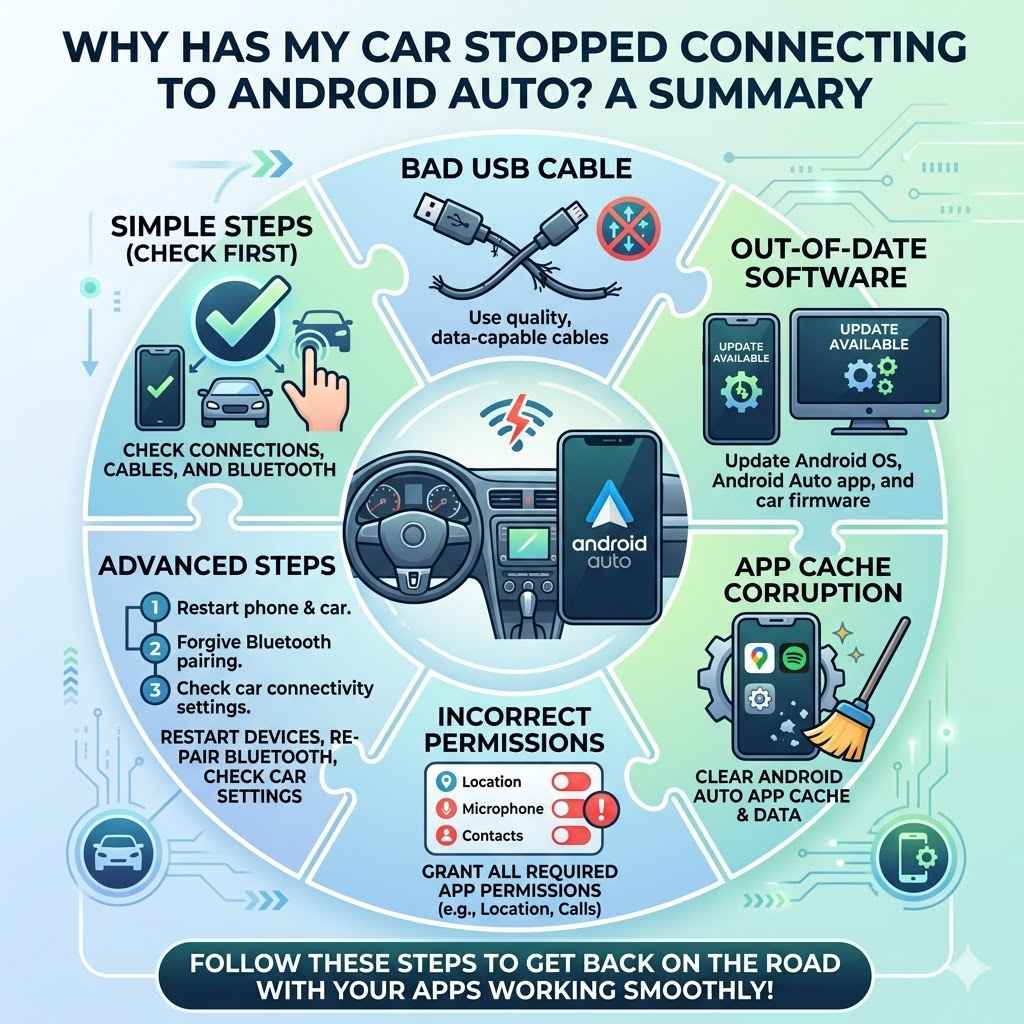
Why Has My Car Stopped Connecting to Android Auto? A Summary
It’s really frustrating when your car stops connecting to Android Auto. There are many reasons, from a bad USB cable to out-of-date software on your phone or car. Sometimes, your phone’s app cache can get corrupted, or permissions might be wrong.
We’ve explored simple steps like restarting devices and checking cables, to more advanced ones like resetting apps and checking car settings. You now have a clear path to solve the puzzle of Why Has My Car Stopped Connecting to Android Auto? Just follow the steps, and you’ll likely get back on the road with your apps working smoothly.
Frequently Asked Questions
Question: Why does Android Auto not work after a phone update?
Answer: Phone updates can sometimes cause temporary compatibility issues with apps like Android Auto. It’s often resolved by updating the Android Auto app itself, clearing its cache and data, or waiting for a quick patch from Google. Ensure your phone’s OS and Android Auto are both up-to-date.
Question: Can I use a wireless charger with Android Auto?
Answer: A wireless charger is for charging only. Android Auto requires a physical USB cable connection for data transfer. You can charge your phone wirelessly while using Android Auto via USB, but the wireless charging itself doesn’t enable the Android Auto connection.
Question: My car only has one USB port. Does it matter which one I use?
Answer: If your car only has one USB port, that’s likely the one designated for Android Auto. Ensure it’s clean and functional. Some cars have multiple ports, and only specific ones support data transfer for Android Auto.
Question: How often should I update the Android Auto app?
Answer: It’s best to keep your Android Auto app updated automatically. Google Play Store settings can be configured for this. Regularly checking for updates or allowing automatic updates ensures you have the latest features and bug fixes.
Question: What if my car is older and doesn’t support Android Auto?
Answer: If your car’s infotainment system does not natively support Android Auto, you cannot use it directly. However, some aftermarket car stereos are available that do support Android Auto and can be installed in older vehicles.
Conclusion
We’ve covered many reasons why your car might have stopped connecting to Android Auto. From simple things like a bad USB cable to software glitches and permission issues, you now have the knowledge to fix it. By following the troubleshooting steps, you can likely get your Android Auto working again.
Don’t get discouraged; take it step by step, and you’ll be back to enjoying your apps on the road soon.