Android Auto Not Working? Follow This Diagnostic Path to Fix It
You plug in your phone, the screen lights up for a second, and then nothing. Or maybe it connects fine for ten minutes and drops dead right in the middle of a navigation turn. Most people assume the car stereo is broken or the phone is dying. In my experience, neither is usually true.
Android Auto is a handshake between three separate things: your phone, the USB cable or wireless connection, and the head unit in your car. When one of those three fails, the whole system goes dark. The fix is almost always simple once you know which link in the chain is broken.

Teeran
Teeran 2 in 1 Wireless CarPlay and…
- Upgrade to Wireless CarPlay & Android Auto The 2 in 1 Wireless CarPlay and Android Auto Adapter converts your factory wired system…
- Fast Easy Setup & Auto Reconnection No app or complicated setup required. Just pair once via Bluetooth and enjoy automatic reconne…
- OEM-Level Wireless Performance & Vehicle Control Our car adapter maintains the full functionality and preserves the seamless exper…
This guide walks you through a diagnostic flowchart, not a random list of tips. You’ll start with the fastest checks and work down to the deeper fixes that actually resolve stubborn cases. We’ll cover wired and wireless paths, factory stereos and aftermarket units, and the hidden settings that quietly break Android Auto for months at a time.
First, Isolate the Problem: Phone, Cable, or Car?
Before changing any settings, figure out which side is failing. This saves you hours. The test takes two minutes.
Try your phone in a different car with Android Auto. If it connects, your phone is fine and the problem is in your car. If it fails, the issue follows your phone.
Then try a different phone in your car. If that phone connects, your car is fine. The problem is the original phone or its cable. If both phones fail, your head unit or its USB port is the culprit.
This simple cross-test eliminates guesswork. I’ve seen people factory reset their phones only to discover their USB port was clogged with pocket lint. I’ve also watched people replace entire head units when the real problem was a battery-saver app killing Android Auto in the background.
Write down which combination works and which doesn’t. That information tells you exactly which section of this article you need.
The 5-Minute Quick Fixes (Restart, Replug, Re-pair)
Try these in order. Each one takes under a minute, and together they resolve roughly half of all Android Auto failures.
- Restart your phone. A full power cycle clears stuck Bluetooth stacks and USB handshake states. Not a lock and unlock—a real restart.
- Restart your head unit. Most factory stereos have a reset button or a menu option. For aftermarket units, turn the car off, open the driver’s door, wait 30 seconds, and start again. This clears the head unit’s temporary memory.
- Unplug and replug the USB cable. Wait five seconds between unplugging and plugging back in. The phone needs time to release the USB connection state.
- Forget the Bluetooth pairing on both sides. Go to your phone’s Bluetooth settings, find your car, and select “Forget.” Then delete the phone from your car’s paired devices list. Re-pair from scratch.
- If you use wireless Android Auto, toggle Wi-Fi off and on. The wireless connection uses Wi-Fi Direct, and a stuck Wi-Fi state is a common failure point.
If none of those work, move to the cable. It’s the most common failure point and the cheapest to fix.
The Cable Is the Culprit: How to Pick a USB Cable That Won’t Fail
A bad USB cable is responsible for more Android Auto failures than any other single cause. The symptoms are specific: connection drops when you hit a bump, intermittent black screens, or the phone charging but not triggering Android Auto at all.
Android Auto requires a data connection, not just power. Many cheap cables only carry power, or they carry data poorly. The USB standard for Android Auto is USB 2.0 at a minimum, but the cable quality matters more than the spec sheet.
Here’s what I look for in a cable that works reliably:
- Length under 3 feet. Longer cables increase resistance and signal degradation. A 6-foot cable might work in your living room but fail in your car’s electrically noisy environment.
- USB-IF certification. This certification means the cable passed testing for data integrity and power delivery. Look for the logo on the packaging.
- Thick gauge wire. A thicker cable feels stiffer but carries signal better. Cheap, thin cables flex and break internally within months.
- Braided or reinforced ends. The connection point where the cable meets the connector is where most cables fail. Reinforced ends survive the daily plugging and unplugging.
Test your current cable by wiggling it while Android Auto is running. If the connection drops when you bend the cable near the phone or the USB port, the cable is done. Replace it before troubleshooting anything else.
One more thing: try the cable in a different USB port in your car. Some ports are power-only, especially in newer vehicles. The port with a data icon next to it is the one you need.
Phone-Side Settings That Break Android Auto (Battery, Permissions, VPNs)
Your phone’s settings can silently kill Android Auto even when everything else is perfect. These issues are common on Samsung, OnePlus, and Xiaomi devices because their custom battery management is aggressive.
Battery optimization is the biggest offender. Android Auto needs to run in the background to maintain the connection. When your phone’s battery saver kills background apps, Android Auto dies with it. Here’s how to fix it:
- Go to Settings > Apps > Android Auto > Battery.
- Select “Unrestricted” or “Don’t optimize” instead of “Optimized.”
- Do the same for Google Play Services and Google Maps.
App permissions matter more than you’d think. Android Auto needs access to your location, microphone, and notifications. If you denied any of these during setup, the app will misbehave. Check Settings > Apps > Android Auto > Permissions and grant everything it asks for.
VPNs and ad blockers break the connection. A VPN routes your traffic through an encrypted tunnel, and Android Auto doesn’t handle that well. The connection drops, or the screen goes black. If you use a VPN, add Android Auto to its split-tunnel or whitelist, or disable the VPN while driving.
Developer options can interfere. If you’ve enabled USB debugging, some head units fail to establish a stable connection. Turn off USB debugging and see if that fixes things. The same goes for “Stay awake” and “Select USB configuration” settings—set them back to default.
Android versions 14, 15, and 16 each introduced changes to the Bluetooth handshake protocol. If you updated recently and Android Auto stopped working, check the Android Auto app’s version in the Play Store. Google often pushes compatibility patches after a major OS update.
Wireless Android Auto: Fixing Dropped Connections and Pairing Failures
Wireless Android Auto is convenient, but it’s more fragile than wired. The connection uses both Bluetooth and Wi-Fi Direct simultaneously. If either one hiccups, the whole system drops.
Resetting Bluetooth and Wi-Fi Direct
Start by clearing the cached connection data. On your phone, go to Settings > Apps > Android Auto > Storage and select “Clear Cache.” This doesn’t delete your app data, just the temporary connection files.
Then go to Settings > Network & Internet > Wi-Fi and forget any saved networks you don’t recognize. Android Auto creates a hidden Wi-Fi Direct network, and if your phone connects to a public Wi-Fi network while driving, it can override the Android Auto connection.
For a full reset, go to Settings > System > Reset Options and select “Reset Wi-Fi, mobile & Bluetooth.” This clears all saved networks and pairings. You’ll need to re-pair your phone to your car, but it resolves most wireless connection conflicts.
Handling Interference from Other Devices
Wireless Android Auto uses the 5GHz band for data and 2.4GHz for Bluetooth. Other devices in your car can interfere with both bands. Common culprits include dash cams, radar detectors, and even the car’s own Wi-Fi hotspot.
If your connection drops at the same spot on your commute, it might be external interference—toll booths, cell towers, or high-voltage power lines. There’s not much you can do about those except switch to a wired connection for that stretch.
If you’re using a wireless adapter to add Android Auto to an older car, the adapter’s placement matters. Keep it away from metal surfaces and other electronic devices. The Teeran wireless adapter has dual-band chips specifically to handle interference, but even the best hardware struggles if it’s wedged behind a metal bracket.
Car-Side Fixes: Head Unit Settings and Firmware Updates
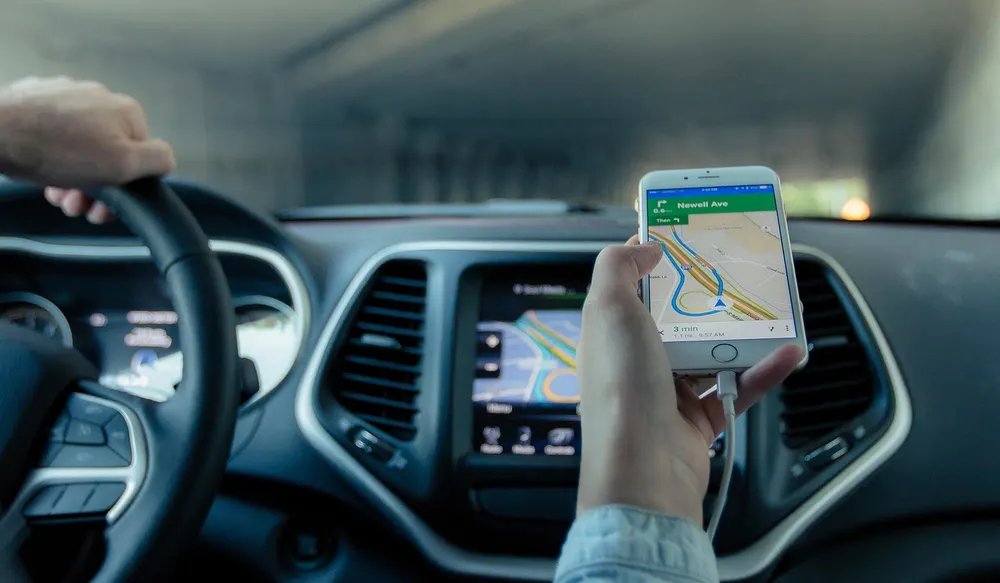
Your car’s stereo is a computer, and computers need updates. Most people never update their head unit’s firmware, and that’s a mistake. Car manufacturers release updates that fix Android Auto compatibility bugs, but they don’t push them automatically. You have to check manually.
Aftermarket vs. Factory Head Units
Aftermarket units from Pioneer, Kenwood, and Sony have their own quirks. Pioneer units often need the “Android Auto” setting enabled in the system menu, not just the app. Kenwood units sometimes require you to select “USB Mode” as “Android Auto” instead of “MTP” or “Mass Storage.” Sony units are generally the most reliable, but they still need a firmware update if you bought the unit more than a year ago.
For factory stereos, the fix is simpler. Check your car manufacturer’s website for infotainment updates. You usually download a file to a USB drive and plug it into the car’s USB port. The process takes about 15 minutes and solves a surprising number of Android Auto failures.
If you have a Pioneer head unit that connects but drops audio, check the Bluetooth firmware version. Pioneer released several updates specifically for Android Auto stability.
One more thing to check: the head unit’s USB port itself. If you’ve tried multiple cables and multiple phones, the port might be damaged. Look for bent pins or debris inside the port. A can of compressed air often fixes this.
The Nuclear Options: Clearing Data, Resetting Apps, and Factory Resets
When nothing else works, you have three increasingly aggressive options. Try them in order.
Clear Android Auto’s app data. Go to Settings > Apps > Android Auto > Storage > Clear Data. This resets the app to its default state. You’ll need to set it up again, but it wipes out any corrupted settings. This fixes about 30% of stubborn cases.
Uninstall and reinstall Android Auto. On most phones, Android Auto is a system app, so you can’t fully uninstall it. But you can disable it, restart your phone, and re-enable it. Go to Settings > Apps > Android Auto > Disable. Restart. Then go back and Enable. This forces the app to reinitialize its connection to Google Play Services.
Factory reset your phone. This is the last resort. Back up your data first, because this wipes everything. After the reset, set up your phone as a new device—don’t restore from a backup. Restoring from a backup can bring back the corrupted settings that caused the problem. A clean setup takes about 30 minutes and fixes the remaining 10% of cases.
If you’ve done all of this and Android Auto still doesn’t work, the issue might be your phone model itself. Some budget phones lack the hardware support for Android Auto, even if the specs say otherwise. Check Google’s official compatibility list for your exact model number.
Why It Still Fails: Hidden Error Codes and What They Mean
Android Auto has built-in diagnostic tools that most people never find. They reveal what the app thinks is wrong, which is more useful than guessing.
Start head unit. Go to Settings > Apps > Android Auto > Three-dot menu > Start head unit. This launches the Android Auto interface directly on your phone, bypassing the car entirely. If it works on your phone screen, the problem is in the connection to your car. If it crashes, the problem is Android Auto itself.
Add car. In the same menu, select “Add car.” This lets Android Auto create a fresh profile for your vehicle. If your existing profile is corrupted, this fixes it. Use this after you’ve cleared the app’s cache but before you do a full data reset.
Developer options. Tap the Android Auto version number seven times in the app settings to enable developer mode. This gives you access to detailed logs and the ability to set the resolution and DPI for the head unit display. If your screen shows a black display or distorted graphics, adjusting these values can help.
The error messages themselves are vague—”Connection failed” or “Device not supported”—but they point in a direction. Connection failed usually means the cable or Bluetooth handshake. Device not supported usually means your phone isn’t compatible, or the head unit’s firmware is too old.
If you see “Something went wrong with Android Auto,” check your internet connection. Android Auto needs a data connection to load maps and music. If you’re in a dead zone, the app will fail even though the connection to your car is fine.
Preventing Future Issues: A Monthly Maintenance Checklist
Android Auto failures rarely come out of nowhere. They build up over time as cables degrade, settings get changed, and firmware falls behind. Ten minutes a month prevents most of them.
- Check for app updates. Open the Play Store and update Android Auto, Google Maps, and Google Play Services. These three update frequently, and each update can fix a compatibility bug.
- Clean your phone’s USB port. Pocket lint accumulates silently. Use a wooden toothpick or a soft brush to gently remove debris. Don’t use metal—it can short the pins.
- Inspect your cable. Look for kinks, fraying, or bent connectors. If the cable feels loose when plugged in, replace it.
- Restart your phone weekly. This clears the Bluetooth and Wi-Fi stacks that get corrupted over time.
- Check for head unit firmware updates. Car manufacturers release updates every few months. Set a reminder to check.
- Review your battery optimization settings. After a phone OS update, these settings sometimes revert to the aggressive default.
One more tip: if you use a wireless adapter, check its firmware too. The Teeran adapter updates through its companion app, and the updates fix compatibility issues with new Android versions. A five-minute firmware check saves you from a month of random disconnects.
Frequently Asked Questions
Why does Android Auto keep disconnecting when I hit a bump?
That’s almost always a cable issue. The internal wires break or loosen, and the bump disrupts the connection. Replace the cable with a short, USB-IF certified one. If the problem persists, check your car’s USB port for debris or damage.
Can I use Android Auto wirelessly in a car that only has wired?
Yes, but you need a wireless adapter. These devices plug into your car’s USB port and create a Wi-Fi Direct connection to your phone. They work with most cars that have wired Android Auto. The Teeran 2-in-1 adapter is one option that also supports CarPlay, so it works for households with both iPhone and Android users.
Why does Android Auto show a black screen?
A black screen usually means the head unit is receiving a signal but can’t display it. Try lowering the resolution in Android Auto’s developer options. If that doesn’t work, update your head unit’s firmware. A black screen can also happen when the USB cable is too long or damaged.
Will clearing the Android Auto cache delete my settings?
No. Clearing the cache only removes temporary files. Your settings, paired cars, and preferences stay intact. Clearing app data, on the other hand, resets everything—you’ll have to re-pair your phone to your car.
Why does Android Auto work in one car but not another?
This points to a car-side issue. The head unit in the failing car might have outdated firmware, an incompatible USB port, or a Bluetooth pairing conflict. Use the cross-test method from the first section to confirm, then focus your fixes on that specific vehicle.
What to Do Now: A Quick Reference
- Run the cross-test first: phone in another car, another phone in your car. That tells you where the problem lives.
- Try the 5-minute fixes: restart phone, restart head unit, replug cable, re-pair Bluetooth.
- Replace your USB cable with a short, certified one. It fixes more cases than any other single action.
- Check battery optimization and app permissions on your phone. Aggressive battery saving kills Android Auto silently.
- For wireless issues, reset Bluetooth and Wi-Fi Direct, then check for interference from other devices.
- Update your head unit’s firmware, especially if it’s an aftermarket Pioneer, Kenwood, or Sony.
- Use Android Auto’s built-in “Start head unit” and “Add car” tools to diagnose hidden errors before resorting to a factory reset.
Android Auto is finicky, but it’s rarely broken for good. Work through this list in order, and you’ll find the culprit in under an hour. For persistent issues, check our guide on Android Auto stopped working for additional troubleshooting steps.
Products related to this article
Sponsored / affiliate links. As an Amazon Associate I earn from qualifying purchases. I may earn additional commission from eligible campaigns.
 CarPlay Wireless Adapter & Android Auto Adapter,2025 Upgrade Convert Wired to Wireless CarPlay Adapter, Magic Video AI Box 3.0 Support YouTube Netflix TF Card Compatibility with iOS 10+/Android 11+
 Wireless CarPlay Screen Android Auto for Car, 7" Car Stereo Touch Screen Naivgation Portable CarPlay Bluetooth Mirror Link, Siri, AirPlay, AUX, Voice Assistant for All Vehicles