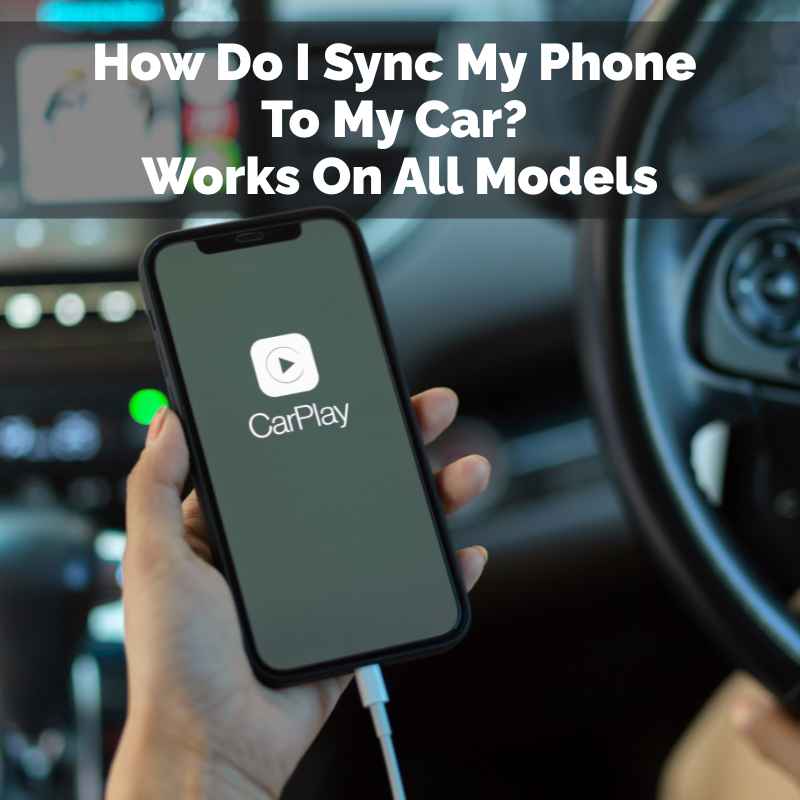
How Do I Sync My Phone To My Car? Works On All Models
Syncing your phone to your car is a straightforward process. It usually involves using Bluetooth or a USB cable. Most modern cars and smartphones support these methods.
This allows for safe, hands-free use of your phone’s features while driving. We’ll walk through the common steps for both Android and iPhone devices.
What is Phone-to-Car Syncing?
Phone-to-car syncing, often called pairing, is how your phone and car communicate. They share information. This lets you do things like play music from your phone.
You can also make and take calls. Some systems let you see your phone’s apps on the car’s screen. This is usually done wirelessly with Bluetooth.
Or, it can be done with a physical cable like USB.
Think of it like making friends. Your phone and car need to recognize each other. They need a way to talk.
Bluetooth is like a short-range radio wave. It lets them chat without wires. USB is like a direct highway.
It sends lots of data quickly.
The main goal is safety. It keeps your eyes on the road. You don’t have to fumble with your phone.
It’s about making your drive better. It makes your car more useful. It brings your digital world into your driving world.
My Phone Wouldn’t Connect: A Real-Life Tale
I remember one sweltering summer afternoon. I had just bought a used car. It was older, but I loved it.
The seller mentioned it had Bluetooth. Great, I thought! I hopped in, ready to blast my summer playlist.
I pulled out my phone. I went to the car’s settings. I looked for Bluetooth.
Found it. It said “discoverable.” I went to my phone. I looked for Bluetooth.
It showed a bunch of other devices. But not my car. I scanned again.
Nothing. My heart sank a little. Was the seller wrong?
Was the car’s system broken? I spent the next twenty minutes feeling a mix of annoyance and defeat. I felt so silly, trying to make two things talk.
It felt like a simple task that was impossible for me. I even considered just using a cheap speaker. But I knew there had to be a way.
I finally found a small manual. It was tucked away in the glove box. It had a section on “Infotainment System.” I found the Bluetooth part.
It showed a specific sequence. I had to hold down a button on the steering wheel. Then I had to confirm a code on the car’s screen.
And then I had to scan on my phone again. I tried it. Success!
My car’s name popped up. I tapped to connect. It asked for a PIN.
The manual said it was 0000 or 1234. I tried 0000. It connected!
The relief was huge. It taught me that sometimes, it’s not the tech itself. It’s knowing the exact steps for that specific car.
Bluetooth Basics for Car Syncing
What is Bluetooth? It’s a wireless technology. It lets devices talk over short distances. Think of it like a walkie-talkie for gadgets.
How it works: Your phone and car create a small network. They exchange data like phone numbers and music. This is done using radio waves.
Pairing process: First, you make both devices “discoverable.” Then, you select your car on your phone. Or, you select your phone on your car’s screen. You might need to enter a code.
This confirms it’s really you.
What it lets you do: Play music, make calls, get texts read aloud, and use voice commands.
Connecting Your Android Phone to Your Car
Syncing an Android phone is usually quite simple. Most cars use Bluetooth for this. We’ll cover the most common steps.
Your car’s manual is always your best friend if things look different.
Step 1: Turn on Bluetooth on your car.
Go to your car’s infotainment system. Look for a “Settings” or “Setup” menu. Find “Bluetooth” or “Phone.” Make sure Bluetooth is turned on.
You might see an option to make the car “discoverable” or “visible.” Select that. This lets your phone find it.
Step 2: Turn on Bluetooth on your Android phone.
On your phone, swipe down from the top of the screen. You’ll see quick settings. Look for the Bluetooth icon.
Tap it to turn it on. If you don’t see it, go to your phone’s “Settings” app. Tap on “Connected devices” or “Connections.” Then tap “Bluetooth.” Make sure the switch is on.
Step 3: Make your phone search for devices.
In the Bluetooth settings on your phone, tap “Pair new device” or “Scan.” Your phone will look for nearby Bluetooth devices. It might take a moment. Your car’s name should show up in the list.
Step 4: Select your car from the list.
Once you see your car’s name, tap on it. Your phone might show a pairing code. Your car’s screen might also show a code.
Make sure the codes match. If they do, confirm the pairing on both your phone and your car. You might need to press “Pair,” “Connect,” or “OK.”
Step 5: Grant permissions.
Your phone will ask for permission. It might want to access your contacts, call history, and messages. Allowing these helps you use features like hands-free calling and seeing caller ID on your car’s screen.
Select “Allow” or “Grant” for these.
Step 6: Test the connection.
Try playing some music from your phone. Check if the sound comes from the car’s speakers. Try making a test call.
See if you can dial from the car’s system or your phone and have it work.
Alternative: USB Connection
Some cars also support USB connection. This is great for newer Android phones. It can use Android Auto.
Plug your phone into the car’s USB port with a good quality cable. Your car’s screen might prompt you. It might ask to launch Android Auto.
Follow the on-screen instructions. You may need to download the Android Auto app first. This connection often charges your phone too.
Android Quick Connect Checklist
- Car Bluetooth: ON and Discoverable
- Phone Bluetooth: ON
- Phone Scan: Initiate scan for devices
- Car Name: Select from phone’s list
- Codes Match: Confirm pairing codes
- Permissions: Grant access to contacts/calls
- Test: Play music, make a call
Connecting Your iPhone to Your Car
Connecting an iPhone to your car is very similar to Android. Apple’s system, CarPlay, is also a popular option for newer cars. But Bluetooth is the most common way for all cars.
Step 1: Turn on Bluetooth on your car.
Just like with Android, find your car’s “Settings” or “Setup” menu. Look for “Bluetooth” or “Phone.” Turn Bluetooth on. Set the car to be “discoverable” or “visible.” This is key for your iPhone to find it.
Step 2: Turn on Bluetooth on your iPhone.
On your iPhone, swipe down from the top-right corner to open Control Center. Tap the Bluetooth icon to turn it blue (on). Or, go to “Settings.” Tap “Bluetooth.” Make sure the toggle is green (on).
Step 3: Make your iPhone search for devices.
In your iPhone’s Bluetooth settings, it will automatically start looking for devices. Under the “Other Devices” section, you should see your car’s name appear. This may take a moment.
Step 4: Select your car from the list.
Tap on your car’s name in the list of available devices. Your iPhone will show a pairing code. Your car’s display will also show a code.
Make sure they match. If they do, tap “Pair” on your iPhone. Then, confirm on your car’s screen.
Step 5: Allow access.
Your iPhone will ask if you want to allow access to your contacts and favorites. It’s best to tap “Allow.” This lets you see your contact list in the car. It also helps with call history and text messages.
Step 6: Test the connection.
Now, try playing music or making a call. You should be able to control it from your car’s steering wheel buttons or touchscreen. Verify that audio is coming through the car speakers.
Alternative: Apple CarPlay
If your car supports Apple CarPlay, you can connect your iPhone using a USB cable. Plug your iPhone into the car’s USB port. Your car’s screen should prompt you to start CarPlay.
You might need to say “Hey Siri” to activate it. CarPlay offers a more integrated experience, showing maps, music apps, and messaging apps designed for driving.
iPhone Quick Connect Checklist
- Car Bluetooth: ON and Discoverable
- iPhone Bluetooth: ON
- iPhone Scan: Automatically scans
- Car Name: Tap on iPhone’s list
- Codes Match: Confirm pairing codes
- Permissions: Allow contact and call access
- Test: Play audio, make a call
When Your Phone and Car Won’t Connect
It’s so annoying when the pairing just doesn’t work. You’ve followed the steps. You’ve checked everything.
Still no connection. This is a common problem. Many factors can cause it.
Let’s look at what might be going wrong.
Too Many Devices:
Cars and phones can only remember so many devices. If your car’s memory is full, it can’t add another one. Try deleting old, unused phones from your car’s Bluetooth list.
On your phone, forget your car from its Bluetooth list too. Then try pairing again.
Software Glitches:
Sometimes, the Bluetooth system in your car or phone just needs a refresh. Try turning Bluetooth off on both your phone and car. Wait about 30 seconds.
Then turn them back on. A full restart of your phone and car might also help. Turn the car off completely.
Take the key out. Open and close the car door. Then start it again.
This resets more systems.
Distance Issues:
Bluetooth works best when devices are close. Make sure your phone is inside the car. Don’t leave it in your pocket in the back seat.
Or leave it on the curb. Keep it near the car’s dashboard or console.
Interference:
Other electronic devices can sometimes interfere with Bluetooth signals. Things like Wi-Fi hotspots, other Bluetooth devices, or even certain car systems can cause problems. Try turning off other wireless connections on your phone temporarily.
See if that helps.
Outdated Software:
Make sure both your phone’s operating system and your car’s infotainment system software are up to date. Phone updates often fix Bluetooth bugs. Car manufacturers release updates too.
Check your car’s manual or dealership for how to update your car’s system.
Faulty Cable (for USB):
If you’re trying to connect via USB and it’s not working, the cable might be the issue. Not all USB cables are created equal. Some are only for charging.
They don’t transfer data. Try a different, high-quality USB cable. Ensure it’s designed for data transfer.
Incorrect Pairing Mode:
Double-check that your car is truly in pairing mode. Some cars have a specific button or menu option. It needs to be active for your phone to find it.
The manual is your best guide here.
Troubleshooting Quick Tips
Forget and Re-pair: Remove old devices from car and phone lists. Then connect again.
Restart Everything: Turn off and on Bluetooth on both. Restart your phone and car.
Check the Manual: Specific steps for your car model matter.
Try a Different Cable: For USB connections, a bad cable causes many issues.
Software Updates: Ensure your phone and car have the latest software.
Real-World Context: Why Syncing Matters
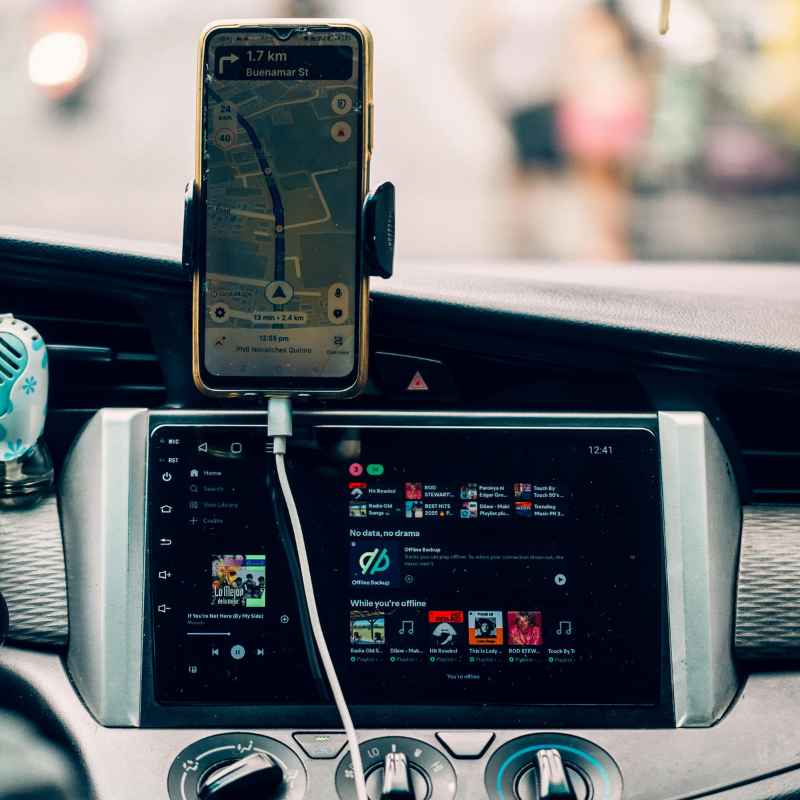
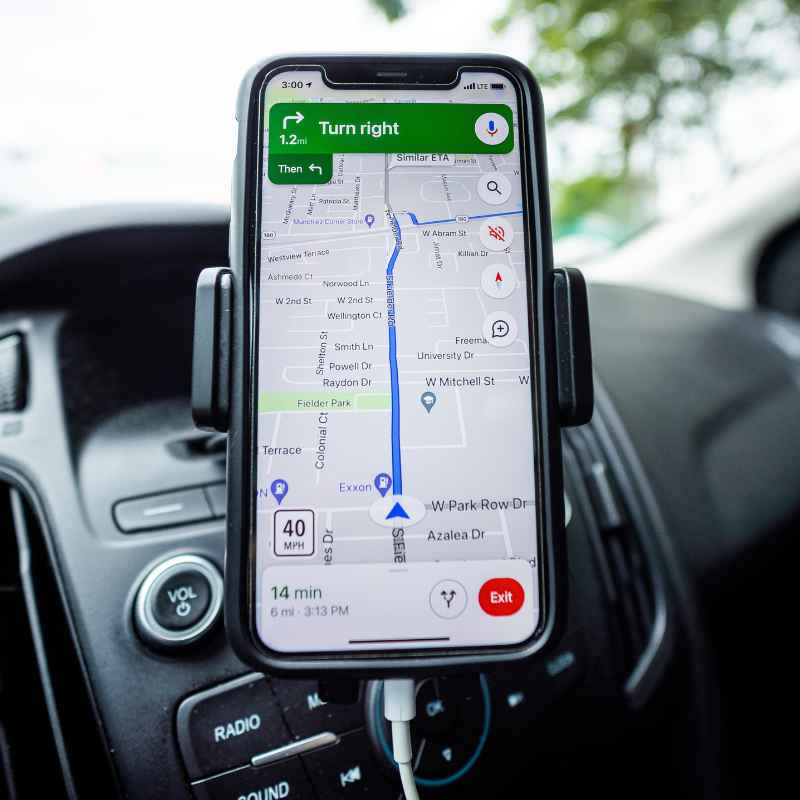
The ability to sync your phone to your car isn’t just a fancy feature. It’s become essential for many drivers. Think about how much we rely on our phones for navigation.
Services like Google Maps or Waze are crucial. They help us avoid traffic and find new places. Without car integration, constantly looking at your phone while driving is dangerous and illegal in many places.
Music and podcasts are a big part of our commutes. Being able to control playlists, skip tracks, or even switch to a podcast app using your car’s interface makes the drive more enjoyable. It reduces distractions significantly.
Hands-free calling is another huge safety benefit. In case of an emergency, or just to let someone know you’re running late, being able to initiate or answer a call without taking your hands off the wheel is invaluable. Your car can also display incoming calls and caller ID, making it easier to decide if you should take the call.
Some advanced systems, like Apple CarPlay and Android Auto, go even further. They offer a simplified version of your phone’s interface. This allows access to a curated selection of apps like messaging, music players, and navigation apps.
This keeps the interface clean and focused on driving.
The design of modern cars almost expects this connection. The placement of screens, voice command buttons on steering wheels, and USB ports all point to the need for seamless phone integration. It’s a core part of the driving experience today.
What This Means for You: When is it Normal?
It’s completely normal for your phone and car to connect easily through Bluetooth. Most modern phones and cars are designed to do this. You should expect to connect within a minute or two of following the basic steps.
It’s also normal for the connection to remain stable. Once paired, your car should automatically reconnect to your phone each time you get in and start the car. You shouldn’t have to re-pair every single time.
It’s normal for audio from your phone – music, podcasts, GPS directions – to play through your car’s speakers. You should be able to control volume and tracks using your car’s controls.
It’s normal for your car’s system to display caller ID and allow you to make calls using your phone’s contacts. Voice commands through the car system to call someone are also standard.
If you are experiencing these things, congratulations! You’ve successfully synced your phone to your car. It’s working as intended.
Enjoy the convenience and safety it provides.
When to Worry: Signs of Trouble
You should start to worry if the connection is inconsistent. If your car only connects sometimes, or disconnects randomly while driving, that’s a sign of a problem. It might be a weak Bluetooth signal or a software glitch.
If you can’t get your phone to be discoverable, or your car can’t find any devices, there might be an issue with the Bluetooth radio in one of them. This is less common but can happen.
When pairing, if the codes never match, or if the car system freezes during the pairing process, it could indicate a deeper software issue in the car’s infotainment system. This might require a professional to look at.
If you’ve tried multiple phones and none will connect to the car, it strongly suggests the car’s Bluetooth system itself has a problem. The same goes if your phone connects to other Bluetooth devices fine, but not your car.
Finally, if you’re using USB for Android Auto or CarPlay and it’s completely unresponsive, even with different cables and phones, it could be a faulty USB port in the car or a problem with the car’s media system.
Simple Checks You Can Do:
Check your phone’s Bluetooth is on and visible. Ensure your car’s Bluetooth is on and discoverable. Restart both devices.
Try deleting and re-pairing the connection. Test with a different phone if possible. Test your phone with a different Bluetooth device.
Quick Scan: Normal vs. Concerning
Normal:
– Connects automatically every time. – Audio plays clearly through car speakers. – Hands-free calls work well.
– GPS directions display or announce. – USB charges phone and enables CarPlay/Android Auto.
Concerning:
– Connection fails frequently or drops. – No sound or garbled audio. – Calls don’t connect or are choppy.
– Phone or car screen freezes during use. – USB connection doesn’t charge or activate auto systems.
Quick Fixes and Tips for a Better Connection
Sometimes, a few small adjustments can make a big difference. Here are some tips to ensure your phone and car play nicely together.
Keep Apps Updated:
Make sure the apps you use in the car, like music or navigation apps, are the latest versions. Also, ensure your phone’s operating system is current. Updates often contain performance improvements and bug fixes that can help with connectivity.
Use Quality Cables:
If you connect via USB, invest in a good quality, certified data transfer cable. Cheap or old cables can cause all sorts of issues, from slow charging to no connection at all. The same goes for charging cables.
Clean Ports:
Dust and debris can accumulate in the USB ports of both your phone and your car. Gently clean them out with a can of compressed air or a soft, dry brush. A clogged port can prevent a good connection.
Manage Bluetooth Profiles:
Some cars and phones support different Bluetooth profiles (like hands-free or media streaming). If you’re having trouble with one function but not another, check the Bluetooth settings on your phone and car. Make sure the correct profiles are enabled for the connection.
Location, Location, Location:
Keep your phone somewhere it can get a good signal to the car’s Bluetooth. The center console or a dashboard mount is usually best. Avoid placing it in a pocket in a thick coat, or in a metal container, which can block signals.
Understand Your Car’s System:
Take a few minutes to read the part of your car’s manual that deals with the infotainment system and phone connectivity. It might reveal specific features or setup steps you missed. Some cars have a “master reset” for their Bluetooth system that can fix stubborn issues.
Consider a Bluetooth Adapter:
If your car is older and doesn’t have built-in Bluetooth, you can buy an aftermarket Bluetooth adapter. These plug into your car’s aux input or FM transmitter. They allow you to stream music and take calls wirelessly.
Top Tips for Smooth Syncing
- Update Everything: Phone OS, car software, and apps.
- Quality Cables: Use good USB cables for data transfer.
- Clean Ports: Remove dust from phone and car USB ports.
- Signal Strength: Keep your phone close to the car’s main unit.
- Read the Manual: Learn your car’s specific features.
Frequently Asked Questions About Phone Syncing
Is it safe to sync my phone to my car?
Yes, syncing your phone to your car is designed to be safe. It allows for hands-free operation of calls and music. This helps drivers keep their eyes on the road.
However, it’s always best to set up your connection before you start driving. Avoid making adjustments while the car is in motion.
Do I need an app to sync my phone to my car?
For basic Bluetooth connection (calls and music), you usually do not need a special app. Both your phone and car have built-in Bluetooth. However, for advanced features like Android Auto or Apple CarPlay, you will need those specific apps installed on your phone.
Your car also needs to support them.
Why does my car keep disconnecting from my phone?
Frequent disconnections can happen for a few reasons. The Bluetooth memory in your car might be full. Try deleting old devices.
Software glitches in the phone or car can also cause this. Sometimes, interference from other devices is the culprit. Ensure both devices have the latest software updates.
Can I use my phone’s navigation through my car speakers?
Yes, absolutely. When your phone is connected via Bluetooth or USB (with CarPlay/Android Auto), navigation app audio will typically play through your car’s speakers. You can usually control volume and sometimes see maps on your car’s screen.
My car is old. Can I still connect my phone?
If your car doesn’t have built-in Bluetooth or USB ports, you can still connect. Consider using an aftermarket Bluetooth adapter that plugs into your car’s aux audio jack. Some older cars might also support connecting via a CD player adapter.
What is the difference between Bluetooth and USB connection for my phone?
Bluetooth is wireless and great for calls and music. It’s convenient but can sometimes have slightly lower audio quality or be less stable. USB connection is wired and usually offers better audio quality.
It also enables advanced features like Android Auto and Apple CarPlay, which show apps on your car’s screen. USB also charges your phone.
Conclusion
Getting your phone to sync with your car might seem tricky at first. But by following these steps, it becomes quite simple. Whether you use Bluetooth or USB, most modern devices connect easily.
Remember to be patient, check your manuals, and try the troubleshooting steps. Soon, you’ll be enjoying your music and calls safely. Your drive will be a much better experience.
Products related to this article
Sponsored / affiliate links. As an Amazon Associate I earn from qualifying purchases. I may earn additional commission from eligible campaigns.