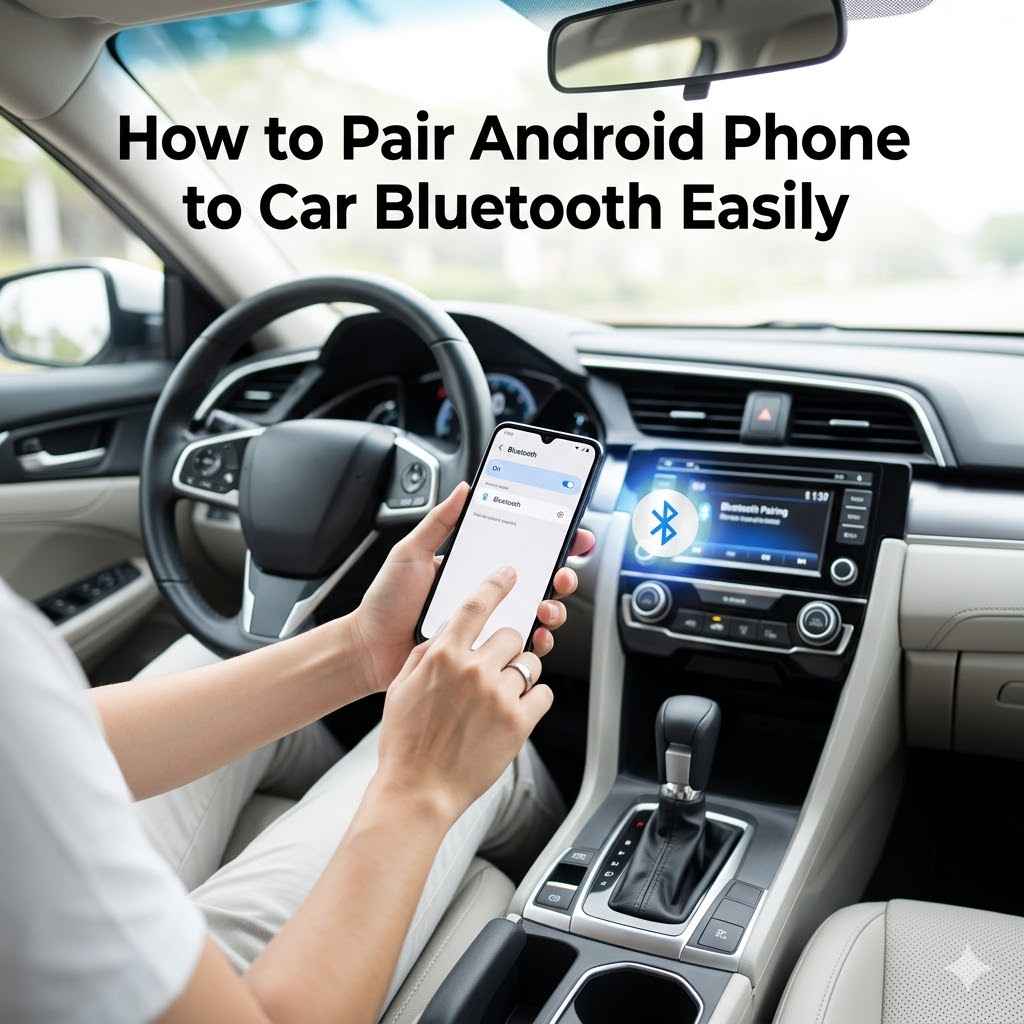
How to Pair Android Phone to Car Bluetooth Easily
Connecting your Android phone to your car’s Bluetooth system can sometimes feel a bit tricky, especially if you’re new to it. You just want to listen to music or make calls safely, but the setup process can seem confusing. Don’t worry, it’s usually much simpler than it appears.
We’ll walk you through How to Pair an Android Phone to Car Bluetooth Easily with simple steps. Let’s get your phone and car talking so you can enjoy your drive hands-free.
Connecting Your Android Phone to Your Car Bluetooth
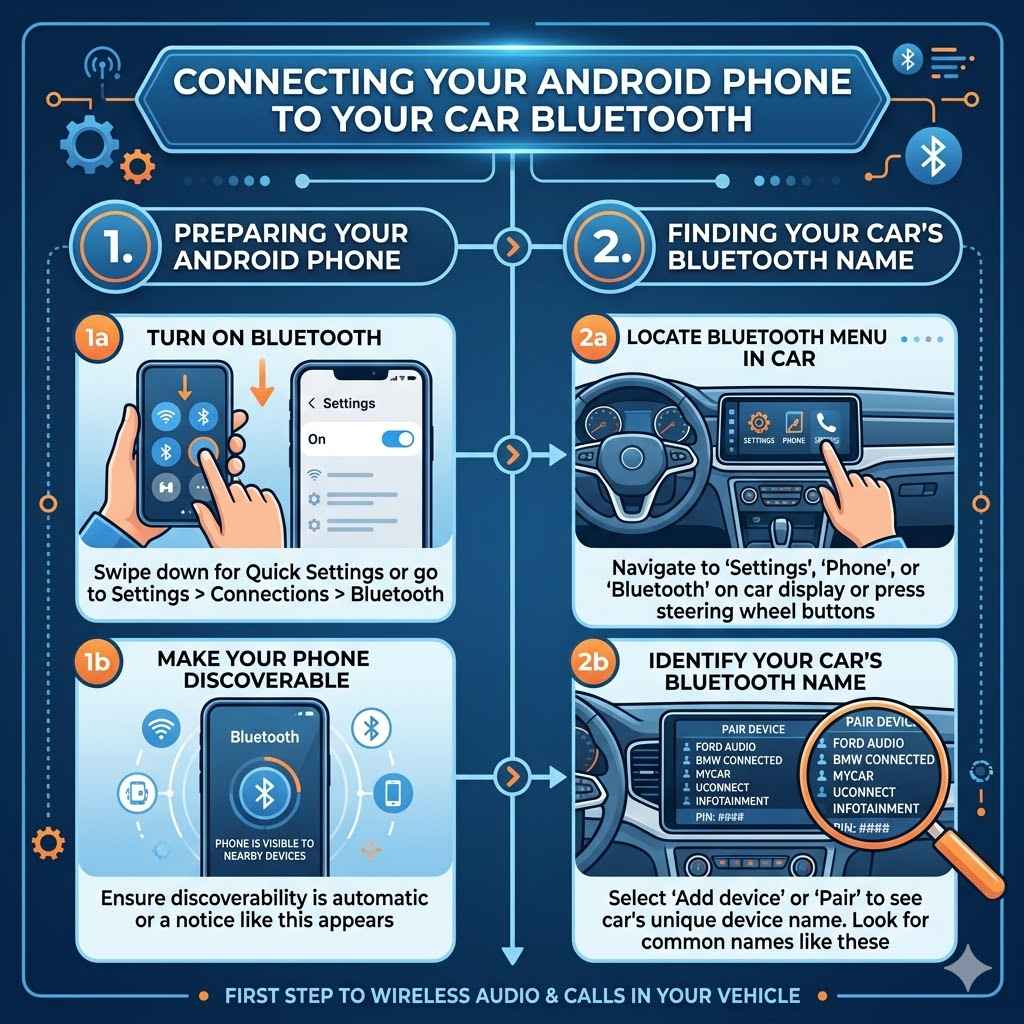
This section guides you through the basic steps to get your Android phone connected to your car’s Bluetooth system. We will cover how to make your phone discoverable and how to find your car’s Bluetooth name. This process is the first step to enjoying wireless audio and calls in your vehicle.
Making sure your phone and car can find each other is key to a successful connection.
Ensuring Your Android Phone Is Ready
Before you start pairing, you need to make sure your Android phone is set up correctly. This involves turning on its Bluetooth feature and making it visible to other devices. Most Android phones make this very straightforward.
You can usually find the Bluetooth setting in the Quick Settings menu or within the main Settings app.
Turn on Bluetooth on your Android phone.
To turn on Bluetooth, swipe down from the top of your screen to open the Quick Settings panel. Look for the Bluetooth icon, which often looks like a stylized ‘B’. Tap it once to turn Bluetooth on.
If you don’t see it there, go to your phone’s main Settings app, tap on “Connected devices” or “Connections,” and then tap “Bluetooth.” Toggle the switch to the “On” position.
Make your phone discoverable.
Once Bluetooth is on, your phone needs to be discoverable so your car can find it. On most Android phones, Bluetooth is discoverable automatically when the Bluetooth screen is open in the Settings app. You might see a notice that says “Your phone is visible to nearby devices” or something similar.
It’s a good idea to keep this screen open while you’re trying to pair.
Finding Your Car’s Bluetooth Name
Every car’s Bluetooth system has a unique name, often called a “pairing name” or “device name.” This is what your phone will look for to connect to. You’ll need to find this name on your car’s infotainment system. The exact location of this setting varies greatly between car makes and models.
Locate the Bluetooth menu in your car.
Start by looking for a “Settings,” “Phone,” or “Bluetooth” option on your car’s main screen or dashboard display. You might need to press a physical button on your steering wheel or dashboard to access these menus. Often, the option is found within a larger menu related to the vehicle’s audio or communication systems.
Identify your car’s Bluetooth name.
Once you’re in the car’s Bluetooth menu, you should see an option like “Add device,” “Pair device,” or “Bluetooth settings.” Selecting this will usually show you the car’s Bluetooth name. Common names include the car manufacturer’s name (like “Ford Audio” or “BMW Connected”), or a model name (like “MyCar,” “Uconnect,” or “Infotainment”). Some systems also display a PIN code that you might need later.
Step-by-Step Guide: How to Pair an Android Phone to Car Bluetooth Easily
Now that both your phone and car are ready, we can proceed with the actual pairing process. This section breaks down the connection steps into simple, manageable actions. Following these steps will help you successfully link your Android device to your car’s audio system without any confusion.
Initiating the Pairing Process from Your Phone
With your phone’s Bluetooth on and discoverable, and your car displaying its Bluetooth name, you can now start the pairing from your phone’s side. This is where your phone actively searches for available Bluetooth devices around it.
Scan for available devices on your Android phone.
On your Android phone’s Bluetooth screen, you should see a “Scan” or “Search for devices” button. Tap this. Your phone will then start looking for any nearby Bluetooth devices that are also in pairing mode or discoverable.
This process usually takes a few seconds to a minute.
Select your car’s Bluetooth name from the list.
Once the scan is complete, you will see a list of available devices. Look for the name of your car’s Bluetooth system that you identified earlier. Tap on that name.
Your phone will then attempt to connect to your car.
Confirming the Connection
After you’ve selected your car’s name, a confirmation step is usually required to ensure that the correct devices are connecting. This is a security measure.
Approve the pairing request.
You will likely see a message on both your phone and your car’s display asking to confirm the pairing. This might be a PIN code that needs to match on both screens. For example, your car might show “Pairing PIN: 1234” and your phone will show the same PIN.
If the PINs match, tap “Pair,” “Connect,” or “Yes” on both your phone and your car’s screen. If no PIN is displayed, you might just need to confirm the connection request.
Grant necessary permissions.
Once the pairing is confirmed, your phone might ask for permission to access contacts, call history, or messages. Allowing these permissions lets you use features like making calls from your car’s screen or receiving text message notifications. Read the prompts carefully and grant permissions as you feel comfortable.
Verifying the Connection Success
After completing the pairing steps, it’s important to check if everything is working as expected. This final verification ensures you can use your Bluetooth connection.
Check for a connection status indicator.
On your Android phone’s Bluetooth screen, your car’s name should now appear under “Paired devices” or “Connected devices.” It will likely say “Connected” or show a connection icon. Your car’s display may also show that your phone is connected, often displaying the phone’s signal strength and battery level.
Test audio and calls.
To be sure, test the connection. Try playing some music from your phone. The sound should come through your car’s speakers.
You can also try making a test call. Dial a number or call a contact, and confirm that you can hear the other person and they can hear you. This confirms that both audio and voice functions are working correctly.
Troubleshooting Common Bluetooth Pairing Issues
Sometimes, despite following the steps, you might run into a snag. This section covers some common problems and offers simple solutions to get you connected. Most issues are easily resolved with a few adjustments.
When Your Phone Can’t Find Your Car
This is a frequent problem. If your phone isn’t spotting your car’s Bluetooth, there are a few reasons why.
Ensure Bluetooth is actually on and discoverable.
Double-check that Bluetooth is enabled on your Android phone and that you are on the screen where it’s discoverable. For the car, make sure it’s actively trying to pair or is in a discoverable mode. Sometimes cars go back to a non-discoverable state quickly, so you might need to re-initiate the pairing mode on the car.
Check if your car is already paired with too many devices.
Many car systems have a limit on how many devices they can remember. If your car has reached its limit, it might not be able to see new devices. Try deleting old, unused phone connections from your car’s Bluetooth menu to make space for your current phone.
Consult your car’s manual for how to remove paired devices.
Restart both devices.
A simple restart can often fix temporary glitches. Turn off Bluetooth on your phone, then turn it back on. You can also try restarting your phone completely.
Similarly, turn your car off and then back on. Sometimes, the car’s infotainment system needs a reset to clear out any minor software errors that might be preventing connections.
Connection Fails or Drops Frequently
If you can connect but the connection is unstable, it can be frustrating. Here’s what might help.
Make sure your phone and car are close enough.
Bluetooth has a limited range, typically around 30 feet (10 meters). While your phone is inside the car, this is usually not an issue. However, if you’re trying to pair from a distance or if something is interfering with the signal (like metal objects or other strong radio signals), try moving your phone closer to the car’s dashboard or infotainment unit.
Update your phone’s software and car’s system.
Outdated software can cause compatibility problems. Check your Android phone for system updates in Settings > System > System update. For your car, updates to the infotainment system might be available.
You may need to visit a dealership or check your car manufacturer’s website for information on how to update your car’s system. These updates often include improved Bluetooth stability and performance.
Forget and re-pair the device.
Sometimes, the connection profile on your phone or car can become corrupted. On your Android phone, go to Bluetooth settings, find your car’s name in the paired devices list, tap the gear icon or “i” button, and select “Forget” or “Unpair.” Then, repeat the entire pairing process from the beginning. This creates a fresh connection profile.
Audio Issues or Poor Sound Quality
If you’re connected but the sound is bad, it’s usually an audio routing or interference problem.
Check the audio source on your car’s system.
Your car’s audio system might be set to a different source, like the radio or CD player. Make sure you’ve selected “Bluetooth Audio” or a similar option as the input source on your car’s stereo. This tells the car to play audio from your phone.
Reduce interference from other devices.
Other wireless devices, like Wi-Fi hotspots, other Bluetooth devices, or even certain car chargers, can sometimes interfere with Bluetooth signals, leading to choppy audio. Try turning off any unnecessary wireless devices or moving them further away from your phone and the car’s Bluetooth receiver. Ensure your phone charger isn’t causing interference; some cheaper chargers can emit radio frequencies that disrupt signals.
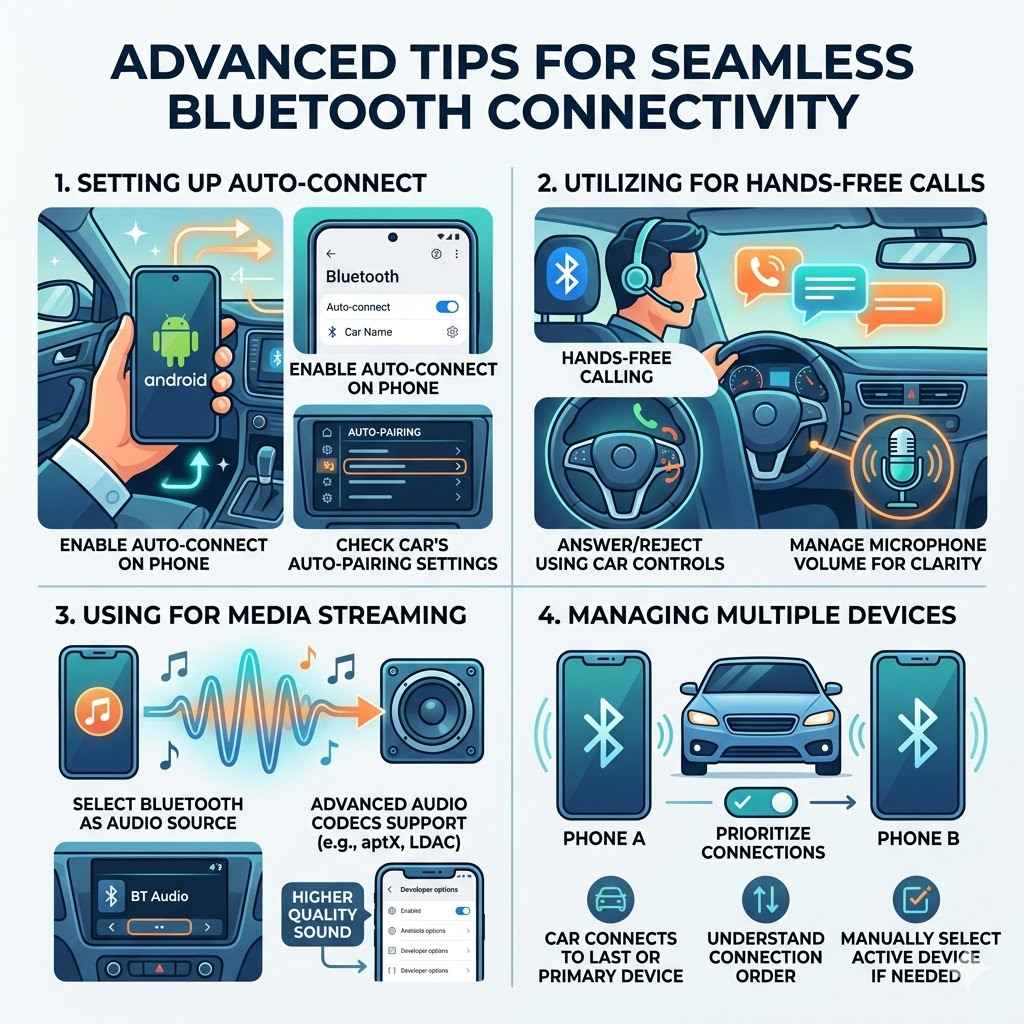
Advanced Tips for Seamless Bluetooth Connectivity
Once you’ve mastered the basics, a few extra tips can make your Bluetooth experience even smoother. These tips focus on optimizing your connection for daily use.
Setting Up Auto-Connect
Most modern cars and Android phones are designed to reconnect automatically. However, you can ensure this works best.
Enable auto-connect settings on your phone.
In your Android phone’s Bluetooth settings, tap on your car’s name under “Paired devices.” You should see options to “Connect automatically” or “Auto-connect.” Make sure this is enabled. This way, whenever you get into your car and turn it on, your phone should attempt to connect without you needing to do anything.
Check your car’s settings for auto-pairing.
Some car systems also have settings related to automatic connection. Review your car’s infotainment system menus for any options that allow it to automatically connect to previously paired phones. This ensures a smooth transition every time you start your vehicle.
Utilizing Bluetooth for Hands-Free Calls
Bluetooth is excellent for calls, but there are nuances to ensure clarity.
Understand call handling through the car system.
When a call comes in, you’ll usually see it displayed on your car’s screen. You can answer or reject calls using buttons on your steering wheel or the car’s touchscreen. Similarly, you can initiate calls using voice commands or by dialing on your car’s interface if your phone is linked for contacts.
The microphone is typically built into the car’s cabin for clear voice pickup.
Manage microphone volume and clarity.
If the other person can’t hear you well, check the microphone volume settings on your car’s system. Sometimes, there’s a specific setting for Bluetooth microphone gain. Also, try to minimize background noise in the car, such as loud music or open windows, to improve the clarity of your voice during calls.
Using Bluetooth for Media Streaming
Enjoying music, podcasts, and audiobooks wirelessly is a major benefit of Bluetooth pairing.
Select Bluetooth as your audio source.
As mentioned earlier, make sure your car’s audio system is set to the Bluetooth audio source. Once connected, you can control playback (play, pause, skip tracks) directly from your car’s controls, just like you would with a CD or radio station.
Benefits of Higher Quality Bluetooth Audio Codecs.
While standard Bluetooth audio is good, newer codecs can offer better sound quality. Your phone and car might support advanced codecs like aptX or LDAC. These codecs transmit more audio data, resulting in clearer, more detailed sound, especially for music.
Check your phone’s developer options (if enabled) and your car’s manual to see which codecs are supported. If both devices support the same advanced codec, the audio experience can be significantly enhanced. For example, users who switch to a car and phone supporting LDAC often report a richer, more dynamic sound profile for their favorite tracks.
Managing Multiple Devices
What happens if you have more than one phone or device you want to connect?
Prioritizing connections.
Most cars allow you to pair multiple phones, but typically only one can be actively connected for calls and audio at a time. The car usually connects to the last device that was connected or to a “primary” device if you’ve set one. You may need to manually select which phone to use from the car’s Bluetooth menu if both are present.
Understanding connection order.
If you enter your car with two paired phones, the car will usually try to connect to one first. If you want a specific phone to connect, it’s often best to ensure only that phone’s Bluetooth is on when you start the car. Once connected, you can turn on the Bluetooth for the second phone if you need it for other purposes like Wi-Fi hotspot, but it won’t be the primary audio/call device unless you switch it.
Frequently Asked Questions
Question: How do I make my Android phone visible to my car?
Answer: Go to your Android phone’s Settings, tap on Connected devices or Connections, then Bluetooth. Turn Bluetooth on and keep the Bluetooth screen open. Your phone will then be visible to nearby devices.
Question: What if my car’s Bluetooth name is not showing up on my phone?
Answer: Make sure your car’s Bluetooth system is in pairing mode. Also, try restarting both your phone and your car’s infotainment system. Ensure your phone is discoverable and within range.
Question: Do I need a PIN code to connect my Android phone to my car?
Answer: Some cars require a PIN code for security, while others do not. If a PIN is required, it will usually be shown on your car’s display and you’ll need to enter it on your phone. If no PIN is shown, you’ll likely just need to confirm the pairing request on both devices.
Question: My phone is connected, but no sound is coming through my car speakers. What should I do?
Answer: Check that your car’s audio system is set to the “Bluetooth Audio” source. Also, make sure the volume is turned up on both your phone and your car. Try playing music from a different app to see if the issue is specific to one app.
Question: How do I remove a paired device from my car’s Bluetooth?
Answer: This varies by car model. Usually, you’ll need to go into your car’s Bluetooth or Phone settings menu and find an option to “Manage paired devices” or “Delete devices.” Select the device you want to remove and confirm the deletion.
Conclusion
Connecting your Android phone to your car’s Bluetooth is a simple process. You’ve learned to make your phone discoverable and find your car’s name. Following the step-by-step guide ensures a successful pairing.
If issues arise, troubleshooting tips like restarting devices or re-pairing can help. Enjoy your seamless wireless experience on every drive.
Products related to this article
Sponsored / affiliate links. As an Amazon Associate I earn from qualifying purchases. I may earn additional commission from eligible campaigns.