How Does Wireless CarPlay Work? A Full Guide
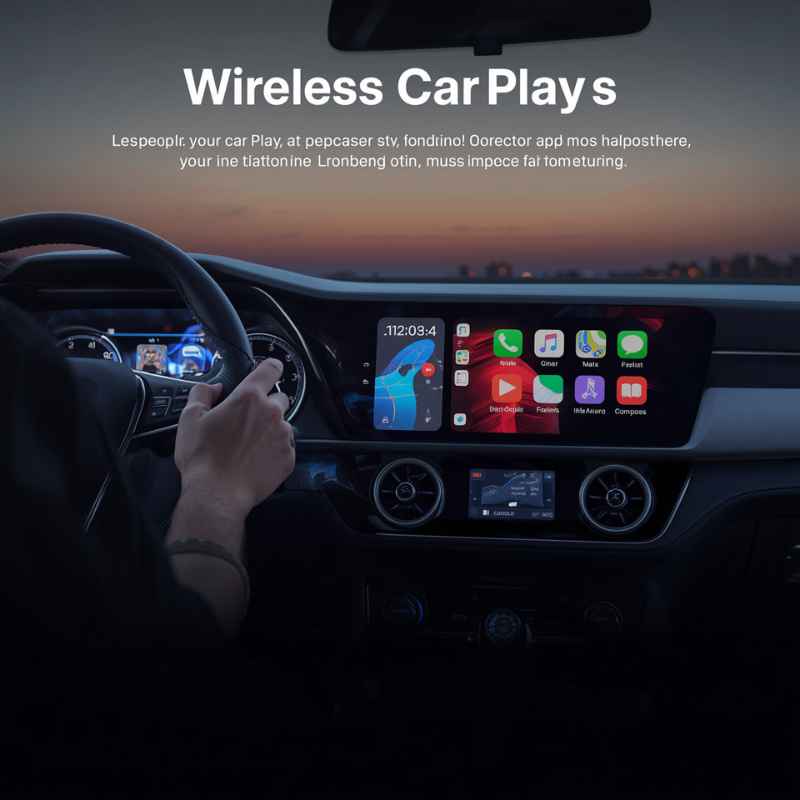
How does wireless CarPlay work? If you’re tired of fumbling with USB cables every time you get in your car, you’re in the right place. Wireless CarPlay offers a seamless, convenient way to access your iPhone’s essential apps on your car’s infotainment screen.
This guide will break down the technology behind it, its benefits, and what you need to get it up and running.
Understanding how this technology functions can enhance your driving experience, making navigation, music, and communication simpler and safer. We’ll cover everything from the initial connection process to troubleshooting common issues, ensuring you get the most out of your wireless CarPlay setup.
Simply put, wireless CarPlay uses a combination of Wi-Fi and Bluetooth to connect your iPhone to your car’s infotainment system, enabling seamless access to apps for navigation, music, and communication without a physical cable connection. This connection is established through a handshake process where both devices identify each other and create a secure, high-speed network for data transfer.
Key Takeaways
- Wireless CarPlay works by pairing your iPhone with your car’s head unit via Bluetooth for initial authentication and Wi-Fi for high-speed data streaming.
- A stable Wi-Fi connection is crucial for optimal performance, ensuring smooth audio playback and responsive app usage.
- Your car and iPhone must both support wireless CarPlay for the feature to be available.
- Initial setup involves a one-time Bluetooth pairing and Wi-Fi confirmation.
- Troubleshooting often involves checking device compatibility, restarting devices, or ensuring software is updated.
What is Wireless CarPlay?
Wireless CarPlay is a feature that allows your iPhone to connect to your car’s built-in infotainment system wirelessly. This means you can use many of your iPhone’s apps, such as Maps, Music, Podcasts, and Messages, directly on your car’s display without plugging in a Lightning cable. It’s designed to provide a safer and more convenient way to interact with your phone while driving.
The core idea is to mirror a simplified version of your iPhone’s interface onto your car’s screen. This allows for easy access to features you’d normally use your phone for, but with larger icons, simpler controls, and voice command integration through Siri, all optimized for the driving environment. The “wireless” aspect removes the clutter and inconvenience of physical cables, offering a cleaner and more integrated experience.
The system leverages established wireless technologies to create a reliable connection. Think of it as your iPhone becoming an extension of your car’s entertainment and information hub. This seamless integration aims to reduce driver distraction by putting the most commonly used features within easy reach and view, all without the need for physical connections that can wear out or become tangled.
The Technology Behind the Magic
At its heart, wireless CarPlay utilizes a sophisticated interplay between two primary wireless technologies: Bluetooth and Wi-Fi. Bluetooth serves as the initial handshake protocol. When you first set up wireless CarPlay, your iPhone and car’s head unit use Bluetooth to discover each other and establish a secure pairing.
This pairing process is similar to connecting Bluetooth headphones to your phone.
Once the devices are paired and authenticated via Bluetooth, they then establish a direct Wi-Fi connection. This Wi-Fi link is critical because it’s designed for high-bandwidth data transfer, which is necessary for streaming audio, displaying maps, and running app interfaces smoothly. The Wi-Fi connection is usually automatically established once the initial Bluetooth pairing is complete and the car is in accessory mode or running.
- Bluetooth 4.0 or later: Essential for the initial pairing and discovery process.
- Wi-Fi 5GHz band: Used for the high-speed data transfer between the iPhone and the car. This band offers faster speeds and less interference than the 2.4GHz band.
- Apple’s proprietary protocols: These ensure secure communication and efficient data management between Apple devices and compatible vehicles.
The combination ensures both a secure connection and the necessary speed for a responsive user experience. It’s a robust system designed by Apple to be as plug-and-play as possible, even in its wireless form. This technology is built into both newer iPhones and compatible car models, making the setup relatively straightforward for those who have the hardware support.
Benefits of Going Wireless
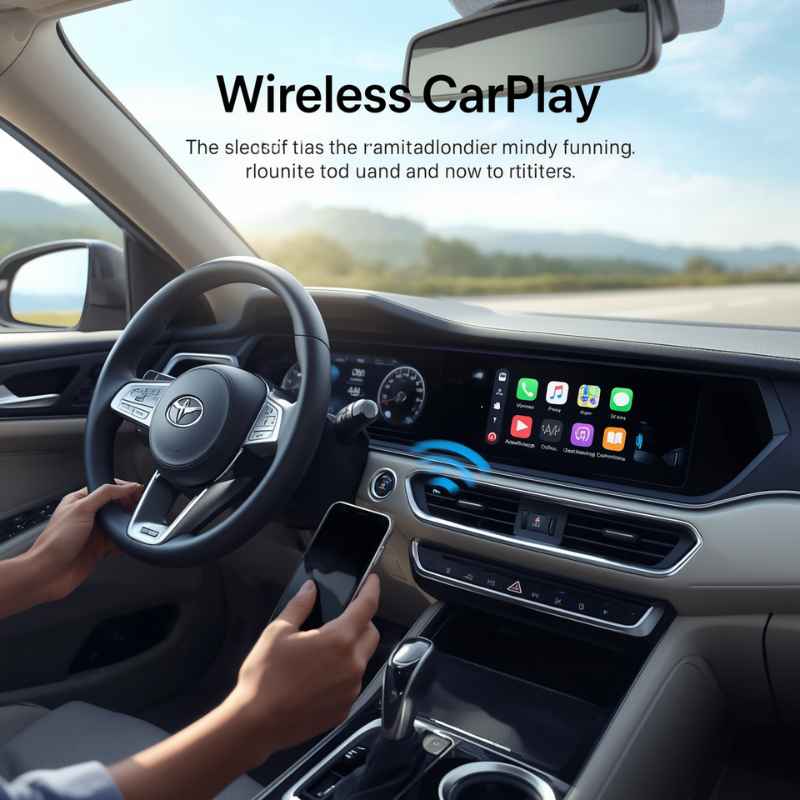
The most obvious benefit of wireless CarPlay is the sheer convenience. Gone are the days of searching for a charging cable or dealing with a tangled mess in your center console. Simply get in your car, start it up, and if your iPhone is within range and has wireless CarPlay enabled, the system should connect automatically.
This saves time and reduces fumbling while you’re trying to get on the road.
Beyond convenience, wireless CarPlay enhances safety. By eliminating the need to physically plug in your phone, you’re less likely to be distracted. Your iPhone can remain in your pocket or bag, reducing the temptation to pick it up.
All interactions are handled through the car’s touchscreen or Siri, keeping your eyes on the road more of the time. This reduction in physical interaction and visual distraction is a key safety feature.
Enhanced Driving Experience
The freedom from cables contributes significantly to a cleaner and more organized car interior. This aesthetic improvement can make your driving experience feel more premium and less cluttered. Passengers also benefit from the lack of cables, leading to a more comfortable environment for everyone in the vehicle.
Furthermore, automatic connection means you can start using your preferred navigation or music apps almost instantly. For frequent drivers, this seamless transition from home to car is invaluable. It streamlines the start of your journey, allowing you to focus on driving rather than on connecting your devices.
This is especially useful for short trips where plugging and unplugging a cable would feel like a chore.
Key Advantages Summarized
- Effortless Connection: Automatic pairing upon entering the vehicle.
- Reduced Clutter: No more tangled USB cables.
- Improved Safety: Less physical interaction with your phone.
- Convenience: iPhone can stay in your pocket or bag.
- Faster Access: Apps are ready to use upon ignition.
- Aesthetic Appeal: Cleaner car interior.
What You Need for Wireless CarPlay
To enjoy wireless CarPlay, you need a few key components to be in place. First and foremost, both your iPhone and your car must be compatible. Apple introduced wireless CarPlay support starting with iOS 12, but the specific car models that support it vary by manufacturer and model year.
Not all cars with CarPlay support wireless functionality; some are wired-only.
Your iPhone needs to be running iOS 12 or later. For the best experience, it’s always recommended to have the latest version of iOS installed, as updates often include performance improvements and bug fixes for CarPlay. Ensure your iPhone’s Wi-Fi and Bluetooth are turned on, as these are the core technologies enabling the wireless connection — see our related guide, Does a 2012 Ford Focus Have Bluetooth? Trim-by-Trim Guide.
iPhone Compatibility
Apple iPhones have supported wireless CarPlay since the launch of iOS 12. Specifically, the following iPhone models are generally compatible:
- iPhone 5s and later running iOS 12 or later.
While these iPhones can technically connect, newer models generally offer better processing power and Wi-Fi capabilities, which can contribute to a smoother overall experience. It’s important to check your specific iPhone model and its current iOS version. You can find your iPhone’s model and iOS version by going to Settings > General > About.
Vehicle Compatibility
Car manufacturers started integrating wireless CarPlay into their vehicles around 2016-2017. However, support is not universal across all models or trim levels. Some manufacturers offer wireless CarPlay on higher trim levels or as an optional upgrade.
To determine if your car supports wireless CarPlay, consult your vehicle’s owner’s manual or contact your car dealership. You can also check Apple’s official CarPlay page, which lists many supported car models, though it may not always be up-to-date with the very latest integrations. Look for a “Wireless CarPlay” or “Wi-Fi CarPlay” mention in your car’s specifications.
| Requirement | Details |
|---|---|
| iPhone Model | iPhone 5s or later |
| iOS Version | iOS 12 or later |
| Vehicle Support | Must explicitly support wireless CarPlay |
| Wireless Enabled | Wi-Fi and Bluetooth turned on (iPhone and Car) |
If either your iPhone or your vehicle lacks support, you won’t be able to use wireless CarPlay and will have to rely on a wired connection if supported.
How to Set Up Wireless CarPlay
Setting up wireless CarPlay for the first time is a straightforward process, designed to be as user-friendly as possible. It involves a one-time pairing sequence that establishes the connection between your iPhone and your car’s infotainment system. Once paired, your iPhone should automatically connect whenever you enter your car and it’s powered on.
The initial setup requires you to be parked safely and have your car’s infotainment system turned on. Ensure your iPhone’s Wi-Fi and Bluetooth are enabled. The process is initiated from your car’s display, guiding you through the steps to discover and connect your iPhone.
Step-by-Step Connection Guide
Here’s a typical step-by-step guide for setting up wireless CarPlay:
- Ensure Compatibility: Confirm both your iPhone and car support wireless CarPlay.
- Enable Wireless on Car: On your car’s infotainment screen, navigate to the CarPlay settings and ensure “Wireless CarPlay” or “Wi-Fi CarPlay” is enabled. Some cars may have this on by default.
- Initiate Pairing from Car: On your car’s screen, look for an option like “Connect iPhone” or “Add Phone.” Select this option.
- Activate Bluetooth on iPhone: Make sure Bluetooth is turned on in your iPhone’s Settings.
- Discover iPhone: Your car’s system should search for nearby Bluetooth devices. Your iPhone should appear in the list. Select your iPhone.
- Confirm Pairing Request: Your iPhone will likely display a pairing request, asking if you want to pair with your car. Confirm this request.
- Connect to Car’s Wi-Fi: After Bluetooth pairing, your car’s system will prompt you to connect to its Wi-Fi network. It may automatically join a network set up for CarPlay. You might see a prompt on your iPhone asking to join the car’s Wi-Fi network; accept it.
- Enable CarPlay on iPhone: You may receive a prompt on your iPhone asking if you want to use CarPlay with your car. Tap “Use CarPlay” or “Allow.”
- Automatic Connection: Once connected, your CarPlay interface will appear on your car’s screen. For future drives, simply start your car, and your iPhone should automatically connect wirelessly.
This initial setup is crucial. If you encounter issues during this phase, it’s important to troubleshoot them before proceeding. A successful first connection is the foundation for all future automatic connections.
First-Time Connection Tips
Important: Ensure your iPhone is not connected to any other Wi-Fi networks or Bluetooth devices (other than the car during setup) that might interfere with the pairing process. Some car systems require you to “forget” previous Bluetooth pairings before a new one can be established.
It’s also wise to have your car’s manual handy, as the exact menu names and sequences can vary slightly between manufacturers. If prompted, always allow CarPlay to access your contacts, messages, and other data to ensure full functionality. This allows Siri to read and reply to messages, and for navigation apps to access your contacts for destination input.
Troubleshooting Common Issues
While wireless CarPlay is designed for convenience, sometimes things don’t go as smoothly as planned. Connectivity issues are the most common problems users face. These can range from the system not connecting at all to intermittent disconnections or laggy performance.
The good news is that most of these issues can be resolved with a few simple troubleshooting steps. Often, the problem isn’t with the core technology itself but with minor glitches in the connection or software. A systematic approach to troubleshooting will usually get you back up and running.
Connection Problems
If your iPhone isn’t connecting wirelessly to CarPlay, first check the basics:
- Wi-Fi and Bluetooth Status: Ensure both Wi-Fi and Bluetooth are enabled on your iPhone. Also, verify that your car’s Wi-Fi and Bluetooth are active and discoverable.
- Proximity: Your iPhone needs to be within a reasonable range of your car’s infotainment system. For most cars, this means being inside the vehicle.
- Restart Devices: Turn off both your iPhone’s Wi-Fi and Bluetooth for 30 seconds, then turn them back on. Similarly, turn off your car’s infotainment system, wait a minute, and turn it back on. A full iPhone restart can also clear temporary glitches.
- Forget Network/Device: On your iPhone, go to Settings > Wi-Fi and tap the “i” icon next to your car’s Wi-Fi network and choose “Forget This Network.” Also, go to Settings > Bluetooth, find your car, and tap “Forget This Device.” Re-pair as if it were the first time.
Sometimes, the car’s system might have a “forget all devices” option; this can also be helpful if multiple phones have been paired. A factory reset of the car’s infotainment system is a last resort but can resolve persistent software issues on the car’s end.
Performance Issues (Lag, Audio Stuttering)
If wireless CarPlay is connected but experiences lag, stuttering audio, or slow responses, here’s what to check:
- Network Interference: Other active Bluetooth or Wi-Fi devices in the car or nearby can cause interference. Try turning off unnecessary wireless devices.
- iPhone Performance: If your iPhone is running many background apps or is low on battery, its performance might degrade, affecting CarPlay. Close unused apps and ensure your iPhone has sufficient battery.
- Software Updates: Make sure both your iPhone’s iOS and your car’s infotainment system software are up to date. Manufacturers regularly release updates to improve CarPlay performance and fix bugs.
- Wi-Fi Band Usage: Wireless CarPlay typically uses the 5GHz Wi-Fi band for better speed. Ensure your car system is configured to use this band if there’s an option, and that there isn’t excessive congestion on that band.
If the issue persists, consider whether the problem might be with a specific app rather than the CarPlay connection itself. Test with different apps like Apple Maps, Apple Music, or Podcasts to see if the problem is isolated.
Warning: Never attempt to troubleshoot or adjust settings while driving. Pull over to a safe location before making any changes to your phone or car’s system. Your safety is paramount.
Tips for Optimizing Your Wireless CarPlay Experience
Once you have wireless CarPlay up and running, there are several ways to ensure you get the best possible experience. These tips focus on maintaining a stable connection, optimizing performance, and using the system effectively for a safer and more enjoyable drive.
Paying attention to these details can make a significant difference, transforming CarPlay from a useful feature into an indispensable driving companion. Small adjustments can lead to a much smoother and more reliable performance over time.
Maintaining a Strong Connection
A stable Wi-Fi connection is paramount for wireless CarPlay. Even minor fluctuations can lead to audio dropouts or lag.
- iPhone Battery Management: Keep your iPhone charged. Low battery can sometimes lead to reduced performance. Use a car charger if needed, but remember the goal is wireless, so avoid cluttering the console.
- Minimize Background Apps: Close apps on your iPhone that you aren’t actively using, especially those that consume significant data or processing power.
- Car’s Wi-Fi Settings: If your car’s system allows, check its Wi-Fi settings. Some vehicles offer options to prioritize CarPlay’s Wi-Fi connection.
- Regular Updates: Consistently update both your iPhone’s iOS and your car’s infotainment system. Apple and car manufacturers frequently release patches that improve connectivity and performance.
The connection is a direct Wi-Fi link, so think of it like connecting to any home Wi-Fi network; a stronger signal and less interference mean better performance.
Maximizing Usability
To get the most out of your wireless CarPlay setup, consider these usability tips:
- Master Siri Commands: Siri is your best friend for wireless CarPlay. Practice common voice commands for navigation (“Hey Siri, navigate home”), music (“Hey Siri, play my driving playlist”), and communication (“Hey Siri, call Mom”).
- Customize Your CarPlay Screen: On your iPhone, go to Settings > General > CarPlay, select your car, and then “Customize.” You can rearrange app icons and hide apps you don’t want to see on your car’s screen.
- Use Wired for Initial Setup: If you’re setting up wireless CarPlay for the first time or experiencing persistent connection issues, try connecting your iPhone via USB first. Sometimes this can help establish the initial pairing more robustly. Once paired, you can disconnect the cable and rely on wireless.
- Explore Compatible Apps: Beyond the built-in apps, many third-party apps like Spotify, WhatsApp, Waze, and Google Maps are designed for CarPlay. Explore these to enhance your driving experience further.
By proactively managing your settings and learning the system’s capabilities, you can ensure CarPlay remains a valuable and seamless part of your daily commute.
Frequently Asked Questions
What is the difference between wired and wireless CarPlay?
The primary difference is the connection method. Wired CarPlay requires a USB cable to connect your iPhone to the car, while wireless CarPlay uses a combination of Bluetooth and Wi-Fi for a cable-free connection. Wireless offers greater convenience and a cleaner interior, but both provide access to the same set of apps and features.
Can I charge my iPhone while using wireless CarPlay?
Yes, you can. Since wireless CarPlay doesn’t use the Lightning port, you are free to use a separate USB charger or a cigarette lighter adapter to keep your iPhone’s battery topped up. This ensures your phone remains powered throughout your journey, especially on longer drives.
My car supports wireless CarPlay, but it only connects when I plug in my iPhone. What’s wrong?
This usually means your car supports both wired and wireless CarPlay, but the automatic wireless connection hasn’t been properly set up or is experiencing an issue. Try forgetting the car’s Bluetooth and Wi-Fi connection from your iPhone and re-pairing from scratch. Ensure wireless CarPlay is enabled in your car’s infotainment settings.
Sometimes, a simple restart of both your iPhone and car’s system can resolve this.
Does wireless CarPlay use more battery than wired CarPlay?
Wireless CarPlay does consume more battery than wired CarPlay because it actively uses Bluetooth and Wi-Fi. The continuous wireless communication requires more power. However, as mentioned, you can easily mitigate this by using a separate charger while enjoying the wireless connection.
How do I know if my car is compatible with wireless CarPlay?
You can check your car’s owner’s manual or the manufacturer’s website for specifications. Look for mentions of “Wireless CarPlay,” “Wi-Fi CarPlay,” or “Cable-free CarPlay.” Some newer vehicles also indicate CarPlay compatibility with a small iPhone icon on the dashboard or infotainment screen when near the vehicle.
Final Thoughts
Understanding how does wireless CarPlay work reveals a clever integration of Bluetooth and Wi-Fi technologies designed for ultimate convenience. It transforms your driving experience by providing seamless access to your iPhone’s most important features without the hassle of cables. By ensuring compatibility and following the simple setup steps, you can unlock a safer, cleaner, and more connected journey.
Products related to this article
Sponsored / affiliate links. As an Amazon Associate I earn from qualifying purchases. I may earn additional commission from eligible campaigns.
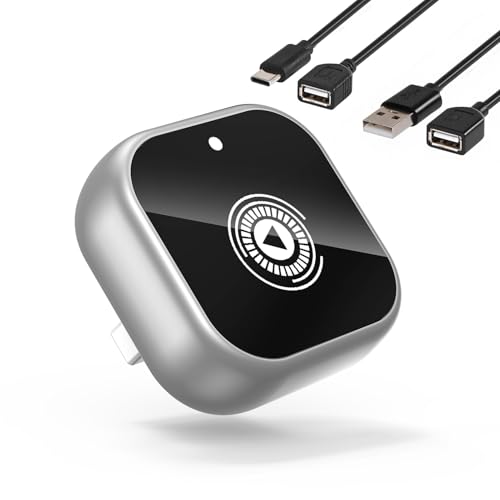 Wireless CarPlay Adapter for Cars with Built-in Wired Apple CarPlay Plug and Play, Mini-USB Design, Fast Stable Connection, for iPhone with USB/Type-C Port
 Wireless Carplay Mirror Link Adapter for Apple 3 in 1 Bluetooth Mirroring iOS Phone to Car Screen Adapter 2026 Wired to Wireless Portable USB Car Play Screen Connector for iPhone to Watch Movies