How To Get Your Phone Screen On Your Car Display Fast
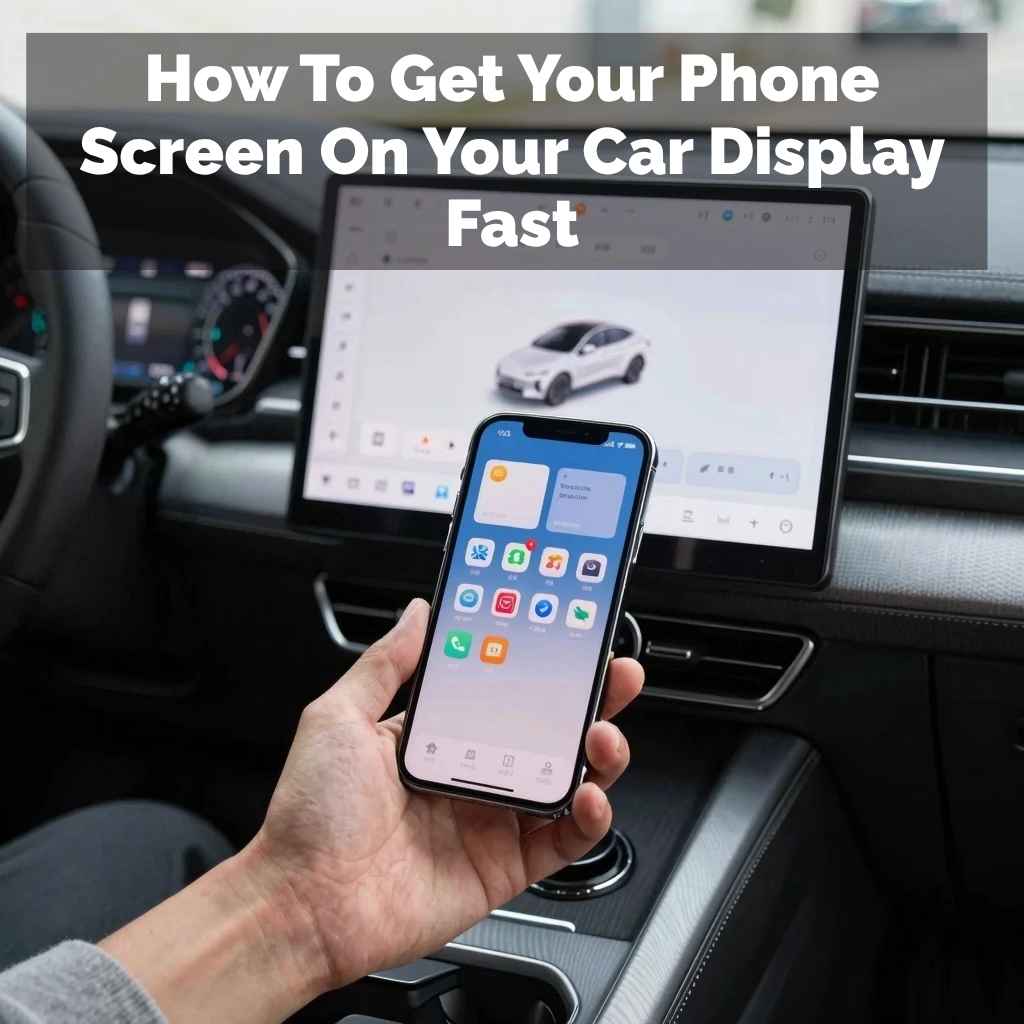
Getting your phone screen on your car display fast is possible. You can often use cables like USB or HDMI for a direct link. Wireless options like Apple CarPlay and Android Auto are also great. Checking your car and phone settings is key to a quick setup.
Understanding How Phone Screens Connect to Car Displays
Most modern cars have screens built into the dashboard. These screens can show a lot of information. They can play music, show navigation, and even let you see text messages.
Your phone is also a small computer with all this information. The goal is to get your phone’s view onto the car’s bigger screen.
This connection helps keep your eyes on the road. You don’t have to look down at your phone as much. It makes using your phone’s features much safer.
Think about using GPS directions. Seeing them on a large screen is way easier than glancing at a small phone.
There are two main ways this happens. One way is using a cable. The other way is without a cable, using wireless signals.
Both have their own steps. We will look at both to help you find the best way for your car and phone.
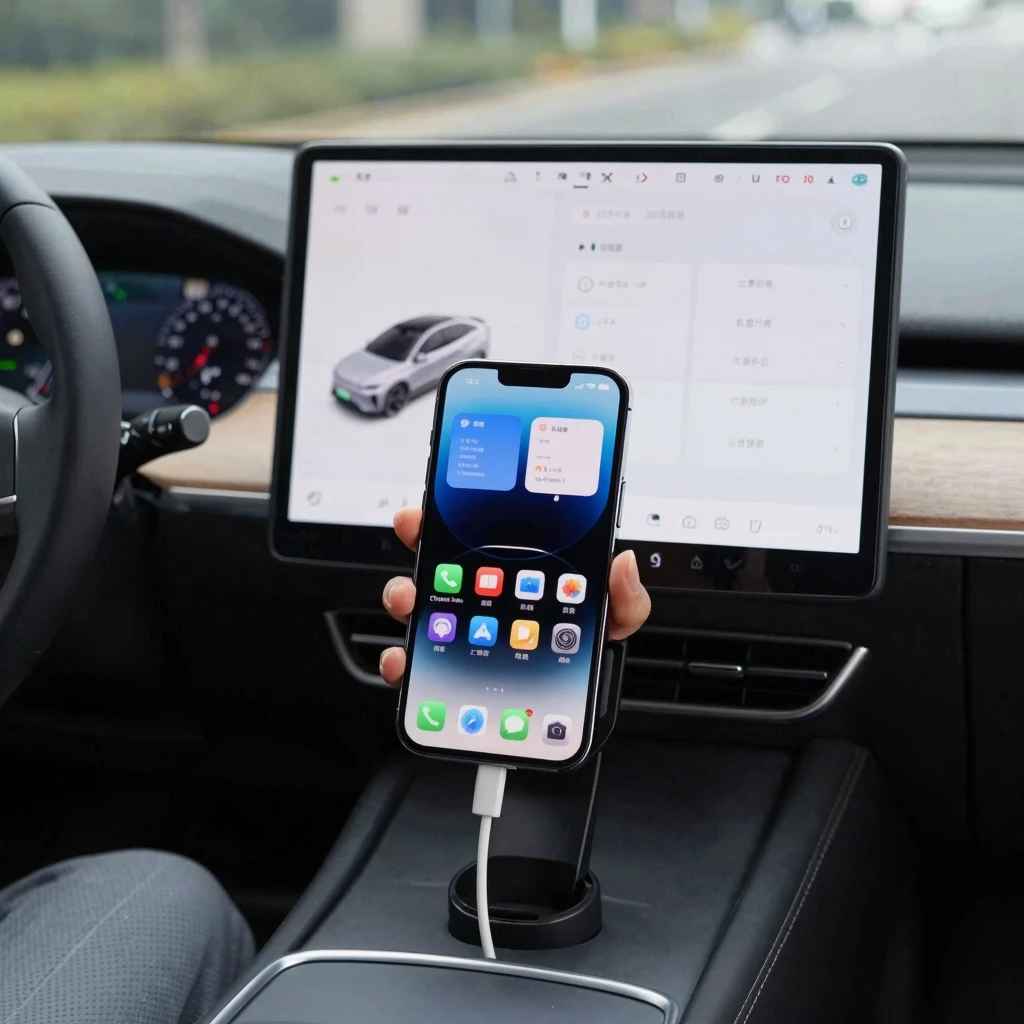
My Own Tech Tangle: The Day My Car Screen Refused to Cooperate
I remember one trip. I was heading to a new client’s office in a part of town I’d never been to. My phone’s GPS is usually my best friend for this.
I plugged my phone into the car’s USB port, ready to see the map on the big screen. I waited. And waited.
The car screen just showed the default menu. My phone showed the map, but it wasn’t mirrored. Panic started to set in.
I was already running a little late. I tried unplugging and replugging. I checked my phone’s settings.
Nothing seemed to work. It was a moment of pure frustration, a small tech disaster on my way to a big meeting.
That experience pushed me to really understand the different ways to get these systems talking. It’s not always as simple as plugging something in. Sometimes, a few specific settings need to be just right.
I finally got it working by going into my phone’s developer options, something I never thought I’d need to do for car navigation.
Quick Scan: Why Won’t My Phone Screen Show Up?
- Incorrect Cable: Not all USB cables are the same. Some only charge.
- Phone Setting Off: USB debugging or specific app permissions might be needed.
- Car System Glitch: The car’s infotainment might need a restart.
- Software Version Mismatch: Your phone or car might be outdated.
- Unsupported Phone/Car: Older models may not have the right technology.
Wired Connections: The Simple, Reliable Cable Method
For many people, the easiest way to get their phone screen on their car display is with a cable. This usually means a USB cable. Your car likely has a USB port, often in the center console or near the dashboard.
Your phone also charges with a USB cable.
When you plug your phone into the car’s USB port, you’re creating a direct link. This link can send both power and data. The data is what allows your phone’s screen to be shown.
It also lets the car’s system control your phone’s apps, like maps or music players.
This is often the basis for systems like Android Auto and Apple CarPlay. These systems are designed to work with your car’s display. When you plug in your phone, the car’s screen might ask if you want to start Android Auto or CarPlay.
You then choose it, and your phone’s compatible apps show up in a car-friendly format.
It’s important to use a good quality USB cable. Not all USB cables are made for data transfer. Some are only for charging.
If you use a charging-only cable, your phone will charge, but the screen won’t show up. Try a different cable if you run into problems. A cable that came with your phone is usually a safe bet.
Sometimes, even with the right cable, a setting on your phone needs to be adjusted. When you first plug in, your phone might ask what you want the USB connection to do. You might see options like “Charging only,” “File transfer,” or “Photo transfer.” For car display systems, you usually want “File transfer” or a specific option for Android Auto/CarPlay.
USB Ports: What to Look For
Not all USB ports in cars are the same. Some ports are just for charging devices. They won’t send the data needed to connect your phone’s screen.
You need a port that is designed for data transfer. These are often labeled with a small phone icon or the words “Data” or “CarPlay/Android Auto compatible.”
If your car has multiple USB ports, try them all. The one that works for CarPlay or Android Auto is the one you need. Sometimes, this port is in a specific location.
It might be inside the center armrest storage or on the dashboard.
Using a simple USB-to-Lightning (for iPhones) or USB-to-USB-C (for Android phones) cable is the most common setup. You plug one end into your phone and the other into the car’s data-enabled USB port.
Once connected, follow the prompts on your car’s screen and your phone. You might need to grant permissions for apps to access your phone’s features. This is normal and helps the system work safely.
Wireless Wonders: The Magic of No Cables
The world of car-phone connectivity has moved beyond cables. Wireless connections are becoming more common and are super convenient. This means you can connect your phone to your car display without plugging anything in.
The most popular wireless systems are, again, Apple CarPlay and Android Auto. If your car supports wireless CarPlay or Android Auto, you can set it up once. Then, every time you get in your car with your phone, it connects automatically.
Setting up wireless CarPlay or Android Auto usually involves a few steps the first time. You’ll likely need to turn on Bluetooth and Wi-Fi on your phone. Then, you’ll put your car’s system into pairing mode.
You’ll see your car’s name appear on your phone’s Bluetooth list. You select it and follow the instructions.
Once paired, your phone’s screen will appear wirelessly on your car’s display. This is fantastic because you can leave your phone in your pocket or bag. It’s always connected and ready to go.
Other wireless mirroring technologies exist, too. Some car manufacturers have their own mirroring apps. These might be different from CarPlay or Android Auto.
You would check your car’s manual to see if it has a proprietary wireless mirroring system.
For true screen mirroring (showing your entire phone screen, not just specific apps), some cars support Wi-Fi Direct. This is a direct connection between your phone and car using Wi-Fi. You’d look for a “Screen Mirroring” or “MirrorLink” option in your car’s settings.
Understanding Bluetooth and Wi-Fi for Wireless Connections
Wireless connections rely on two main technologies: Bluetooth and Wi-Fi. Bluetooth is used for the initial pairing and for making calls or streaming audio. It’s a short-range, low-power connection.
Wi-Fi is used for the actual data transfer that shows your phone’s screen. When you use wireless CarPlay or Android Auto, your phone and car create a private Wi-Fi network between them. This allows for a much faster and more stable connection than Bluetooth alone.
Make sure both Bluetooth and Wi-Fi are turned on your phone before trying to connect wirelessly. Also, ensure your car’s infotainment system is set to allow wireless connections. Sometimes, you might need to “forget” a previous connection and set it up again if it’s not working.
The range for these connections is usually about 30 feet. So, your phone needs to be relatively close to the car. This is why keeping it in your pocket, purse, or the car’s charging spot works best.
Wireless Setup Checklist
- Phone: Ensure Bluetooth and Wi-Fi are ON.
- Car: Check for Wireless CarPlay/Android Auto or Screen Mirroring options.
- Pairing: Follow on-screen prompts on both phone and car for the first connection.
- Permissions: Grant necessary app permissions.
- Troubleshooting: Restart phone and car, then try again if issues arise.
Apple CarPlay: Connecting Your iPhone
If you have an iPhone, you’ll be looking to connect it using Apple CarPlay. This is Apple’s system designed specifically for cars. It takes the apps you use most on your iPhone, like Maps, Messages, Music, and Podcasts, and puts them on your car’s display.
The interface is simplified and made to be used with large buttons and voice commands. You can use Siri to send texts, make calls, get directions, or play music, all without touching your phone.
To set up CarPlay, you have two main options: wired or wireless.
Wired CarPlay Setup
- Make sure your iPhone is unlocked.
- Plug your iPhone into the CarPlay-enabled USB port in your car using a quality USB cable.
- Your car’s screen should prompt you to start CarPlay. If it doesn’t, look for the CarPlay icon on your car’s display.
- Tap the icon and follow any on-screen instructions.
- You might need to allow CarPlay to access your iPhone.
Wireless CarPlay Setup
- Make sure your iPhone is unlocked.
- Ensure Bluetooth and Wi-Fi are turned ON on your iPhone.
- Your car must also support wireless CarPlay.
- Start your car and navigate to your car’s infotainment settings.
- Look for the option to set up a phone or add a device.
- Select “Apple CarPlay” or “Pair iPhone.
- Your car will search for your iPhone.
- On your iPhone, you should see a list of available Bluetooth devices. Select your car’s name.
- Follow the prompts on both your phone and car screen to complete the pairing.
- Once paired, CarPlay should launch automatically when you get in your car.
If you’re having trouble with CarPlay, try restarting your iPhone and your car’s infotainment system. Also, double-check that your iPhone’s software is up to date. Sometimes, a simple software update fixes connectivity issues.
Remember, CarPlay doesn’t show your entire iPhone screen. It shows a special interface with just the apps that are compatible with CarPlay. This is for safety, to keep you focused on driving.
Android Auto: Connecting Your Android Phone
For those with Android phones, Android Auto is the equivalent system. It works very much like Apple CarPlay. It brings Google Maps, Waze, Spotify, WhatsApp, and other compatible apps to your car’s screen.
Voice control through Google Assistant is a big part of it.
Android Auto is designed to make using your phone’s features easy and safe while driving. Like CarPlay, it has a simplified interface with large icons and clear text.
You can connect your Android phone to your car using a cable or wirelessly.
Wired Android Auto Setup
- Ensure your Android phone is unlocked.
- Connect your phone to the Android Auto-enabled USB port in your car with a good quality USB cable.
- The Android Auto app should start automatically. If not, look for the Android Auto icon on your car’s display.
- You may need to grant permissions for Android Auto to access your phone’s contacts, messages, and location.
- Follow any on-screen prompts to complete setup.
Wireless Android Auto Setup
- Make sure your Android phone is unlocked.
- Turn ON Bluetooth and Wi-Fi on your phone.
- Your car must support wireless Android Auto.
- Start your car and go to your car’s infotainment system settings.
- Look for an option to connect a phone or add a device.
- Select “Android Auto” or “Pair Phone.”
- Your car will scan for devices. Your phone should appear in the list.
- Select your car’s name on your phone’s Bluetooth settings.
- Follow the instructions on both your phone and car screen to finish pairing.
- Once done, Android Auto should connect automatically whenever you’re in the car.
If wireless Android Auto is not connecting, make sure your phone’s Android Auto app is updated. Also, check if your phone’s operating system is the latest version. Sometimes, simply restarting your phone and car’s system can resolve connection issues.
Similar to CarPlay, Android Auto does not mirror your entire phone screen. It shows a specific interface with apps that have been optimized for driving. This ensures a safer experience.
Android Auto vs. Phone Mirroring
Android Auto: Focuses on car-optimized apps. Uses Google Assistant. Safer interface.
Only shows compatible apps.
Phone Mirroring: Shows your entire phone screen. Can be distracting. May not work with all cars.
Used for apps not in Android Auto.
Screen Mirroring: Showing Your Entire Phone Screen
Sometimes, Android Auto or Apple CarPlay isn’t enough. You might want to show an app that isn’t compatible with those systems on your car’s big screen. This is where screen mirroring comes in.
Screen mirroring, also called phone mirroring or by specific brand names like Samsung’s Smart View, lets you see your phone’s entire display on another screen. It’s like having your phone in your hand but projected onto your car’s dashboard.
This can be useful for showing photos, videos, or apps that are not part of the standard CarPlay or Android Auto offerings.
There are two main ways to do screen mirroring: wired and wireless.
Wired Screen Mirroring
For wired mirroring, you often need more than just a standard USB cable. Some phones support HDMI output via their USB-C port (this is often called “DisplayPort Alternate Mode”). In this case, you’d need a USB-C to HDMI adapter or cable.
You’d connect your phone to the adapter, then the adapter to an HDMI input on your car. If your car doesn’t have an HDMI input, this method won’t work directly.
Some cars might support USB mirroring. You’d plug your phone into a USB port, and on your phone, select the “Mirroring” or “Screen Projection” option. This relies on specific software within the car’s infotainment system.
Wireless Screen Mirroring
Wireless mirroring is more common now. It usually uses your phone’s Wi-Fi capabilities to connect directly to your car. This technology is sometimes called Wi-Fi Direct.
Your car’s infotainment system will have a “Screen Mirroring” or “MirrorLink” option. You’ll enable this on your car. Then, on your phone, you’ll look for a similar option (like “Smart View,” “Screen Cast,” “Wireless Projection,” etc.).
Your phone will scan for nearby devices. You select your car’s name from the list. Once connected, your phone’s screen should appear on your car’s display.
Important Note: Not all phones support screen mirroring to cars. Also, not all cars support receiving mirrored phone screens. It’s crucial to check your car’s manual and your phone’s specifications.
Safety is a big concern with screen mirroring. Because it shows your entire phone screen, it can be very distracting. Many car systems will disable touch input for the mirrored screen while driving.
You might only be able to control it through your phone, which defeats the purpose of safe driving.
Some manufacturers have specific apps that bridge the gap. They might allow control of certain mirrored apps through the car’s system. Always prioritize safety and use mirroring only when it’s absolutely necessary and safe to do so.
Mirroring vs. CarPlay/Android Auto: When to Use What
CarPlay / Android Auto
- Best for: Navigation, music, calls, texts.
- Safety: Designed for driving, simplified interface, voice control.
- Compatibility: Widely supported by car manufacturers.
- Experience: Seamless integration, car-friendly apps.
Screen Mirroring
- Best for: Apps not compatible with CarPlay/Android Auto.
- Safety: Can be distracting, often limited control while driving.
- Compatibility: Varies greatly by phone and car model.
- Experience: Shows exact phone screen, potentially complex or unsafe.
Troubleshooting Common Connection Issues
It’s frustrating when your phone screen won’t show up on your car display, especially when you’re in a hurry. Let’s go over some common problems and how to fix them.
1. The Cable Isn’t Working
Problem: You plug in your phone, but nothing happens. Or it just charges.
Solution:
- Check the Cable: Use a different, high-quality USB cable.Ensure it’s rated for data transfer, not just charging. Try the cable that came with your phone.
- Try Other Ports: If your car has multiple USB ports, test them all. Not all are for data.
- Inspect Ports: Look for any dirt or damage in the phone’s charging port or the car’s USB port.
2. CarPlay or Android Auto Won’t Start
Problem: The system doesn’t detect your phone or launch the app.
Solution:
- Phone Settings: On your phone, go to Settings. For iPhone, check under General > CarPlay.For Android, check Settings > Connected devices > Android Auto. Make sure it’s enabled.
- USB Debugging (Android): For some Android phones, you might need to enable “USB Debugging” in Developer Options. (To enable Developer Options, go to Settings > About phone and tap “Build number” seven times.)
- App Permissions: Ensure the CarPlay or Android Auto app has all necessary permissions on your phone.
- Restart Devices: Turn off your phone and restart it.Turn off your car and restart the engine. Then try connecting again.
3. Wireless Connection Fails
Problem: Your phone won’t connect wirelessly to the car.
Solution:
- Check Bluetooth and Wi-Fi: Make sure both are turned ON on your phone.
- Forget Device: On both your phone and your car’s system, “forget” or “delete” the other device’s connection. Then, try pairing them again from scratch.
- Phone Software: Ensure your phone’s operating system is up to date.
- Car Software: Check if your car’s infotainment system has any pending software updates.
- Interference: Other wireless devices nearby could sometimes cause interference.Try moving away from them.
4. Screen Mirroring Isn’t Working
Problem: Your phone screen doesn’t appear on the car display when trying to mirror.
Solution:
- Compatibility Check: Verify that both your phone and car support the specific screen mirroring technology you are trying to use (e.g., MirrorLink, Wi-Fi Direct).
- Enable Mirroring on Both: Make sure the mirroring function is activated on both your phone and your car’s system.
- Network Connection: For wireless mirroring, ensure your phone is connected to the car’s Wi-Fi network if required by the system.
5. Audio Issues
Problem: You can see your phone’s screen, but there’s no sound from the car speakers.
Solution:
- Check Source: Make sure the audio source on your car’s infotainment system is set correctly (e.g., to USB audio, Bluetooth audio, or the specific CarPlay/Android Auto source).
- Volume Levels: Check the volume on both your phone and your car.
- App Settings: Some apps have their own volume controls.
Remember, patience is key. Technology can sometimes be quirky. Trying different steps and consulting your car’s manual are your best tools.
Quick Fixes: The “Have You Tried Turning It Off and On Again?”
This classic IT advice really does work wonders for car tech. Restarting both your phone and your car’s infotainment system can clear temporary glitches. It’s often the first and easiest step to try when things aren’t connecting.
When It’s Time to Worry: Signs Your Car Display Isn’t Working
Most of the time, connection issues are minor glitches that can be fixed. However, there are times when you might need to consider a more serious problem. Here’s when to pay extra attention:
1. Consistently Not Connecting
If your phone has never connected to your car display, or if it used to work and now never does, it could point to a deeper issue. This might be with the car’s hardware, the phone’s hardware, or a complex software conflict.
2. Error Messages
If your car or phone shows persistent error messages related to connectivity (e.g., “USB Device Not Supported,” “Connection Failed,” or specific error codes), these messages can offer clues. You might need to search for those specific codes online or consult your car’s dealer.
3. Physical Damage
Check the USB ports on both your phone and your car. If you see bent pins, debris, or any signs of physical damage, this will obviously prevent a connection. The port might need repair.
4. Intermittent Issues That Worsen
If the connection works sometimes but cuts out frequently, or if it’s getting worse over time, it’s worth investigating. This could indicate a failing cable, a port that’s losing its connection, or a software bug that’s becoming more prominent.
5. Car System Freezing or Crashing
If connecting your phone causes your car’s entire infotainment system to freeze, crash, or reboot unexpectedly, this suggests a significant incompatibility or a problem with the car’s system itself. This is definitely a situation to bring to a professional.
What This Means for You and Your Drive
Understanding how to connect your phone to your car display is about more than just convenience. It’s about safety and making your drive more enjoyable. When your phone is connected:
- Navigation is Easier: See directions clearly on a large screen.
- Music is Accessible: Control your playlists and podcasts without distractions.
- Communication is Safer: Use voice commands for calls and texts.
- Fewer Distractions: You’re less likely to pick up your phone.
It’s worth spending a little time to get this set up correctly. Even if it takes a few tries, the benefit of a smooth, connected drive is significant. The technology is designed to help, so when it’s working, it really enhances your time on the road.
Frequently Asked Questions
Can I display my phone screen on any car display?
No, not all car displays are equipped to show your phone screen. You typically need a car that supports Apple CarPlay, Android Auto, or a specific screen mirroring technology. Older cars might not have this capability.
What is the difference between screen mirroring and Apple CarPlay/Android Auto?
Apple CarPlay and Android Auto use a car-optimized interface for specific apps like navigation and music, prioritizing safety. Screen mirroring shows your phone’s entire screen, which can be more distracting and may have limited control while driving.
Do I need a special app to connect my phone to my car?
For Apple CarPlay and Android Auto, you usually don’t need a separate app. The functionality is built into your iPhone or Android phone. For some specific screen mirroring features, your car manufacturer might have an app, or your phone might use a built-in one.
Can I use wireless connection if my car only supports wired connection?
No, if your car is designed only for wired connections (like USB for CarPlay/Android Auto), you cannot magically make it support wireless. You would need a car that specifically offers wireless options.
My phone connects, but the screen is black. What should I do?
Try restarting both your phone and your car’s infotainment system. Make sure your phone’s software is updated. Also, try a different, high-quality USB cable if you’re using a wired connection.
Ensure your phone is unlocked when connecting.
Is it safe to use screen mirroring while driving?
It is generally not recommended or safe to use full screen mirroring while driving. Many cars disable touch input for mirrored screens to prevent distraction. It’s best to use dedicated systems like CarPlay or Android Auto which are designed with driving safety in mind.
Conclusion
Connecting your phone screen to your car display can feel like magic when it works. By understanding the differences between wired and wireless methods, and knowing how CarPlay and Android Auto function, you can get connected fast. Don’t get discouraged by initial hiccups; most issues have simple fixes.
Enjoy a safer, more connected drive!
Products related to this article
Sponsored / affiliate links. As an Amazon Associate I earn from qualifying purchases. I may earn additional commission from eligible campaigns.