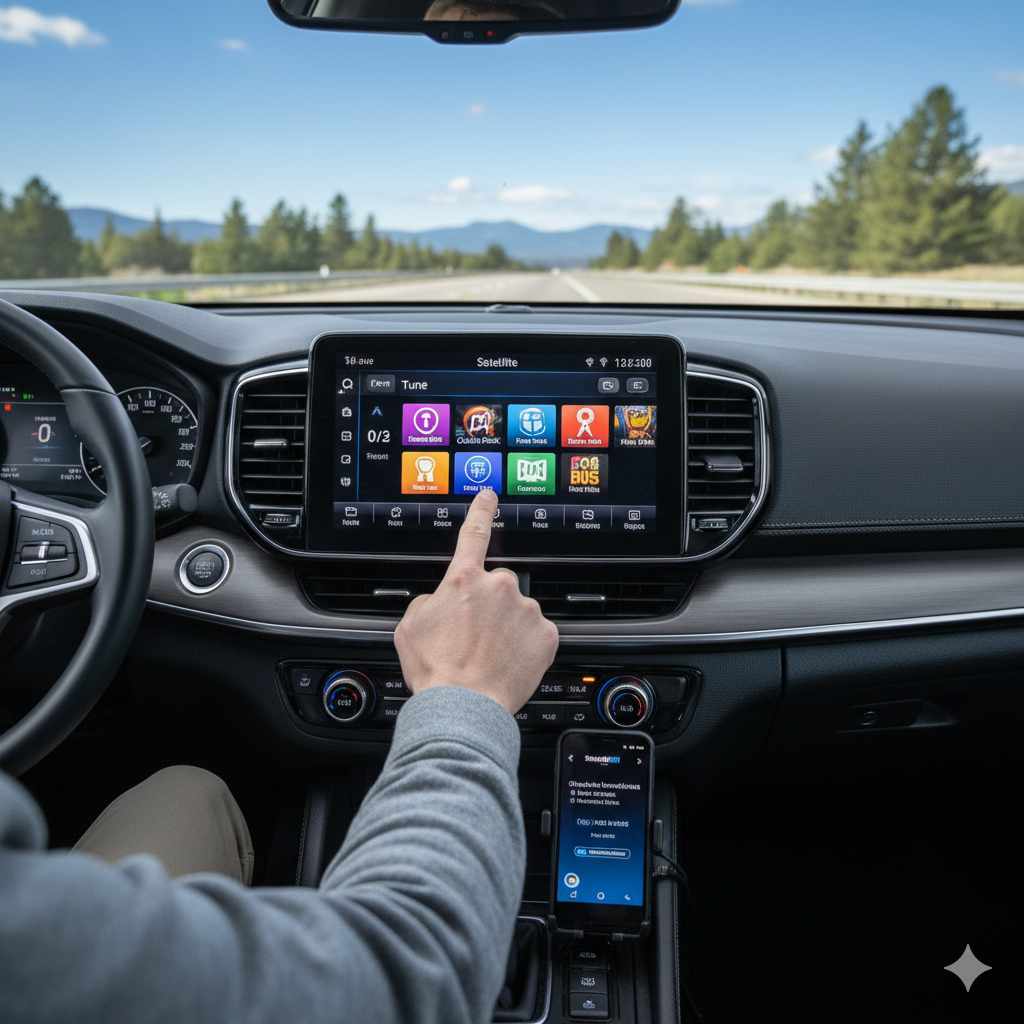
How To Set Your Car Radio To Satellite: Essential Guide
Setting your car radio to satellite involves locating and activating your satellite radio service, often through a subscription. Most modern cars with satellite radio capability have a dedicated button or menu option to access it. Follow your car’s manual or your satellite provider’s instructions to tune in and enjoy a wider variety of non-commercial channels.
Ever found yourself stuck in traffic, wishing for more music or talk show options beyond your local AM/FM stations? Satellite radio offers a world of choice, but sometimes figuring out how to tune it in can feel a bit like a puzzle. Don’t worry, it’s usually much simpler than you think! This guide is here to make it easy, breaking down exactly how to find and set your car radio to satellite, even if you’re new to this.
We’ll walk through the common steps, help you understand the buttons you might see, and get you listening to your favorite satellite channels in no time. You’ll feel more confident knowing you can access all the great content satellite radio has to offer.
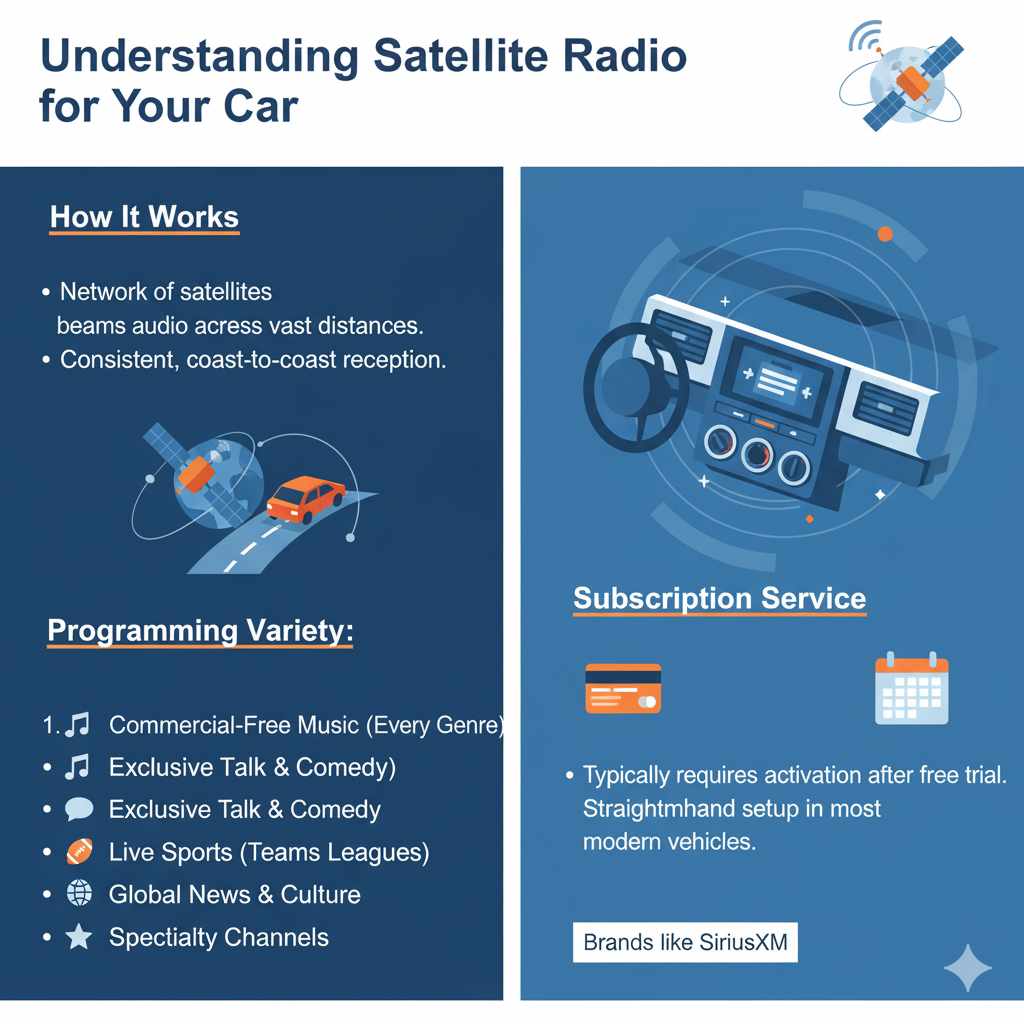
Understanding Satellite Radio for Your Car
Satellite radio, often known by brands like SiriusXM, uses a network of satellites to broadcast audio channels across vast distances. This means you get consistent reception from coast to coast, with far fewer signal dropouts than traditional radio. It also comes with a much wider variety of programming, including:
- Commercial-free music channels across every genre imaginable.
- Exclusive talk shows and comedy.
- Live sports coverage with dedicated channels for many teams and leagues.
- News from around the world.
- Specialty channels for hobbies, culture, and more.
Most satellite radio in cars is a subscription service. This means you’ll typically need to activate a subscription to listen to content beyond a free trial period. The good news is that setting it up is usually a straightforward process, and most modern vehicles are equipped to handle it.
First Steps: Checking if Your Car Has Satellite Radio
Before you can set your car radio to satellite, you need to confirm that your vehicle is equipped with the technology. This is the most crucial initial step!
Where to Look for Satellite Radio Indicators
There are several tell-tale signs that your car comes with satellite radio capabilities:
- The Radio Display: Look for “SAT,” “SiriusXM,” or similar indicators on your car’s radio screen when you cycle through the source or band options.
- Physical Buttons: Some cars have dedicated buttons labeled “SAT,” “Sirius,” or “XM.”
- Antenna: Satellite radio requires a specific antenna, which is usually a small, fin-like or shark-fin-shaped antenna on the roof of your car. While not all antennas are for satellite, if you have one and see other indicators, it’s a strong sign.
- Owner’s Manual: This is your best friend! Your vehicle’s owner’s manual will explicitly state if satellite radio is a feature and how to access it. You can often find PDF versions online if you’ve misplaced yours.
- Vehicle Specifications: If you know your car’s make, model, and year, you can often find its specifications online through the manufacturer’s website or automotive review sites.
If you’re unsure, checking your owner’s manual or searching your vehicle’s specifications online are the most reliable ways to get an answer.
Activating Your Satellite Radio Service
Once you’ve confirmed your car has satellite radio, the next step is to activate the service. If your car came with a free trial, it might already be active. If not, or if the trial has ended, you’ll need to subscribe.
What You’ll Need
- Your Radio’s ESN or SID: This is your radio’s unique serial number. It’s essential for activating your account.
- Subscription Details: You’ll need payment information and to choose a subscription plan.
Finding Your Radio’s ESN (Electronic Serial Number) or SID (Sirius ID)
This is a critical piece of information. Here’s how to find it:
-
Through the Radio Menu: This is the most common method.
- Turn on your car and your satellite radio.
- Navigate through your radio’s menu options. Look for settings like “Radio,” “System,” “About,” “Device Info,” or “ESN/SID.”
- Often, you can tune to a specific channel (like Channel 0 or Channel 1 on some systems) to display the ESN.
- The ESN is usually a string of numbers or a combination of numbers and letters.
- On the Radio Unit Itself: Sometimes, the ESN is printed on a sticker on the front or back of the satellite radio unit. This is less common for factory-installed systems but might be found on aftermarket units.
- Owner’s Manual or Subscription Card: If you received a new car with satellite radio, the ESN or SID might be printed on a card or in the manual that came with the vehicle.
Pro Tip: Write down your ESN/SID and keep it in a safe place. You’ll need it if you ever have to transfer your subscription to a new vehicle or for troubleshooting.
Subscribing and Activating
Once you have your ESN/SID, you can activate your service:
- Visit the Provider’s Website: Go to the official website of your satellite radio provider (e.g., SiriusXM.com).
- Follow Activation Prompts: Look for sections like “Activate Radio,” “Activate Subscription,” or “Get Started.” You’ll be prompted to enter your ESN/SID.
- Choose a Plan: Select the subscription package that best suits your needs. Different plans offer access to different channels and features at varying price points.
- Complete Payment: Enter your payment information to finalize the subscription.
- Listen: Your radio should activate within a few minutes to a few hours. Some channels might become available immediately, while others might take a bit longer to unlock.
If you encounter any issues, contacting the satellite radio provider’s customer service is the best course of action. They can help you troubleshoot and ensure your service is activated correctly.
How to Set Your Car Radio to Satellite: Step-by-Step
Now that your service is active, let’s get your radio tuned in! The exact steps can vary slightly depending on your car’s make and model, but the general process is quite similar.
Step 1: Power On Your Car and Radio
Start your engine and turn on your car’s audio system.
Step 2: Select the Satellite Radio Source
This is where you tell your radio that you want to listen to satellite instead of AM/FM or other sources like Bluetooth or USB.
- Look for a “Source” or “Mode” Button: This button is typically found on your car’s central dashboard or stereo unit. Press it repeatedly to cycle through the available audio sources.
- Dedicated Satellite Button: If your car has a specific “SAT,” “Sirius,” or “XM” button, simply press that.
- Navigate Through Menus: On some more modern infotainment systems, you might need to access “Audio,” “Sources,” or “Media” from the main touchscreen menu and then select “Satellite” or “SiriusXM.”
Keep cycling through until “SAT,” “SiriusXM,” or the name of a satellite channel appears on your display.
Step 3: Browse or Tune to Channels
Once you’re on the satellite radio source, you can start exploring the channels:
- Channel Up/Down Buttons (Tuning Knobs): Use the same buttons or knobs you’d use to change AM/FM stations. These will cycle you sequentially through the satellite channels.
- Direct Channel Entry: Some systems allow you to directly input a channel number using a numerical keypad on the radio or touchscreen.
- On-Screen Channel Guide: Many infotainment systems display a guide on the screen. You can often browse categories (Music, News, Sports, Comedy, etc.) and select channels from the list.
- Favorites: Once you find channels you love, you can usually save them to presets or a “Favorites” list for quick access later. This often involves pressing and holding a numbered button or selecting an “Add to Favorites” option on the screen.
Step 4: Enjoy Your Programming!
You’re all set! Lean back and enjoy the wide variety of entertainment available on satellite radio.
Understanding Your Satellite Radio Controls
Car audio systems can differ, but most satellite radio controls share common functionalities. Familiarizing yourself with these will make using your system a breeze.
Common Satellite Radio Controls and Their Functions
Here’s a look at what you’re likely to find:
| Control/Feature | Description |
|---|---|
| Source/Mode Button | Toggles through available audio inputs (AM, FM, SAT, AUX, Bluetooth, etc.). |
| SAT/Sirius/XM Button | Directly selects the satellite radio input. |
| Tuning Knobs/Buttons (Up/Down) | Cycles sequentially through satellite channels. |
| Numerical Keypad/Direct Tune | Allows you to enter a specific channel number. |
| Channel Guide/Display | Shows a list of available channels, categories, and current programming information. |
| Favorites/Presets | Allows you to store frequently listened-to channels for quick recall. |
| Audio Settings (Bass, Treble, Balance) | Standard audio adjustments that apply to all sources, including satellite radio. |
| “TuneSelect” / “Look Music” / “Artist/Song” Feature | Some systems can alert you when a song by a specific artist or a song with a particular title is playing on another channel, or allow you to mark a song/artist to be notified about in the future. (Availability varies by vehicle and provider). |
Example Scenario: Imagine you’re driving and want to switch to your favorite rock channel. You’d first press “Source” until “SAT” appears. Then, you might use the “Tuning Knob” to scan through channels, or if you know the number, use the numerical keypad to jump directly to it. If you want to save it, you’d press and hold one of the preset buttons.
Troubleshooting Common Satellite Radio Issues
Even with modern technology, occasional hiccups can occur. Here are solutions to some common problems:
No Satellite Signal / “Acquiring Signal” Message
This is perhaps the most frequent issue new users encounter. If you see a “No Signal,” “Acquiring Signal,” or similar message, it usually means the radio can’t “see” the satellite.
- Check Your Location: Ensure you are outdoors with a clear view of the sky. Tunnels, parking garages, dense urban areas with tall buildings, and heavy tree cover can block satellite signals.
- Antenna Obstruction: Make sure nothing is blocking the satellite antenna on your roof (e.g., cargo carriers, roof racks, aftermarket window tints that interfere with GPS/satellite signals).
- Verify Subscription Status: Double-check that your subscription is active and up-to-date. Sometimes a payment issue can cause service interruption.
- Perform a Radio Reset: Consult your owner’s manual for instructions on how to reset your car’s radio system. Sometimes a simple reboot can resolve signal acquisition problems.
- Contact Provider: If the issue persists after checking these points, contact your satellite radio provider. There might be a temporary outage in your area, or your ESN might need reactivation.
Channels Unavailable or Locked
If you’re seeing channels but they are greyed out or display a “Locked” message, it typically relates to your subscription package.
- Verify Subscription Package: Log into your account on the provider’s website or call them to confirm which tier of service you have. Some packages only include certain types of channels (e.g., music-only vs. all-access).
- Subscription Activation Delay: After a new activation or a plan change, it can sometimes take a few hours for all channels to become accessible.
- Contact Provider: If you believe you should have access to these channels based on your subscription, reach out to customer support.
Radio Freezing or Not Responding
Like any electronic device, car stereos can sometimes freeze.
- Turn Off and On: The simplest fix is to turn your car off completely, wait 30 seconds, and then turn it back on along with the radio.
- Check for Software Updates: Some vehicles allow for infotainment system software updates. Check your car manufacturer’s website or dealership for recent updates.
- Consult Owner’s Manual: Your manual may have specific troubleshooting steps for the audio system.
- Dealership Visit: If the problem persists, it might indicate a hardware issue requiring a visit to a qualified mechanic or dealership.
Poor Audio Quality
If the sound seems fuzzy, distorted, or lower quality than expected:
- Check Signal Strength: While satellite is generally strong, severe signal degradation can sometimes affect audio quality. Try moving to a more open area if possible.
- Verify Source Selection: Ensure you are indeed on the satellite radio source and not a poor-quality AM station or a Bluetooth connection with low fidelity.
- Adjust Audio Settings: Check your car’s EQ settings (bass, treble) to ensure they aren’t set too high, causing distortion.
For more in-depth technical information on radio systems, you can often find resources on automotive electronics forums or by visiting the National Highway Traffic Safety Administration (NHTSA) website, which provides information on automotive safety and technology.
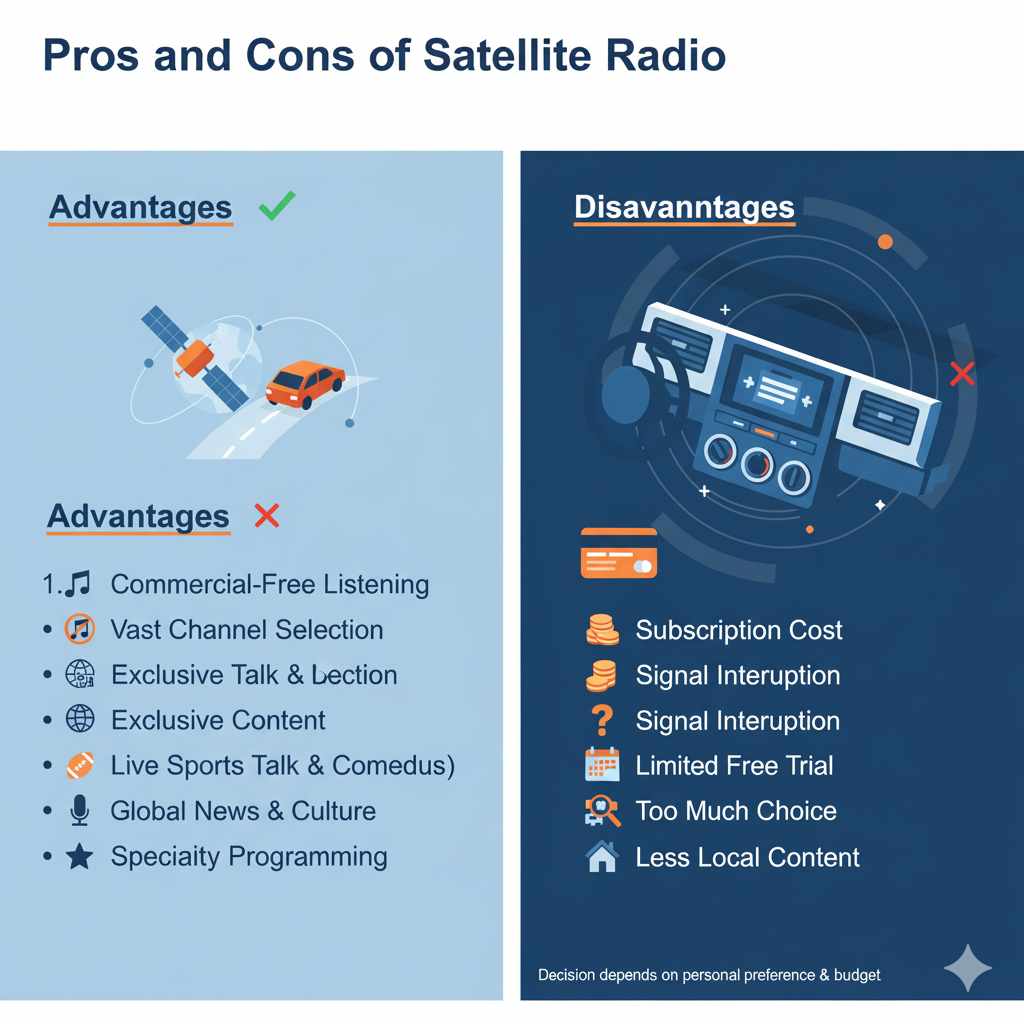
Pros and Cons of Satellite Radio
Like any technology, satellite radio has its advantages and disadvantages. Understanding these can help you decide if it’s the right choice for you.
Advantages
- Commercial-Free Listening: This is the biggest draw for many. Enjoy music, talk, and comedy without interruptions from advertisements.
- Vast Channel Selection: Access to hundreds of channels catering to every niche interest, genre, and format imaginable.
- Nationwide Coverage: Consistent signal quality across the entire country, meaning your favorite stations don’t disappear when you travel.
- Exclusive Content: Many unique shows, interviews, and live performances are only available on satellite radio.
- Specialty Programming: Deep dives into specific music genres, sports broadcasts, comedy shows, and news from various global perspectives.
Disadvantages
- Subscription Cost: Unlike free AM/FM radio, satellite radio requires a monthly or annual subscription fee, which can add up over time.
- Signal Interruption: While nationwide, signals can still be temporarily lost in tunnels, parking garages, and very dense urban canyons.
- Limited Free Trial: Many new cars come with a trial, but once it expires, you’ll need to pay to continue listening.
- Potential for “Too Much Choice”: For some, the sheer number of channels can be overwhelming, making it hard to find what they want.
- Less Local Content: While there are news channels, you won’t get hyper-local news, traffic, or weather reports as you would from a local AM/FM station.
The decision ultimately comes down to personal preference and budget. If uninterrupted entertainment and a wide variety of content are important to you, satellite radio can be a fantastic addition to your driving experience.
FAQ: Your Satellite Radio Questions Answered
Q1: Do I need a subscription to use satellite radio?
A: Yes, typically you do. Most satellite radio services, like SiriusXM, operate on a subscription model. Many new cars come with a complimentary trial period, but after that, you’ll need to pay a monthly or annual fee to access the full range of channels.
Q2: How do I find the ESN or SID for my satellite radio?
A: You can usually find your ESN (Electronic Serial Number) or SID (Sirius ID) by navigating through your radio’s menu system. Look for options like “System,” “Settings,” “Radio Info,” or “ESN/SID.”