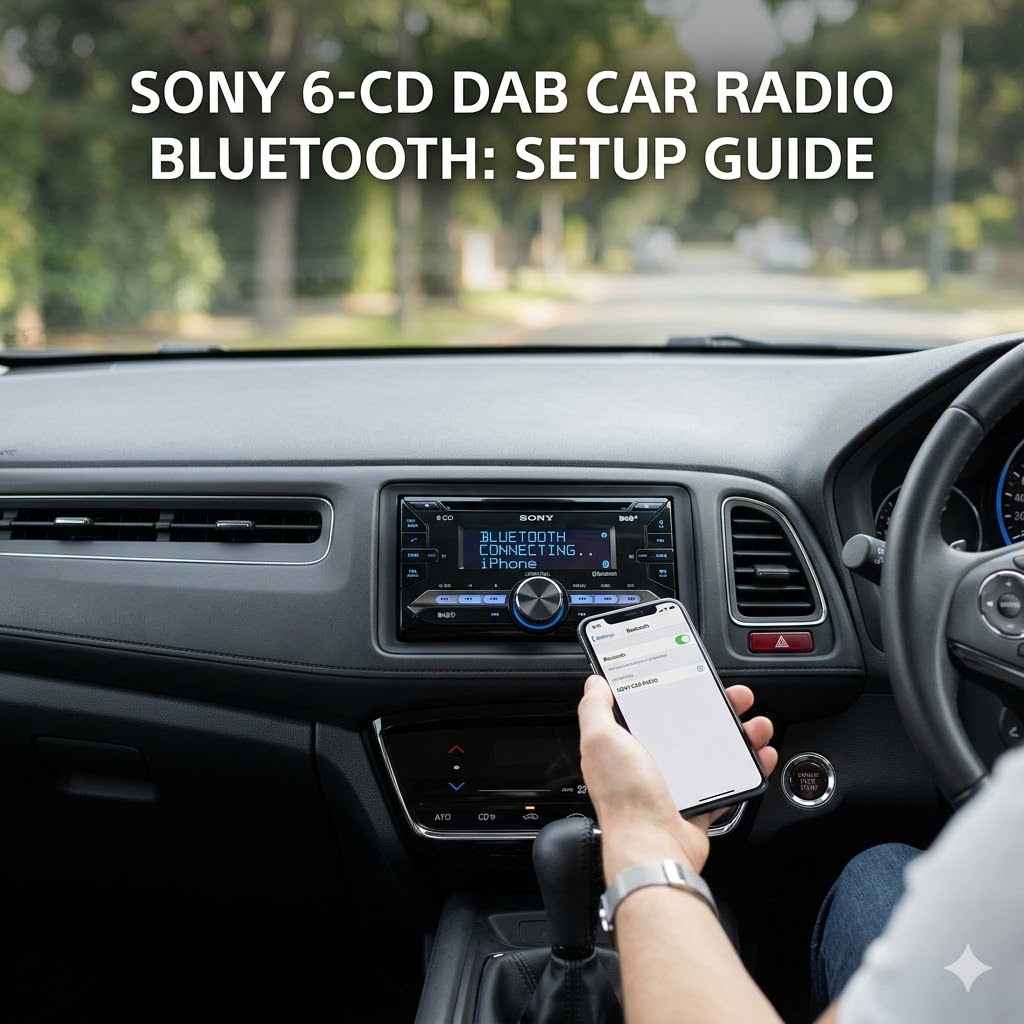
Sony 6-CD DAB Car Radio Bluetooth: Setup Guide
Setting up your Sony 6-CD DAB car radio with Bluetooth might seem tricky at first. Many people find connecting their phones or getting the DAB radio stations to work a bit confusing. This guide is here to help.
We’ll break it down into simple steps so you can enjoy your music and clear radio sound without any hassle. Get ready to make your car audio system work its best for you.
Connecting Your Sony 6-CD DAB Car Radio
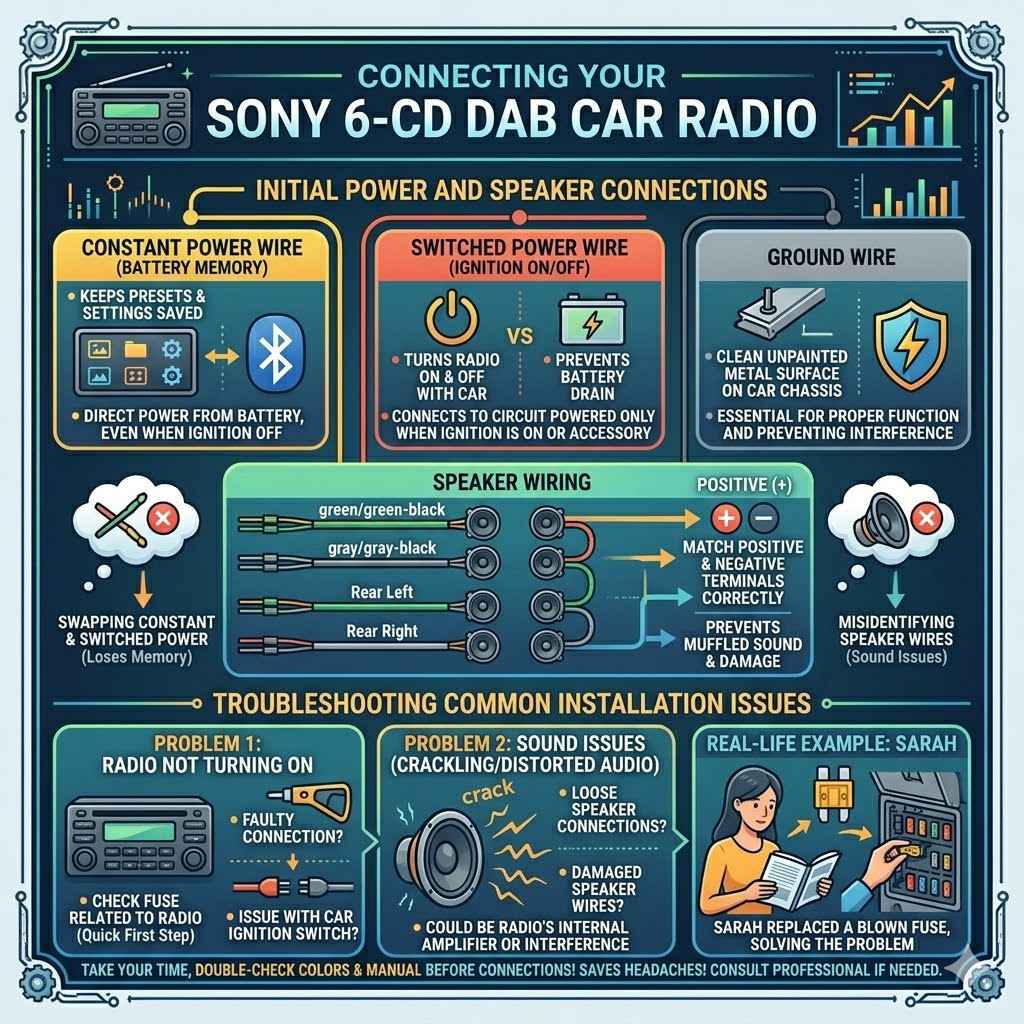
This section covers the basics of getting your Sony 6-CD DAB car radio set up. We will look at how to connect it to your car’s power and speakers, ensuring it works correctly. This is the first step to enjoying all its features.
Initial Power and Speaker Connections
Properly connecting your car radio to your vehicle’s electrical system is vital. This involves understanding the wiring harness and ensuring a secure fit. A loose connection can cause the radio to shut off unexpectedly or not turn on at all.
It’s like giving your radio the energy it needs to perform.
Most car radios come with a standard wiring harness. You’ll typically find wires for constant power (which keeps your presets saved), switched power (which turns the radio on and off with the car’s ignition), and ground. Connecting these correctly prevents damage to the radio and your car’s electrical system.
Always refer to your car’s manual and the radio’s manual for specific wire colors and functions.
Constant Power Wire
This wire is usually yellow. It receives power directly from the car battery, even when the ignition is off. This is important for maintaining memory settings, such as radio presets and Bluetooth pairing information. Without this connection, you would have to re-enter everything every time you turn off your car.
Switched Power Wire
This wire is typically red. It connects to a circuit that is powered only when the car’s ignition is in the “on” or “accessory” position. This ensures that your car radio only operates when the car is running or in accessory mode, preventing it from draining your car battery.
Ground Wire
This wire is usually black. It needs to be connected to a clean, unpainted metal surface on your car’s chassis. A good ground connection is essential for the radio to function properly and to prevent electrical interference or noise.
Connecting speakers involves identifying the positive and negative terminals for each speaker and matching them to the corresponding wires on the radio’s harness. Incorrect speaker wiring can result in muffled sound or even damage to the speakers or the radio’s amplifier.
A common issue for beginners is misidentifying wire functions. For example, accidentally swapping constant and switched power can lead to the radio losing its memory. It’s always best to double-check wire colors against the manual before making any connections.
Taking your time here saves headaches later.
Troubleshooting Common Installation Issues
Sometimes, even with careful installation, you might run into problems. A common issue is the radio not turning on at all. This could be a blown fuse in the car’s fuse box, a faulty connection, or an issue with the car’s ignition switch.
Checking the fuse related to the radio is a quick first step.
Another problem might be sound issues, like crackling or distorted audio. This often points to loose speaker connections or damaged speaker wires. It could also be an issue with the radio’s internal amplifier or interference from other electrical components in the car.
If the radio turns on but the display or buttons don’t work, it might be a problem with the radio’s internal wiring or a compatibility issue with the car’s electrical system. In such cases, consulting the radio’s manual or seeking professional help might be necessary.
Real-life example: Sarah installed a new car radio, but it wouldn’t turn on. She checked her car’s manual and found the radio had its own fuse. Replacing the blown fuse immediately solved the problem.
Setting Up DAB Radio on Your Sony Unit
DAB (Digital Audio Broadcasting) offers a clearer sound quality than traditional FM radio and provides more station choices. Getting your Sony 6-CD DAB car radio to tune into these digital stations is straightforward once you know the steps. This section guides you through the process.
DAB radio works by transmitting digital signals, much like digital television. This means you get a more consistent signal without the static and fading often associated with analog FM broadcasts. It also allows for more data to be sent, such as station information and song titles.
Your Sony unit is equipped to receive these signals.
Understanding DAB Signal Reception
DAB signal reception depends on the strength of the digital broadcast in your area. Just like FM radio, there are areas with strong signals and areas with weak ones. Your car radio needs an antenna capable of picking up these digital signals effectively.
The quality of the antenna plays a big role. Many Sony units come with a built-in DAB antenna or a connection for an external one. For the best reception, ensure the antenna is correctly positioned and not obstructed by metal objects.
In some locations, signal boosters might be needed for consistent reception.
DAB signals can be affected by terrain, buildings, and even weather. You might notice that DAB stations work perfectly in one area but disappear in another. This is normal for digital broadcasting and not necessarily a fault of the radio itself.
Factors affecting DAB reception:
Geographic Location
The availability of DAB transmitters varies by region. Major cities usually have excellent coverage, while rural areas might have limited or no service. Check local DAB coverage maps to see what stations are available in your area.
Antenna Quality and Placement
A high-quality DAB antenna, properly installed, is crucial. Internal antennas are convenient but can be affected by the car’s metal body. External antennas, often mounted on the roof or windshield, generally offer better performance.
Obstructions
Tunnels, underground parking garages, and dense urban areas with tall buildings can block or weaken DAB signals. Similarly, heavy rain or snow can sometimes interfere with the signal.
It’s a good idea to perform a station scan regularly, especially when traveling to new areas. This allows your radio to find all available DAB stations broadcasting in that location. Your Sony unit will have a dedicated menu option for this.
Tuning and Scanning for DAB Stations
To start enjoying DAB radio, you first need to scan for available stations. This process tells your radio unit which digital channels are broadcasting in your current location. It’s usually a simple menu option.
First, ensure your radio is in DAB mode. You can typically switch between FM, AM, and DAB using a source or mode button. Once in DAB mode, look for an option like “Scan,” “Auto Scan,” “Station List,” or “Tuning” in the radio’s menu.
This is often accessed by pressing a ‘Menu’ or ‘Setup’ button.
When you initiate the scan, your Sony unit will search through the available DAB frequency bands. This can take a few minutes. Once the scan is complete, it will present you with a list of all the stations it found.
You can then select your desired station from this list.
If you find that certain stations are missing, it might be due to signal strength in your specific location. Moving your car to a different spot or trying the scan again later might help. Remember that DAB reception can fluctuate.
Sample scenario: You’re driving from the city to the countryside and notice your favorite DAB station disappears. When you reach a new town, you perform a station scan on your Sony radio and find several new local DAB stations you didn’t have before.
Statistical insight: According to Ofcom, DAB coverage in the UK reaches over 97% of the population, with many listeners preferring DAB for its clarity and station variety. This highlights the widespread availability of DAB services.
Connecting Your Phone via Bluetooth
Bluetooth connectivity allows you to stream music wirelessly from your smartphone and make hands-free calls. Setting up this connection on your Sony 6-CD DAB car radio is a key feature for modern driving. This section explains how to pair your devices.
Bluetooth uses radio waves to create a short-range wireless connection between two devices. It’s a common technology found in phones, headphones, and car audio systems. Once paired, your phone and car radio will recognize each other, allowing for seamless communication without cables.
The Bluetooth Pairing Process Explained
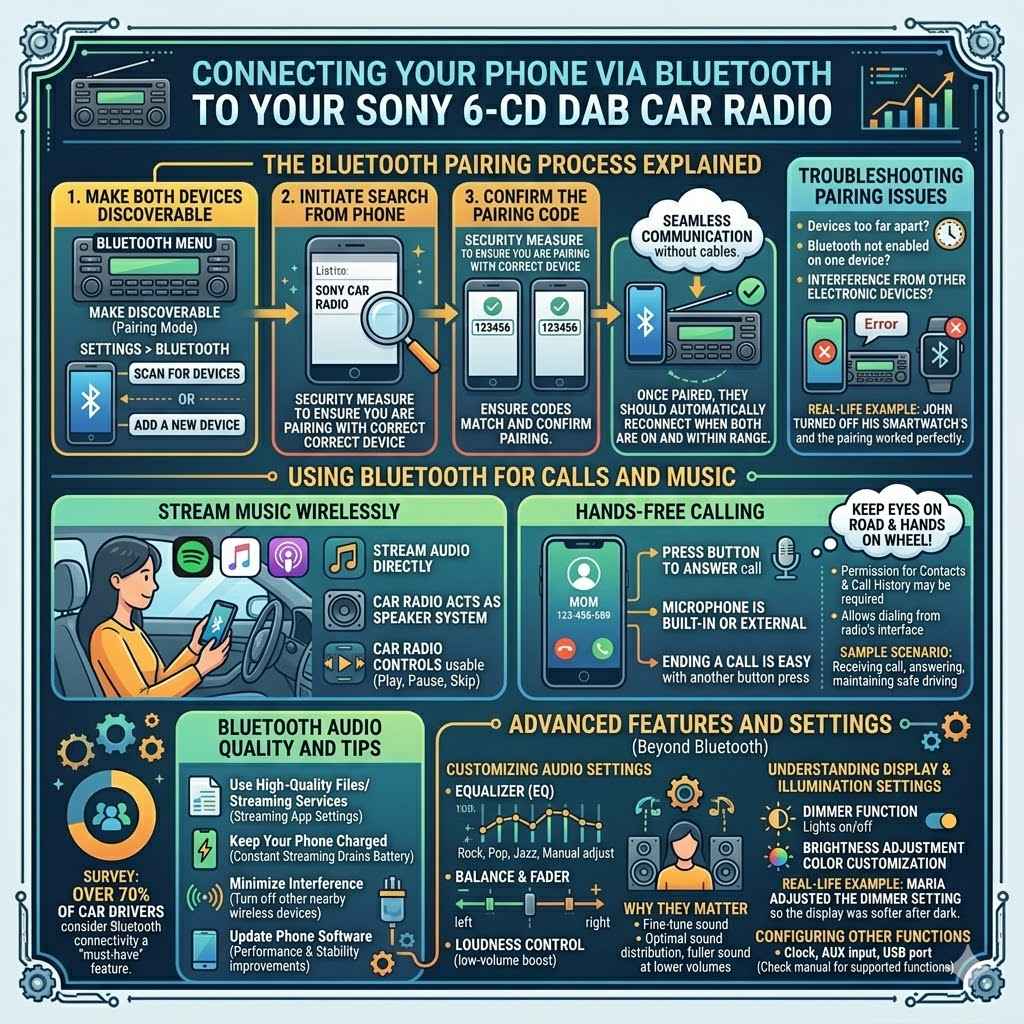
Pairing your phone with your Sony car radio involves making both devices discoverable and then selecting each other. It’s a one-time process for each new phone or device you want to connect.
Start by turning on your Sony car radio and ensuring Bluetooth is enabled on your smartphone. On the car radio, navigate to the Bluetooth menu. You’ll typically find an option to “Pair Device” or “Add Phone.” Select this option.
Your car radio will then begin searching for nearby Bluetooth devices or become discoverable itself. On your phone, go to Bluetooth settings and scan for new devices. You should see your car radio’s name appear in the list of available devices.
It might be something like “Sony Car Stereo” or a model number.
Select your car radio from your phone’s list. You might be prompted to confirm a pairing code on both your phone and the car radio. This code is usually a series of numbers.
Ensure the codes match on both devices and confirm the pairing. Once confirmed, the devices will connect.
After successful pairing, your car radio will likely display a confirmation message, and your phone will show the car radio as a connected device. Now you can start streaming music or making calls.
Making Your Car Radio Discoverable
Most Sony units have a setting to make them discoverable for a limited time. This allows your phone to find the radio. Check your radio’s Bluetooth menu for an option like “Make Discoverable” or “Pairing Mode.”
Initiating the Search from Your Phone
On your smartphone, go to Settings > Bluetooth. Ensure Bluetooth is switched on. Tap “Scan for devices” or “Add a new device.” Your phone will look for nearby Bluetooth signals.
Confirming the Pairing Code
This is a security measure to ensure you are pairing with the correct device. A code will appear on both your phone and the car radio screen. If they match, confirm the pairing on both devices.
Automatic Reconnection
Once paired, your car radio and phone should automatically reconnect whenever they are both on and within range. This means you don’t need to go through the pairing process every time.
A common issue is a failed pairing attempt. This can happen if the devices are too far apart, if Bluetooth is not enabled on one of the devices, or if there’s interference from other electronic devices. Try moving the devices closer together and ensure all other Bluetooth devices nearby are turned off.
Real-life example: John was trying to pair his new phone with his Sony car radio. He kept getting an error message. He realized his smartwatch was also trying to connect and turned off its Bluetooth.
Then, the pairing with the car radio worked perfectly.
Using Bluetooth for Calls and Music
Once your phone is paired, using it with your Sony car radio is seamless. You can stream audio directly from apps like Spotify, Apple Music, or podcasts. The car radio will act as your phone’s speaker system.
To play music, simply select the Bluetooth audio source on your car radio. Then, start playing music on your phone. The car radio’s controls (play, pause, skip track) might even be usable for basic functions, depending on your phone and car radio model.
For hands-free calling, when you receive an incoming call, the car radio display will show the caller’s number or name. You can answer the call by pressing a button on the radio or steering wheel, if equipped. The microphone for calls is usually built into the car radio unit, or it might have an external microphone you can position for better clarity.
Ending a call is just as easy, usually with another button press. Your Sony unit is designed to make these interactions safe and convenient, allowing you to keep your eyes on the road and hands on the wheel.
Some phones might require you to grant permission for contacts and call history to be accessed by the car radio. This allows for features like dialing from your car radio’s interface or seeing recent calls.
Sample scenario: While driving, you receive a call. Your Sony car radio rings, and the caller’s name appears on the screen. You press the answer button on the radio, and you can talk to the person using the car’s speaker system, all while maintaining safe driving practices.
Bluetooth Audio Quality and Tips
Bluetooth audio quality can vary. While it’s convenient, it uses compression to send audio wirelessly, which can sometimes result in a slight loss of fidelity compared to a wired connection. However, for most people, the convenience of wireless streaming outweighs any minor difference in sound quality.
To get the best possible Bluetooth audio experience:
Use High-Quality Audio Files or Streaming Services
If you’re streaming music, ensure you have high-quality settings enabled on your music app. Low-quality audio files will sound poor regardless of the connection method.
Keep Your Phone Charged
Constant Bluetooth streaming can drain your phone’s battery. Keep your phone plugged into a charger or USB port while using Bluetooth for extended periods.
Minimize Interference
Other wireless devices operating on similar frequencies (like Wi-Fi or other Bluetooth devices) can sometimes cause interference. If you notice audio dropouts, try turning off other nearby wireless devices temporarily.
Update Your Phone’s Software
Ensure your smartphone’s operating system and Bluetooth drivers are up to date. Software updates often include improvements to Bluetooth performance and stability.
Some Sony car radios also support advanced Bluetooth profiles like aptX or LDAC, which offer higher-fidelity audio streaming. Check your car radio’s specifications to see if these are supported and ensure your phone also supports the same profile for the best results.
Statistical insight: A recent survey indicated that over 70% of car drivers consider Bluetooth connectivity a “must-have” feature for their in-car entertainment systems, underscoring its importance for modern drivers.
Advanced Features and Settings
Beyond the basics of DAB and Bluetooth, your Sony 6-CD DAB car radio likely has other features you can explore. These can enhance your listening experience and customize how the radio operates. This section touches on some of these possibilities.
Modern car radios are packed with technology that goes beyond just playing music. They are designed to integrate with your digital life and offer personalized settings. Exploring these can make your driving experience much more enjoyable and convenient.
Customizing Audio Settings
Your Sony car radio will have audio settings to help you fine-tune the sound to your liking. This includes equalizer (EQ) settings, loudness controls, and balance/fader adjustments.
The equalizer allows you to boost or cut specific frequency ranges, such as bass, midrange, or treble. You can often choose from preset EQ settings like “Rock,” “Pop,” or “Jazz,” or you can manually adjust each band to create your custom sound profile.
Loudness is a feature that can boost bass and treble at lower volumes, making music sound fuller. Balance adjusts the sound between the left and right speakers, while fader adjusts it between the front and rear speakers. These are crucial for optimizing sound, especially if your car has a particular speaker setup.
Equalizer (EQ)
This is your main tool for shaping the sound.
- Bass (Low Frequencies): Controls the deep, rumbling sounds. Boost for more impact in music like hip-hop or electronic.
- Midrange (Middle Frequencies): Affects vocals and most instrument sounds. Adjust carefully to avoid making things sound harsh.
- Treble (High Frequencies): Controls crispness and detail. Boost for brighter sounds or cut to reduce harshness.
Experiment with different settings to find what sounds best for the type of music you listen to and the acoustics of your car.
Balance and Fader
These settings help distribute sound across your car’s speakers.
- Balance: Moves sound left or right. Useful if you’re the only person in the car and want sound focused on your side.
- Fader: Moves sound from front to rear. Can be used to emphasize rear speakers or create a more immersive soundstage.
Setting these correctly can make a big difference in how you perceive the audio.
Loudness Control
This feature compensates for how our hearing perceives different frequencies at various volume levels. At low volumes, bass and treble can sound weaker. Loudness boosts these to make music sound more balanced.
Adjusting these settings can significantly improve the listening experience. What sounds good for a quiet drive might need to be adjusted for a louder commute.
Understanding Display and Illumination Settings
Many Sony car radios allow you to customize the display color and brightness. This can help match the radio’s lighting to your car’s interior or simply make it easier to read.
You can often choose from a wide spectrum of colors for the display and button illumination. Some units might even have an “adaptive brightness” feature that adjusts the display’s brightness based on ambient light conditions, making it visible in bright sunlight and not too distracting at night.
Setting the illumination color to match your car’s dashboard lights can create a cohesive look. If your car has red interior lights, you might set your radio to red. Some advanced models might even offer dynamic illumination patterns.
Why these settings matter:
Visibility
Proper brightness ensures you can see the display clearly without being blinded, especially at night.
Aesthetics
Matching colors can make your car’s interior look more integrated and stylish.
Reduced Glare
Dimming the display at night can prevent distracting glare on your windshield.
It’s also worth noting that some units might have a “display off” mode, which completely turns off the screen while the audio continues to play. This is useful for night driving when you want to minimize distractions.
Configuring Other Radio Functions
Your Sony 6-CD DAB car radio might have other useful functions like dimmer settings for when headlights are on, clock settings, and perhaps even options for connecting external devices like an auxiliary input (AUX) or USB port. These add to the overall usability of the unit.
The clock setting is straightforward, usually found in the setup menu. You can set the time manually or, on some models, have it sync automatically if it receives a time signal from DAB or FM radio. The dimmer function is typically linked to your car’s headlights, so when you turn your lights on, the radio display dims.
An AUX input allows you to connect older MP3 players or other audio devices using a 3.5mm audio cable. A USB port can be used for playing music from a USB drive or, on some newer units, for charging your phone. Always check your specific model’s manual for a full list of supported functions and how to access them.
Real-life example: Maria wanted her car radio to be less bright at night. She found the dimmer setting in the menu and adjusted it so the display was softer after dark, making night driving more comfortable.
Frequently Asked Questions
Question: Can I connect more than one phone via Bluetooth to my Sony car radio?
Answer: Many Sony car radios can store multiple Bluetooth devices in their memory, but typically only one device can be actively connected and used for streaming audio or making calls at a time. You may need to disconnect one device before connecting another.
Question: Why is my DAB radio reception cutting out?
Answer: DAB reception can be affected by your location, signal strength, and obstructions like buildings or tunnels. Ensure your antenna is correctly positioned and check for areas with known good DAB coverage.
Question: How do I reset my Sony car radio to factory settings?
Answer: Resetting to factory settings usually involves a sequence of button presses or a menu option. Consult your Sony car radio’s user manual for the specific procedure for your model, as it can vary.
Question: Will my Sony car radio work with my car’s steering wheel controls?
Answer: Some Sony car radios are compatible with factory steering wheel controls, but this often requires a separate adapter or interface module specific to your car model. Check your radio’s specifications and consult with an car audio specialist.
Question: How do I update the firmware on my Sony car radio?
Answer: Firmware updates are typically performed via a USB drive. You would need to download the correct firmware file from the Sony support website for your specific model and follow their instructions carefully.
Summary
You now have a clear path to setting up your Sony 6-CD DAB Car Radio Bluetooth. We covered connecting it, tuning into crystal-clear DAB stations, and seamlessly pairing your phone for calls and music. You also learned about customizing audio and display settings.
Enjoying your upgraded car audio is now within easy reach.