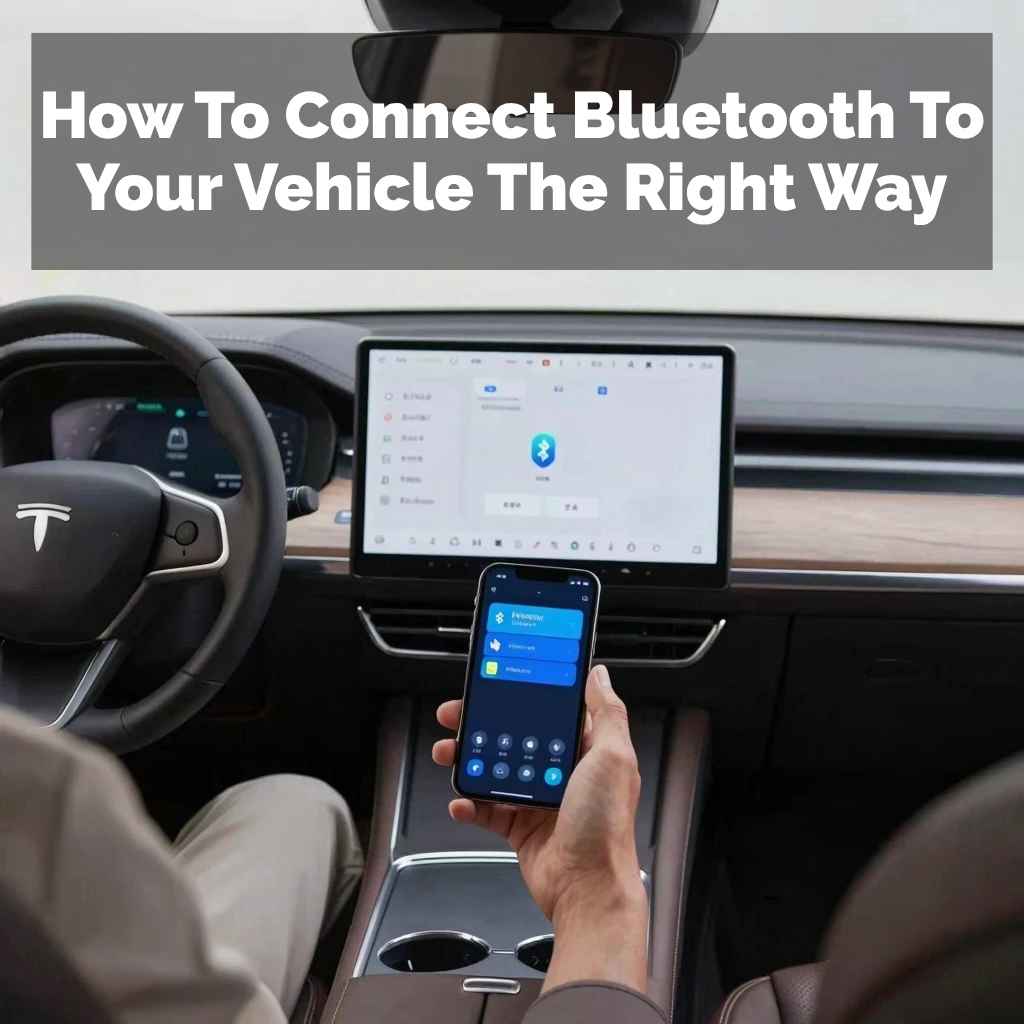
How To Connect Bluetooth To Your Vehicle The Right Way
It’s a common problem, isn’t it? You get into your car, ready to stream your favorite podcast or take an important call, but your phone just won’t connect to the car’s Bluetooth. You tap and tap, restart your phone, restart the car system, and still nothing.
It’s frustrating, especially when you’re in a hurry or need that connection for safety. We’ve all been there, staring at a silent car stereo or a phone that refuses to talk to the dashboard.
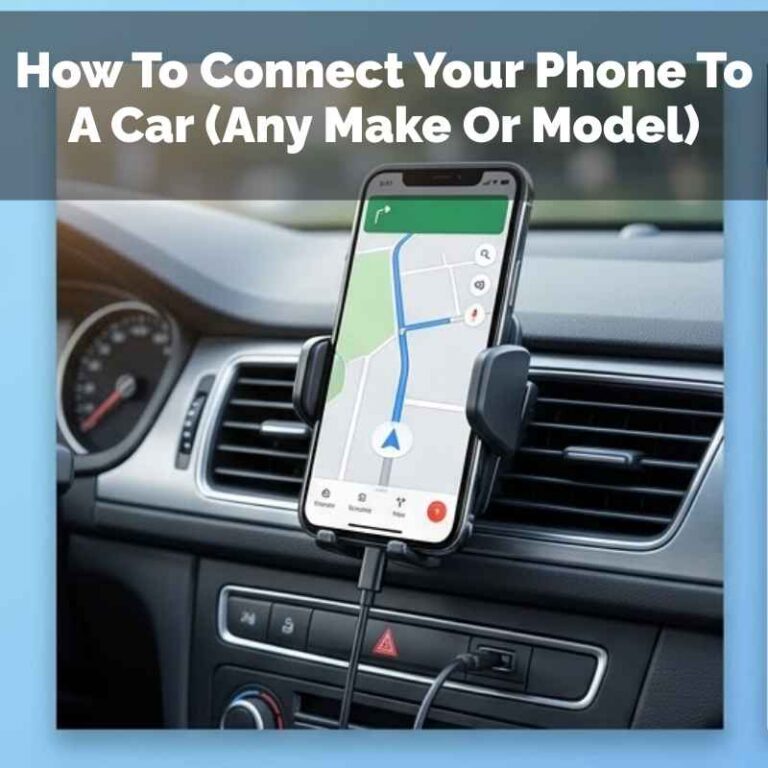
Connecting your phone to your car’s Bluetooth system usually involves a few simple steps. You’ll need to make sure both devices are discoverable, then search for the car’s name on your phone and vice-versa. Once found, you’ll often enter a PIN or confirm a code to pair them securely. This allows for hands-free calls and audio streaming.
Understanding Your Car’s Bluetooth System
Most cars made in the last decade have some form of Bluetooth technology. It lets your phone talk wirelessly to your car’s stereo. This is super handy.
You can play music from your phone. You can also make and take calls without holding your phone. This is a big safety win.
It helps drivers keep their eyes on the road. It also helps them keep their hands on the wheel. But sometimes, this connection doesn’t just work right out of the box.
There can be little hiccups.
Your car’s system is like a small computer. It has a radio part for Bluetooth. Your phone has one too.
They need to speak the same language. This language is set by Bluetooth standards. Newer cars often have better Bluetooth.
They might connect faster. They might support more features. For example, some can show song titles on the car screen.
Others can play audio clearly through all the car speakers. Knowing that your car has this tech is the first step. It’s built in for convenience and safety.
It’s just a matter of getting those two devices to talk.
How Bluetooth Pairing Works
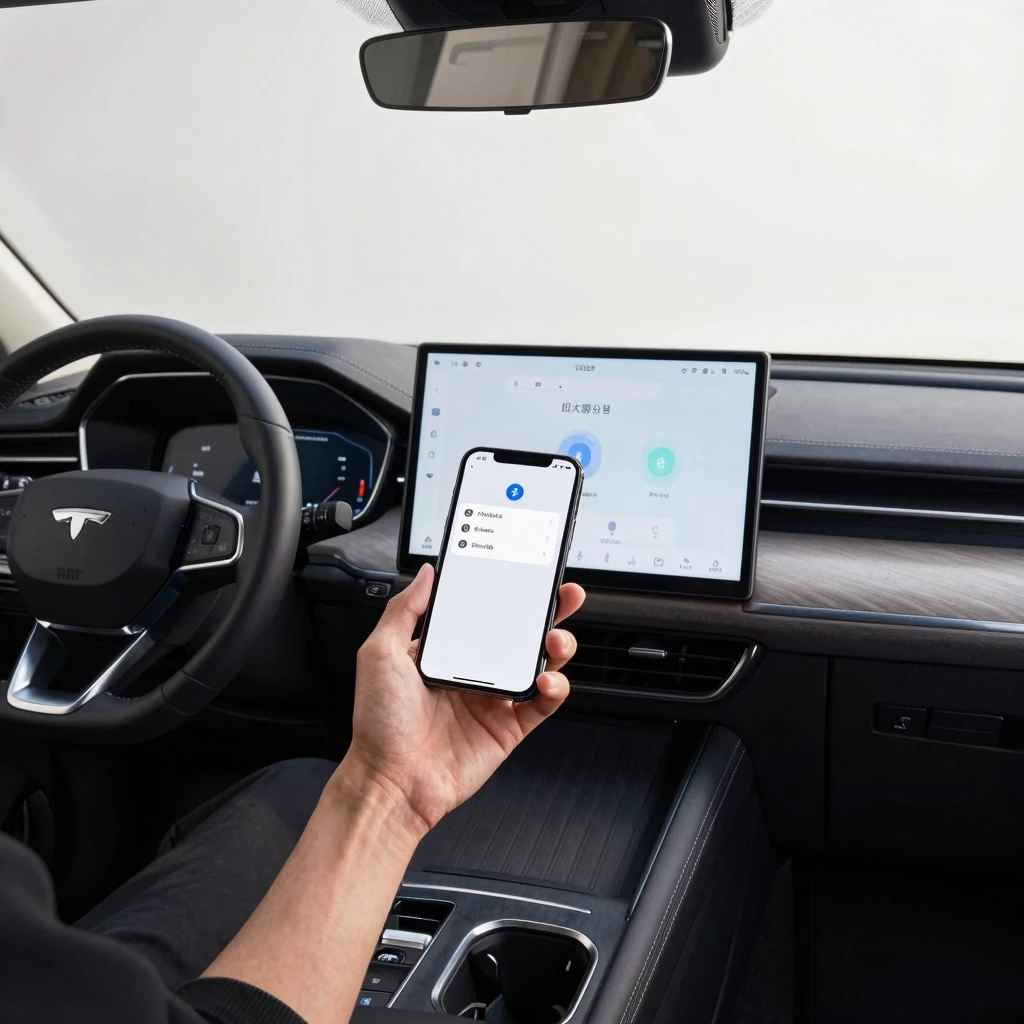
Pairing is the first time your phone and car meet. Think of it like shaking hands for the first time. Your phone needs to find the car.
Your car needs to find your phone. This happens when both devices are set to be “discoverable.” Your phone usually shows a list of nearby Bluetooth devices. Your car’s system will show up with a name.
It might be the car’s make and model, like “Ford Sync” or “Honda HandsFreeLink.
Once you pick the car’s name on your phone, a code often appears. This code might be on your phone and on the car screen. You need to make sure they match.
This proves it’s really your car and your phone. Sometimes, you might need to type in a PIN. This is usually a simple four-digit number.
It’s often “0000” or “1234” if you don’t set your own. After you confirm the code, the devices are paired. They remember each other.
They should connect automatically the next time you get in the car.
This pairing process is key. If it doesn’t happen correctly, your devices won’t connect. It’s like a handshake failing.
They just don’t recognize each other. This is often where people get stuck. They try to connect but the code doesn’t match.
Or they can’t find the car’s name at all. Understanding this handshake is the first step to solving most connection issues.
Common Bluetooth Names You Might See
When you scan for devices, car names can vary. Here are some common ones:
- Ford: Ford Audio, Ford SYNC, MyFord Touch
- Chevrolet: Chevrolet MyLink, Bluetooth Audio
- Toyota: Toyota Touch, Bluetooth Hands-Free
- Honda: Honda HandsFreeLink, Bluetooth Audio
- Nissan: NissanConnect, Bluetooth Hands-Free
- BMW: BMW Car, BMW ConnectedDrive
- Mercedes-Benz: Mercedes-Benz, MBUX
Your car manual will tell you the exact name. It’s also usually on the car’s infotainment screen.
My Own Bluetooth Blunder: A True Story
I remember one particularly chilly Tuesday morning. I was running late for a meeting. I had an important call scheduled with a client.
I jumped into my car, a trusty old sedan that surprisingly had Bluetooth. I’d paired my phone a few times before with no issue. But this day, my phone just wouldn’t see the car.
The car screen said “No Device Connected.” My phone’s Bluetooth menu just spun, searching endlessly.
Panic started to set in. My palms got a little sweaty. I tried turning my phone’s Bluetooth off and on again.
Nothing. I turned the car off and on. Still nothing.
I even tried deleting the car from my phone’s paired list and trying to re-pair. But the car wouldn’t show up as a device to connect to. I was stuck.
The meeting was in ten minutes. I felt this surge of annoyance, mixed with a bit of dread. All I wanted was for my phone to talk to my car.
That’s it! But technology, oh technology, seemed to be mocking me. I could just picture the client waiting.
I felt so foolish, relying on this simple tech and having it fail me when I needed it most.
Troubleshooting: When Devices Won’t Talk
Okay, so your phone and car aren’t connecting. This is where many people give up. But don’t!
There are simple steps to fix this. Most of the time, it’s a small setting or a quick reset. Let’s break down what to try when your car’s Bluetooth is acting up.
1. Check Basic Settings First
This sounds obvious, but it’s amazing how often it’s the answer. Is Bluetooth turned on for both your phone and your car? On your phone, swipe down from the top to find the Bluetooth icon.
Make sure it’s lit up. On your car, you’ll usually find the Bluetooth settings on the infotainment screen. Look for an icon that looks like a “B” or find it in the “Settings” or “Phone” menu.
Also, check if your phone is connected to another Bluetooth device already. Sometimes, your phone will auto-connect to your headphones or a smart speaker. If it’s already paired with something else, it might not look for your car.
Turn off Bluetooth on those other devices temporarily. This frees up your phone to find the car.
2. Forget and Re-Pair the Device
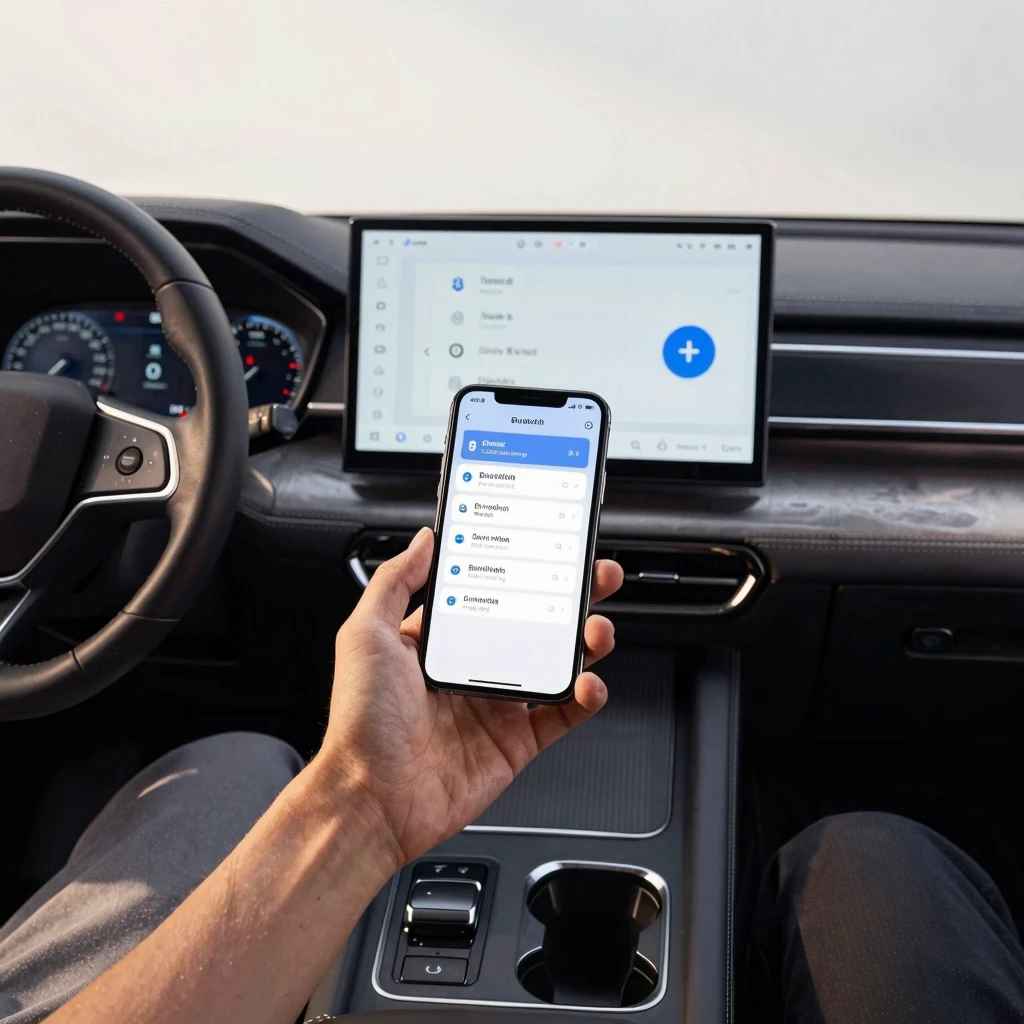
This is like giving your devices a fresh start. On your phone, go to your Bluetooth settings. Find your car’s name in the list of paired devices.
Tap on it. You should see an option to “Forget,” “Unpair,” or “Remove” the device. Do this.
Then, turn your car’s Bluetooth off and on again. Do the same for your phone. Now, try to pair them from scratch, like you did the first time.
On the car’s side, you might also need to delete your phone from its list of paired devices. Check your car’s manual for how to do this. It’s usually in the phone or Bluetooth settings menu.
This step clears out any old or corrupted pairing data that might be causing trouble. It forces both devices to re-establish their connection.
Quick Scan: Forget and Re-Pair Steps
On Your Phone:
- Open Settings.
- Tap Bluetooth.
- Find your car’s name.
- Tap the “i” or gear icon next to it.
- Select “Forget Device” or “Unpair.”
On Your Car (General Steps):
- Navigate to Phone or Bluetooth settings.
- Look for Paired Devices or Device List.
- Select your phone’s name.
- Choose “Delete” or “Remove.”
After these steps, restart both devices and try pairing again.
3. Restart Both Devices
The classic “turn it off and on again” advice. It works for a reason. A simple restart can clear temporary glitches in the software of both your phone and your car’s infotainment system.
Turn your phone completely off. Wait about 30 seconds. Then, turn it back on.
For your car, turn the ignition off. Open the driver’s door (this often helps systems fully power down). Wait a minute.
Then, start the car again.
This step is especially important for the car’s system. Infotainment systems are complex. They can freeze or act up just like a computer.
A full power cycle can reset these issues. It’s a good first step before trying more complex solutions. It costs nothing but a little bit of time.
And it fixes a surprising number of connection problems.
4. Check for Software Updates
This is a big one that people often miss. Both your phone and your car’s infotainment system get software updates. These updates fix bugs.
They can also improve how Bluetooth works. On your phone, go to Settings > System > System Update (or similar). Make sure your phone’s operating system is up to date.
For your car, this can be trickier. Some cars update their software wirelessly (like Tesla). Others require a visit to the dealership.
Some might have updates you can download to a USB drive from the manufacturer’s website. Check your car’s manual or the manufacturer’s website. A recent software update on either device could be the reason for a new connection problem, or an old update could be the fix.
5. Is Your Phone Too Old or Too New?
Sometimes, the issue isn’t a glitch. It’s a compatibility problem. Older cars might not support newer Bluetooth versions.
For example, a car from 2010 might have Bluetooth 2.0. A brand new phone might use Bluetooth 5.0. While generally backward compatible, there can be issues.
This is less common now, but it can happen.
On the flip side, a very old phone might not support the protocols newer cars use for advanced features like audio streaming or contact syncing. If you have an older phone and a newer car, or vice-versa, check the specifications for both. Your car’s manual should list the Bluetooth versions it supports.
Your phone’s specs will list its version.
Understanding Bluetooth Versions
Bluetooth versions matter for compatibility and features:
- Bluetooth 2.0/2.1 (2004-2007): Basic calling, data transfer.
- Bluetooth 3.0 (2009): Faster data transfer, Wi-Fi integration.
- Bluetooth 4.0 (2010): Lower power usage, improved performance.
- Bluetooth 4.2 (2014): Enhanced privacy and security.
- Bluetooth 5.0 (2016): Double the speed, four times the range, improved power efficiency.
- Bluetooth 5.1/5.2/5.3 (2019-2022): Further enhancements in location services, audio quality, and connection stability.
Your car will likely support a range of versions. Newer phones should work with older systems, but sometimes it’s not seamless.
6. Too Many Devices Paired?
Cars have a limit on how many devices they can remember. If you’ve paired your phone, your partner’s phone, your kids’ tablets, and maybe even a work phone, you might be hitting that limit. When a car’s memory is full, it might refuse to pair with a new device.
Or it might randomly disconnect existing ones.
Go into your car’s Bluetooth settings. Look for the list of paired devices. Delete any old phones or devices that are no longer used.
Focus on keeping only the devices that are actively used in the car. This often clears up space and allows your main phone to connect properly. I found this was the issue in my friend’s SUV.
They had paired every family member’s phone over the years. Deleting the old ones fixed their connection problem instantly.
7. Interference Issues
Bluetooth uses the 2.4 GHz radio frequency. So do Wi-Fi, microwaves, and some cordless phones. If these devices are too close, they can interfere with the Bluetooth signal.
This can cause choppy audio or complete connection drops. While less common for initial pairing, it can affect an established connection.
Try to minimize other strong wireless signals when you’re trying to pair. Keep your phone close to the car’s infotainment system. Avoid using the microwave while trying to connect.
This is more about maintaining a stable connection once paired, but it’s worth considering if you have ongoing connection drops.
When to Call the Professionals
If you’ve tried all these steps and still can’t connect, it might be time to get some help. There are a few possibilities:
- Faulty Bluetooth Module: The Bluetooth hardware in your car might be broken. This is rare, but it happens.
- Infotainment System Glitch: The car’s main computer system might have a deeper issue that a simple restart can’t fix.
- Phone Hardware Issue: Less likely, but your phone’s Bluetooth radio could be failing.
In these cases, your best bet is to contact your car dealership. They have the diagnostic tools to check your car’s systems. They can also tell you if there are any known issues with your car model.
If it’s a phone issue, you’d contact the phone manufacturer.
Contacting Your Dealership
When you call your dealership:
- Be Specific: Explain exactly what you’ve tried (e.g., “I’ve forgotten and re-paired, restarted both devices, and checked for updates”).
- Know Your Car: Have your car’s year, make, model, and VIN ready.
- Ask About Recalls: Inquire if there are any software updates or recalls related to the infotainment or Bluetooth system.
- Request a Service Appointment: If troubleshooting over the phone doesn’t work, ask to bring the car in.
They are experts in your specific vehicle’s systems.
Making the Most of Your Car’s Bluetooth
Once you’ve got that connection humming, you’ll want to use it well. Here are some tips for a great Bluetooth experience in your car.
Keep Your Phone Charged
Streaming audio and using Bluetooth uses battery power. If your phone is plugged into the car’s USB port for charging, make sure that port is actually providing power. Some USB ports are for data only.
If your phone is low on battery, it might not perform as well. Keeping it charged ensures a stable connection and keeps your phone ready for calls.
Organize Your Music and Podcasts
With easy access to your phone’s library, it’s tempting to have thousands of songs. But navigating a huge list in the car can be distracting. Create playlists for driving.
Download your favorite podcasts before you leave home. This makes it easier to find what you want to listen to without taking your eyes off the road for too long.
Understand Your Car’s Controls
Most cars have buttons on the steering wheel for answering calls, hanging up, and controlling music volume. Learn where these are. This helps you manage your phone and audio without fumbling for your device.
Your car’s infotainment screen will also show you what’s playing and who’s calling. Get familiar with these displays.
Safety First, Always
Bluetooth is for convenience and safety. But it’s easy to get distracted by your phone, even when it’s connected. Avoid changing playlists, texting, or browsing apps while driving.
If you need to do something complex, pull over to a safe location first. Remember, the goal is to make driving safer, not to add distractions.
Hands-Free Doesn’t Mean Distraction-Free
Bluetooth allows for hands-free operation, but your attention is still crucial.
- Focus on Driving: Your primary job is operating the vehicle safely.
- Delegate Tasks: Ask a passenger to manage music or navigation if needed.
- Pull Over: For any complex phone task (like setting a new destination or sending a text), find a safe place to stop.
- Voice Commands: Utilize your phone’s or car’s voice assistant for simple tasks like “Call Mom” or “Play Next Song.”
Safety is paramount. Always prioritize the road.
What This Means for You
Connecting your car and phone via Bluetooth should be simple. When it isn’t, it’s usually a solvable problem. For most people, the fix involves forgetting the device and re-pairing it.
Or a simple restart of both the phone and the car’s system.
When is it normal for Bluetooth to have issues? Sometimes, after a major phone OS update, you might experience temporary glitches. Your car’s system might also need a reset after a power surge or a temporary software hiccup.
These are usually resolved quickly with the steps above.
When should you worry? If your car has never successfully paired with any phone, it might indicate a hardware problem from the start. Or if your phone consistently fails to find any Bluetooth devices, it could be a phone issue.
Persistent connection drops, static, or inability to connect after trying all troubleshooting steps are signs to investigate further.
A simple check: if your phone connects perfectly to other Bluetooth devices like speakers or headphones, but not your car, the issue is very likely with the car’s system or the pairing process itself. If your phone struggles to connect to anything via Bluetooth, it’s more likely a phone problem.
Quick Tips for a Smooth Connection
Here’s a quick rundown of things to do:
- Turn Both On: Ensure Bluetooth is active on phone and car.
- Clear the Air: Forget old pairings and re-pair from scratch.
- Reboot It: Power cycle your phone and car.
- Update Software: Keep both phone and car systems current.
- Check the Limit: Remove old, unused devices from car’s memory.
- Read the Manual: Your car’s manual is your best friend for car-specific settings.
These simple steps cover the vast majority of Bluetooth connection woes. They are the go-to fixes for most drivers.
Frequently Asked Questions About Car Bluetooth
Why can’t my phone find my car’s Bluetooth name?
This usually happens when the car is not in discoverable mode, or when your phone’s Bluetooth is off. Ensure both devices have Bluetooth enabled. On your phone, go to Bluetooth settings and scan for devices.
On your car, navigate to the phone or Bluetooth menu and make sure it’s set to be discoverable. Sometimes, turning the car off and on again can help.
My phone paired, but audio is choppy or drops frequently. What do I do?
Choppy audio can be due to interference or distance. Make sure your phone is close to the car’s system. Try turning off other nearby Bluetooth or Wi-Fi devices.
Also, ensure both your phone and car’s software are updated. If the problem persists, try unpairing and re-pairing. Ensure your phone isn’t trying to connect to another device simultaneously.
How do I know if my car supports Bluetooth?
Most cars made after 2010 have Bluetooth. You can usually find a Bluetooth icon on your dashboard or steering wheel. The best way to be sure is to check your car’s owner’s manual or look for a “Phone” or “Bluetooth” option on your car’s infotainment screen.
If you can’t find it, search online for your car’s make, model, and year with “Bluetooth.”
Can I connect multiple phones to my car’s Bluetooth at once?
Typically, cars can only actively connect to one phone for calls and audio streaming at a time. However, many cars can remember multiple paired devices. When you enter the car, it will usually connect to the last used phone, or prioritize a specific phone if you’ve set one as primary.
You can usually switch between paired phones through the car’s infotainment system.
What is the difference between Bluetooth and Apple CarPlay / Android Auto?
Bluetooth is a wireless connection for basic audio streaming and calls. Apple CarPlay and Android Auto are more advanced systems. They mirror your phone’s interface onto your car’s screen.
This allows for full navigation apps (like Google Maps or Waze), texting via voice commands, and access to more apps. CarPlay and Android Auto often use Bluetooth to initiate the connection, but require a wired USB connection or Wi-Fi for full functionality.
My car’s Bluetooth audio sounds tinny or low quality. What’s wrong?
Bluetooth audio quality can depend on the Bluetooth version and the codecs used. Ensure your phone’s media volume is turned up. Also, check your car’s equalizer settings.
Sometimes, the car’s default EQ settings aren’t optimized for Bluetooth audio. Try adjusting them. If your car supports Android Auto or Apple CarPlay, using those can often provide better audio fidelity.
Final Thoughts on a Seamless Connection
Getting your phone and car to talk via Bluetooth doesn’t have to be a headache. It’s a fantastic feature when it works. Most issues are minor and can be fixed with patience and a few simple steps.
Remember to check the basics, try re-pairing, and keep your software up to date. With a little effort, you can enjoy your music and calls safely on the go. Happy driving!
Products related to this article
Sponsored / affiliate links. As an Amazon Associate I earn from qualifying purchases. I may earn additional commission from eligible campaigns.