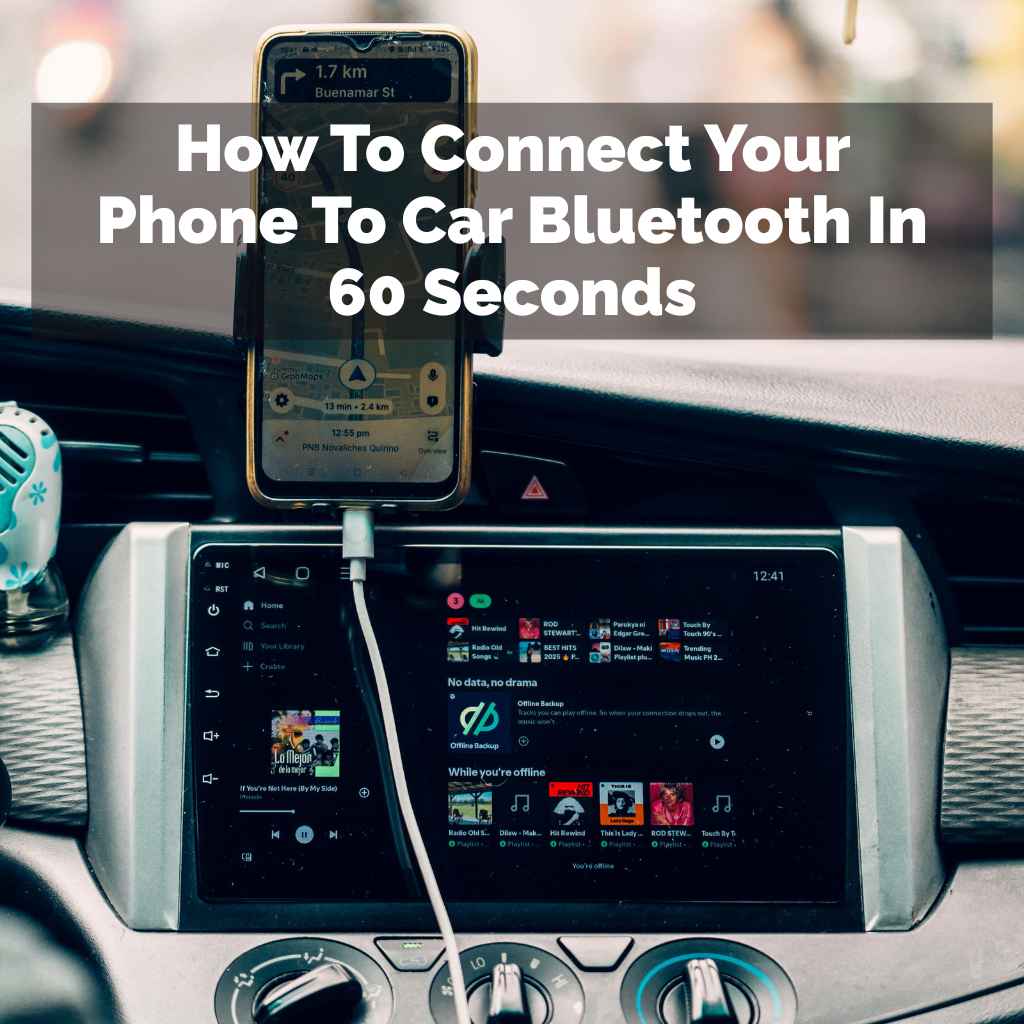
How To Connect Your Phone To Car Bluetooth In 60 Seconds
Connecting your phone to your car’s Bluetooth is a simple process that usually takes less than a minute. Most cars and phones are designed for easy pairing. Follow these quick steps to get your devices linked for hands-free calls and audio streaming.
What is Car Bluetooth Connection?
Bluetooth is a way for devices to talk to each other. It’s like a short radio signal. Your phone can send sound to your car’s speakers.
Or it can send call audio. This lets you drive and listen. It also lets you talk safely.
Cars have a special Bluetooth system. Your phone also has Bluetooth. You need to make them find each other.
Then they need to agree to connect. This is called pairing. Once paired, they remember each other.
This makes connecting faster each time.
This system is a big help for drivers. It means you can keep your hands on the wheel. Your eyes can stay on the road.
You can use your phone’s apps through your car’s speakers. Think about music apps. Or navigation.
Even podcasts. All of this is possible with a good Bluetooth link.
My First Bluetooth Pairing Fiasco
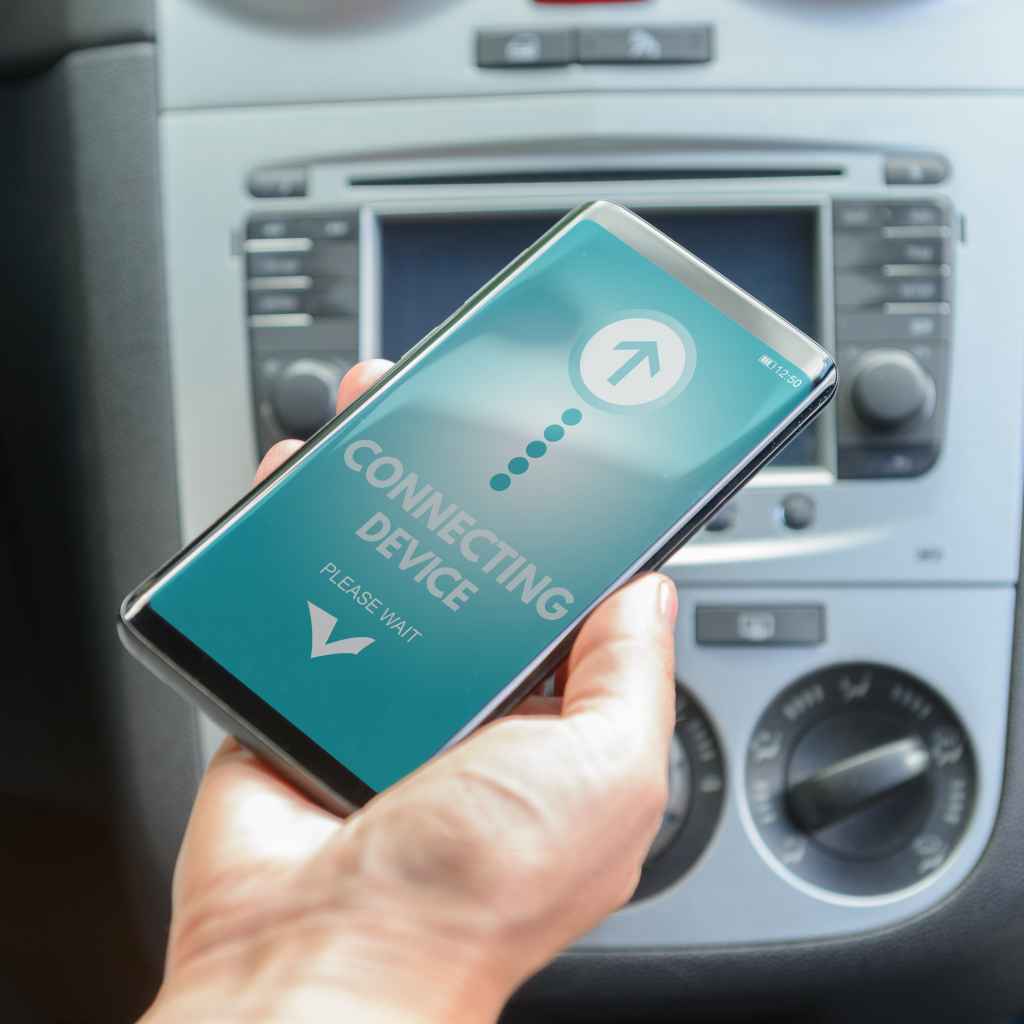
I remember the first time I tried to connect my new phone to my used car. It was a bright Saturday. I was so excited to drive with my favorite playlist.
I had just bought a car that had Bluetooth. I thought, “This will be a breeze!” So I turned on the car. I went to my phone’s settings.
I looked for Bluetooth. I saw my car’s name. I tapped it.
Then it asked for a PIN. What PIN? I had no idea.
I searched the car’s manual. Nothing. I tried common codes like 0000 or 1234.
Still nothing. My frustration grew. I sat there for a good twenty minutes.
My perfect driving playlist was silent. The silence was deafening. I felt a little defeated.
It seemed so simple, but it was a total roadblock.
I finally gave up that day. It felt like a personal failure. I thought maybe my car wasn’t compatible.
Or my phone was broken. It wasn’t until I asked a friend, who knew more about cars, that I realized my mistake. I was looking in the wrong place in the car’s system.
I needed to put the car into “pairing mode” first. That small piece of info changed everything. It showed me how a little knowledge can save a lot of head-scratching.
Quick Bluetooth Pairing Steps
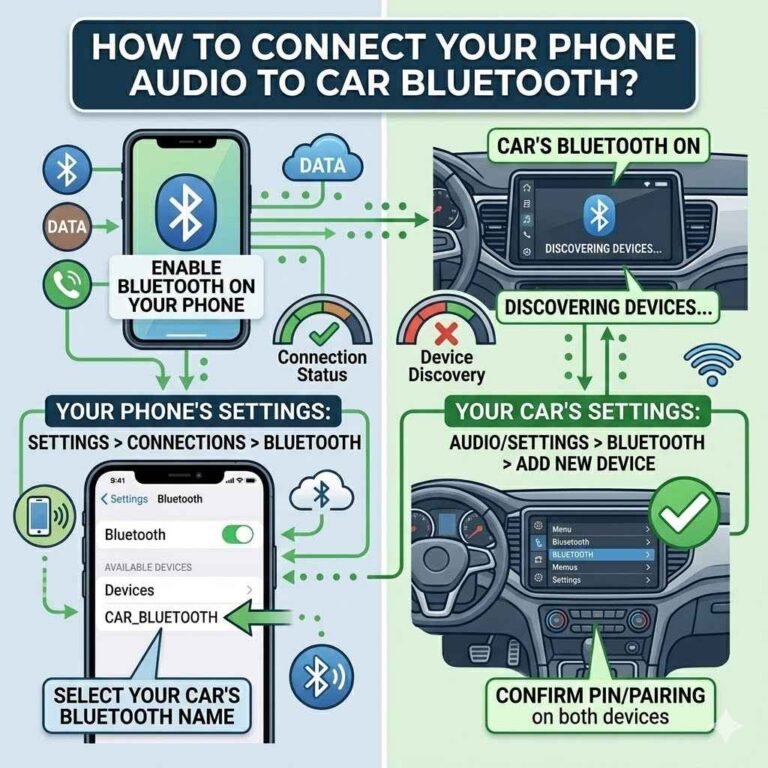
Step 1: Turn on your car’s ignition. Make sure the car’s radio is on.
Step 2: On your phone, go to Settings. Tap on Bluetooth. Make sure it’s switched ON.
Step 3: On your car’s display, find the Bluetooth menu. Look for an option like “Pair Device” or “Add Phone.”
Step 4: Your car will start searching for nearby devices. Your phone should appear on the car’s screen.
Step 5: Select your phone on the car’s screen. Your phone might then ask you to confirm a pairing code. Tap “Pair” or “Yes.”
Step 6: Your car and phone should now say they are connected. You’re ready to go!
Understanding Your Car’s Bluetooth System
Cars have different ways of handling Bluetooth. Most modern cars have a screen. This screen is where you control many things.
You’ll often find the Bluetooth settings there. Some older cars might have buttons. These buttons might be on the steering wheel or the dashboard.
They control the radio and call functions.
The goal is to find the “Pairing Mode” or “Add Device” option. This tells the car, “I am ready to find a new phone.” Without this, the car just sits and waits. It doesn’t actively look for your phone.
Think of it like a door. The pairing mode is opening the door for your phone to come in. If the door stays shut, no connection can happen.
Many car systems use prompts on the screen. They will guide you. You might see messages like “Searching for devices.” or “Enter PIN.” Pay close attention to these.
They are your roadmap. Sometimes, the car might display a PIN. You then need to enter that exact number on your phone.
Other times, both devices just agree to connect. It’s a simple handshake.
It’s worth noting that different car brands have different names for things. A Toyota might call it “Phone Setup.” A Ford might call it “SYNC.” A Honda might use “Bluetooth Audio.” Don’t get too worried about the exact words. Look for the general idea: connecting a phone.
Phone Settings to Check
On Your Phone:
Make sure Bluetooth is ON. It’s usually a toggle switch.
Make your phone discoverable. Some phones have this setting. It means other devices can find it.
Check your phone’s Bluetooth list. See if your car’s name appears.
On Your Car:
Navigate to the Phone/Bluetooth menu. Look for options like “Pair New Device.”
Activate Pairing Mode. This is key for the car to find your phone.
Wait for your phone’s name to show up. This might take a few seconds.
Step-by-Step Connection Guide
Let’s break down the actual connection. This is where many people hit a wall. They skip a step or do them in the wrong order.
Follow these steps carefully. You’ll be connected in no time.
Step 1: Prepare Your Phone
First, grab your smartphone. Unlock it. Go to your phone’s main Settings app.
You know, the gear icon or similar. Find the “Bluetooth” option. Tap on it.
Make sure the Bluetooth switch is flipped to the ON position. It should usually show a green or blue color when it’s active.
On some phones, there’s a setting called “Discoverable” or “Visible to other devices.” If you see this, turn it on. This makes your phone show up on your car’s list of devices. If you don’t see it, don’t worry.
Most phones are discoverable by default when you’re in the Bluetooth menu.
Step 2: Prepare Your Car
Now, turn your attention to your car. Start the engine. Or at least turn the car to the accessory mode.
This powers up the car’s electronic systems, including the radio and display. Find the button or menu option that controls your car’s “Phone” or “Bluetooth” features. This might be on the radio screen itself.
Or it could be on a separate button on the dashboard or steering wheel.
Once you’ve found the Bluetooth menu, look for an option that says “Pair Device,” “Add Phone,” “Connect New Device,” or something similar. This is the command that tells your car to start looking for new phones to connect with. If you don’t see this option, you might need to explore the car’s main “Settings” or “Setup” menu.
Step 3: Initiate Pairing
With both your phone and car ready, it’s time to make them talk. On your car’s screen, after you’ve selected “Pair Device” or similar, it should start searching. You might see a message like “Searching.” or “Looking for devices.” Now, look at your phone’s Bluetooth screen.
You should see a list of available devices. Your car’s name should appear in this list. It’s often the car’s make and model, or a branded name like “SYNC” or “Uconnect.”
If your car’s name doesn’t appear right away, be patient. Sometimes it takes a few extra seconds. If it still doesn’t show up, try refreshing the list on your phone or repeating the “Pair Device” step on your car.
Step 4: Confirm Connection
Once your car’s name shows up on your phone’s screen, tap on it. Now, things can happen in two main ways. Your phone might ask you to confirm a PIN code.
The car’s screen will show a code (like four or six digits). Your phone will also show a code. Make sure they match exactly.
If they do, tap “Pair” or “Yes” on your phone. Sometimes, the car might just ask, “Do you want to connect to this device?” Again, confirm with “Yes” or “Pair.”
The second way is that both devices might just connect automatically. You might see a message like “Connecting.” on both your phone and car screens. This often happens if the Bluetooth system doesn’t require a PIN.
Or if it uses a default PIN like 0000 that it automatically enters.
Step 5: Final Check
After a moment, both your phone and car should indicate that the connection is successful. Your phone might say “Connected to .” Your car’s screen might show your phone’s signal strength and battery level. Or it might display “Phone Connected.”
To test it out, try playing some music from your phone. The sound should come out of your car’s speakers. You can also try making a test call.
Dial a friend or family member. See if you can talk and hear them clearly through the car’s system. If all of this works, congratulations!
You’ve successfully connected your phone to your car’s Bluetooth.
When Pairing Goes Wrong: Common Issues
Issue: Phone Not Appearing
Check: Is Bluetooth on for both devices? Is your car in pairing mode? Try turning Bluetooth off and on again.
Issue: PIN Code Mismatch
Check: Double-check the numbers. Try restarting both devices and pairing again. Sometimes, the car has a default PIN (like 0000 or 1234) to try.
Issue: Connected but No Sound
Check: Is the car’s audio source set to Bluetooth? Is the volume up on both phone and car? Try disconnecting and reconnecting.
Issue: Connection Drops Frequently
Check: Ensure your phone’s software is up-to-date. Some older car Bluetooth modules can be finicky. Try deleting the car from your phone’s list and re-pairing.
Real-World Car Bluetooth Scenarios
In the real world, connecting your phone to your car’s Bluetooth is something you do often. Let’s think about different situations. This helps understand why it works or sometimes doesn’t.
The Morning Commute
It’s 7 AM. You jump into your car. You’ve got your coffee and your phone.
You start the car. Usually, your phone and car have already paired up from yesterday. You might see a little Bluetooth symbol light up on your car’s dash.
Your phone will say “Connected.” You just open your music app. Your songs start playing. This is the ideal scenario.
It happens because the devices remember each other. They automatically connect when they are both on and near each other.
This automatic connection is a great feature. It saves you time. You don’t have to go through the whole pairing process every single time.
Your car’s system stores your phone’s unique Bluetooth identity. Your phone also stores your car’s identity. It’s like they have each other’s contact information saved.
The Road Trip Setup
You’re about to head out on a long drive. You want to use your phone for GPS. You also want to play a podcast.
Your partner has a different phone. You need to pair their phone too. So, you go to your car’s Bluetooth menu.
You select “Add New Device.” You put your partner’s phone in pairing mode. The car finds it. You confirm the connection.
Now, your car is connected to two phones. However, it can usually only actively play audio from one at a time. You’ll likely have to select which phone you want to use for music or calls.
Most systems let you switch between them easily.
This ability to pair multiple phones is common. It’s very useful for families or if you carpool often. Just remember that only one can be the “active” audio source.
The car’s system will typically remember the last phone used or the phone that was connected first.
The New Phone Dilemma
You just got a brand new smartphone. You want to connect it to your car. This is a situation where you’ll definitely need to do the full pairing process again.
Your old phone’s connection information is stored in your car. It won’t recognize your new phone automatically. So, you’ll go through the steps: turn on the car, go to the car’s Bluetooth menu, select “Add Device.” Then, on your new phone, turn on Bluetooth, and search for devices.
You’ll find your car and initiate the pairing. This is a common time people might struggle if they forget the steps.
It’s a good idea to “forget” or “delete” your old phone from your car’s Bluetooth list. This keeps things tidy and prevents potential conflicts. Most car systems allow you to manage paired devices.
You can usually see a list of phones connected in the past. You can then select the old one and remove it.
Bluetooth Etiquette on the Road
Keep it Simple: Aim to pair your phone before you start driving. Don’t try to do it while you’re already on the highway.
Prioritize Safety: Use Bluetooth for hands-free calls and audio. Avoid touching your phone screen while driving. Many systems let you access voice assistants like Siri or Google Assistant through Bluetooth.
Be Mindful of Others: If you’re in a car with others, ask before automatically connecting your phone to play your music. They might have different tastes!
Regular Updates: If your car has an infotainment system that can be updated, check for software updates. These can sometimes improve Bluetooth connectivity.
What This Means for Your Drive
Understanding how to connect your phone to your car’s Bluetooth means more than just playing music. It opens up a world of convenience and safety.
When It’s Normal to Connect
Connecting your phone via Bluetooth is normal every time you get into your car. Most modern cars are designed to pair quickly. You should expect your phone to connect within seconds of starting the car.
This is true for both making calls and streaming audio. If your car and phone are listed as compatible, this should be a seamless experience.
It’s normal if you have to re-pair your phone after a major software update on either device. It’s also normal if you need to pair a new phone you just bought. Think of these as occasional resets.
They are usually quick and get you back on track.
When to Be Concerned
You might start to worry if the connection is constantly dropping. Or if it takes minutes to connect each time. If your car’s system freezes or crashes when you try to pair, that’s a red flag.
Another sign is if your phone shows “Connected” but there’s no sound. Or if calls are choppy and hard to hear. These issues could mean a problem with the car’s Bluetooth module or your phone’s Bluetooth hardware.
Sometimes, the issue isn’t with the technology itself. It might be with how the devices are interacting. For instance, if you have many Bluetooth devices active nearby (like smartwatches, headphones, other phones), it can sometimes interfere with the car connection.
It’s a good idea to turn off Bluetooth on other devices you aren’t actively using when you’re trying to connect to your car.
Simple Checks You Can Do
Before you call a mechanic or tech support, try these simple checks. First, restart both your phone and your car’s infotainment system. Turn off your car completely, take the key out, open the door, close the door, and then start it again.
On your phone, toggle Bluetooth off and then on. If you have a previous connection profile for your car on your phone, try “forgetting” that device and re-pairing from scratch.
Check your car’s manual. It often has a troubleshooting section for Bluetooth. Also, check your phone’s manufacturer website.
They might have specific tips for connecting to car systems. Sometimes, a simple update to your phone’s operating system can fix Bluetooth bugs.
Understanding Connection Limits
Device Limit: Most car systems can store a list of several paired phones (often 5-10). However, they usually can only connect and actively use one or two at a time.
Range: Bluetooth has a limited range, typically around 30 feet (10 meters). Your phone needs to be inside the car for a stable connection.
Interference: Other wireless signals (like Wi-Fi, microwaves, or even other Bluetooth devices) can sometimes interfere with the connection.
Tips for a Speedy Connection
Getting that connection in under 60 seconds is totally doable. It’s all about knowing the right steps and a few little tricks.
Keep Your Phone Updated
Make sure your smartphone’s operating system is up-to-date. Software updates often include fixes for Bluetooth connectivity. Developers work hard to make sure their systems work well with many different car models.
A bug in your phone’s software could be the reason for a slow or failed connection. Regularly check for updates in your phone’s settings. Apply them when available.
Know Your Car’s System
Spend a few minutes with your car’s manual. Or explore its infotainment system settings. Learn where the Bluetooth menu is.
Understand how to put it in pairing mode. Knowing these things beforehand will save you time and confusion. If you know your car’s system is a bit older, be prepared for it to be a little less streamlined than a brand-new model.
But the core steps are usually the same.
Delete Old Phones
If you’ve had your car for a while, you might have many old phones listed in its memory. This can sometimes clutter the system. Go into your car’s Bluetooth settings.
Find the list of paired devices. Delete any phones that you no longer use. This helps the car focus on finding and connecting to your current device.
It also frees up space for any new phones you might add in the future.
Similarly, on your phone, remove your car from the list of “known” or “paired” Bluetooth devices if you’re having trouble. Then, start the pairing process again from the beginning. This is like giving both devices a fresh start.
Quick-Scan Table: Pairing Checklist
| Task | Check | Notes |
|---|---|---|
| Phone Bluetooth On | Yes | Check your phone’s settings. |
| Car Bluetooth Activated | Yes | Find the phone/Bluetooth menu in the car. |
| Car in Pairing Mode | Yes | Look for “Pair New Device” or similar. |
| Phone Visible on Car | Yes | Your phone’s name should appear on the car’s screen. |
| PIN Confirmation (if asked) | Match | Ensure codes are identical. |
| Connection Confirmed | Yes | Both devices should show “Connected.” |
Frequently Asked Questions
How do I make my phone discoverable by my car?
On your phone, go to Bluetooth settings. Make sure Bluetooth is turned on. You might see an option like “Make Discoverable” or “Visible to other devices.” If you see it, turn it on.
Many phones are discoverable by default when you are in the Bluetooth menu.
My car’s screen shows a PIN, but my phone doesn’t. What do I do?
This usually means the car is trying to set a PIN. You need to have your phone’s Bluetooth settings open. Look for a prompt on your phone to enter the PIN shown on the car’s screen.
If no prompt appears, try restarting both devices and pairing again. Sometimes, typing “0000” or “1234” on your phone works if the car doesn’t display a PIN.
Can I connect more than one phone to my car?
Yes, most cars can pair with multiple phones. However, usually only one phone can be actively connected for calls and audio at a time. You can typically switch between connected phones from your car’s Bluetooth menu.
Why does my phone disconnect from the car’s Bluetooth randomly?
This can happen for several reasons. Your phone’s battery might be too low. There could be interference from other Bluetooth devices.
Or, the car’s system might have a glitch. Try forgetting the car from your phone’s Bluetooth list and re-pairing. Also, ensure both your phone and car’s software are updated.
How do I reset my car’s Bluetooth system?
Most cars allow you to “forget” or delete paired devices from the Bluetooth menu. You can often also find an option to reset the entire Bluetooth system to its factory settings. Check your car’s owner’s manual for the exact steps, as this varies by make and model.
Do I need to pair my phone every time I get in the car?
No, once your phone is paired with your car, they should automatically reconnect each time you get in the car, as long as both Bluetooth devices are on and within range. You only need to go through the pairing process the first time, or if you get a new phone or your car’s system is reset.
Connecting in Less Than a Minute
You’ve seen how straightforward it can be. With the right steps, you can connect your phone to your car’s Bluetooth in under a minute. It’s a simple process that enhances your driving experience.
Enjoy your music and calls safely!
Products related to this article
Sponsored / affiliate links. As an Amazon Associate I earn from qualifying purchases. I may earn additional commission from eligible campaigns.