How To Connect A Phone To A Car Radio Without The Hassle
Have you ever tried to play your favorite music or listen to a podcast in your car, only to find out your phone and your car radio don’t speak the same language? It’s a common frustration. You want to enjoy your tunes, make hands-free calls, or use navigation, but the connection just won’t happen.
This can really put a damper on your drive.
Don’t worry, you’re not alone in this. Many drivers face this exact issue. The good news is that connecting your phone to your car radio is usually much simpler than you might think.
There are several easy ways to get your audio playing loud and clear.
This guide will walk you through the most common and effective methods. We’ll cover everything from Bluetooth to USB and auxiliary cables. By the end, you’ll know exactly how to get your phone linked up, so you can enjoy a more connected and enjoyable driving experience.
Let’s make that car ride better.
Getting your phone to play through your car’s speakers is a common need. Luckily, most cars offer simple ways to connect. You can usually use Bluetooth for wireless streaming, a USB cable for digital audio and charging, or an auxiliary (AUX) cable for older systems. Each method is straightforward and takes just a few minutes.
Understanding Your Car Radio’s Options
Your car radio is the brain of your in-car entertainment. It’s how you tune into music, news, or talk shows. But modern cars have evolved a lot.
Many now come with advanced systems that can talk to your phone. It’s helpful to know what features your car radio has. This will tell you the best way to connect.
Most newer cars have built-in Bluetooth. This is a wireless technology. It lets devices talk to each other over short distances.
Think of it like a secret handshake for your gadgets. Your phone and car can pair up. Then, audio can stream from your phone to your car’s speakers.
Many cars also have USB ports. These are the same kinds of ports you use to charge your phone. Some USB ports are just for charging.
Others can also play music. If your car has a USB port that can play music, you can connect your phone with a USB cable. This often gives you better sound quality.
It also keeps your phone charged.
Older cars might not have Bluetooth or fancy USB ports. But many still have an AUX input. This is a small, round jack.
It looks a bit like a headphone jack. You can use an auxiliary cable to connect your phone to this port. This sends the audio signal directly from your phone.
Some cars also support Apple CarPlay or Android Auto. These are special systems. They mirror your phone’s screen onto your car’s display.
This makes it easy to use apps like maps, music, and messaging safely. You usually connect these using a USB cable. Sometimes, they can also work wirelessly.
Knowing these options is the first step. It helps you pick the right method. It also saves you from trying things that won’t work.
Let’s dive into how to use each of these connection types. We’ll make it as easy as possible.
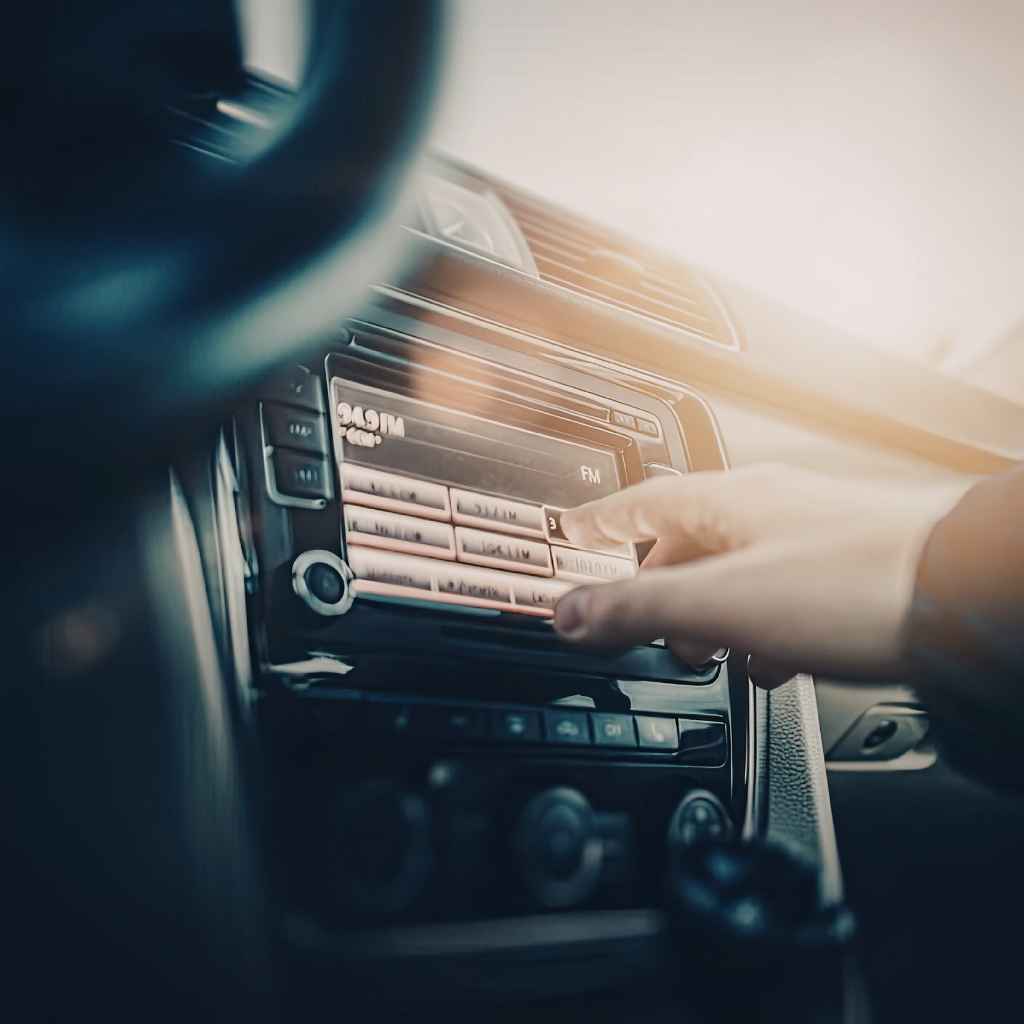
How to Connect Using Bluetooth
Bluetooth is a popular choice because it’s wireless. No messy cables are needed. It’s also built into most smartphones and newer car radios.
This makes it a super convenient option for most people. The process is usually quite simple once you know the steps.
First, you need to make sure Bluetooth is turned on for both your phone and your car radio. On your phone, you can usually find the Bluetooth setting in your main settings menu. It often looks like a blue square or circle icon.
Tap on it to turn it on.
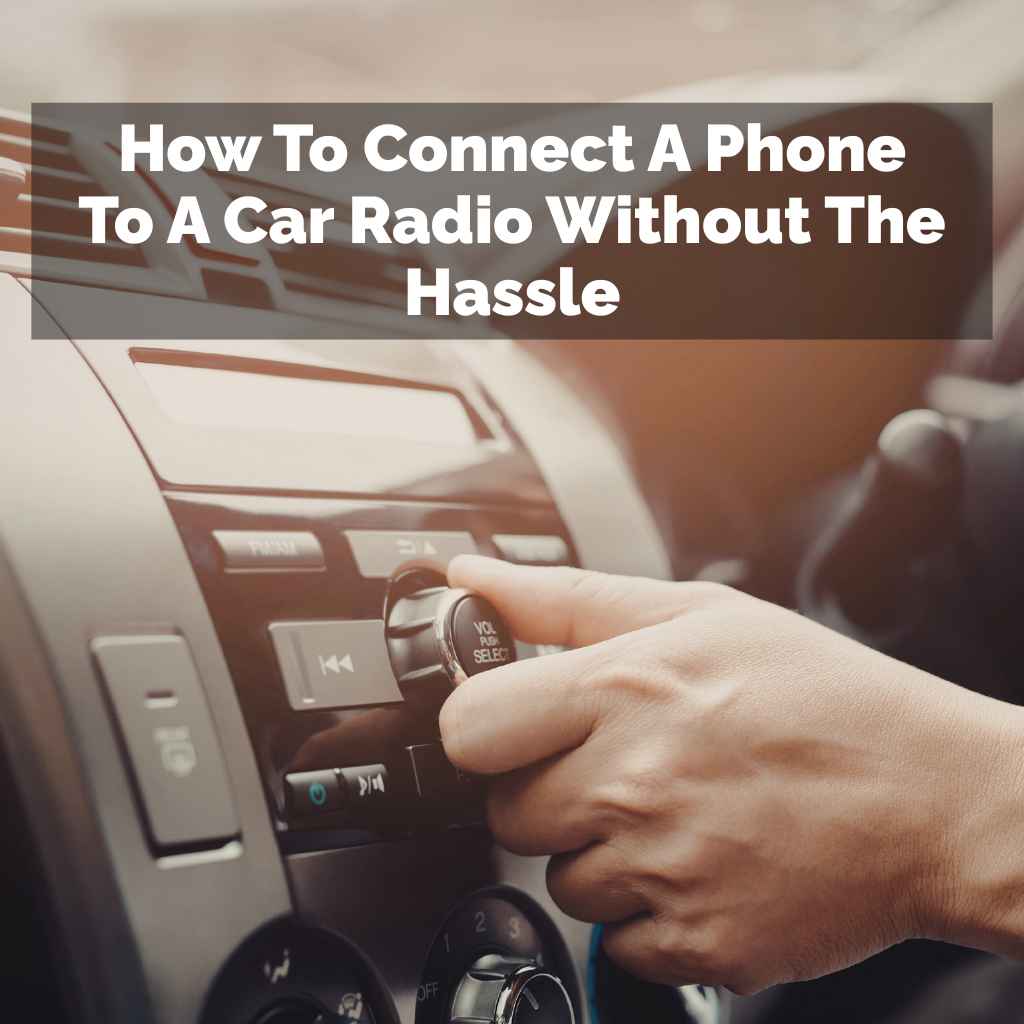
For your car radio, the steps can vary. Look for a “Phone” or “Bluetooth” button on your dashboard or stereo. You might need to go into the radio’s menu system.
Find the Bluetooth settings there. You’ll likely see an option to “pair a new device” or “make discoverable.”
Once both devices are ready, your phone will start looking for nearby Bluetooth devices. Your car radio should also appear in the list of available devices on your phone. It might show up as the car’s model name or a generic name like “Car Audio.” Select your car’s name from your phone’s list.
Your car radio might then ask you to confirm a pairing code. Or, it might just connect automatically. You may see a message on both your phone and your car radio screen asking you to confirm.
Make sure the codes match if they appear. Then, accept the connection on both devices.
After pairing, your phone and car radio should remember each other. The next time you get in your car, they should connect automatically. You might hear a little chime or see a confirmation message.
Now, any audio playing on your phone – music, podcasts, calls – will come through your car speakers.
Sometimes, your phone might try to connect to another Bluetooth device. Or, your car radio might be paired with too many phones. If you have trouble, try turning Bluetooth off and on again on your phone.
You can also try deleting the old pairing from both your phone and your car. Then, start the pairing process over.
Experience Tip: I remember when I first got my new-to-me car. It had Bluetooth, but it felt so complicated. I kept trying to find the option on the radio, but I was looking in the wrong menu.
I finally found it under “Settings,” then “Phone Setup.” Once I saw it, pairing my phone took less than a minute! It’s always in the settings somewhere.
Bluetooth Connection Checklist
1. Enable Bluetooth: Turn on Bluetooth on your smartphone. Check your car radio’s settings for the Bluetooth option.
Make sure it’s also on.
2. Make Discoverable: Set your phone to be visible to nearby devices. Put your car radio in pairing mode.
Look for “Pair Device” or “Add Phone” on your car’s screen.
3. Select Device: On your phone, find your car’s name in the list of available Bluetooth devices. Tap on it.
4. Confirm Pairing: If prompted, verify the pairing code on both your phone and car screen. Then, confirm the connection.
5. Test Audio: Play some music or make a test call to ensure audio is routed to your car speakers.
Connecting with a USB Cable
Using a USB cable is another excellent way to connect your phone to your car radio. This method often provides superior sound quality compared to Bluetooth. It also has the added benefit of charging your phone while you drive.
This means you don’t have to worry about running out of battery.
First, locate the USB port in your car. It might be in the center console, on the dashboard, or near the gear shift. You’ll also need a USB cable that fits your phone.
Most modern smartphones use USB-C or Lightning cables.
Plug one end of the cable into your phone. Then, plug the other end into the USB port in your car. Your car radio should detect that a device has been connected.
It might automatically switch to the USB media source. Or, you might need to select “USB” from your radio’s input options.
Once connected, your car radio should be able to access the music files on your phone. You can usually control playback – play, pause, skip tracks – directly from your car’s stereo buttons or touchscreen. Your phone screen might show a message asking if you want to allow the car to access your data.
Tap “Allow” or “Yes” to proceed.
Some car systems can also integrate with your phone apps through USB. This is how Apple CarPlay and Android Auto work. If your car supports these systems, you’ll see a prompt to launch them.
They offer a more integrated experience, showing familiar app interfaces on your car’s screen.
Not all USB ports are created equal. Some are designed only for charging. These won’t work for playing audio.
If you plug your phone into a charging-only port, it will likely just start charging. Your radio won’t show it as a media source. Check your car’s manual if you’re unsure.
If you have a lot of music stored on your phone, a USB connection is ideal. It’s also great for podcasts and audiobooks. You get a clear, digital sound signal.
Plus, your phone stays powered up for your journey.
Experience Tip: I once drove across the country with a friend. We had a mix of music on our phones. My car had decent Bluetooth, but his phone’s Bluetooth was a bit flaky.
We found that using a USB cable was way more reliable. The sound was also noticeably crisper. And his phone stayed fully charged the whole time, which was a lifesaver for maps.
USB Connection: What to Expect
Cable Quality: Use a good quality USB cable. A damaged or cheap cable can cause connection issues or slow charging.
Port Function: Confirm your car’s USB port supports media playback, not just charging. Check your car manual.
Phone Permissions: Grant your car radio permission to access your phone’s data when prompted. This is crucial for music playback and app integration.
Car Radio Input: Select “USB” or the appropriate media source on your car radio’s display.
CarPlay/Android Auto: If your car and phone support it, you’ll be prompted to launch these enhanced interfaces for a seamless experience.
Using an Auxiliary (AUX) Cable
For many older cars, or even some newer ones that might lack advanced features, the auxiliary (AUX) input is a reliable connection method. This is a simple, analog audio connection that has been around for a long time. It’s straightforward and works with almost any device that has a headphone jack or audio output.
First, you need to find the AUX input on your car radio. It typically looks like a small, circular jack, often labeled “AUX,” “Input,” or with a headphone symbol. You can usually find it on the front of the stereo, in the center console, or even in the glove compartment.
Next, you’ll need an auxiliary cable. These are also called 3.5mm audio cables. They have a metal plug on each end that fits into the AUX jack and your phone’s headphone port (or a headphone adapter if your phone doesn’t have one).
Plug one end of the AUX cable into your phone’s headphone jack. Then, plug the other end into the AUX input on your car radio. Make sure the connection is snug on both ends.
Once connected, you’ll need to tell your car radio to use the AUX input as its audio source. You’ll likely find this option by pressing the “Source,” “Mode,” or “Input” button on your stereo. Cycle through the options until you select “AUX.”
Now, any audio playing on your phone will be sent through the AUX cable to your car’s speakers. This includes music, podcasts, audiobooks, and even phone calls. However, you’ll typically control playback on your phone itself.
Your car radio won’t be able to control play/pause or skip tracks.
The sound quality through an AUX cable is generally good, but it’s analog. This means it can sometimes pick up a bit of background noise or interference. It’s also important to note that AUX connections do not charge your phone.
So, if you’re going on a long trip, you might want to keep a separate charger handy.
This method is fantastic because it’s so universal. If your phone has a headphone jack, and your car has an AUX port, you’re good to go. It’s a simple, no-fuss way to get your phone’s audio playing through your car speakers.
It bridges the gap for older vehicles.
Experience Tip: My first car was a humble sedan from the early 2000s. It had a CD player and a radio, but that was it. No Bluetooth, no USB.
I thought I was stuck listening to the radio forever! Then, I discovered the AUX port hidden in the glove box. I bought a cheap AUX cable, and suddenly I had access to all my digital music.
It felt like a huge upgrade!
AUX Cable: Quick Guide
Locate AUX Port: Find the “AUX” or similar input on your car stereo. It’s usually a 3.5mm jack.
Get the Right Cable: You need a 3.5mm male-to-male audio cable.
Connect Both Devices: Plug one end into your phone’s headphone jack and the other into the car’s AUX port.
Select AUX Source: On your car radio, choose “AUX” as the input source.
Control on Phone: Play, pause, and skip tracks using your phone’s controls.
No Charging: Remember, this connection does not charge your phone.
Apple CarPlay and Android Auto
For a truly integrated experience, Apple CarPlay and Android Auto are game-changers. These systems essentially bring the core features of your smartphone directly to your car’s infotainment screen. They are designed for safety and convenience while driving.
To use them, you first need a compatible smartphone. For Apple CarPlay, you need an iPhone. For Android Auto, you need an Android phone.
Your car also needs to support these systems. Most cars made in the last few years include this. You can usually check your car’s manual or the manufacturer’s website.
The most common way to connect is via USB. Plug your iPhone into the car’s USB port using a Lightning cable for CarPlay. Or, plug your Android phone into the USB port with a USB-C cable for Android Auto.
Once connected, your car’s screen will likely display the CarPlay or Android Auto interface. This is a simplified version of your phone’s home screen. It features large icons for apps like Maps, Messages, Music, Podcasts, and Phone.
You can navigate using your car’s touchscreen or voice commands.
Voice commands are a big part of these systems. You can say “Hey Siri” or “Hey Google” to perform tasks. This includes getting directions, sending text messages, making calls, or playing music, all without taking your hands off the wheel or your eyes off the road.
Some newer cars also offer wireless CarPlay and Android Auto. This means you can connect without a USB cable, usually through Bluetooth and Wi-Fi. The initial setup might require a one-time USB connection to pair your phone wirelessly.
These systems are fantastic for navigation. Google Maps, Waze, and Apple Maps work seamlessly. They provide turn-by-turn directions on your car’s screen.
Music apps like Spotify and Apple Music are also easy to control. It makes long drives much more pleasant and less distracting.
If your car supports CarPlay or Android Auto, it’s highly recommended to use it. It offers the safest and most integrated way to use your phone while driving. It turns your car’s dashboard into a familiar extension of your digital life.
Experience Tip: I was skeptical about Android Auto at first. I thought it would be too complicated. But after connecting my phone via USB, it was incredibly easy.
The big icons made it simple to tap on Google Maps. Asking it to find the nearest gas station was a breeze. It felt like my phone was just part of the car.
CarPlay vs. Android Auto: Key Features
Navigation: Both offer excellent navigation with real-time traffic updates. (Google Maps, Waze, Apple Maps)
Communication: Send and receive calls and messages using voice commands. (Siri, Google Assistant)
Music & Audio: Play music, podcasts, and audiobooks from popular apps. (Spotify, Apple Music, Audible)
Voice Control: Hands-free operation is a primary focus for safety.
Interface: Simplified, driver-friendly interface with large icons.
Connection: Primarily USB, with increasing support for wireless connections.
Troubleshooting Common Connection Issues
Even with the easiest methods, sometimes things just don’t work as expected. Connection problems can be super frustrating. But most of the time, they have simple fixes.
Let’s look at some common issues and how to solve them.
Problem: Bluetooth won’t pair or connect.
Possible Fixes:
- Restart Devices: Turn Bluetooth off and then on again on your phone. Restart your car’s infotainment system if possible (some cars have a way to do this through the menu, or you might need to turn the car off and on again).
- Forget Device: On your phone, go to Bluetooth settings and “forget” or “unpair” your car. On your car radio, delete your phone from its list of paired devices. Then, try pairing them again from scratch.
- Clear Device Limit: Most car radios can only store a certain number of paired devices (often 5-7). If your list is full, delete older or unused devices.
- Check Phone Compatibility: Ensure your phone’s Bluetooth version is compatible with your car’s.
Problem: USB connection isn’t recognized or only charges.
Possible Fixes:
- Try a Different Cable: Use a different, high-quality USB cable. Some cables are designed only for charging and don’t transfer data.
- Use a Different Port: If your car has multiple USB ports, try connecting to another one. Some ports might be data-enabled while others are just for charging.
- Grant Permissions: Make sure you’ve allowed your car radio access to your phone’s data when prompted on your phone’s screen.
- Check Car Manual: Consult your car’s owner’s manual to confirm which USB ports support media playback.
Problem: AUX cable has static or poor sound quality.
Possible Fixes:
- Ensure Full Connection: Make sure the AUX cable is fully plugged into both your phone and the car’s AUX port. A loose connection is a common cause of static.
- Try a Different Cable: The AUX cable itself might be damaged or low quality. Try a new one.
- Check Phone Volume: Turn up the volume on your phone. Sometimes the phone’s volume is set too low, causing the car radio to amplify a weak signal, which can introduce noise.
- Check Car Volume and Source: Ensure your car radio is set to the AUX source and its volume is at an appropriate level.
Problem: CarPlay or Android Auto won’t launch.
Possible Fixes:
- Update Your Phone: Make sure your phone’s operating system and the CarPlay/Android Auto apps are updated to the latest version.
- Restart Everything: Restart your phone, your car’s infotainment system, and unplug/replug the USB cable.
- Check USB Cable and Port: As mentioned above, use a good quality, data-transferring USB cable and ensure it’s plugged into a compatible port on your car.
- App Settings: On your phone, check the settings for CarPlay or Android Auto. Make sure your car is listed and enabled.
Experience Tip: I once spent nearly 20 minutes trying to get my phone to connect via Bluetooth on a road trip. I tried everything. Finally, I realized my phone was connected to my Bluetooth headphones in my bag.
I had completely forgotten they were on! Turning off the headphones made the car connection work instantly. Always check for other active connections!
Quick Fix Flowchart
Issue?
Bluetooth Trouble? Restart devices, forget/re-pair, check car’s device limit.
USB Not Working? Try new cable, different port, grant phone permissions, check car manual.
AUX Static? Check cable connection, try new cable, adjust phone/car volume.
CarPlay/Android Auto Fail? Update phone OS/apps, restart everything, use known good USB cable/port, check phone settings.
Still Stuck? Consult your car’s owner’s manual or the car dealership for specific guidance.
When to Consider Upgrading Your Car Stereo
Sometimes, no matter how many troubleshooting steps you take, your current car stereo just doesn’t have the capabilities you need. If you have an older car with a very basic radio, you might find yourself constantly wrestling with connection issues or missing out on modern features entirely.
If your car radio lacks Bluetooth, USB input, or an AUX port, it’s likely quite old. In these cases, the best solution might be to upgrade your car stereo. This might sound like a big job, but it can dramatically improve your driving experience.
Modern aftermarket car stereos offer a wide range of features. You can find units with built-in Bluetooth for seamless phone pairing and hands-free calling. Many come with USB ports that support music playback and charging, as well as Apple CarPlay and Android Auto integration.
There are also stereos with touchscreens that look and feel like a tablet. These make navigating menus and using apps much easier. You can find options that are single-DIN (the standard, smaller size) or double-DIN (a larger, rectangular screen).
The choice depends on your car’s dashboard space.
When considering an upgrade, think about what features are most important to you. Do you primarily want music streaming? Hands-free calling?
Navigation on a big screen? Once you know your priorities, you can look for a stereo that fits your needs and budget.
Professional installation is often recommended for car stereo upgrades. While some people are comfortable doing it themselves, it involves working with wiring harnesses and ensuring a secure fit. A professional installer can make sure everything is connected correctly and safely.
Upgrading your car stereo can feel like getting a whole new car. You gain access to modern connectivity and entertainment features. It’s an investment that can pay off in daily convenience and enjoyment.
Experience Tip: I had a friend whose car stereo was so old, it didn’t even have an AUX input. He was using one of those little FM transmitters that you plug your phone into, and the sound quality was terrible. He finally decided to get an aftermarket stereo with Bluetooth.
He said it was the best decision he ever made. He could finally listen to his playlists and take calls without static.
Signs You Might Need a Stereo Upgrade
No Modern Ports: Your stereo lacks Bluetooth, USB, or AUX inputs.
Poor Sound Quality: Even with good connections, the audio is muffled or weak.
Limited Features: No hands-free calling, basic radio/CD functions only.
Worn-Out Display: The screen is faded, scratched, or buttons are not working.
Desire for CarPlay/Android Auto: You want the integrated smartphone experience.
Difficulty Connecting: Constant, unresolvable connection issues with your phone.
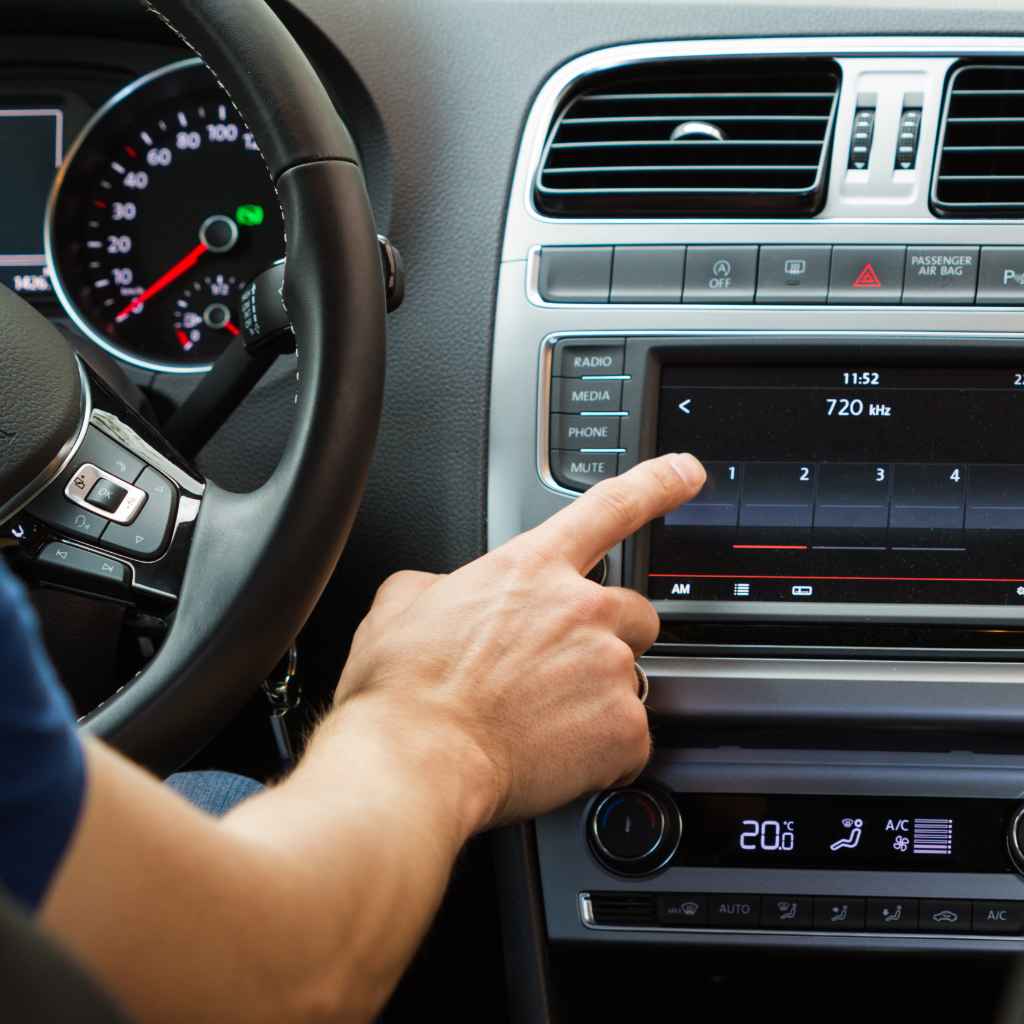
Conclusion: Enjoying Your Connected Drive
Connecting your phone to your car radio doesn’t have to be a headache. Whether you’re using Bluetooth for wireless convenience, a USB cable for great sound and charging, an AUX cord for simplicity, or CarPlay/Android Auto for full integration, there’s a method that works for you.
Take a moment to understand your car’s audio system. Look for the symbols and ports. Then, choose the connection method that suits your phone and your car best.
With these simple steps, you can transform your daily commute into a more enjoyable and connected experience. Happy listening!
Frequently Asked Questions About Connecting Phones to Car Radios
Can I connect my phone to my car radio without Bluetooth?
Yes, absolutely! If your car radio has a USB port or an auxiliary (AUX) input, you can connect your phone using a USB cable or an AUX cable, respectively. These methods don’t require Bluetooth at all and often provide excellent sound quality.
Will connecting my phone charge it?
It depends on the connection method. Using a USB cable or Apple CarPlay/Android Auto via USB will typically charge your phone simultaneously. Bluetooth and AUX connections generally do not provide power to your phone, so you might need a separate car charger for those methods.
My car has Bluetooth, but my phone won’t connect. What should I do?
First, try turning Bluetooth off and on again on both your phone and your car radio. If that doesn’t work, try “forgetting” your car from your phone’s Bluetooth list and deleting your phone from your car’s paired devices. Then, attempt to pair them again.
Ensure your car radio isn’t paired with too many other devices.
What is the difference between AUX and USB connection?
An AUX connection uses a simple analog audio cable (3.5mm jack) to send sound from your phone to your car radio. A USB connection sends digital audio data, often resulting in better sound quality, and can also charge your phone. USB also enables advanced features like Apple CarPlay and Android Auto.
How do I know if my car supports Apple CarPlay or Android Auto?
Check your car’s owner’s manual or the manufacturer’s website. Many newer cars (typically from 2016 onwards) come equipped with these features. You can often tell by looking for a CarPlay or Android Auto icon on your car’s infotainment screen or dashboard buttons.
You will usually need to connect your phone via USB to activate them for the first time.
Is it safe to use my phone while driving?
It is never safe to use your phone manually while driving. However, systems like Apple CarPlay and Android Auto are designed to allow safe interaction with essential phone functions (like navigation, calls, and texts) through voice commands and simplified interfaces, minimizing distraction. Always prioritize driving and use voice controls whenever possible.
Products related to this article
Sponsored / affiliate links. As an Amazon Associate I earn from qualifying purchases. I may earn additional commission from eligible campaigns.