How To Hook Up Bluetooth On A Sony Car Radio: Step-By-Step
Getting your Sony car radio to connect via Bluetooth is a straightforward process. It usually involves accessing the radio’s setup menu, turning on Bluetooth, making it discoverable, and then pairing your phone. Confirming the connection on both devices is key. Troubleshooting often involves restarting devices or checking compatibility.
Understanding Your Sony Car Radio’s Bluetooth
So, what is Bluetooth, anyway? Think of it as a short-range wireless signal. It lets different devices talk to each other.
Your phone can talk to your Sony car radio. This is super handy. You can listen to music from your phone.
You can also make and take calls. All without wires. This makes driving safer.
It also makes it more fun. Not all Sony car radios have Bluetooth. You should check your car stereo’s model.
Most newer ones do. You can often find this information on the front of the radio. Or, check the owner’s manual.
Your car radio has settings. These settings control its many features. One of these is Bluetooth.
You need to find this setting. It’s usually hidden in a menu. This menu might be called “Setup,” “Settings,” or “System.” Sometimes, it’s a gear icon.
You’ll use the buttons on your radio to navigate. You might have a “Func” or “Menu” button. Push that.
Then, use the volume knob or other buttons to scroll. Find the word “Bluetooth.” Press the button that confirms your selection.
Once you’re in the Bluetooth menu, there are a few things you can do. You can turn Bluetooth on or off. You can see what devices are already connected.
You can also add new devices. This is what you want to do to connect your phone. Your radio might also let you change its name.
This is the name other devices see. You can also set a security code. This is usually 0000 or 1234.
But you might not need it.
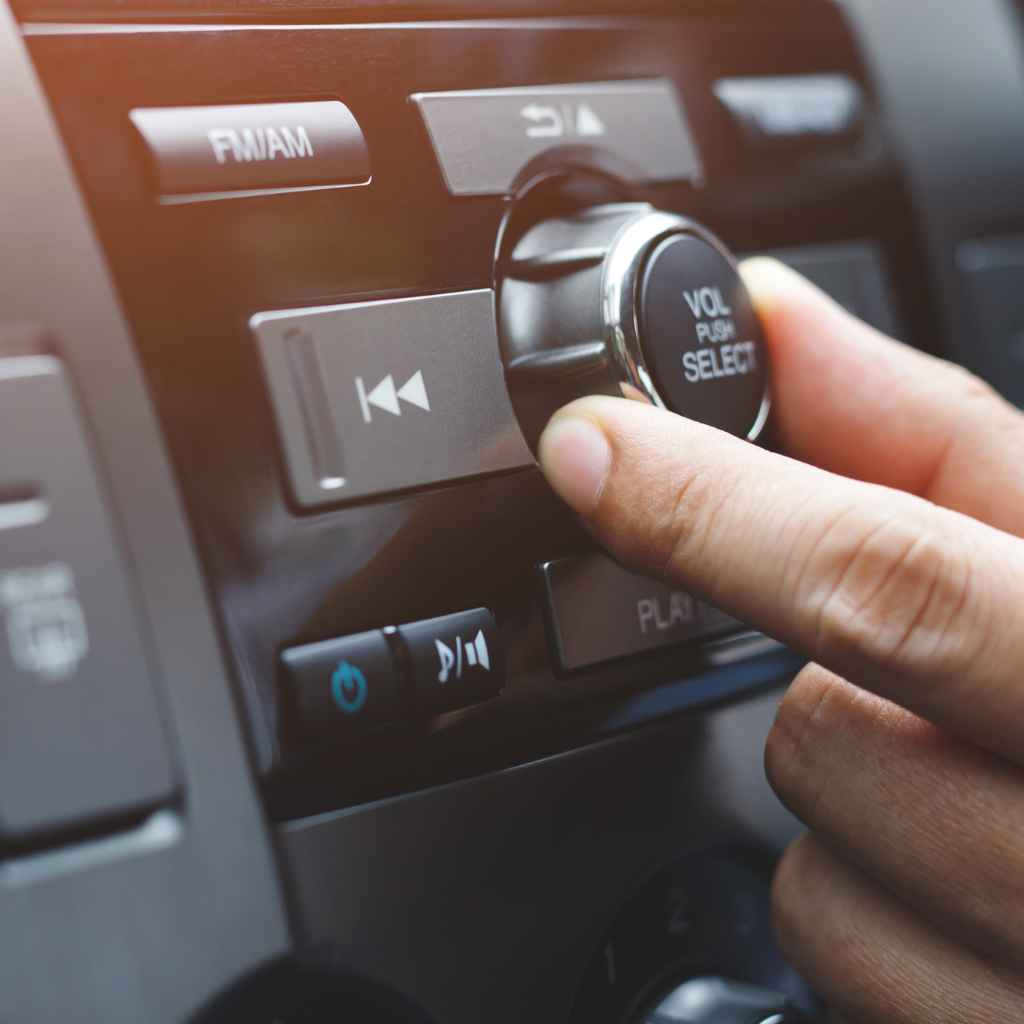
My Own Bluetooth Blunder (and How I Fixed It)
I remember one sweltering summer afternoon. I’d just bought a used car. It had a pretty decent Sony stereo.
The ad said it had Bluetooth. Great! I thought.
No more tangled aux cords. I got in the car, ready to pair my phone. I pushed the “Menu” button.
I scrolled through options. “Bluetooth” was there. I clicked it.
I saw “Device List.” Nothing else. No “Pair New Device.” No “Make Discoverable.” Panic set in. Was the ad lying?
Was the stereo broken? My phone couldn’t find anything. I sat there for a good ten minutes.
I felt a bit silly, then frustrated. I was missing something obvious. I almost gave up.
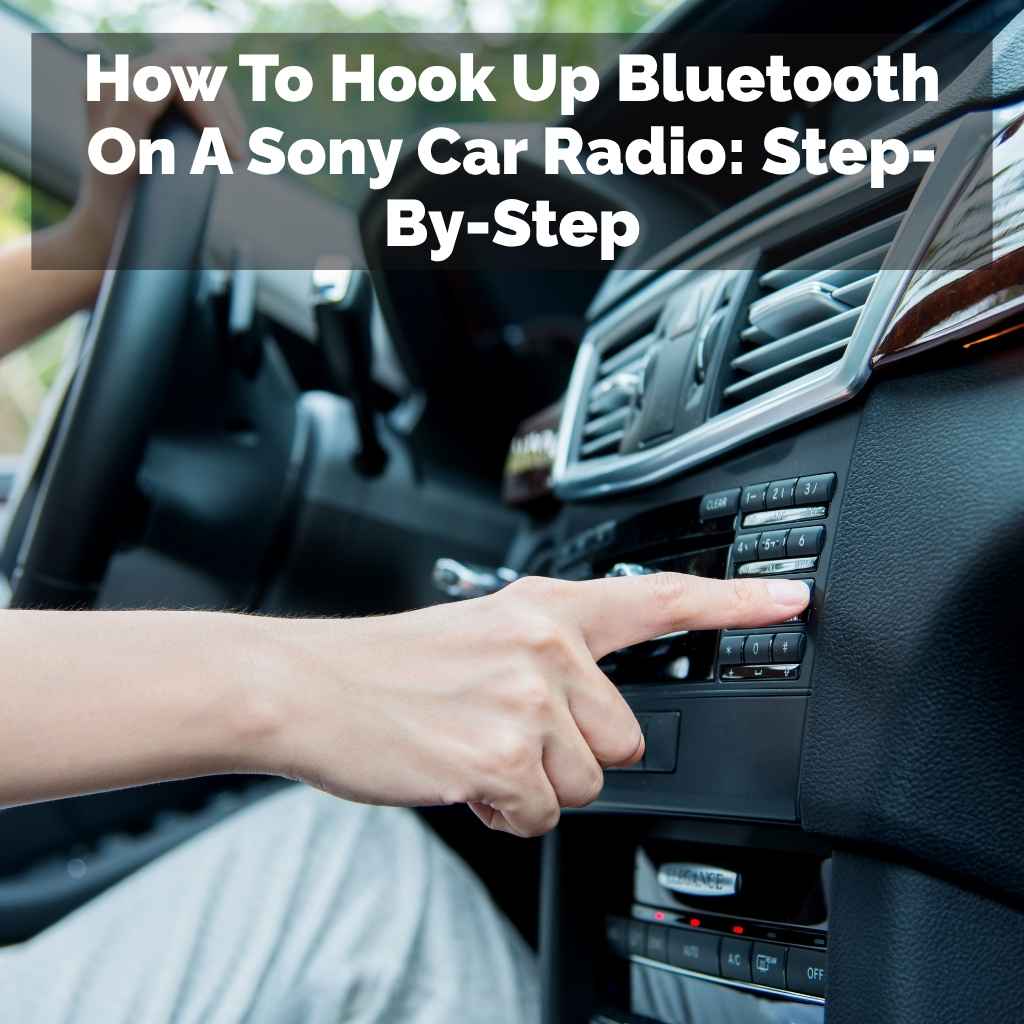
Then, I noticed a small button I hadn’t touched. It had a little phone icon. I pressed it.
Suddenly, new options popped up. “Pair Device.” “On/Off.” “Device Name.” Ah, the hidden phone button! It was the key.
I quickly selected “Pair Device.” My phone then found the radio. The rest was history. It taught me to look for all the buttons.
Sony Car Radio Bluetooth Pairing: Quick Steps
1. Access Menu: Press “Menu” or “Setup” on your radio.
2. Find Bluetooth: Scroll to and select “Bluetooth.”
3. Initiate Pairing: Choose “Pair Device” or “Add New Device.”
4. Make Discoverable: Ensure your radio is broadcasting its signal.
5. On Your Phone: Go to your phone’s Bluetooth settings.
6. Search Devices: Scan for new devices.
7. Select Radio: Tap your Sony radio’s name when it appears.
8. Confirm Code: Enter or confirm a PIN if prompted.
Step-by-Step: Pairing Your Phone to Your Sony Car Radio
Let’s walk through the process. You’ll need your phone and your car. Make sure your car is in park.
Or at least stationary. Safety first, always. Turn on your car stereo.
You’ll see the main display. Now, you need to find the settings. Press the “Menu” button.
It might be labeled “Setup” or have a gear icon. Use the other buttons or the volume knob to scroll. Look for an option that says “Bluetooth.” Select it.
You might need to press an “Enter” or “Select” button.
Once you’re in the Bluetooth menu, you need to tell your radio to look for a new phone. This is often called “Pair Device,” “Add Device,” or “Connect Phone.” Select this option. Your radio will now become discoverable.
This means it’s sending out a signal. It’s like saying, “I’m here! Anyone want to connect?” You might see a message on the screen.
It could say “Searching.” or “Ready to Pair.” Some radios might ask you to set a PIN. Usually, it’s four zeros (0000). Or maybe one two three four (1234).
Your manual will tell you if it needs one. Or it might just pair automatically.
Now, grab your phone. You need to do the same thing on your phone. Go to your phone’s “Settings” app.
Find the “Bluetooth” option. Make sure Bluetooth is turned ON. If it’s off, flip the switch.
Your phone will start looking for nearby Bluetooth devices. This process can take a moment. You should see a list of available devices appear on your phone screen.
Look for the name of your Sony car radio. It might be something like “Sony MEX-
When you see your car radio’s name on your phone, tap it. This starts the pairing process. Your phone will try to connect to the radio.
Your car radio might then show a PIN code. Or it might ask you to confirm a code that appears on both screens. Make sure the codes match.
If they match, confirm it on both your phone and the car radio. If there’s no code, it might just connect directly. You might hear a beep.
Or see a message like “Connected Successfully” on your radio.
The very first time you connect, it’s important to confirm. Check your phone’s Bluetooth screen. It should say “Connected” next to your car radio’s name.
Also, check your car radio’s screen. It should show that your phone is paired. You might see a phone icon with signal strength.
Or it might just say “Connected.” If it says connected, congratulations! You’ve successfully hooked up your Bluetooth. Now you can try playing some music.
Or making a test call. Just remember to select the correct audio source on your radio. It should be set to “Bluetooth Audio” or “BT Audio.
Common Bluetooth Pairing Issues & Solutions
Issue: Radio not found on phone.
Solution: Make sure radio’s Bluetooth is ON and discoverable. Restart both devices.
Issue: PIN code mismatch.
Solution: Double-check the code. Enter it slowly. If it persists, try re-initiating pairing.
Issue: Connected but no audio.
Solution: Check phone’s media output. Ensure radio source is set to BT Audio. Increase volume on both devices.
Issue: Connection drops frequently.
Solution: Reduce distance between devices. Limit other Bluetooth devices active. Update phone software.
Managing Your Paired Devices
Most Sony car radios can remember more than one phone. This is great for families. Or if you share a car.
You can usually pair up to five or six devices. However, only one device can be actively connected at a time. When you get in your car, your radio will often try to connect to the last phone it was paired with.
This usually happens automatically. You might see your phone’s name pop up on the screen. And a “Connecting.” message.
If your radio can’t find your primary phone, it might look for another paired device. This is why sometimes your partner’s phone connects. It’s not a big deal.
You can usually switch connections. Go back to your car radio’s Bluetooth menu. Look for the “Device List” or “Paired Devices.” You’ll see a list of all phones that have been paired.
Select the phone you want to connect to. It should then try to establish a connection. You might need to confirm on your phone too.
What if you want to remove a device? Maybe you sold a phone. Or you just want to clean up the list.
Most radios let you delete paired devices. Go back to the “Device List.” Highlight the device you want to remove. Look for an option like “Delete Device,” “Remove,” or “Unpair.” Select that.
Confirm your choice. This is also a good troubleshooting step. If a device is acting up, try deleting it.
Then, pair it again from scratch. This often clears out any old connection data.
Why Can’t My Phone See the Radio?
1. Radio’s Bluetooth is OFF: Double-check the radio settings. Make sure it’s enabled.
2. Radio is NOT Discoverable: It might be in a menu that doesn’t broadcast. You need to actively select “Pair” or “Discoverable.”
3. Phone’s Bluetooth is OFF: A simple oversight! Ensure your phone is ready to connect.
4. Interference: Other strong signals nearby can sometimes cause issues. Try moving away from other electronics if possible.
5. Too Many Devices: Some older car radios struggle if too many devices are already paired. Try deleting old ones.
Using Bluetooth for Calls and Music
Once paired, your Sony car radio can do two main things: play music and handle calls. For music, you need to select the right source. On your car radio, cycle through the “Source” or “Function” options.
You’ll see options like “Radio,” “CD,” “AUX,” and “Bluetooth Audio” or “BT Audio.” Select “Bluetooth Audio.” Then, on your phone, open your music app. Play your song. The sound should come through your car speakers.
When a call comes in, your radio will usually alert you. You’ll hear a ringtone through the speakers. A call notification might appear on the screen.
To answer the call, press the button usually marked with a phone icon. This is often the same button you used to initiate pairing. To end the call, press the same button again.
Or it might be a red phone icon button. Your phone’s microphone will pick up your voice. The car stereo’s speakers will play the other person’s voice.
If you want to make a call, you can often do this through your car stereo too. Some Sony radios have a built-in phonebook. You can sync your contacts from your phone.
You might need to grant permission for this when you first pair. Then, you can browse your contacts on the radio screen. Select a contact.
And press the call button. Alternatively, you can often just use your phone to dial. Once the call is active, it will automatically transfer to the car stereo system.
Hands-free calling is a big safety benefit.
Audio Source Selection Guide
Radio: Listens to AM/FM broadcasts.
CD: Plays music from a compact disc (if your radio has a CD player).
AUX: Connects a device using a 3.5mm audio cable.
Bluetooth Audio (BT Audio): Streams audio wirelessly from a paired phone or device.
USB: Plays music from a USB flash drive (if your radio has a USB port).
Remember: Always select the correct source to hear your desired audio.
Troubleshooting Common Bluetooth Problems
Sometimes, even with the best instructions, things don’t work perfectly. That’s normal. Don’t get too discouraged.
One common issue is that your phone won’t connect. Or it connects but then disconnects. This is super annoying.
The first thing to try is a simple restart. Turn off your car radio. Turn off your phone’s Bluetooth.
Then, turn them both back on. Try pairing again.
Another frequent problem is no sound. You’re connected. You see the timer on the call screen.
Or your music app shows it’s playing. But you hear nothing. First, check the volume.
Is it turned up on both your phone and your car stereo? It sounds silly, but it happens. Next, check the audio source on your radio.
Make sure it’s set to “Bluetooth Audio.” If it’s on “Radio,” you won’t hear your phone. Also, check your phone’s settings. Some phones let you choose where to send audio.
Make sure it’s set to go to your car stereo.
What if the connection is choppy or cuts out? This can be caused by interference. Or by the distance between your phone and the radio.
Try to keep your phone closer to the stereo. Remove any cases from your phone, as some can block signals. Avoid having too many other Bluetooth devices active at once.
If you have a smartwatch, headphones, and your phone all trying to connect, it can get confused. Try turning off other Bluetooth devices temporarily. Also, check if your phone has a software update available.
Sometimes, updates fix Bluetooth bugs.
If your car radio won’t even show up when you search for devices, this is more serious. It could mean the radio’s Bluetooth module has a problem. Or maybe it’s just turned off deep in the settings.
Go back through the menu structure carefully. Make sure Bluetooth is enabled and set to be discoverable. If you’ve tried everything and it still won’t work, it might be time to consult your Sony car radio’s manual.
Or contact Sony support. They can offer model-specific help. Sometimes, a factory reset of the car radio can fix persistent issues.
But be warned, this will erase all your saved settings.
Quick Check List for Bluetooth Issues
- Radio Bluetooth On? Check car stereo settings.
- Phone Bluetooth On? Check your phone’s settings.
- Radio Discoverable? Ensure it’s set to “Pair” or “Add Device.”
- Correct Source Selected? On radio, choose “BT Audio.”
- Volume Up? Check levels on both phone and radio.
- Devices Paired Correctly? Delete and re-pair if unsure.
- Software Updates? Check for phone and radio firmware updates.
When is Bluetooth Not the Best Option?
While Bluetooth is amazing for convenience, it’s not always the best choice for sound quality. For audiophiles, a wired connection is often better. This is because Bluetooth compresses audio signals.
This means some sound data is lost to make the signal smaller. For everyday listening, this difference is usually unnoticeable. But for critical listening, you might notice it.
Also, Bluetooth uses battery power. If you’re on a long trip and your phone battery is low, constantly using Bluetooth can drain it faster. If your car stereo has a USB port, charging your phone while playing music through USB might be a better option.
USB connections often provide higher fidelity audio and charge your phone simultaneously. Some stereos also have an AUX input. This is a traditional headphone-style jack.
Keep in mind that older cars might not have Bluetooth at all. In those cases, you’ll need to rely on an AUX cable, a USB connection, or a separate Bluetooth adapter that plugs into your AUX port. The steps to connect these are different.
But the goal is the same: get your music playing easily and safely.
Ensuring a Secure Bluetooth Connection
When you pair devices, you’re creating a wireless link. It’s important to be aware of security. Sony car radios typically use secure pairing methods.
This means the connection is encrypted. However, it’s always wise to be cautious. Never pair your car radio with an unknown device.
If someone tries to pair their phone to your car without your permission, deny it.
If your car radio uses a PIN code, always use a secure one if you can set it. The default codes like 0000 or 1234 are easy to guess. If you can change it to something more unique, do so.
Most modern systems use Secure Simple Pairing (SSP). This automatically handles PIN codes. You just confirm they match.
This greatly improves security.
Remember to remove old, unused devices from your paired list. This reduces the chances of unauthorized connections. If you ever sell your car, make sure to delete all paired devices.
This protects your personal information. It ensures the new owner can’t access your phone contacts or call history.
Real-World Scenarios: What to Expect
In most American homes, people use their car stereos daily. Commuting to work, picking up kids, or running errands. The ability to connect a phone wirelessly is almost expected now.
For many, it’s the primary way they listen to music. Podcasts are also hugely popular. Being able to stream these hands-free is a huge advantage.
Consider a family road trip. Kids can take turns controlling the music playlist from their phones. Adults can easily switch to taking important calls.
It makes the journey more enjoyable for everyone. In busy city traffic, hands-free calling is a lifesaver. You can answer a quick question from your boss or family without taking your eyes off the road.
However, reception can be an issue. If you’re in a remote area with poor cell service, your Bluetooth calls might still be clear through the stereo. But the call quality on the other end might suffer if their signal is weak.
Similarly, streaming music might buffer or cut out if your phone’s internet connection is spotty. This is not a fault of the Bluetooth connection itself, but rather the source of the data.
When to Seek Further Help
If you’ve followed all the steps and tried basic troubleshooting, but your Sony car radio still won’t connect via Bluetooth, it might be time for more specific help. Your Sony car radio has a model number. This is usually on the front faceplate.
Or sometimes on the back if you can see it. Look up your specific model number online.
Sony’s official website usually has support pages. You can find owner’s manuals there. These manuals are often downloadable PDFs.
They contain detailed information about all the features. Including advanced Bluetooth settings and troubleshooting specific to your model. Sometimes, there are also FAQs or troubleshooting guides on their support site.
If the manual doesn’t help, you might need to contact Sony customer support directly. They can provide expert advice. They can also tell you if your unit might be defective.
If you bought the car stereo recently, it might still be under warranty. Keep your proof of purchase handy. For older units, you might consider a professional car audio installer.
They have specialized tools and knowledge. They can diagnose complex issues.
Frequently Asked Questions About Sony Car Radio Bluetooth
Can I connect my iPhone and Android phone at the same time?
No, you can only have one phone actively connected to your Sony car radio via Bluetooth at any given time. However, you can pair multiple devices (like an iPhone and an Android phone) to the radio. You’ll just need to manually switch which one is connected when you want to use it.
How do I update my Sony car radio’s firmware for Bluetooth?
Updating firmware for car radios is less common than for phones. If an update is available, it’s usually done through a USB drive. Check the Sony support website for your specific model.
They will have instructions if an update is needed and available.
My car radio says “No Phone Connected” even though Bluetooth is on.
This usually means the connection wasn’t established properly. Try turning your phone’s Bluetooth off and then on again. Also, try re-pairing the devices.
Go to your phone’s Bluetooth settings, forget the car radio, and then go through the pairing process again from scratch.
Can I control my music playback (skip tracks, pause) from the car radio?
Yes, most modern Sony car radios support AVRCP (Audio/Video Remote Control Profile). This allows you to control basic playback functions like play, pause, skip track forward, and skip track backward directly from your car stereo buttons.
What is the range of Bluetooth in my car?
The standard Bluetooth range is about 30 feet (10 meters). However, this can be affected by obstacles like your car’s dashboard, seats, and windows. For the best performance, keep your phone within 10-15 feet of the car stereo.
My Sony radio has two Bluetooth icons, what does that mean?
Some newer Sony models have dual Bluetooth connectivity. This allows two phones to be connected simultaneously. One phone might be primary for calls, while the other is secondary for music streaming.
Check your manual for specifics on how to manage dual connections.
Final Thoughts on Connecting
Getting your Sony car radio to connect with your phone via Bluetooth should be a smooth experience. It’s designed for your convenience and safety. By following these steps and understanding common issues, you can enjoy wireless music and calls.
Don’t let a little technical hurdle stop you. Remember to be patient. Sometimes the simplest fix is the right one.
Happy driving, and enjoy the tunes!
Products related to this article
Sponsored / affiliate links. As an Amazon Associate I earn from qualifying purchases. I may earn additional commission from eligible campaigns.