How To Get Sound From Your Iphone In The Car Easily
Getting iPhone sound into your car is usually straightforward. Most modern cars support Bluetooth, while older ones might use an AUX or USB cable. Apple CarPlay is also a popular option for seamless integration. We’ll cover these methods to help you play your music, podcasts, and calls clearly.
Understanding How iPhone Audio Connects to Cars
Cars and iPhones have different ways they like to talk about sound. Think of it like different languages. Some cars speak the “Bluetooth” language.
Others speak the “AUX” language. And some even speak the fancy “CarPlay” language. Your iPhone can speak all these languages.
The main goal is to get the sound signal from your iPhone to your car’s sound system. This system includes speakers and an amplifier. The amplifier makes the sound loud enough for you to hear.
Your iPhone has the audio data. Your car’s system makes it audible.
Different connection methods have different strengths. Bluetooth is great because it’s wireless. You don’t have to plug anything in.
AUX is simple and often works with very old stereos. USB is good because it can charge your phone too. CarPlay is like having a mini iPhone screen on your car’s dashboard.
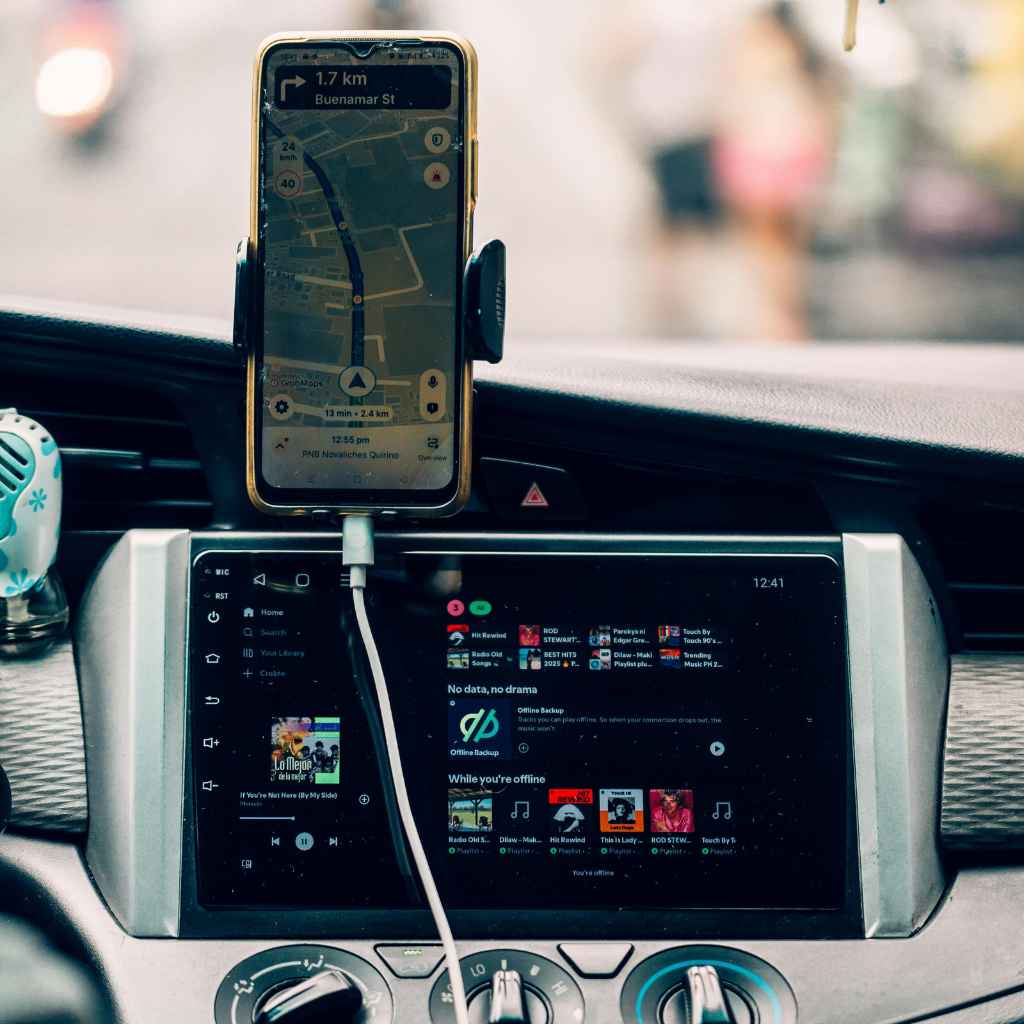
Connecting Your iPhone Via Bluetooth
Bluetooth is the most common way people connect their iPhones to cars now. It’s simple and no wires are needed. This makes it super convenient.
Let’s break down how to get it working.
First, your car needs to have Bluetooth capability. Most cars made in the last 10 years do. You might see a Bluetooth symbol on your car’s radio or display.
If you’re not sure, check your car’s manual. It will tell you if it has Bluetooth.
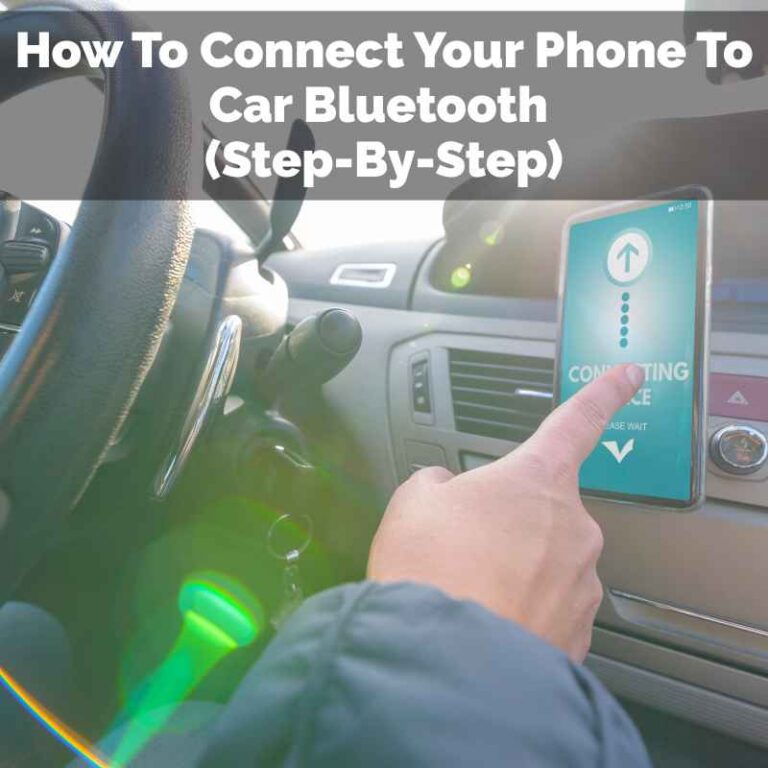
On your iPhone, you need to turn Bluetooth on. Go to Settings. Tap on Bluetooth.
Make sure the switch is turned on. You’ll see a list of available devices nearby.
Next, you need to put your car’s stereo into pairing mode. This is different for every car. Often, you press a button labeled “Phone,” “Setup,” or “Bluetooth.” Sometimes, you need to go into the car’s menu settings.
Look for an option like “Pair Device” or “Add Phone.”
Once your car is in pairing mode, it should appear in the list on your iPhone’s Bluetooth screen. It might show up as your car’s model name or something like “Car Audio.” Tap on the car’s name on your iPhone.
Your iPhone and car will then try to connect. You might see a confirmation code on both screens. If they match, tap “Pair” or “Connect.” Your iPhone should then say it’s connected to your car’s Bluetooth.
After the first time, they should connect automatically whenever you start your car and have Bluetooth on. You can then play music, podcasts, or take calls. The sound will come through your car’s speakers.
It’s a really smooth experience once it’s set up.
Bluetooth Quick Connect Checklist
Step 1: Enable Bluetooth on iPhone
Go to Settings > Bluetooth and turn it on.
Step 2: Make Car Discoverable
On your car stereo, find Bluetooth settings and select “Pair Device” or similar.
Step 3: Pair iPhone to Car
Select your car’s name from your iPhone’s Bluetooth list. Confirm any codes.
Step 4: Test Audio
Play music from your iPhone. You should hear it through the car speakers.
Sometimes, Bluetooth can be a bit tricky. If your phone won’t connect, try turning Bluetooth off and then on again on your iPhone. You can also try restarting your car’s infotainment system.
Some people find that deleting old paired devices from both the phone and the car helps.
The audio quality over Bluetooth is usually good. It’s not always as perfect as a wired connection, but for most listening, it’s more than enough. You can control playback (play, pause, skip) using your car’s stereo buttons too.
Using an AUX (Auxiliary) Cable
An AUX cable connection is one of the simplest ways to get sound from your iPhone to your car. It’s very reliable. Many older cars still use this method.
Even some newer cars have it as a backup.
An AUX cable has a 3.5mm jack on both ends. It looks like a headphone plug. You plug one end into your iPhone’s headphone jack.
If your iPhone doesn’t have a headphone jack (like newer models), you’ll need an adapter. Apple sells a Lightning to 3.5mm headphone jack adapter. There are also third-party options available.
On your car stereo, you need to find the AUX input. It’s usually a small round port. It might be labeled “AUX,” “Line In,” or have a little headphone symbol next to it.
It’s often found on the front of the radio, in the center console, or sometimes in the glove box.
Once you’ve found the AUX port, plug one end of the cable into your iPhone (or adapter) and the other end into the car’s AUX port. Then, on your car stereo, you need to select the AUX input as your audio source. You might press a “Source” or “Mode” button until you see “AUX” on the display.
Now, when you play audio on your iPhone, the sound should come through your car’s speakers. You can control the volume using your iPhone or your car’s volume knob. This connection is direct, so the sound quality is usually very good.
It’s like listening through headphones.
AUX Cable Connection Steps
What You Need:
- iPhone
- 3.5mm AUX Cable
- (Optional) Lightning to 3.5mm Adapter for newer iPhones
Connection Process:
- Plug one end of the AUX cable into your iPhone’s headphone jack (or adapter).
- Plug the other end into your car’s AUX input port.
- Set your car stereo’s source to “AUX.”
- Play audio on your iPhone.
With an AUX cable, you don’t need to worry about pairing or connectivity issues. It’s a physical connection. However, you can’t control your iPhone’s music playback using your car stereo buttons.
You’ll need to use your iPhone for that. Also, the AUX cable doesn’t charge your iPhone. You’d need a separate charger for that.
It’s important to use a good quality AUX cable. Cheap ones can sometimes cause static or a weak sound. Make sure the cable is long enough so it’s not stretched or pulled when you’re driving.
This connection method is a solid, no-fuss option.
Connecting Via USB Cable
Using a USB cable to connect your iPhone to your car is another excellent option. It often provides a more stable connection than Bluetooth. Plus, it charges your iPhone at the same time!
This is a big plus for longer trips.
Your car needs a USB port that’s designed for media playback. Not all USB ports in cars are the same. Some are only for charging.
You’ll typically find these ports in the center console, dashboard, or sometimes in the armrest storage. Look for a USB symbol near the port.
You’ll need your standard Apple Lightning to USB cable. Plug the USB end into your car’s USB port. Then, plug the Lightning end into your iPhone.
Your iPhone might ask if you trust the computer (your car’s system). Tap “Trust” and enter your passcode if prompted.
Your car’s stereo should recognize your iPhone as a media device. You might need to select the USB source on your car’s stereo. Look for options like “USB,” “iPod,” or “Media.” Once selected, you should be able to browse your music library on your car’s display.
You can often control playback using your car’s stereo buttons.
This connection is great for audio quality and convenience. It allows for higher fidelity audio than Bluetooth sometimes. And as mentioned, it keeps your iPhone charged.
This is especially helpful if you’re using navigation or streaming audio for a long time.
USB Connection Benefits
Charging: Your iPhone stays powered up.
Audio Quality: Often better than Bluetooth.
Control: Use car stereo for playback.
Stability: Less prone to connection drops.
Some cars might not support this type of USB connection for media. If you plug your iPhone in and it only charges, your car’s USB port might not be set up for audio. In that case, you’d need to use Bluetooth or AUX.
Check your car’s manual to confirm its USB capabilities.
Also, the way your music library is displayed can vary greatly between car models. Some might show playlists and artists clearly. Others might just show files in a folder structure.
Either way, getting your music playing through the car speakers is the main goal.
Exploring Apple CarPlay
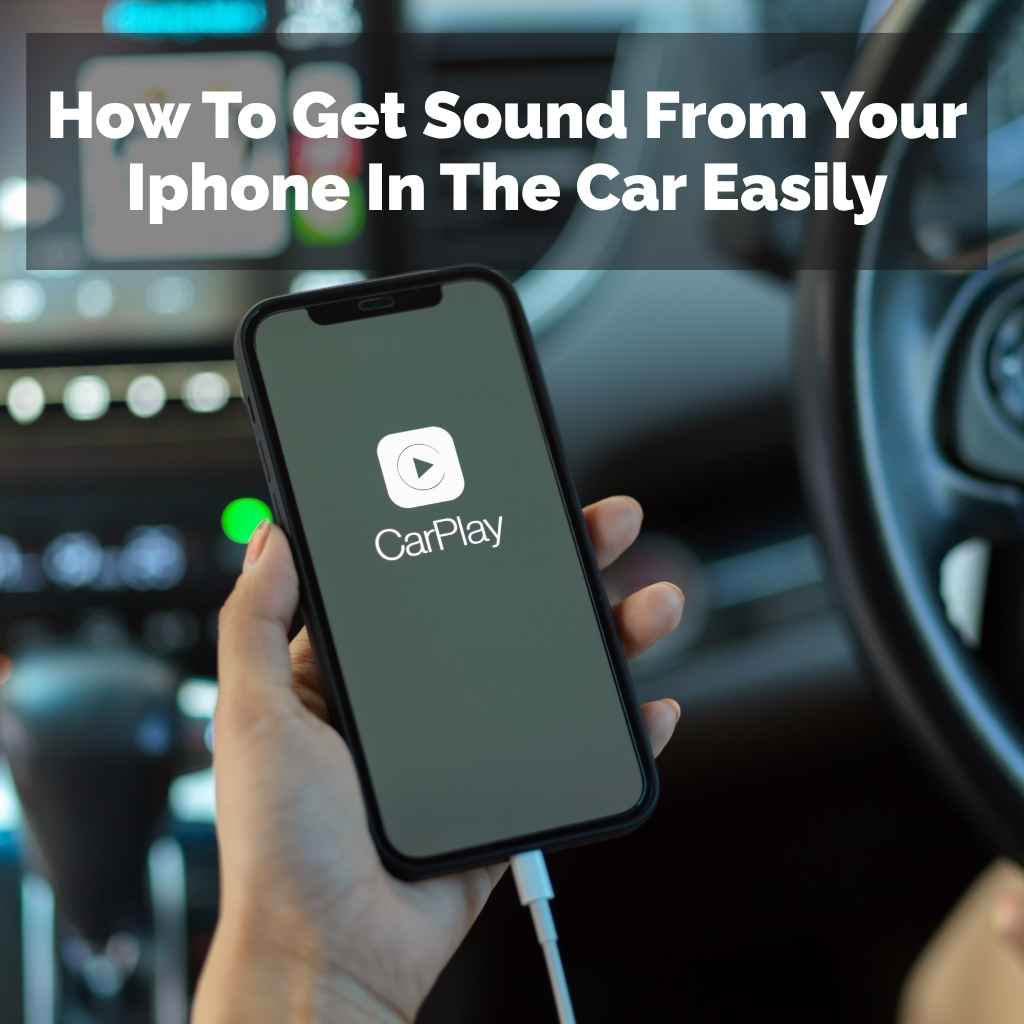
Apple CarPlay is a more advanced way to integrate your iPhone with your car. It essentially mirrors a simplified iPhone interface onto your car’s built-in display. This gives you access to your apps like Maps, Music, Messages, Podcasts, and more, all controlled through your car’s touchscreen, buttons, or voice commands.
For CarPlay to work, your car must be equipped with it. Many cars made since 2016 have this feature. You’ll usually see a CarPlay icon on the dashboard screen.
You can connect your iPhone to CarPlay either wirelessly or via a USB cable. For wired CarPlay, use your Apple Lightning to USB cable and plug it into the designated CarPlay USB port in your car. For wireless CarPlay, your car and iPhone need to support Wi-Fi and Bluetooth pairing.
Once paired, it should connect automatically.
When you connect your iPhone, your car’s display will switch to the CarPlay interface. This interface is designed for driving. It has large icons and simple menus.
You can tap on apps like “Maps” to get directions, “Music” to play your songs, or “Messages” to have them read aloud and reply by voice.
Using Siri with CarPlay is a big part of the experience. You can say “Hey Siri” or press and hold the voice command button on your steering wheel. Then you can ask Siri to do things like “play my workout playlist,” “navigate to the nearest gas station,” or “read my last text message.”
Key CarPlay Features
Navigation: Use Apple Maps, Google Maps, or Waze.
Music & Audio: Access Apple Music, Spotify, podcasts, audiobooks.
Communication: Make calls, send and receive texts (with Siri).
Voice Control: “Hey Siri” for hands-free operation.
App Integration: Works with many third-party apps.
CarPlay is designed to minimize distractions while driving. The apps are simplified versions of their iPhone counterparts. You can’t use all your iPhone apps in CarPlay, only those specifically designed or adapted for it.
This is for your safety.
If your car has wireless CarPlay, it’s incredibly convenient. You just get in, and it connects. Wired CarPlay is also very reliable.
The main requirement is that your iPhone is compatible and your car supports the feature. It’s a fantastic way to bring your iPhone’s digital life into your car safely.
The user experience with CarPlay is generally very intuitive. The icons are large and easy to tap. The voice control is powerful.
If your car supports CarPlay, it’s often the best way to integrate your iPhone for navigation, music, and communication while driving.
Troubleshooting Common Connection Problems
Even with the best technology, things can sometimes go wrong. It’s frustrating when your iPhone sound isn’t working in the car. Here are some common issues and how to fix them.
Remember, a little patience goes a long way.
iPhone Won’t Connect Via Bluetooth
This is a frequent problem. First, make sure Bluetooth is on for both your iPhone and your car. Restart both devices.
On your iPhone, go to Settings > Bluetooth. Find your car’s name and tap the “i” icon. Then tap “Forget This Device.” Do the same on your car’s stereo if possible.
Then, try pairing them again from scratch.
Sometimes, there are too many devices connected to your car’s system. Try removing old, unused devices from your car’s Bluetooth list. This frees up space for your iPhone.
Also, ensure your iPhone’s software is up to date. Old software can sometimes cause compatibility issues.
No Sound When Using AUX Cable
If you’re using an AUX cable and hear nothing, check the connections. Make sure both ends of the cable are plugged in securely. Try a different AUX cable, as the cable itself might be faulty.
Ensure your car stereo is set to the “AUX” source. On your iPhone, check that the volume is turned up and that the audio isn’t being routed elsewhere (like to Bluetooth headphones you forgot to turn off).
USB Connection Only Charges, No Audio
As mentioned before, not all car USB ports support audio. Check your car’s manual. If it’s supposed to work, try a different USB cable.
Apple cables are usually best. Also, try a different USB port in your car if one is available. Sometimes restarting your iPhone and car can help the system recognize the connection properly.
CarPlay Isn’t Working
For CarPlay, first ensure your car and iPhone are compatible and updated. Make sure you’re using a high-quality USB cable. Some cars require specific “CarPlay” labeled USB ports.
On your iPhone, go to Settings > General > CarPlay. Tap “Forget This Car” and then reconnect. Also, check that Siri is enabled on your iPhone (Settings > Siri & Search).
If your car has wireless CarPlay, make sure both Wi-Fi and Bluetooth are enabled on your iPhone and that you’re connected to your car’s Bluetooth. Sometimes, restarting your iPhone and your car’s infotainment system can clear up temporary glitches. If you’re still having trouble, consult your car’s manual or dealership.
Troubleshooting Flowchart
Problem: No Sound
- Check Connection Type: Bluetooth, AUX, USB, CarPlay?
- Verify Phone Settings: Volume up? Bluetooth/Wi-Fi on?
- Check Car Settings: Correct source selected? Pairing mode?
- Restart Devices: iPhone and Car Infotainment?
- Inspect Cables/Adapters: Damaged? Securely plugged in? Try another?
- Forget & Re-Pair: Remove device from both ends and try again.
- Check Car Manual: Specific instructions or known issues?
It’s also worth mentioning that sometimes a simple phone restart can fix a surprising number of issues. It’s the first thing many tech experts suggest for a reason!
Choosing the Best Connection Method for You
Deciding which method is best depends on your car, your iPhone, and what you need to do. There’s no single “best” way for everyone. Let’s look at the pros and cons to help you choose.
Bluetooth: The Wireless Freedom
Pros: No wires, easy to connect, good for quick audio playback and calls.
Cons: Audio quality can sometimes be slightly lower than wired options, can occasionally have connection dropouts, doesn’t charge your phone.
Best for: People who want convenience and don’t want to plug anything in. Great for casual music listening and hands-free calls.
AUX Cable: The Reliable Classic
Pros: Very simple, works with almost any car that has an AUX port, good audio quality, reliable connection.
Cons: Requires a cable, doesn’t charge your phone, you can’t control playback with car stereo buttons, requires an adapter for newer iPhones without a headphone jack.
Best for: Older cars, people who want a direct and simple audio connection, or as a backup if Bluetooth or USB fails.
USB Cable: Power and Sound
Pros: Charges your iPhone while connected, often provides excellent audio quality, allows for music library browsing and playback control via car stereo, stable connection.
Cons: Requires a cable, not all car USB ports support audio playback, may require an adapter for some CarPlay-specific USB requirements.
Best for: Longer drives, people who want to keep their phone charged, and those who want better audio control through their car’s system.
Apple CarPlay: The Integrated Experience
Pros: Seamless integration with iPhone apps, excellent for navigation, messaging, and music, voice control with Siri, simplified interface for driving, can be wired or wireless.
Cons: Requires a car that supports CarPlay, compatibility issues can arise, may require specific USB cables or ports for best performance, can drain battery if not charging via USB.
Best for: Drivers who want the most integrated and feature-rich experience, heavy users of navigation and music apps, those with CarPlay-compatible vehicles.
Many people end up using a combination of these. For example, you might use Bluetooth for quick calls but switch to CarPlay for navigation on a long trip. Or use USB for charging and music on a road trip.
Real-World Scenarios and Tips
Let’s imagine a few situations you might find yourself in. Knowing these can help you pick the right method.
Scenario 1: The Road Trip
You’re heading out for a weekend getaway. Your iPhone is your GPS, your DJ, and your communication hub. For this, Apple CarPlay (if available) or a USB connection is probably your best bet.
CarPlay will give you easy access to maps and music. USB will keep your phone charged the whole way, so you don’t miss any calls or lose your navigation.
Scenario 2: The Daily Commute
Your daily drive is short. You just want to listen to a podcast or some background music. Bluetooth is perfect here.
You get in the car, it connects automatically, and your audio starts playing. If your car doesn’t have Bluetooth, a quick connection with an AUX cable is also great.
Scenario 3: The Older Car
You’re driving your classic car, which has a great sound system but is quite old. It probably doesn’t have Bluetooth or CarPlay. In this case, an AUX cable is your savior.
Make sure you have a good quality cable and perhaps an adapter for your iPhone if needed. You’ll get great sound, and it’s a simple setup.
Scenario 4: Streaming and Charging
You’re using a navigation app that’s draining your battery. You also want to stream high-quality music. The best method here is a USB connection.
It provides a steady charge and a stable, high-quality audio stream. If your car also supports CarPlay via USB, that’s even better as it integrates navigation and music seamlessly.
Quick Tip Cards
Tip: Always Use Quality Cables
Cheap cables can cause sound issues and charging problems. Stick to MFi-certified (Made For iPhone) cables for best results.
Tip: Check Your Car Manual
Your car’s manual is the best resource for understanding its specific audio and connectivity features.
Tip: Update Your iPhone
Keep your iPhone’s iOS software updated. Updates often include improvements to Bluetooth and CarPlay compatibility.
Tip: Reset Network Settings (Last Resort)
If Bluetooth is consistently failing, you can try resetting network settings on your iPhone (Settings > General > Transfer or Reset iPhone > Reset > Reset Network Settings). This will erase Wi-Fi passwords and Bluetooth pairings, so you’ll need to set them up again.
Understanding your car’s capabilities is key. Take a few minutes to explore its settings menu. Look for Bluetooth, Media, or Phone options.
This will tell you what your car can do.
When It’s Normal and When to Worry
It’s important to know what’s considered normal behavior for your iPhone’s car audio connection. This helps you avoid unnecessary worry.
Normal Behavior:
- Automatic Bluetooth Connection: Once paired, your iPhone should connect to your car’s Bluetooth automatically when you start the car and have Bluetooth enabled on your phone.
- Sound Switching: When you select AUX, USB, or CarPlay as your source, the audio from your iPhone should immediately play through the car speakers.
- Volume Control: You can adjust volume with your iPhone or your car stereo controls, and they usually work in sync for wired and CarPlay connections.
- Charging via USB/CarPlay: Your iPhone should indicate that it is charging when connected via USB or CarPlay.
- Siri Integration: Voice commands for calls, texts, and music should work reliably with CarPlay or Bluetooth hands-free profiles.
When to Worry:
- Intermittent Sound: If the sound cuts in and out frequently, especially with Bluetooth, it might indicate a poor signal or interference.
- No Connection At All: If your car simply won’t recognize your iPhone through any method after trying basic troubleshooting, there might be a deeper issue.
- Degraded Audio Quality: Excessive static, crackling, or muffled sound that doesn’t improve with a different cable or connection method is a concern.
- CarPlay Not Activating: If CarPlay never shows up on your car’s screen, even after trying different cables and ensuring your iPhone is set up for it, the car or phone might have a compatibility problem.
- iPhone Not Charging: If your iPhone only charges sometimes via USB or CarPlay, or not at all, it could be a faulty cable, port, or an issue with the car’s power delivery.
If you experience persistent issues that aren’t resolved by troubleshooting, it’s a good idea to consult your car’s owner’s manual for specific advice. You might also need to contact your car dealership for technical support, especially if the problem seems related to the car’s infotainment system itself. For iPhone-specific hardware issues, Apple Support is the place to go.
Frequently Asked Questions
Can I use my iPhone to make calls through my car speakers without Bluetooth?
Yes, if your car has an AUX input, you can plug your iPhone in and then use speakerphone on your iPhone. The audio will come through the car speakers. However, you won’t be able to answer or make calls using your car’s stereo buttons. If your car supports CarPlay via USB, you can also make and receive calls through that interface.
Why does my iPhone sound muffled through my car’s Bluetooth?
Muffled sound over Bluetooth can happen for several reasons. One is a weak signal due to distance or interference. Another is the Bluetooth codec being used. Older Bluetooth versions or less advanced codecs can affect quality. Ensure your iPhone’s software is updated and try re-pairing the device. Using a different car stereo or phone can help determine if the issue is with your car or your iPhone.
Do I need a special app to play music from my iPhone in the car?
No, you generally don’t need a special app for basic music playback. Standard music apps like Apple Music, Spotify, Pandora, etc., will work. For more advanced integration like navigation and text messaging control, you’ll need a car that supports Apple CarPlay or Android Auto (if you were using an Android phone). These systems allow specific apps to display and function on your car’s screen.
What is the difference between a regular USB port and a CarPlay USB port?
A regular USB port in a car is often designed primarily for charging devices or for basic file playback from a USB drive. A CarPlay USB port is specifically designed to handle the data transfer needed for Apple CarPlay. It provides a more robust and dedicated connection for your iPhone to communicate with the car’s infotainment system for features like CarPlay. Using a regular USB port for CarPlay might not work or might be unreliable.
Can I use my iPhone’s GPS navigation audio through the car speakers without Bluetooth or CarPlay?
Yes, if your car has an AUX input, you can plug your iPhone in using an AUX cable. Then, when you play navigation audio, it will come through the AUX connection and your car speakers. You would set the car’s source to AUX. This method is great for hearing directions clearly without needing Bluetooth or CarPlay.
My car says it supports both Bluetooth and CarPlay. Which should I use?
If both are available and working well, Apple CarPlay is generally the preferred method for a more integrated experience. It offers better control over apps like Maps, Music, and Messages, and often uses a wired USB connection for better reliability and charging. Bluetooth is excellent for simple music playback and hands-free calls when you don’t want to plug in. Many people use CarPlay for navigation and then switch to Bluetooth for music if they don’t want the USB cable.
Final Thoughts on Getting Your iPhone Sound in the Car
Getting your iPhone’s sound to play in your car is a common need. Thankfully, there are several reliable ways to do it. Whether you prefer the wireless ease of Bluetooth, the simple directness of an AUX cable, the convenience of USB charging, or the full integration of Apple CarPlay, you have options.
By understanding these methods and doing a little troubleshooting, you can ensure your drives are filled with your favorite music, podcasts, and important calls. Enjoy the ride!
Products related to this article
Sponsored / affiliate links. As an Amazon Associate I earn from qualifying purchases. I may earn additional commission from eligible campaigns.
![iPhone Car Charger,USB C Fast Car Charger[Apple MFi Certified] Apple Car Charging 38W Dual Port CarCharger Cigarette Lighter Adapter 2x3ft PD&QC 3.0 Lightning Cable for iPhone 14/13/12 Pro/11/Airpods](https://m.media-amazon.com/images/I/41XizrssoiL._SL500_.jpg)