How To Connect Your Phone To A Car (Any Make Or Model)
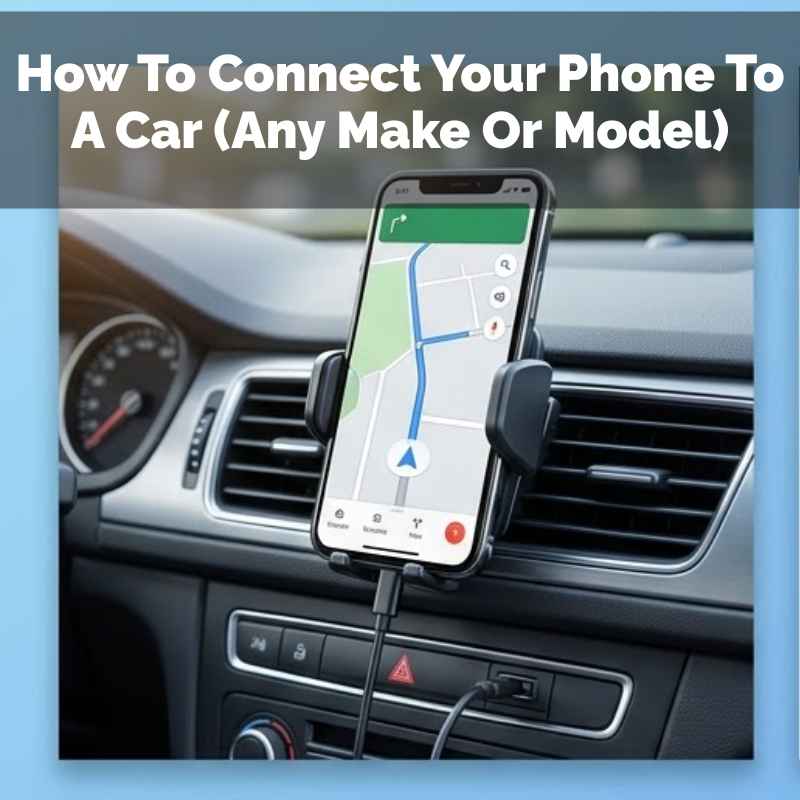
Connecting your phone to your car is usually straightforward. Most cars use Bluetooth or a USB cable for seamless linking. This allows you to enjoy music, make calls hands-free, and use navigation apps safely on your car’s screen. It’s about making your drive easier and more enjoyable.
Understanding How Phones and Cars Connect
Cars and phones can talk to each other in a few main ways. The most common is Bluetooth. This is like a short-range radio signal.
Your phone sends music or call audio to your car’s speakers. Your car sends microphone audio back to your phone for calls.
Another big way is by using a USB cable. This is a wired connection. It’s often faster than Bluetooth.
It can also charge your phone while you drive. Some cars can show your phone’s screen on their display using this method.
You might also see an AUX input. This is a simple audio jack. You plug a cable from your phone into this jack.
It only sends audio out. You can’t control your phone from the car with this. It’s a simpler, older method.
My Own Bluetooth Blunder
I remember one time, I was so excited to try out a new podcast on a long drive. I had my phone all charged up. I got in the car, hit the start button, and then.
nothing. My phone wouldn’t connect to the car’s Bluetooth. I tapped around on my phone.
I fiddled with the car’s stereo buttons. Nothing worked. Panic started to set in.
I felt this wave of annoyance. Was I going to be stuck with just the radio? I spent a good 10 minutes trying different things, feeling quite silly.
Then, I remembered a simple trick. I turned off the car’s Bluetooth and then turned it back on. I also restarted my phone.
When they both reconnected, it was like magic! The podcast started playing perfectly. It was such a relief.
Sometimes the simplest fixes are the ones we overlook. That day taught me to always try the basic restarts first.
Quick Connection Checklist
Check Bluetooth: Make sure it’s on for both your phone and car.
Pairing Mode: Put your car’s system into pairing mode. Look for “Pair Device” or “Add Phone.”
Visibility: Ensure your phone is visible to other devices.
Restart: Turn both devices off and on again.
Connecting via Bluetooth: The Wireless Way
Bluetooth is very popular. It lets you connect without wires. This is great for safety.
You can keep your phone in your pocket or bag. Music and calls are handled by your car.
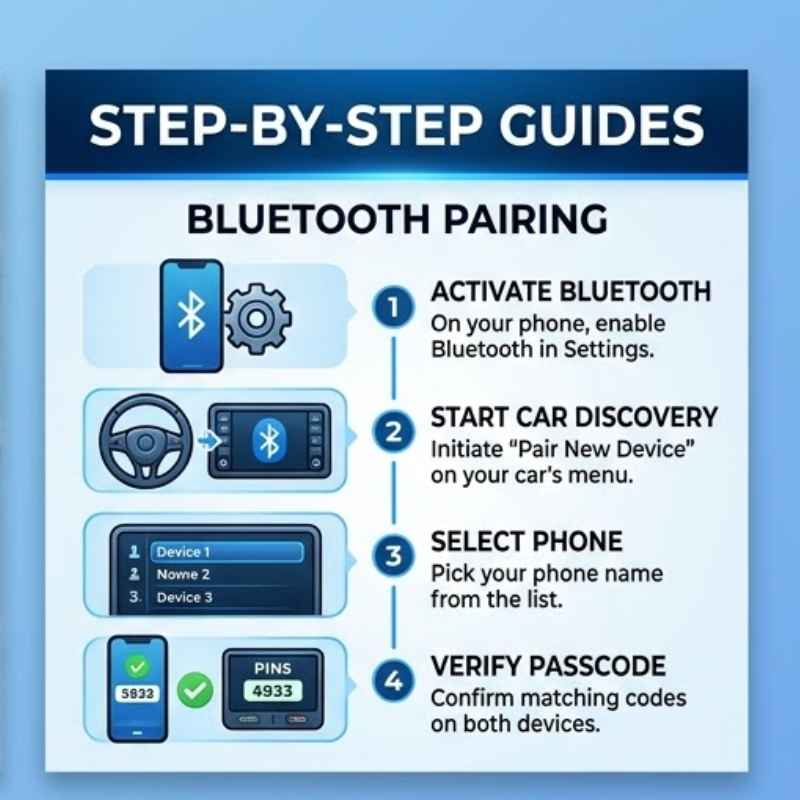
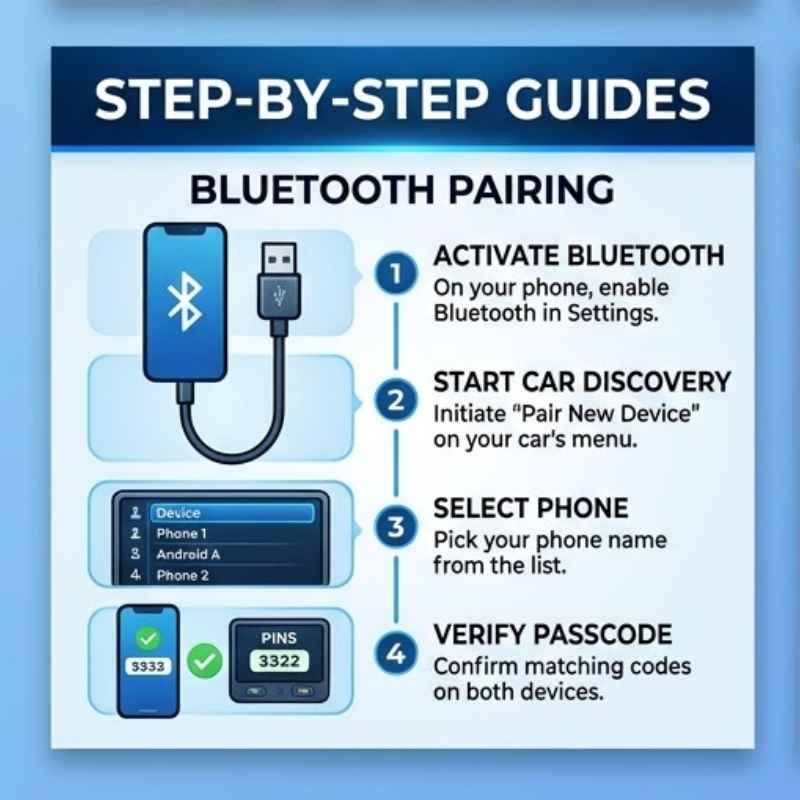
To start, you need to turn on Bluetooth on both your phone and your car. On your phone, this is usually in the Settings app. Look for “Bluetooth.” On your car, it’s often in the media or phone menu.
You might need to press a specific button.
Your car’s system will usually show a list of available devices. You’ll need to select your phone from that list. Your phone might then ask you to confirm a pairing code.
Make sure the codes match. If they do, tap “Pair” or “Connect.”
Once paired, your phone and car will remember each other. The next time you get in the car, they should connect automatically. This is very handy for daily drives.
It makes using your phone while driving much safer and easier.
Bluetooth Tips for Best Performance
- Keep Devices Close: While Bluetooth range is good, keep your phone near the car’s system for a strong signal.
- Update Software: Make sure your phone’s operating system is up-to-date. This can fix connection issues.
- Forget and Re-pair: If you have trouble, try deleting the car from your phone’s Bluetooth list. Then, delete your phone from the car’s list. Re-pair them from scratch.
- Avoid Interference: Other wireless devices can sometimes interfere. Try turning off other Bluetooth devices if you have problems.
Using a USB Cable: The Wired Connection
A USB cable offers a solid connection. It’s great for music and calls. It also charges your phone.
This is a big plus for long trips.
Find a USB port in your car. These are common in most cars made in the last 10 years. They look like a small rectangular slot.
Plug one end of the cable into your phone. Plug the other end into the car’s USB port.
Your car might ask you what you want to do with the phone. You might see options like “Media,” “Charging,” or “File Transfer.” Choose the option for media or phone connection. Some cars have special apps, like Android Auto or Apple CarPlay, that will start automatically.
These apps mirror your phone’s screen onto your car’s display. This is very useful. You can tap on navigation, music apps, or contacts right on your car’s touchscreen.
It’s a much safer way to use your phone’s features while driving.
USB Connection Benefits
Fast Data Transfer: Great for high-quality audio streaming.
Phone Charging: Keeps your phone powered up.
App Mirroring: Access Android Auto or Apple CarPlay for enhanced features.
Reliable Link: Less prone to wireless interference.
The Simple AUX Input
The AUX input is the most basic way to connect. It’s just a headphone jack style port. You’ll need a special cable, called an AUX cable.
It has a plug on each end.
Plug one end into your phone’s headphone jack (if it has one). Plug the other end into the car’s AUX input. Then, select “AUX” as your audio source on your car’s stereo.
Your phone’s sound will now play through the car speakers.
This method is very simple. But it has limits. You can only play audio from your phone.
You can’t control your phone from the car. You also can’t make calls hands-free this way. And your phone won’t charge.
It’s best for just playing music or podcasts.
Many newer phones don’t have headphone jacks anymore. If your phone is like this, you might need an adapter. This adapter plugs into your phone’s charging port (like USB-C or Lightning) and gives you a headphone jack.
AUX vs. Bluetooth vs. USB
AUX:
- Audio only.
- No charging.
- No control from car.
- Simple plug-and-play.
Bluetooth:
- Wireless audio and calls.
- No charging.
- Basic control possible.
- Easy pairing.
USB:
- Audio, calls, and app mirroring.
- Charges phone.
- Full control via Android Auto/CarPlay.
- Reliable connection.
When Your Car is Older (Pre-Bluetooth Era)
If your car is older, it might not have Bluetooth or USB ports. Don’t worry! You can still connect your phone.
The AUX input is your best friend here. If your car doesn’t even have an AUX port, you might need to get a little creative.
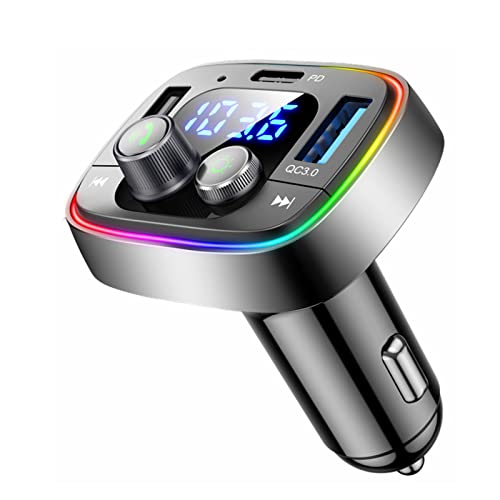
One common solution is a Bluetooth car adapter. These small devices plug into your car’s cigarette lighter port (the power outlet). They often have an AUX output that you then connect to your car’s AUX port.
They also have a Bluetooth receiver. Your phone connects to the adapter via Bluetooth. The adapter then sends the audio to your car speakers.
Another option is a cassette adapter. If your car has a cassette player, you can use one of these. It looks like a cassette tape.
It has a wire that plugs into your phone’s headphone jack. You put the cassette in the player. It plays audio from your phone.
These are less common now, but they work!
For very old cars without any of these options, you might consider a FM transmitter. This device plugs into your phone’s headphone jack or charging port. It broadcasts your phone’s audio on an unused FM radio frequency.
You then tune your car radio to that frequency. The sound quality can vary, and sometimes you get static. It’s a last resort, but it works.
Connecting Older Cars: The Options
Car with AUX Input:
- Bluetooth Adapter: Plugs into power, connects to phone via Bluetooth, sends audio to AUX.
- Direct AUX Cable: Connects phone headphone jack to car AUX (requires adapter for some phones).
Car with Cassette Player:
- Cassette Adapter: Cassette shape with wire for phone audio.
Car with No Audio Inputs:
- FM Transmitter: Broadcasts phone audio on an FM frequency.
Android Auto and Apple CarPlay Explained
These are game-changers for connecting your phone. Android Auto works with Android phones. Apple CarPlay works with iPhones.
They are designed to make using your phone in the car safe and easy.
When you connect your phone via USB (or sometimes wirelessly), these systems “mirror” your phone’s interface onto your car’s screen. It looks different from your phone’s normal screen. It’s simplified for driving.
You’ll see large icons for navigation (like Google Maps or Waze), music apps (Spotify, Apple Music), phone calls, and messaging. You can tap on these icons to control them. You can also use voice commands.
Just say “Hey Google” or “Hey Siri” to get help.
These systems are great because they keep your eyes on the road more. They reduce the need to pick up your phone. They provide a consistent experience across different cars that support them.
To use them:
- Make sure your phone is updated.
- Download the Android Auto app (for Android) or ensure you have the latest iOS (for CarPlay).
- Connect your phone via USB (or follow instructions for wireless pairing).
- Follow any on-screen prompts on your car and phone.
Android Auto / Apple CarPlay: Key Features
Navigation: Real-time traffic, turn-by-turn directions, destination search.
Music & Audio: Stream music, podcasts, audiobooks, control playback.
Calls & Messaging: Make calls, send and receive texts via voice commands.
Voice Control: Hands-free operation using Google Assistant or Siri.
App Compatibility: Works with many popular third-party apps.
Troubleshooting Common Connection Issues
Even with the best systems, things can go wrong. Don’t get discouraged! Most problems are simple to fix.
Bluetooth Not Connecting:
- Check if Bluetooth is ON: On both phone and car.
- Forget Device: Remove the car from your phone’s Bluetooth list and vice-versa. Re-pair.
- Restart Devices: Turn off your phone and car’s infotainment system, then turn them back on.
- Check Car Manual: Some cars have specific steps for pairing.
USB Not Working (No Charging or Connection):
- Try a Different Cable: Cables can go bad. Use a good quality one.
- Try a Different USB Port: Your car might have more than one.
- Check Phone Settings: Sometimes you need to select “File Transfer” or “MTP” mode on your phone.
- Restart Phone and Car.
Android Auto / Apple CarPlay Not Starting:
- Ensure USB Connection is Good: Use a high-quality USB cable.
- Check App Updates: Make sure the Android Auto or CarPlay app is updated on your phone.
- Restart Phone.
- Check Car’s Infotainment System: Ensure it supports the feature and is updated.
Audio Stuttering or Dropping:
- Check Bluetooth Signal: Move phone closer if possible.
- Close Other Apps: Some apps can use a lot of phone resources.
- Update Phone Software.
- For Wired connections, check the cable for damage.
Troubleshooting: Quick Steps
1. Restart Everything: Phone, car’s screen. This solves many issues.
2. Check Connections: Are cables plugged in? Is Bluetooth on?
3. Forget and Re-pair: Remove the device and connect again.
4. Use a Different Cable/Port: Rule out faulty hardware.
5. Consult Your Manual: Specific instructions can help.
When to Call in the Pros
Most of the time, connecting your phone is easy. But sometimes, there might be a deeper issue. If you’ve tried all the common fixes and nothing works, it might be time to seek help.
When to get professional help:
- Car’s Infotainment System is Faulty: If your car’s screen itself is acting up, freezing, or not responding, it’s likely a car problem.
- Damage to Ports: If the USB or AUX port in your car looks bent, broken, or has debris, don’t force it.
- Persistent Connection Errors: If you can never get a stable connection after multiple attempts, there might be a complex software or hardware conflict.
- For a Brand-New Car with Issues: If your new car isn’t connecting properly, contact the dealership. It’s a warranty issue.
Your car dealership’s service department is a good place to start. They understand your car’s specific electronics. They can diagnose issues with the car’s computer system.
For general phone issues, your mobile carrier might offer support.
Keeping Your Phone Connected Safely
The main reason we connect our phones is to make driving better. But it’s crucial to do it safely. Always set up your connection before you start driving.
Safety Tips:
- Pair Before Driving: Do all the pairing and setup while parked.
- Use Voice Commands: Let “Hey Google” or “Hey Siri” handle tasks like sending texts or changing music.
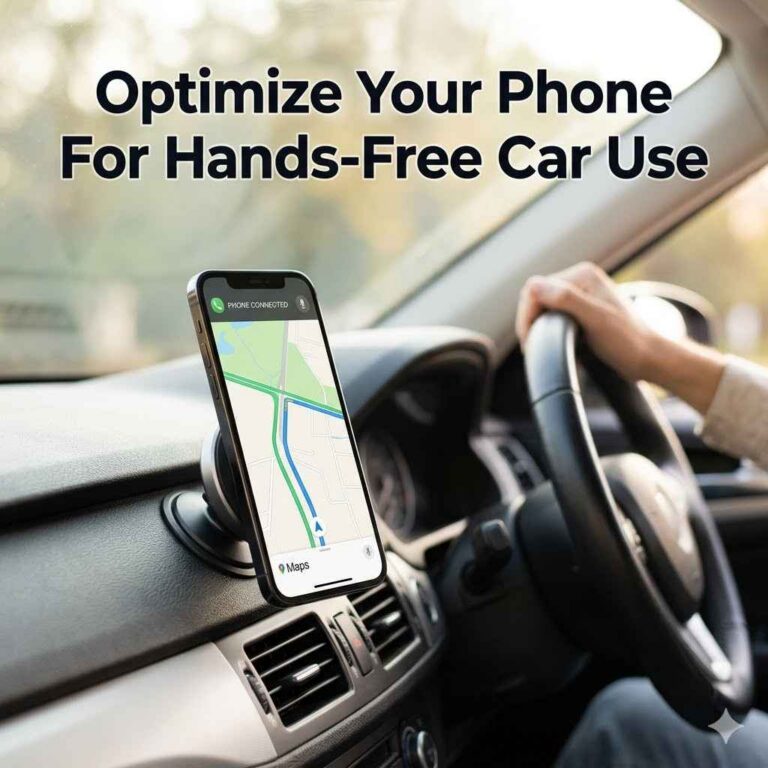
- Keep Your Phone Mounted: Use a phone mount to keep your phone visible but not distracting.
- Limit Phone Use: Even with easy connections, resist the urge to scroll or check notifications while moving.
- Know Your Car System: Get familiar with your car’s audio and phone menus when you’re not driving.
The goal is to use your phone’s features to make your drive more enjoyable and informative, not to distract you. A good connection means you can focus more on the road.
Frequently Asked Questions
My phone connects via Bluetooth, but no sound comes out of the car speakers.
This often means the audio source isn’t set correctly. Make sure your car’s stereo is set to the Bluetooth audio source. Also, check your phone’s volume and ensure it’s not muted or set to play through the phone speaker instead.
On your phone’s Bluetooth settings, check the “connected devices” and ensure “media audio” or “phone calls” are enabled for your car’s connection.
Can I connect my phone to my car if it’s really old and has no screen?
Yes, you can! If your older car has an AUX input, you can use an AUX cable or a Bluetooth adapter that plugs into the AUX port. If it only has a radio, an FM transmitter can send your phone’s audio to an unused radio frequency.
If it has a cassette player, a cassette adapter works too. These methods allow you to play music or take calls through your car’s speakers.
My phone charges when plugged in via USB, but Android Auto/Apple CarPlay doesn’t start. What’s wrong?
This usually points to a software or cable issue. First, try a different, high-quality USB cable, as damaged cables are a common culprit. Ensure the Android Auto app (or iOS for CarPlay) is updated on your phone.
Sometimes, restarting both your phone and the car’s infotainment system can resolve this. Also, check your car’s settings to make sure Android Auto/CarPlay is enabled.
How do I connect two phones to my car at the same time?
Many cars allow you to pair multiple phones via Bluetooth. However, typically only one phone can be actively connected for calls and media at a time. Your car will usually prioritize one connection, or you may need to select which phone is active from the car’s menu.
Check your car’s manual for specific instructions on managing multiple phone connections.
I get a “connection failed” message every time I try to pair my phone via Bluetooth.
This can happen for several reasons. Ensure both your phone and car are in pairing mode. Try “forgetting” the device on both your phone and car’s Bluetooth lists, then try pairing again.
Also, restart both your phone and the car’s infotainment system. Too many previous pairings on either device can sometimes cause issues, so clearing old pairings might help.
Is it safe to use my phone while connected to my car’s system?
Using your phone while connected to your car’s system, especially with Android Auto or Apple CarPlay, is designed to be safer than using your phone directly. However, no phone use while driving is completely risk-free. Always prioritize using voice commands and avoid complex tasks or manual input while the vehicle is in motion.
Set up your music or navigation before you start driving.
Wrapping Up: Your Phone and Car, Best Friends
Connecting your phone to your car doesn’t have to be a headache. Whether you use Bluetooth, a USB cable, or even an AUX input, there’s a way for every car and phone. These connections bring music, navigation, and easier calls right to your fingertips.
They make every drive more enjoyable and safe. Remember the simple steps: turn it on, pair it up, and check your settings. You’ll be cruising with your tunes in no time!
Products related to this article
Sponsored / affiliate links. As an Amazon Associate I earn from qualifying purchases. I may earn additional commission from eligible campaigns.