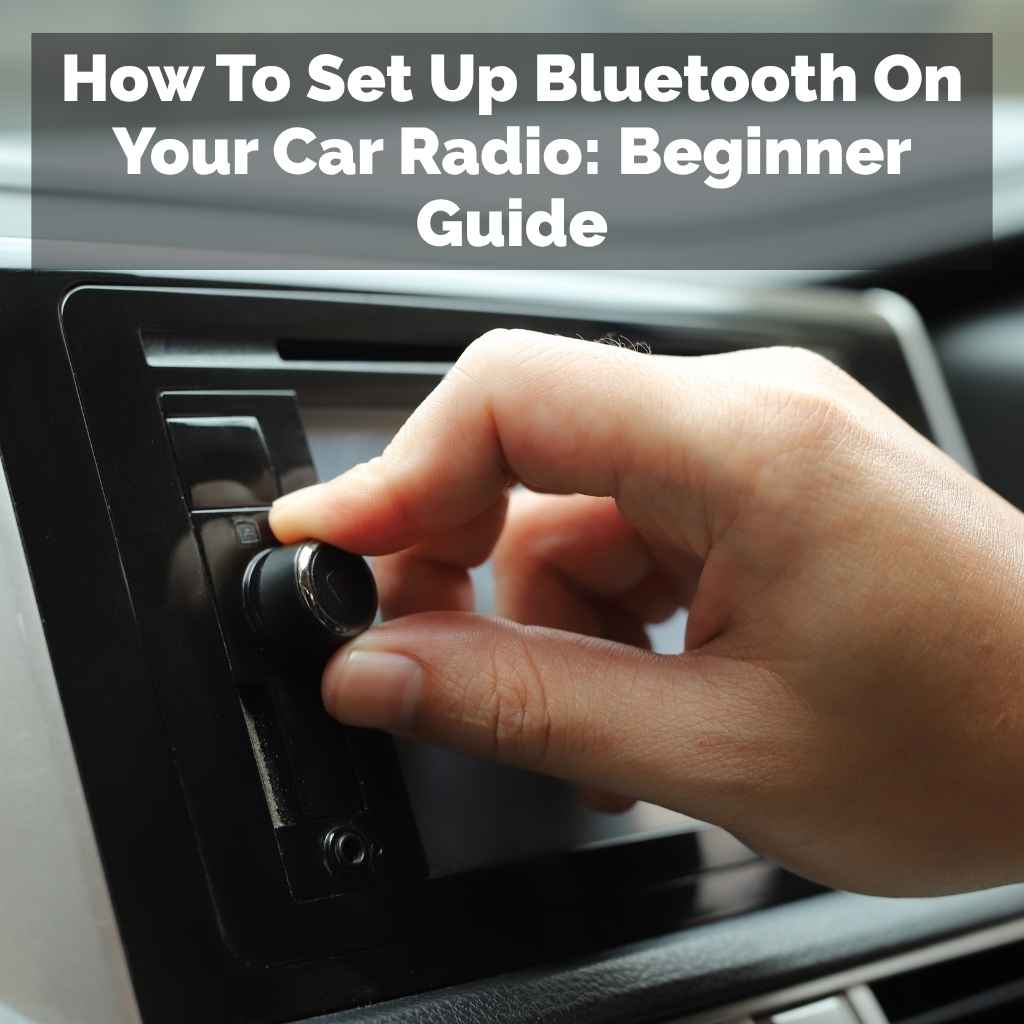
How to Set Up Bluetooth on Your Car Radio: Step-by-Step
Setting up Bluetooth on your car radio involves putting the radio in pairing mode, then searching for it with your phone and entering a PIN if needed. The exact steps vary slightly by car and phone model.
What is Car Bluetooth and Why Use It?
Bluetooth is a way for devices to talk to each other wirelessly. Think of it like a short, invisible leash. Your phone can connect to your car’s radio.
This lets you do a few cool things. You can play music from your phone. You can also make and take phone calls.
All this happens without plugging in any cords.
Using Bluetooth makes driving safer. You don’t have to hold your phone. Your hands stay on the wheel.
Your eyes stay on the road. It’s a big step up from old car radios. Those only played the radio or CDs.
My First Bluetooth Fumble
I remember my first car with Bluetooth. It was a used sedan, a few years old. I was so excited to use it.
I had just gotten a new smartphone. I pictured myself cruising, listening to my favorite playlists. I spent about twenty minutes fiddling with the buttons.
The car manual was thick and confusing. I felt pretty silly. My phone kept saying “No devices found.” I even tried yelling “Pair device!” at the dashboard.
That didn’t work, of course. I finally asked my friend Sarah, who’s pretty tech-savvy, to help. She did it in like, two minutes.
It was a moment of pure relief mixed with a little embarrassment. That’s when I realized how many people might struggle with this simple task.
Common Bluetooth Terms
- Pairing: This is the first step. It’s like introducing your phone and car for the first time. They need to recognize each other.
- PIN/Passcode: A secret code. Your car and phone might ask for this. Often it’s 0000 or 1234.
- Profile (e.g., A2DP): This tells the devices what kind of data they can share. A2DP is for music.
- Hands-Free Profile (HFP): This is for phone calls. It lets you talk and listen through the car system.
General Steps to Connect Your Phone
Most cars and phones follow a similar path. We’ll cover the common steps. Your car’s radio needs to be ready to find a new device.
Your phone also needs to be looking for new devices. This is called pairing mode.
First, turn on your car. Then, turn on your phone’s Bluetooth. Next, you need to get your car radio into its pairing mode.
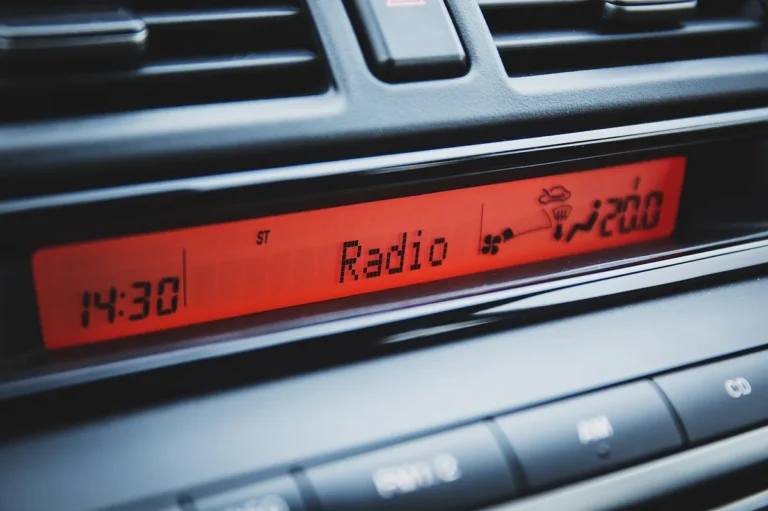
This is usually done through the radio’s menu buttons. Look for words like “Setup,” “Phone,” “Bluetooth,” or “Connect.”
Getting Your Car Radio Ready
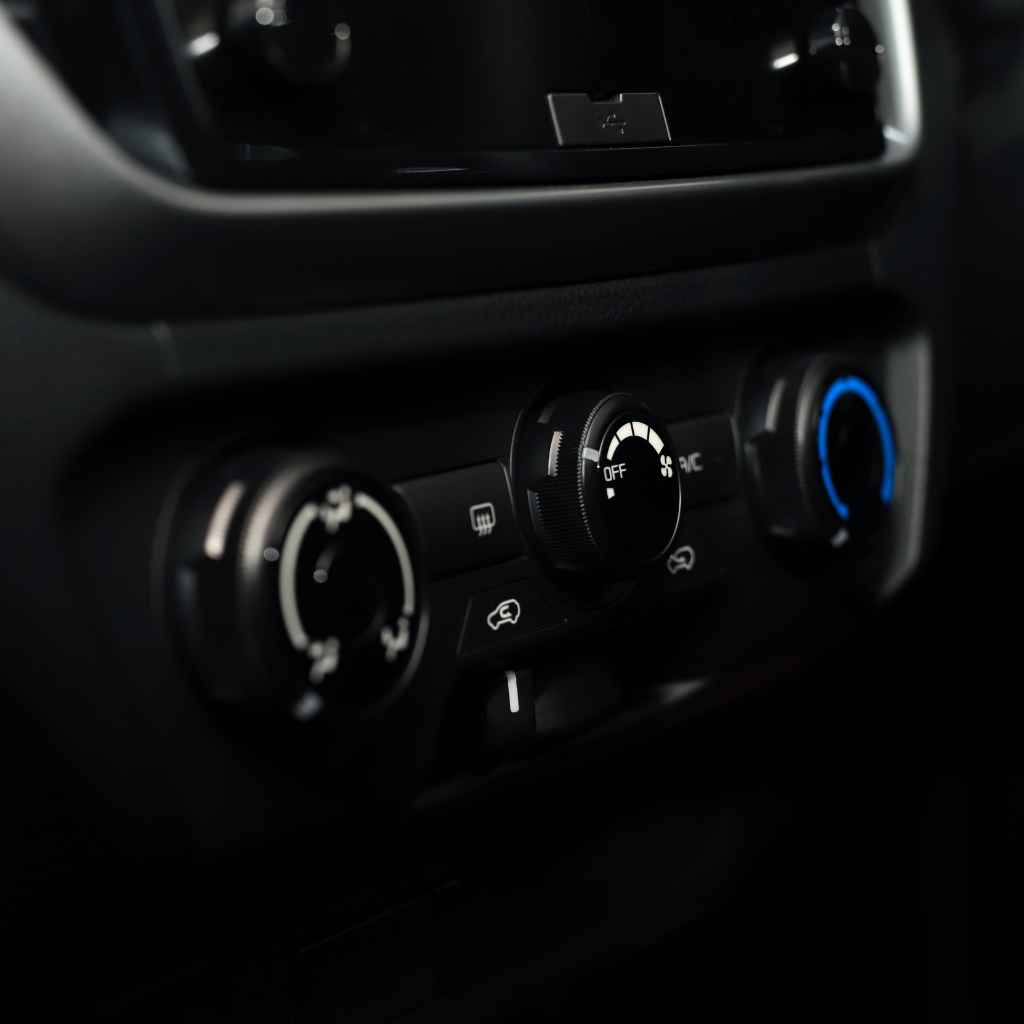
Every car is a little different. For example, many cars have a dedicated button for phone calls. Sometimes, you have to press and hold this button.
Other times, you might need to navigate through a touchscreen. Some older cars might even require you to insert a specific CD first. That sounds strange, but I’ve seen it!
The goal is to make the car radio “discoverable.” This means it’s broadcasting a signal saying, “Hey, I’m here, looking for a phone!” Most cars will show a message on the screen. It might say “Ready to Pair” or “Searching for Devices.”
Making Your Phone Discoverable
On your smartphone, you’ll go to the settings app. Find the Bluetooth section. Make sure the Bluetooth switch is turned on.
Your phone will then start looking for nearby Bluetooth devices.
Most phones will show a list of available devices. Your car radio’s name should appear in this list. It might have a name like “My Car,” “Uconnect,” “SYNC,” or the car brand itself.
Sometimes it’s just a series of letters and numbers.
Completing the Connection
Once you see your car’s name on your phone, tap it. Your phone will try to connect to the car. This is where the PIN comes in.
Your car might display a PIN code on its screen. Your phone might ask you to enter it. Or, both devices might show a PIN and ask you to confirm they match.
This is a security step.
If the PINs match or you enter the correct one, the devices will connect. You’ll usually see a confirmation message on both your phone and the car radio. It might say “Connected” or “Paired Successfully.”
Quick Scan: Basic Pairing Flow
Step 1: Car Prep
Turn on car. Find radio menu. Select “Bluetooth” or “Phone.” Make radio discoverable.
Step 2: Phone Prep
Turn on phone Bluetooth. Go to settings. Search for new devices.
Step 3: Connect
Select car name from phone list. Enter or confirm PIN if asked. Wait for confirmation.
Step 4: Enjoy!
Music, calls, podcasts. All hands-free.
Troubleshooting Common Connection Issues
Sometimes, it’s not a smooth ride. Devices don’t always play nice together. Don’t get frustrated.
Most problems have simple fixes. Let’s look at what can go wrong and how to fix it.
The most common issue is that the phone and car just can’t find each other. This usually means one of them isn’t in pairing mode correctly. Or, there’s interference.
Make sure your phone isn’t already connected to another Bluetooth device, like headphones or a speaker.
Phone Not Finding Car Radio
If your phone can’t see the car radio, double-check the car’s Bluetooth settings. Is it set to “discoverable” or “pairing”? Sometimes this mode only lasts for a short time.
You might need to re-activate it. Also, check your phone. Make sure its Bluetooth is on and it’s set to scan for new devices.
Try restarting both devices. Turn off your car, then turn it back on. Turn your phone’s Bluetooth off and then on again.
Sometimes a simple refresh is all it takes. Moving the car to an open area, away from other electronics, can also help.
Connection Fails After Pairing
You saw the car name. You entered the PIN. But it won’t connect.
This can be frustrating. Often, it means the pairing information is corrupt. You should try deleting the old pairing from both devices.
On your phone, go to Bluetooth settings and “forget” or “unpair” the car. On the car radio, find the list of paired devices and delete your phone.
After deleting, start the pairing process from the beginning. Make sure your phone’s software is up to date. Old software can cause compatibility issues.
Check your car manufacturer’s website too. They might have updates for your car’s infotainment system.
Troubleshooting Checklist
Problem: Car not found by phone.
- Is car Bluetooth ON and discoverable?
- Is phone Bluetooth ON and searching?
- Are both devices close?
- Restart both devices.
Problem: Pairing fails.
- Are PINs correct or matching?
- Delete old pairings from both devices.
- Try pairing again from start.
- Check for software updates (phone & car).
Problem: Connected, but no audio or calls.
- Is the correct audio source selected on car radio?
- Is media volume up on phone and car?
- Check Bluetooth profiles (A2DP, HFP).
Connecting Different Phone Types
The process is very similar for both Android phones and iPhones. The menus might look a bit different, but the core steps remain the same. The main difference is where you find the settings.
For Android phones, you usually go to “Settings,” then “Connected devices,” and then “Bluetooth.” For iPhones, it’s “Settings,” then just “Bluetooth.” Both will then let you search for devices.
Android Phone Connection
On an Android device, after turning on Bluetooth, you might need to tap “Pair new device.” Your car’s name will appear in a list. Tap it. You may be asked to confirm a PIN or enter one.
Once confirmed, your phone should show as “Connected” or “Active” for media and calls.
Some Android phones have an option to enable “Advanced” or “HID Profile” for Bluetooth devices. This is usually not needed for car radios, but if you’re having trouble, check these settings. Most of the time, the standard pairing works perfectly.
iPhone Connection
With an iPhone, after enabling Bluetooth, your car radio will show up under “Other Devices.” Tap the car’s name. A screen will appear to confirm a passkey. If the passcodes match, tap “Pair.” You might also be asked if you want to allow the iPhone to share your contacts and favorites with the car.
It’s usually best to allow this so you can make calls using your car’s system.
iPhones are generally very good at pairing. If you encounter issues, make sure your iPhone’s operating system (iOS) is up to date. Go to “Settings,” then “General,” and “Software Update” to check.
Advanced Bluetooth Features and Settings
Once you’re connected, there’s more you can do. Your car radio might offer more than just basic music playback. Some systems let you control your music directly from the car’s buttons.
Others can even read your text messages aloud.
You can often set your car as a “trusted device” on your phone. This can sometimes prevent your phone from locking while it’s connected to the car. It’s a convenience feature, but be aware of the security implications.
Managing Multiple Devices
Most car systems can store pairings for multiple phones. This is great if your car is used by more than one person. However, it can also lead to confusion.
Which phone is it trying to connect to?
Your car usually connects to the last phone it was paired with. Or, it might connect to the first one it finds when it powers on. If you have trouble connecting your phone, check if another phone is already connected.
You may need to temporarily turn off Bluetooth on other nearby phones. Or, manually select your phone from the car’s connected devices list.
Myth vs. Reality
Myth: Bluetooth drains my phone battery super fast.
Reality: While Bluetooth uses power, modern Bluetooth (especially Bluetooth Low Energy) is very efficient. For typical car connection use, the battery drain is usually minimal and manageable.
Reality: My car is too old for Bluetooth.
Myth: Many cars manufactured even 10-15 years ago have Bluetooth. If yours doesn’t, you can buy an aftermarket Bluetooth adapter that plugs into your car’s auxiliary (AUX) port or a USB port.
Data Callout: The Bluetooth codec quality hierarchy runs SBC < AAC < aptX < aptX HD < LDAC. Newer Bluetooth versions (5.0, 5.3, 5.4+) also improve range, connection stability, and power efficiency — worth checking on an adapter’s spec sheet alongside codec support.
When Bluetooth Isn’t the Best Option
While Bluetooth is super convenient, it’s not always the best way to connect. For example, if you need to charge your phone while using it, a wired connection is better. A USB connection often provides a faster and more stable link for things like Apple CarPlay or Android Auto.
Bluetooth audio can sometimes have a slight delay. This is usually not noticeable for music. But for gaming or watching videos with dialogue, you might see lips move slightly out of sync with the sound.
In these cases, a wired connection is preferred.
Wired vs. Wireless
A USB cable connection is often more reliable. It can handle more data faster. This is why systems like Apple CarPlay and Android Auto require a USB connection for their full functionality.
They mirror your phone’s screen and apps onto your car’s display.
Bluetooth is excellent for making calls and streaming music. It’s simple and wireless. But if you want the best audio quality, fastest charging, or full app integration, a USB cable is usually the way to go.
Many cars have both options available.
Adapters Worth Buying
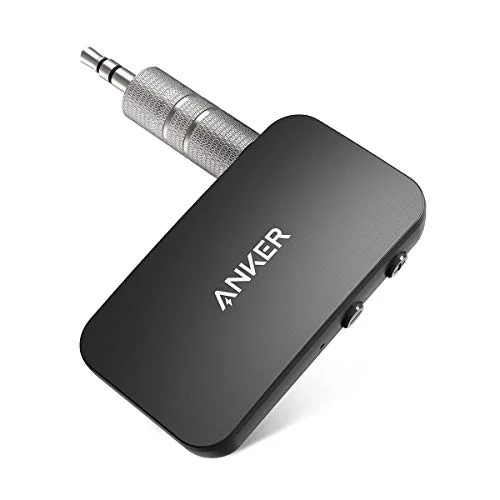
Anker Soundsync A3352
Bluetooth 5.0 with aptX support — avoids the fuzzy-sound problem that comes from SBC-only adapters.
View Our Pick on Amazon
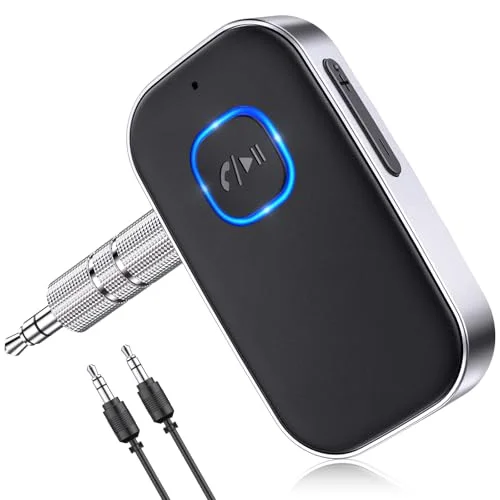 COMSOON Noise-Cancelling Dual mics for clearer hands-free calls Check on Amazon |
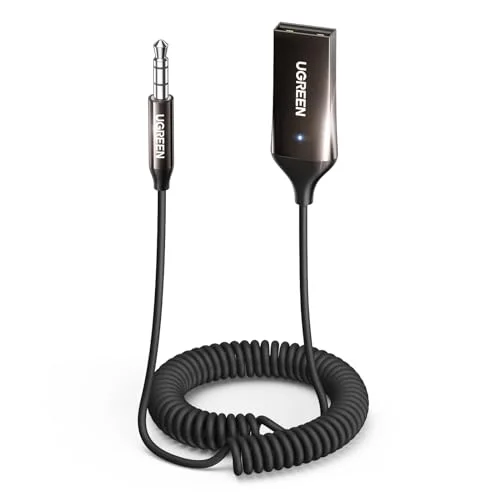 UGREEN Bluetooth 6.0 Latest Bluetooth version for stable range and connection Check on Amazon |
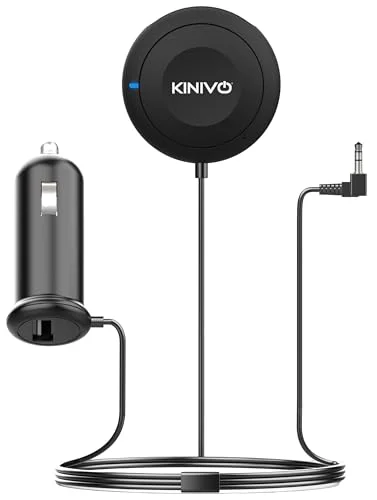 Kinivo BTC450 Budget-friendly hands-free kit, simple setup Check on Amazon |
As an Amazon Associate, this site earns from qualifying purchases.
My Experience with Aftermarket Bluetooth Adapters
My older truck didn’t have Bluetooth built-in. I really missed being able to play my podcasts. I looked into expensive stereo replacements.
Then I found these small Bluetooth adapters. They plug into the 3.5mm AUX port. Some even plug into the cigarette lighter for power.
The first one I bought was okay. The sound quality was a bit fuzzy. It also made a buzzing noise when I charged my phone at the same time.
I finally found a better one. It paired instantly. The sound was clear.
It let me stream music and take calls without issues. It was a cheap fix that made a huge difference. It proved that even without a fancy built-in system, you can still get Bluetooth convenience.
When to Consider an Adapter
- No Built-in Bluetooth: Your car radio is too old.
- Poor Sound Quality: Your current Bluetooth connection is fuzzy or weak.
- Need Hands-Free Calling: You want to make calls safely.
- Budget-Friendly: You want an affordable upgrade.
Look for adapters that:
- Use a stable Bluetooth version (like 5.0 or higher).
- Offer clear audio (check reviews for sound quality).
- Can also charge your phone (if powered by car charger).
Why Some Adapters Sound Fuzzy: Bluetooth Audio Codecs
The fuzzy, compressed sound I got from that first cheap adapter almost always comes down to the Bluetooth audio codec it uses. SBC is the baseline codec every Bluetooth device supports, but it’s also the lowest quality — it’s the most likely culprit behind muddy or thin-sounding audio. Better adapters and factory systems support AAC or aptX, which compress the audio less and sound noticeably clearer, with aptX HD and LDAC sitting even higher for true hi-res quality. If sound quality matters to you, check an adapter’s specs for AAC or aptX support before buying rather than assuming all Bluetooth adapters sound the same.
Safety First When Using Bluetooth in the Car
The main reason for using Bluetooth in your car is safety. It lets you keep your hands on the wheel and eyes on the road. But it’s important to set things up correctly before you start driving.
Never try to pair your phone or adjust settings while the car is moving. Pull over to a safe spot if you need to make changes. Focus on driving first.
The music and calls can wait a few minutes.
Setting Up Before You Drive
It’s best to do all the pairing and connecting when your car is parked. Make sure your phone is paired and ready to go before you put the car in drive. If you need to switch phones or troubleshoot, do it safely.
Get familiar with your car’s system. Know which button answers a call and which one ends it. Know how to switch from Bluetooth audio back to the radio.
A little practice when parked will make it second nature when you’re on the road.
Frequently Asked Questions
How do I know if my car has Bluetooth?
Look for a Bluetooth symbol (often a stylized ‘B’) on your dashboard buttons or steering wheel. Check your car’s manual or infotainment system menus for “Bluetooth” or “Phone” settings. You can also search online for your car’s make, model, and year to see if it came with Bluetooth.
My phone connects to Bluetooth, but no sound comes out.
This usually means the audio source on your car radio is not set to Bluetooth. Cycle through the audio sources (FM, AM, CD, AUX, Bluetooth) until you select Bluetooth. Also, check that the media volume on both your phone and car is turned up.
Make sure the correct audio profile (like A2DP for media) is enabled in your phone’s Bluetooth settings for the car.
Can I connect more than one phone at a time?
Most car Bluetooth systems can only actively connect to one phone for audio and calls at a time. However, many can store pairings for multiple phones. If you have more than one phone paired, the car might automatically connect to the last one used or the first one it detects.
You may need to manually select which phone to use if both are present.
Why does my car keep disconnecting from Bluetooth?
Frequent disconnections can happen for several reasons. It could be a weak signal, interference from other devices, low battery on your phone or the car’s Bluetooth module, or outdated software. Try deleting and re-pairing the devices.
Ensure your phone and car’s software are updated. Keep your phone charged and close to the car’s receiver.
Is it safe to use Bluetooth for calls while driving?
Yes, using Bluetooth for calls is significantly safer than holding your phone. It allows you to keep both hands on the steering wheel and your eyes on the road. However, it’s still a distraction.
Avoid complex conversations or initiating calls while the car is in motion. Set up your calls before you start driving.
What is the PIN code for car Bluetooth?
Many car Bluetooth systems use a default PIN code, often ‘0000’ or ‘1234’. Some cars will display a random, unique PIN on the car’s screen that you need to confirm on your phone. Always refer to your car’s manual for the specific PIN code or pairing instructions.
Putting It All Together
Connecting your phone to your car’s Bluetooth is a skill that makes driving much more enjoyable and safer. We’ve walked through the common steps for pairing. We’ve also tackled frequent problems.
Remember to always prioritize safety. Set up your connection before you drive.
Don’t get discouraged if it takes a try or two. Most issues are minor and fixable. With a little patience, you’ll be streaming your favorite tunes and taking calls with ease.
Happy driving!
Products related to this article
Sponsored / affiliate links. As an Amazon Associate I earn from qualifying purchases. I may earn additional commission from eligible campaigns.