How To Put Gps On Your Car Screen (Simple Setup Guide)
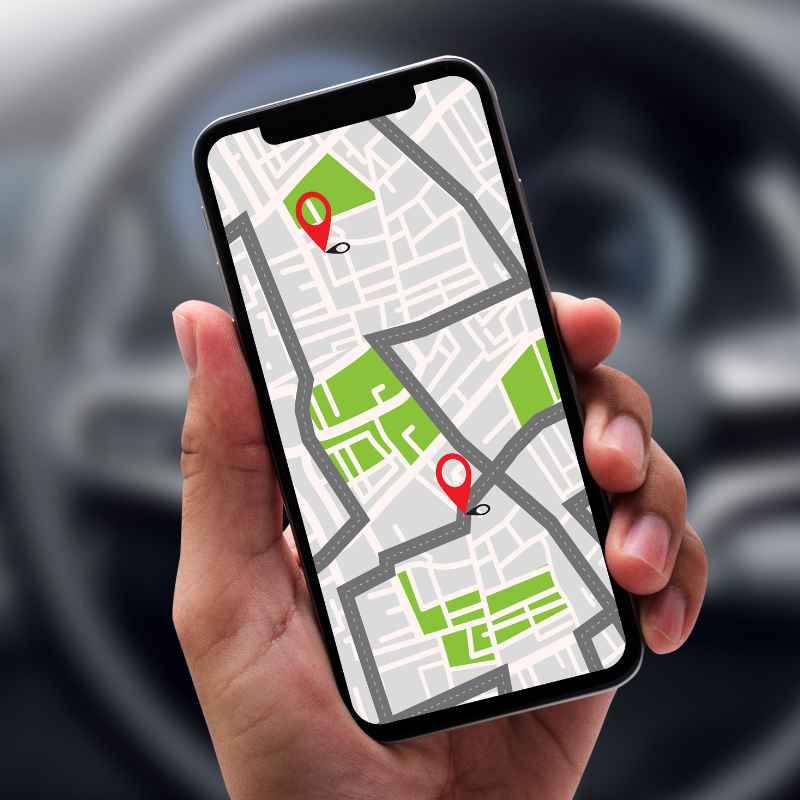
Putting GPS on your car screen is often simpler than you think. It usually involves connecting your smartphone via USB or wirelessly to use systems like Apple CarPlay or Android Auto. Some cars also offer built-in navigation that you can activate.
This makes driving safer and easier.
Understanding Your Car’s Display Options
Most modern cars today come with a screen. This screen is often the heart of your car’s tech. It handles your music, calls, and climate control.
But it can also be your navigation hub. Knowing what kind of screen you have is the first step. Is it just a basic display?
Or does it support more advanced features?
Many cars now have what’s called an infotainment system. This is a fancy word for the screen and its controls. These systems vary a lot.
Some are very simple. Others are complex and offer many ways to connect your devices. You might have a touchscreen.
Or you might use buttons and knobs to control it. Understanding this system helps you see what’s possible.
The main goal is usually to get your phone’s navigation apps, like Google Maps or Waze, onto the big screen. This is safer. You don’t have to look down at your phone as much.
Your eyes stay more on the road. This is a big win for safety. It also makes the whole driving experience much smoother.
So, what are the main ways this happens? We have a few key players. Apple CarPlay is for iPhones.
Android Auto is for Android phones. Then, some cars have their own navigation built-in. We’ll look at all of them.
The best option for you depends on your phone and your car.
Connecting Your Smartphone: The Easiest Way
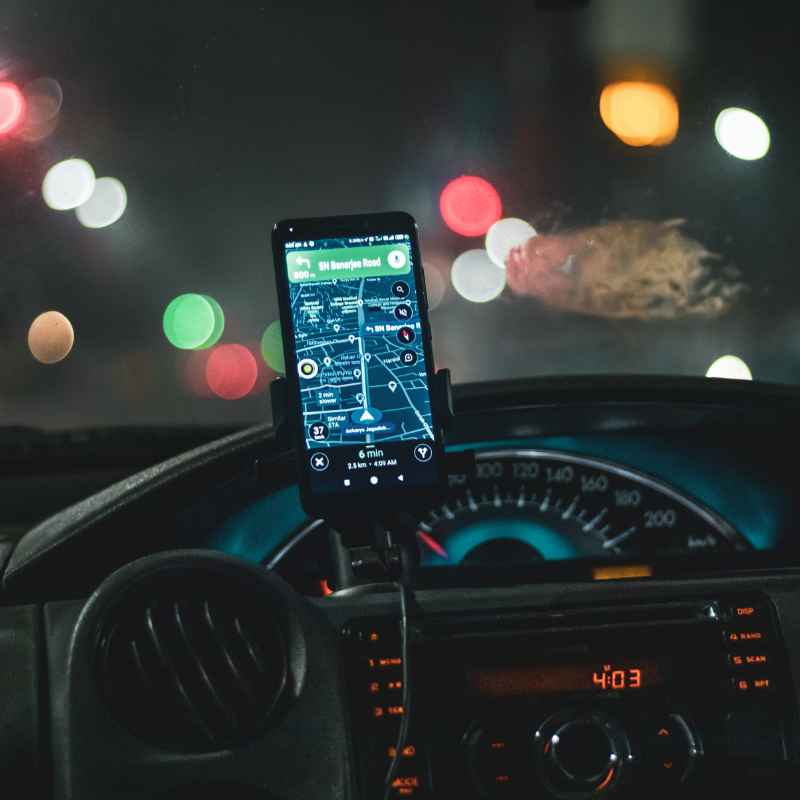
For many drivers, the easiest path to GPS on their car screen is through their smartphone. This is thanks to smart technologies that carmakers have adopted. These technologies let your phone’s apps appear on your car’s display.
It’s like bringing a piece of your phone into your car.
The two biggest names here are Apple CarPlay and Android Auto. They do the same job but for different phone brands. They both aim to simplify how you use your phone while driving.
They focus on apps you need most for the road. Think maps, music, and calls. Everything is shown in a clear, easy-to-read format on your car’s screen.
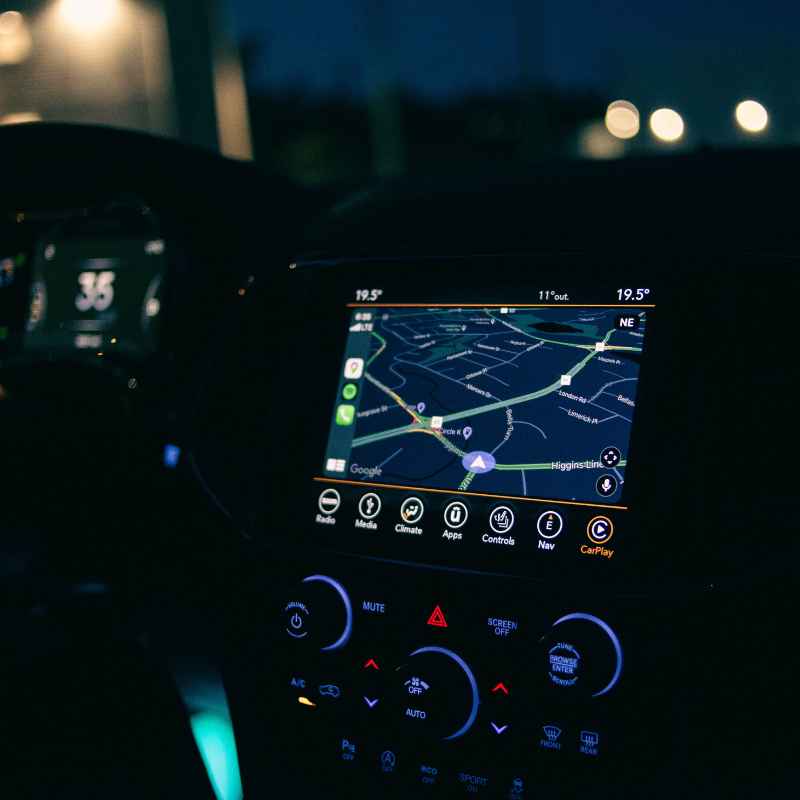
Getting started with these systems is usually straightforward. Most often, it involves plugging your phone into a USB port in your car. Some newer cars can do this wirelessly.
Once connected, your car’s screen will likely show a prompt. You might need to allow access on your phone. Then, you’ll see an interface that looks like your phone’s apps, but adapted for the car.
The navigation apps are the stars here. When you launch Google Maps or Waze through CarPlay or Android Auto, they fill your car screen. You get the big map view.
You can speak your destination. Voice commands work great. This is a huge step up from a small phone screen.
It really makes a difference on longer trips or in busy cities.
Beyond navigation, these systems let you control music. You can play podcasts or audiobooks too. Making calls is easy.
You can even send and receive text messages using your voice. Safety is key with these systems. They are designed to keep your attention on driving.
So, if you have a smartphone, this is very likely your best route. It’s often plug-and-play. And it gives you access to the latest app updates for navigation.
It’s a seamless way to upgrade your car’s tech without buying a new car.
Apple CarPlay: For iPhone Users
What it is: Apple CarPlay lets your iPhone connect to your car’s screen. It mirrors certain iPhone apps. You can see and use them on your car display.
This includes maps, music, messages, and more. You control it through your car’s touch screen, buttons, or voice commands.
How it works: Connect your iPhone to the car’s USB port with a Lightning cable. For wireless CarPlay, your car and iPhone must support it, and you’ll pair via Bluetooth and Wi-Fi. Your iPhone screen will go dark.
The CarPlay interface will appear on your car’s screen.
Key Apps: Apple Maps, Google Maps, Waze, Spotify, Apple Music, Podcasts, Messages, Phone, and more. The app icons look similar to your iPhone.
Voice Control: Uses Siri. You can say “Hey Siri” or hold the voice command button on your steering wheel. This lets you set destinations, play music, or send messages hands-free.
Android Auto: For Android Users
What it is: Android Auto is Google’s version. It does the same for Android phones. It brings your phone’s apps to your car’s screen.
This makes navigation and entertainment easier and safer. It works with most major Android phone models.
How it works: Connect your Android phone to the car’s USB port. You’ll need the Android Auto app installed on your phone (though it’s often pre-installed on newer phones). Follow the on-screen prompts to grant permissions.
The Android Auto interface will then show up on your car’s screen.
Key Apps: Google Maps, Waze, Spotify, YouTube Music, Pocket Casts, WhatsApp, Phone, Messages, etc. The layout is clean and simple.
Voice Control: Uses Google Assistant. You can say “Hey Google” or use the voice button. It helps you navigate, play music, and send messages.
It’s designed to keep your focus on the road.
Built-in Navigation Systems
Not all cars rely on your phone for GPS. Many vehicles come with their own built-in navigation systems. These are integrated directly into the car’s electronics.
They don’t need a phone connection to work. You can often activate them right away. This is a handy feature.
These systems usually have their own interface. You access them through a button or a menu option on your car’s screen. You can then input your destination.
You might use a touchscreen or a dial. The maps are displayed on the screen. They offer turn-by-turn directions, just like phone apps.
One advantage of built-in systems is they don’t use your phone’s data. They have their own map data stored in the car. This can be good if you have limited mobile data.
It also means they often work even if your phone has no signal. This can be a lifesaver in remote areas.
However, built-in systems can sometimes be a bit slower to update. Map data might not be as current as Google Maps or Waze. Also, the interface might feel a bit less intuitive than smartphone apps.
This is changing as car companies improve their systems. But it’s something to consider.
To use your car’s built-in GPS, check your car’s manual. It will show you how to access the navigation feature. You’ll likely need to set your starting point if it doesn’t do it automatically.
Then, enter your destination address. The system will then plan your route and guide you.
Some cars might require you to activate the navigation feature. This could be part of an optional package you bought with the car. Or it might be a subscription service.
It’s worth checking with your dealer if you’re unsure. But most often, it’s ready to go.
The benefit of built-in navigation is its seamless integration. It feels like it belongs there. The display is usually optimized for the car’s screen.
The controls are often designed to work well with the car’s buttons. It’s a polished experience.
Quick-Scan Table: Built-in vs. Smartphone Navigation
| Feature | Built-in Navigation | Smartphone Navigation (CarPlay/Android Auto) |
|---|---|---|
| Setup | Ready to use. No phone needed. | Requires phone connection (USB or wireless). |
| Updates | Less frequent. May need dealer visits or downloads. | Frequent. Updates with phone app updates. |
| Data Usage | Uses car’s internal data. No phone data needed. | Uses phone’s data plan. |
| Familiarity | Car-specific interface. May take time to learn. | Uses familiar phone apps (Google Maps, Waze). |
| Features | Varies by car model. Can be basic or advanced. | Access to latest app features and traffic data. |
What You Need to Get Started
To get GPS on your car screen, you don’t need much. The requirements depend on which method you choose. But in general, having the right tools makes the process smooth.
Let’s break it down.
First, you need a car that supports one of these systems. Most cars made in the last five to seven years have screens. Many of them will support either Apple CarPlay or Android Auto.
Some older cars might not. Check your car’s manual or the manufacturer’s website. It will tell you if your car is compatible.
If you plan to use smartphone mirroring, you need a compatible smartphone. For Apple CarPlay, you need an iPhone. For Android Auto, you need an Android phone.
Make sure your phone’s operating system is up to date. Older phones or older software versions might not work.
You’ll also need a good quality USB cable if you’re connecting wired. Some cheap cables can cause connection issues. A cable designed for data transfer is best.
If your car supports wireless CarPlay or Android Auto, you’ll need to ensure your phone also supports it. This usually involves Bluetooth and Wi-Fi.
For built-in navigation, you usually don’t need anything extra. Just make sure your car has this feature. If it’s an optional extra, you’ll need to have purchased it.
Your car’s manual will explain how to use it.
Beyond the hardware, a little patience is helpful. Sometimes the initial setup can be a bit finicky. Following the on-screen prompts carefully is important.
Don’t get discouraged if it doesn’t work perfectly the first time. A quick restart of your phone or car can often fix minor glitches.
The most important thing is to know your car’s capabilities. Look for USB ports marked with a smartphone icon. Check your car’s infotainment system menu for “Phone Projection,” “Smartphone Integration,” “CarPlay,” or “Android Auto.” This will tell you what your car can do.
Step-by-Step Setup for Smartphone Mirroring
Setting up your phone to display GPS on your car screen is usually quite simple. Here’s a common process for both Apple CarPlay and Android Auto. Remember, your car’s interface might look a little different.
But the core steps are the same.
For Apple CarPlay:
- Ensure Compatibility: Make sure your iPhone (iPhone 5 or later) and car support CarPlay.
- Connect Your iPhone: Plug your iPhone into the USB port in your car using a reliable Lightning cable. Look for a port often labeled with a smartphone icon.
- Unlock Your iPhone: If prompted, unlock your iPhone.
- Grant Permissions: Your iPhone may ask for permission to use CarPlay. Tap “Allow” or “Use CarPlay.” You might also be asked to enable Siri.
- Launch CarPlay: The CarPlay icon should appear on your car’s screen. Tap it to launch. If it doesn’t launch automatically, check your car’s infotainment menu for “Phone Projection” or “CarPlay.”
- Enjoy Navigation: Once in CarPlay, you’ll see your familiar iPhone apps. Tap on your preferred navigation app like Apple Maps, Google Maps, or Waze.
For Android Auto:
- Check Compatibility: Ensure your Android phone (typically Android 6.0 or newer) and car support Android Auto.
- Download/Update App: Make sure you have the Android Auto app on your phone. It’s often pre-installed. If not, download it from the Google Play Store. Keep it updated.
- Connect Your Phone: Plug your Android phone into the car’s USB port with a good quality USB cable.
- Unlock Your Phone: Unlock your Android phone if needed.
- Grant Permissions: Your phone will likely ask for permission to use Android Auto. Grant all necessary permissions. You might need to confirm voice commands.
- Launch Android Auto: The Android Auto icon should appear on your car’s screen. Tap it. If it doesn’t start automatically, look for “Phone Projection” or “Android Auto” in your car’s infotainment menu.
- Start Navigating: In Android Auto, select your navigation app, such as Google Maps or Waze.
Wireless Setup (If Supported):
If your car and phone support wireless CarPlay or Android Auto, the process is similar but without a cable.
- First, pair your phone with your car’s Bluetooth system.
- Then, follow the on-screen prompts on your car and phone to enable wireless CarPlay or Android Auto. This often involves confirming a code or granting permissions over Bluetooth and Wi-Fi.
The key is to follow the instructions that appear on both your phone and your car’s screen. They are designed to guide you through the setup. Once connected, your navigation app will appear, ready for your trip.
Tip: The Importance of a Good USB Cable
This might sound small, but using a bad USB cable is a common reason for connection problems with Apple CarPlay and Android Auto. If your phone isn’t recognized, or the connection keeps dropping, try a different cable. Look for cables that are specifically designed for data transfer, not just charging.
An official cable from Apple or a reputable third-party brand is often a good choice.
Troubleshooting Common Connection Issues
Even with the best technology, things don’t always work perfectly on the first try. It’s normal to run into a few bumps when connecting your phone to your car. Don’t worry, most of these problems have simple solutions.
Problem: Phone not recognized by the car.
- Check the Cable: This is the most frequent culprit. Try a different, high-quality USB cable. Ensure it’s plugged in firmly at both ends.
- Try a Different USB Port: Some cars have multiple USB ports. Not all of them might be compatible with CarPlay or Android Auto. Look for a port that’s specifically for data transfer.
- Restart Your Phone: A simple restart can clear temporary glitches. Turn your phone off and back on.
- Restart Your Car’s Infotainment System: Turn off your car, open and close the driver’s door (this sometimes resets electronics), then restart the car.
- Update Software: Ensure your phone’s operating system and the Android Auto or CarPlay app are up to date. Check your car’s infotainment system for any available software updates too.
Problem: CarPlay or Android Auto disconnects frequently.
- Cable Issues: Again, a faulty cable is likely. A loose connection at either end can cause drops.
- Phone Overheating: If your phone gets too hot, it might disconnect to protect itself. Make sure it’s not in direct sunlight.
- App Conflicts: Close other apps running in the background on your phone that might be interfering.
- Car Settings: Some cars have a setting to disable or enable smartphone integration. Check your car’s menu.
Problem: Apps not showing or working correctly.
- Check App Permissions: Ensure the navigation app has all the necessary permissions on your phone.
- Reinstall the App: Uninstall the navigation app from your phone and then reinstall it.
- CarPlay/Android Auto Settings: On your phone, go to the CarPlay or Android Auto settings. Make sure the apps you want to use are enabled. You can often customize the order or hide apps from here.
Problem: Voice commands not working.
- Siri/Google Assistant Enabled: Make sure Siri is enabled on your iPhone or Google Assistant is enabled on your Android.
- Microphone Permissions: Check that the CarPlay or Android Auto app has permission to access your phone’s microphone.
- Car’s Microphone: Ensure your car’s microphone is not blocked or damaged.
When troubleshooting, try one fix at a time. This helps you pinpoint what resolved the issue. If you’ve tried everything and still have problems, consult your car’s manual or contact the dealership.
They can often offer specific advice for your vehicle model.
Contrast Matrix: Common Myths vs. Reality
Myth
My old car screen can’t do this.
Reality
Even some older cars (around 2015+) have CarPlay or Android Auto. Check your manual!
Myth
I need a new phone to use it.
Reality
Most recent smartphones (past 5-7 years) work fine. Just ensure the OS is updated.
Myth
It will drain my phone battery really fast.
Reality
When connected via USB, your phone usually charges. Wireless can use more battery, but it’s manageable.
Real-World Usage and Tips for Better Navigation
Using GPS on your car screen isn’t just about having a bigger map. It’s about a safer, more enjoyable drive. I remember one trip I took up the coast.
My phone’s GPS was on a small mount. I had to constantly lean over to see it. It was distracting.
Then, I figured out my car had Apple CarPlay. The difference was night and day.
Suddenly, all the directions were right there on my car’s main screen. I could see the turns coming up clearly. I could use Siri to change my destination without touching anything.
It made the drive so much less stressful. I could focus on the beautiful scenery instead of squinting at my phone.
Here are some tips I’ve picked up along the way:
- Set Your Destination Before You Drive: This is the safest habit. Before you even put the car in drive, have your route set. If you need to change it, pull over first.
- Use Voice Commands: Seriously, learn to use Siri or Google Assistant. They are incredibly powerful and keep your hands on the wheel and eyes on the road. You can ask for traffic updates, find gas stations, or reroute if you miss a turn.
- Understand Your Car’s Controls: Familiarize yourself with how your car’s infotainment system works with CarPlay or Android Auto. Some cars have physical buttons that interact with the system. Learning these can make control smoother.
- Customize Your Display: Both CarPlay and Android Auto let you rearrange app icons. Put your most used navigation and music apps at the front.
- Keep Your Maps Updated: For both phone apps and built-in systems, ensure your map data is current. This means getting the latest app updates for your phone and checking for updates for your car’s system.
- Consider Wireless If Available: If your car supports wireless CarPlay or Android Auto, it’s a game-changer. No more fumbling with cables every time you get in.
- Use a Phone Mount (Still!): Even with CarPlay or Android Auto, having your phone in a mount can be useful. It’s a good backup and makes it easy to see the phone screen if needed for app settings.
The core idea is to let the technology work for you. Don’t fight it. Embrace the convenience and safety it offers.
It truly transforms the driving experience. Especially for longer commutes or road trips. It makes getting from point A to point B much more straightforward and enjoyable.
Observation Flow: From Phone to Car Screen
Start: You want to go somewhere new.
Step 1: Grab your smartphone.
Step 2: Open your favorite map app (Google Maps, Waze, Apple Maps).
Step 3: Type in your destination. Or use voice command.
Step 4: Connect your phone to your car (USB or wirelessly).
Step 5: Confirm connection on car screen if prompted.
Step 6: Your map app appears on the car’s larger display.
Step 7: Follow turn-by-turn directions, often with voice guidance.
End: Arrive safely and easily.
When Is It Normal, And When Should You Worry?
Most of the time, getting GPS on your car screen is a smooth process. It’s a modern convenience. However, there are a few things to keep in mind.
These can help you understand when things are normal and when there might be a deeper issue.
Normal Situations:
- Initial Setup Takes a Minute: The first time you connect your phone, it might take a few minutes for the car and phone to recognize each other. This is normal.
- Occasional Glitches: Sometimes, the system might freeze or act a little strange. A quick restart of the app, your phone, or the car’s system usually fixes it.
- Using Phone Data: If you’re using CarPlay or Android Auto, it’s normal for it to use your phone’s data plan for live traffic updates and map downloads.
- Phone Charges Via USB: When plugged in, your phone should charge. If it’s barely charging or draining, your cable or the car’s USB port might be the issue.
- Car’s Navigation Takes Time to Load: If you’re using the car’s built-in system, it might take a few moments to calculate routes or load maps. This is normal, especially for complex routes.
When to Be Concerned:
- Constant Disconnections: If your phone disconnects every few minutes, even with a new cable and restarts, there’s likely a hardware problem with the cable, port, or phone.
- Car Screen Freezes Repeatedly: If your car’s infotainment screen locks up constantly and requires a hard reset, it could indicate a problem with the car’s system itself.
- Navigation App Crashes Constantly: If your primary navigation app crashes every time you open it, even after updates and reinstallation, there might be a deeper software conflict or an issue with your phone.
- Built-in Navigation Not Working At All: If your car’s own GPS system shows no signal, can’t acquire satellites, or won’t let you input destinations after trying everything in the manual, it might need professional service.
- No Recognition After Trying Everything: If you’ve tried multiple phones, multiple cables, and followed all troubleshooting steps, and your car still won’t recognize any phone for CarPlay or Android Auto, the car’s integration hardware might be faulty.
- Safety Warnings on Screen: If your car displays a persistent error message related to the infotainment or navigation system, it’s best to have it checked by a professional.
In most cases, using GPS on your car screen is a straightforward upgrade. But if you experience persistent issues, don’t hesitate to consult your car’s manual or a qualified mechanic. They can help diagnose and fix any underlying problems.
Quick Fixes and Tips for a Better Experience
Getting GPS on your car screen should make your life easier. Here are some final quick tips to ensure you get the most out of it.
- Keep Your Phone Case On (Usually): Most phone cases don’t interfere with USB connections. However, very bulky or metallic cases can sometimes cause issues. If you have trouble, try removing the case.
- Clean Your Ports: Dust and debris can accumulate in your phone’s charging port and your car’s USB ports. Gently clean them with compressed air or a soft, dry brush. This can improve connection reliability.
- Manage Notifications: When using navigation, you don’t want distracting pop-up notifications from every app. Adjust your phone’s notification settings for driving mode or for specific apps when connected to your car.
- Adjust Screen Brightness: Make sure the brightness on your car screen and phone is set appropriately for daytime and nighttime driving. Many systems have an auto-brightness feature.
- Learn Basic Keyboard Shortcuts (If Applicable): Some cars allow for limited keyboard input on the touchscreen. Knowing how to quickly type a partial address can save time.
- Backup Route: For very important trips, have a general idea of your route or a printed map as a backup. This is just in case of a major tech failure.
- Check Car Manual for Specific Features: Every car is slightly different. Your manual is the best resource for understanding your car’s specific infotainment system and its CarPlay/Android Auto capabilities.
These small steps can make a big difference in your daily use. They help ensure your navigation system is a helpful tool, not a source of frustration.
Frequently Asked Questions
Can I use Waze on my car’s screen?
Yes, absolutely! Waze is a very popular navigation app. It works great with both Apple CarPlay and Android Auto.
You can get the familiar Waze interface and its real-time traffic alerts right on your car’s display. Just make sure you have the Waze app downloaded and updated on your phone.
Do I need a specific type of car to use GPS on the screen?
You need a car that is compatible with either Apple CarPlay or Android Auto. Most cars manufactured from about 2015 onwards offer this. You can check your car’s owner manual or the manufacturer’s website to see if your model supports these features.
Some cars also have their own built-in navigation systems.
What if my car doesn’t have Apple CarPlay or Android Auto?
If your car is older and doesn’t support these features, you have a few options. You can use your smartphone mounted on the dashboard with its own navigation app. There are also some aftermarket car stereos available that have built-in CarPlay or Android Auto.
You could consider upgrading your car’s stereo system.
Will using GPS on my car screen use up my phone’s data?
Yes, when you use navigation apps through Apple CarPlay or Android Auto, they will use your phone’s data plan. This is for things like live traffic information, map updates, and searching for destinations. If you have limited data, consider using Wi-Fi to download offline maps for your chosen navigation app before you travel.
Can I watch videos on my car’s screen using GPS apps?
No, that’s not the purpose of these systems. Apple CarPlay and Android Auto are designed for safety while driving. They prioritize navigation, music, and communication apps.
You cannot typically watch full videos or use entertainment apps that would be a distraction. The focus is strictly on driving-related functions.
How do I update the maps on my car’s built-in navigation system?
Updating maps for built-in car navigation can vary. Some systems update automatically over the air. Others might require you to download updates from the car manufacturer’s website onto a USB drive, which you then plug into your car.
Some systems may even require a visit to the dealership. Check your car’s owner’s manual for specific instructions.
Is wireless CarPlay or Android Auto better than wired?
Wireless is often more convenient because you don’t need to plug in a cable. However, it can sometimes use more battery on your phone and might be slightly less stable than a wired connection. Wired connections generally offer the most reliable performance and also charge your phone simultaneously.
It comes down to personal preference and what your car supports.
Conclusion
Getting GPS on your car screen is a fantastic way to make driving safer and more enjoyable. Whether you use Apple CarPlay, Android Auto, or your car’s built-in system, the goal is the same: clear, easy-to-follow directions. With a little setup and understanding, you can turn your car’s display into a powerful navigation tool.
Happy driving!
Products related to this article
Sponsored / affiliate links. As an Amazon Associate I earn from qualifying purchases. I may earn additional commission from eligible campaigns.