Best Flash Drive For Playing Videos In Your Car (It Works)
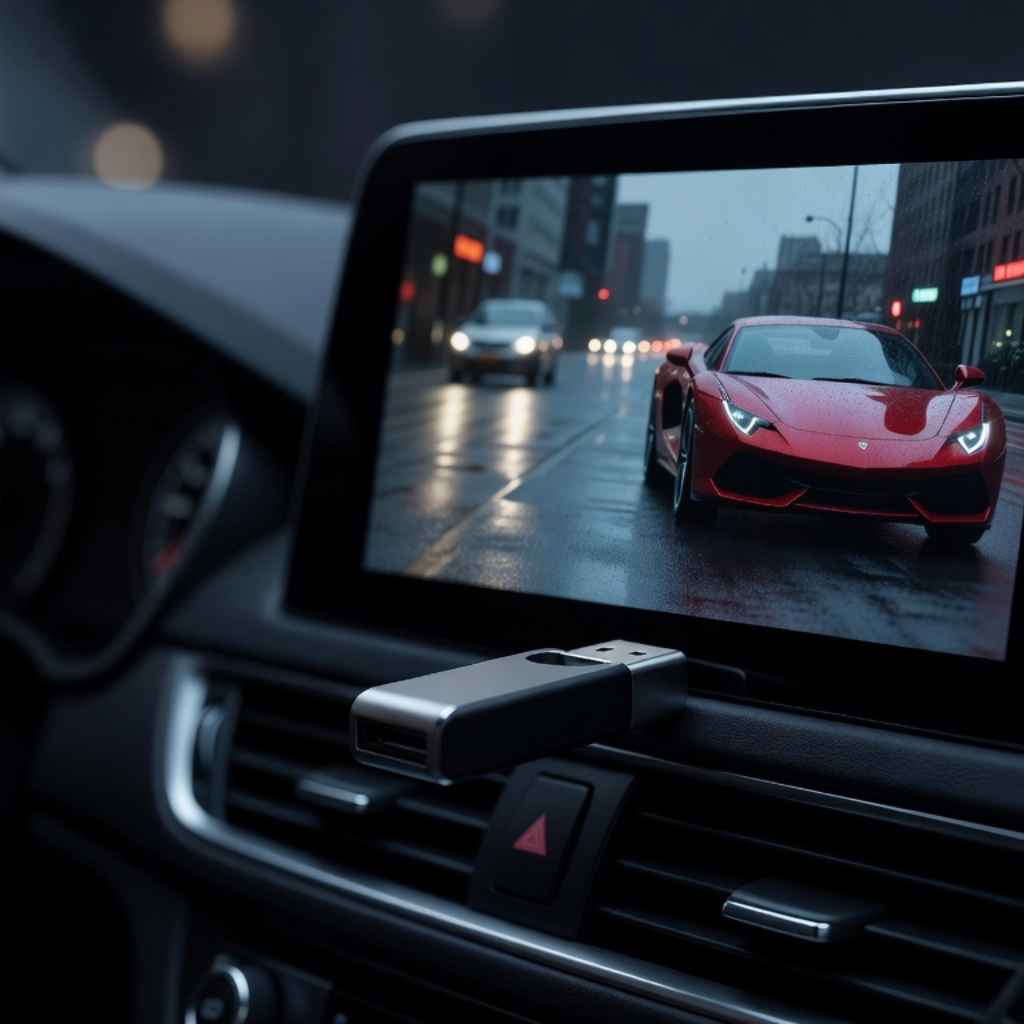
The best flash drive for playing videos in your car is one that is formatted correctly, uses a common video file format, and has enough storage space. Most car stereos work well with FAT32 formatting and MP4 or AVI files. A USB 2.0 drive is often more compatible than newer USB 3.0 or 3.1 drives for older car systems, though newer cars may support faster drives. The key is compatibility between the drive, the file, and your car’s media player.
Understanding Your Car’s Media Player
Your car’s media player is the heart of this whole operation. It’s what reads the flash drive and plays the video. Think of it like a tiny computer designed just for your dashboard. It has rules it follows. These rules are about what kinds of files it understands and how it reads them from the USB stick.
Why don’t all flash drives work? Well, the car’s player is often picky. It might only like certain file types. It also needs the drive to be set up in a specific way. This setup is called formatting. If the formatting is wrong, the player might not even see the drive. Or, it might see it but can’t read the files on it. This is a very common reason for videos not playing.
Older cars often have simpler players. They might have been designed many years ago. At that time, certain file formats and ways of setting up drives were common. Newer cars usually have more advanced players. They can often handle more file types and faster drives. But sometimes, very new technology doesn’t work with older systems. It’s a bit like trying to plug a modern phone into an old charger; it might not fit or work right.
The Format Factor: FAT32 is Your Friend
Let’s talk about formatting. This is how you prepare a flash drive to be used. It’s like getting a blank notebook ready to write in. You erase anything that was there before and set up the pages. For car stereos, the most common and widely accepted format is FAT32.
FAT32 is an older system. It’s been around for a long time. Because of this, most car media players were built to understand it. It’s like a universal language for these devices. If your flash drive is formatted as FAT32, your car is much more likely to be able to read it.
Why is FAT32 so good for cars? It’s simple and compatible. Many car manufacturers used it because it worked with almost every computer and player back then. It doesn’t have many complex features. This simplicity makes it easy for car stereos to handle.
What happens if your drive is not FAT32? Many new drives come formatted as exFAT or NTFS. These are newer systems. They can hold bigger files and are great for computers. But car stereos, especially older ones, might not understand them at all. The drive might show up empty, or not show up at all. It’s like handing someone a book in a language they don’t know; they can’t read it.
How do you check or change the format? It’s usually pretty easy. You plug the drive into a computer. On Windows, you right-click the drive and choose “Format.” On a Mac, you use Disk Utility. You will see options for different file systems. Always choose FAT32 if your car struggles. Remember, formatting erases everything. So, save any important files before you do this.
Video File Types: What Your Car Likes
Beyond the drive’s format, the video file itself needs to be in a language your car understands. This is the video format or codec. Think of it as the specific way the video and sound information is packed into the file.
The most common and widely supported video file format for car stereos is MP4. Many, many cars can play MP4 files. They are generally a good choice because they offer a good balance of quality and file size. They also use common codecs that car players are built to handle.
Another format that often works is AVI. AVI is also an older format. It’s quite flexible. However, AVI files can sometimes be larger. They can also use different types of video and audio codecs inside them. This is where things can get tricky. If your AVI file uses a codec your car doesn’t like, it won’t play.
What about other formats like MKV, MOV, or WMV? These are less likely to work on car stereos. MKV is very popular for high-quality downloads, but most car systems can’t read it. MOV files are often used by Apple devices. WMV is a Microsoft format. While some very new or high-end car systems might play these, it’s safer to stick to MP4 or AVI for broad compatibility.
So, if you have a video file and your car won’t play it, the first thing to check is the file type. Is it an MP4? If not, you might need to convert it. There are many free tools online and software programs that can convert video files. You can choose MP4 as the output format. Make sure to select a common codec like H.264 for the best results.
USB Speed and Version: Less is Often More
You see flash drives advertised with speeds like USB 3.0, 3.1, or even 3.2. These are much faster than older USB 2.0 drives. Faster speeds mean you can copy files to the drive much quicker. This is great for your computer.
However, when it comes to car stereos, especially older ones, sometimes the fastest isn’t the best. Older car media players might not be designed to handle the high speeds of USB 3.0 or newer. They might struggle to read data that fast. This can lead to choppy playback, freezing, or the drive not being recognized at all.
Many car manufacturers designed their systems to work with the common speeds of USB 2.0. This technology was standard when many of these car players were made. So, surprisingly, a USB 2.0 flash drive is often the most reliable choice for playing videos in a car.
Why does this happen? Think of it like trying to pour a gallon of water through a tiny straw very quickly. The system gets overwhelmed. A USB 2.0 drive gives the car’s player a steady, manageable flow of data. It’s like using a normal straw; the water comes out smoothly.
Does this mean USB 3.0 drives will never work? Not necessarily. Newer cars with more modern infotainment systems are usually built to be backward compatible. They can often handle both USB 2.0 and USB 3.0 drives. But if you’re having trouble with a newer drive in an older car, switching to a USB 2.0 drive is a very common and effective fix.
When choosing a flash drive, look for one that is specifically marked as USB 2.0 if you have an older car. If you have a newer car, a USB 3.0 drive might work fine, but if you encounter issues, a USB 2.0 is a good fallback. Capacity is also important; we’ll get to that later.
Quick Check: Is Your Drive Compatible?
Before you load up your videos, ask yourself these questions about your flash drive:
- Formatted for cars? Is it FAT32?
- Video format? Is the video file an MP4 or AVI?
- USB speed? Is it USB 2.0 for older cars, or can your car handle faster?
Answering these can save you a lot of trouble.
Storage Capacity: How Much Do You Need?
Videos, especially good quality ones, can take up a lot of space. Think about how long your movies or shows are. A full-length movie can be anywhere from 1 GB to 10 GB or even more, depending on the quality.
Car stereos have limits on how much storage they can read. While FAT32 itself has theoretical limits, the car’s player has its own practical limits. Most car systems can handle drives up to 32 GB formatted as FAT32 without any problems. This is a very common and safe size.
What if you want to store more? If you have a larger drive, say 64 GB or 128 GB, and your car won’t read it properly, it’s likely because of the formatting. You might be able to format a larger drive as FAT32, but sometimes the operating system makes this tricky. Tools like Rufus or third-party partition managers can help format larger drives as FAT32. However, always test it with your car.
If your car has a newer system, it might be able to read larger drives or drives formatted as exFAT. But again, for maximum compatibility, especially with older cars, sticking to 32 GB or smaller and formatting as FAT32 is the safest bet.
Consider what you plan to watch. For a few episodes of a TV show, a smaller 8 GB or 16 GB drive is often plenty. If you plan on watching full movies for a long road trip, a 32 GB drive will give you more options. It’s better to have a bit more space than you need than not enough.
The Data Transfer Process: Copying Files Smoothly
Once you have the right flash drive and your video files are in the right format, you need to get them onto the drive. This is the copying process. It sounds simple, but there are a couple of things to keep in mind.
When you copy files, especially video files, it’s best to do it while the flash drive is plugged into a computer. Don’t try to copy files while the drive is in the car, as the car’s system isn’t designed for that.
After copying, it’s crucial to “safely eject” or “unmount” the drive from your computer. This ensures that all the data has been fully written to the drive and that the computer has finished its tasks with the drive. If you just pull the drive out, some data might not be saved properly. This can corrupt the files or even the drive itself, making them unreadable.
On Windows, you find a small icon in the system tray (usually near the clock) that looks like a USB plug. Click it and choose to eject the drive. On a Mac, you drag the drive icon from the desktop to the Trash can, or right-click and select “Eject.”
When you plug the drive into your car, give it a moment to be recognized. Don’t immediately try to play a file. Let the car’s system spin up and recognize the drive. Sometimes, the system needs a few seconds to read the directory of the drive.
My Own Road Trip Video Nightmare
I remember a road trip a few years back with my family. We were heading to the Grand Canyon, and I thought it would be cool to have some movies for the kids for the long drive. I grabbed a brand new, super-fast USB 3.0 stick, loaded it up with MP4 files, feeling pretty pleased with myself.
We got in the car, I plugged it in, and… nothing. The car stereo just showed “No Media” or something similar. I tried a different MP4. Still nothing. I started to feel that familiar pang of panic. The kids were already asking “Are we there yet?” and I hadn’t even gotten the show on the road, literally.
I pulled over at a rest stop, completely baffled. This was supposed to be foolproof! I pulled out my laptop and checked the flash drive. The files were there. They played fine on the laptop. I checked the car’s manual online. It said it supported MP4 and AVI. It said it supported USB drives.
Then I noticed something. The car was a few years old. My new USB drive was blazing fast. I remembered reading something about older systems and newer drives not always playing nice. On a hunch, I stopped at a small electronics store and bought the cheapest, slowest-looking USB 2.0 stick I could find. It was only 16 GB.
Back in the car, I reformatted the new USB 2.0 drive to FAT32, copied just one of the MP4 files. I plugged it in, and after a few seconds, the car stereo popped up with the file name. I hit play, and the cartoon started! Success! That cheap, slow USB 2.0 stick, formatted to FAT32, saved the day. It taught me a valuable lesson: compatibility over speed is key for car video playback.
Contrast: USB 2.0 vs. USB 3.0 in Cars
Normal Scenario (USB 2.0):
Older car stereos often work best with USB 2.0. The data transfer speed is slower, which the car’s processor can easily handle. This leads to smooth playback of videos and audio.
Most common USB 2.0 drives are also FAT32 formatted, which is widely compatible.
Concerning Scenario (USB 3.0+):
Newer, faster USB drives (3.0, 3.1, 3.2) can overwhelm older car systems. The car might not recognize the drive, files may not load, or playback could be choppy and stuttering. While newer cars can handle these speeds, older ones often struggle.
Common Problems and Their Solutions
Let’s break down some of the most common issues people face and how to fix them. This is where the real troubleshooting happens.
Problem 1: The car stereo doesn’t show the USB drive at all.
Solution: This is almost always a formatting issue. Your drive is likely formatted as NTFS or exFAT, and your car doesn’t understand it. Format the drive to FAT32 using a computer. Make sure to save any data from the drive first, as formatting erases everything.
Problem 2: The USB drive shows up, but the video files are greyed out or not visible.
Solution: This means the drive is recognized, but the file format is wrong. Your car can’t read MP4, AVI, or whatever format you’re using. You need to convert your video files to a format your car supports, like MP4 with H.264 codec. Use a video converter tool.
Problem 3: The video file plays, but it stutters, freezes, or has no sound.
Solution: This can be due to a few things.
a) USB Speed: If you’re using a fast USB 3.0+ drive in an older car, try a USB 2.0 drive.
b) File Codec: Even if it’s an MP4, the codec inside might be too much for the car’s player. Try converting the MP4 to a more basic H.264 codec.
c) File Size: Very large video files might strain the player. Try a slightly lower quality version of the video.
d) Drive Issues: The drive itself might be faulty or have bad sectors. Try copying the files to a different flash drive.
Problem 4: The drive is recognized, but only shows a few files, or plays them strangely.
Solution: This can happen with larger capacity drives or if the drive is not perfectly formatted. Try reformatting to FAT32 and copying fewer files. Sometimes, a drive can only read a certain number of files in a folder. Organizing your videos into subfolders might help, but keep the folder structure simple.
Real-World Context: Different Cars, Different Needs
It’s important to remember that “car stereo” is a very broad term. What works in a 2023 SUV might not work in a 2010 sedan.
In newer cars (roughly 2015 and newer), infotainment systems are much more advanced. They often have larger touch screens, support higher-resolution video, and can read a wider variety of file formats and USB drive sizes. These systems are more likely to handle exFAT formatting and even some newer codecs. They might also have dedicated USB ports designed for media playback.
In older cars (pre-2015), the systems are more basic. They were often designed with CD players in mind and added USB functionality later. These systems are most likely to be picky. They usually require FAT32 formatting, USB 2.0 speed, and common formats like MP4 or AVI with standard codecs. You might find that the USB port is only designed for audio, and video playback might not be supported at all, even if the car has a screen. Always check your car’s owner’s manual for specific media playback capabilities.
What This Means for You
So, what should you do with this information?
When is it normal for a flash drive to work? It’s normal when you’ve followed the basic rules: FAT32 format, MP4/AVI files, and appropriate USB speed for your car. If you plug it in and your videos play smoothly, you’ve nailed it!
When should you worry? You should worry if you’ve tried FAT32, common video formats, and a USB 2.0 drive, and still nothing plays. This might mean your car’s system simply doesn’t support video playback from USB at all. Or, there could be a deeper issue with the car’s media player itself.
Simple checks:
1. Check your car’s owner’s manual. It’s the ultimate guide for your specific vehicle.
2. Try a different, known-good flash drive formatted to FAT32 with a simple MP4 file.
3. Test the flash drive in another car or computer to ensure it’s working correctly.
If your car is older, don’t expect miracles. Focus on the basics, and if it doesn’t work, it might just be a limitation of the car.
Quick Tips for Better Video Playback
Here are some simple things to keep in mind.
Use a reputable brand: Cheap, no-name flash drives can sometimes have performance issues or fail sooner. Sticking with known brands like SanDisk, Kingston, or Samsung can be a good idea.
Keep it simple: Don’t load your drive with hundreds of videos at once. Start with one or two files to test.
Label your drives: If you use multiple flash drives, label them clearly so you know which one is formatted for your car.
Consider a dedicated drive: If you plan to use a flash drive often for your car, it might be worth getting one specifically for this purpose. Then you don’t have to worry about accidentally erasing important files from it.
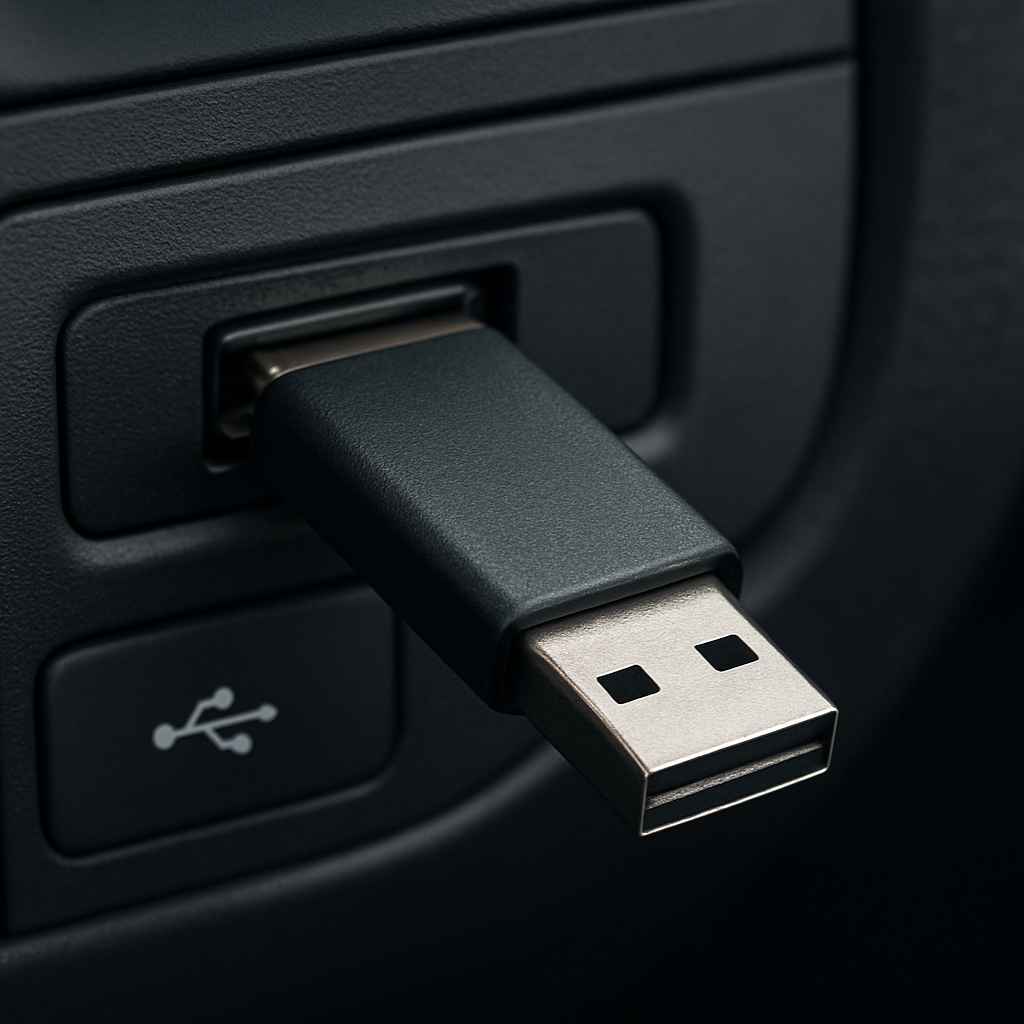
Check the port: Some cars have multiple USB ports. One might be for charging, and another for media. Make sure you’re using the correct one.
Frequent Questions About Car Flash Drives
Can I use a USB 3.0 flash drive in my car?
You often can, especially in newer cars. However, older cars might not be able to handle the speed, leading to playback issues. If you have problems with a USB 3.0 drive, try a USB 2.0 drive for better compatibility.
What video file format is best for car stereos?
MP4 is usually the best and most widely supported format. AVI can also work, but may be less reliable due to its flexibility. Always try to use MP4 files with common codecs like H.264.
My car won’t read my flash drive. What’s wrong?
The most common reason is incorrect formatting. Your drive is likely not formatted as FAT32. Format it to FAT32 using a computer.
Also, ensure the video files are in a compatible format (like MP4).
How big can a flash drive be for my car?
For maximum compatibility, especially with older cars, a 32 GB flash drive formatted as FAT32 is usually safe. Some newer cars can handle larger drives (64 GB, 128 GB) or exFAT formatting.
Do I need to format my flash drive every time?
No, you only need to format it once to set it up for your car. After that, you can add or remove video files as needed, as long as you do it correctly (e.g., safely ejecting from the computer).
Why do some videos play fine while others don’t on the same drive?
This is usually because the “problem” videos are in a different format, use a more complex codec that your car can’t process, or are simply too large in file size for the car’s media player to handle smoothly.
Conclusion
Getting your flash drive to play videos in your car can feel like a chore. But by understanding a few key things – formatting, file types, and USB speed – you can significantly increase your chances of success. Sticking with FAT32 formatting and MP4 video files, and considering a USB 2.0 drive for older cars, are your best bets. Don’t get discouraged by initial problems. Often, a simple reformat or file conversion is all it takes to bring your favorite movies to the road. Happy watching on your next adventure!
Products related to this article
Sponsored / affiliate links. As an Amazon Associate I earn from qualifying purchases. I may earn additional commission from eligible campaigns.