How to Make Spotify Auto-Play in Your Car (or Turn It Off)
Spotify auto-plays in your car when your phone’s Bluetooth, Android Auto, or CarPlay is set to resume the last-used app on connection — but that’s a different setting than Spotify’s own Autoplay toggle, which just keeps similar music going after a queue ends. Mixing the two up is the #1 reason auto-play either won’t start or won’t stop. This guide covers Bluetooth and Android Auto setup, iPhone Shortcuts automations for CarPlay, and how to turn off auto-resume if it gets too aggressive.
Quick Answer
To make Spotify auto-play in your car, set it as your default media app in Android Auto or Apple CarPlay and turn on “resume media” in your phone’s connected-devices settings. iPhone users without CarPlay can build a Shortcuts automation instead. Don’t want it? Turn the same settings off — Spotify’s own Autoplay toggle won’t stop it, since that only controls what plays after a song ends.
Two Different “Autoplay” Settings — Don’t Confuse Them
Spotify Autoplay is a setting inside the Spotify app (Settings and Privacy > Playback) that plays similar songs once your queue or album ends — it has nothing to do with your car. Car auto-play is a separate behavior controlled by your phone’s Bluetooth, Android Auto, or CarPlay settings, and it decides whether Spotify opens and starts playing the moment you connect. You can have either one on without the other.
📊 Spotify’s Autoplay setting is unified across your account — toggling it on your phone changes it on desktop and any car system signed into the same account too, but it only affects what plays after your current queue ends, not whether Spotify opens when you start your car. — Source: Spotify Support, “Autoplay tracks”
If you’ve already turned Spotify’s in-app Autoplay on or off and nothing changed about how it behaves when you get in your car, that confirms you’re looking at the wrong setting — skip ahead to the Android Auto, CarPlay, or Bluetooth sections below instead.
How to Make Spotify Auto-Play Over Bluetooth
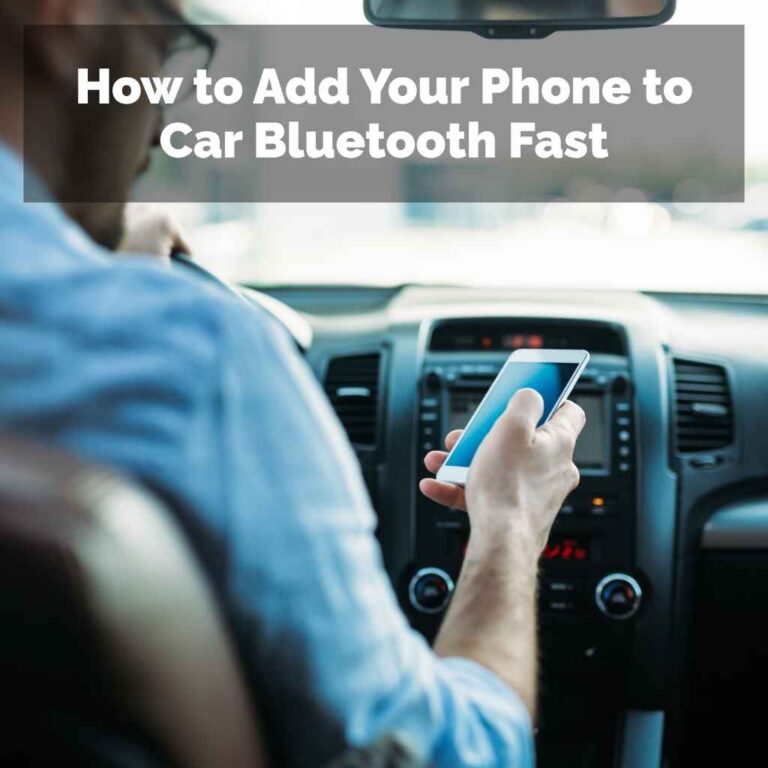
Bluetooth auto-play depends on your phone telling itself to launch Spotify when it recognizes your car’s paired Bluetooth device — the car doesn’t control this on its own. Once your phone is paired and set to auto-connect, the phone’s operating system decides whether an app opens automatically. For basic pairing steps if you haven’t connected your phone to your car’s Bluetooth at all yet, see our guide on connecting your phone to your car stereo.
Android — Auto-Launch Spotify on Bluetooth Connect
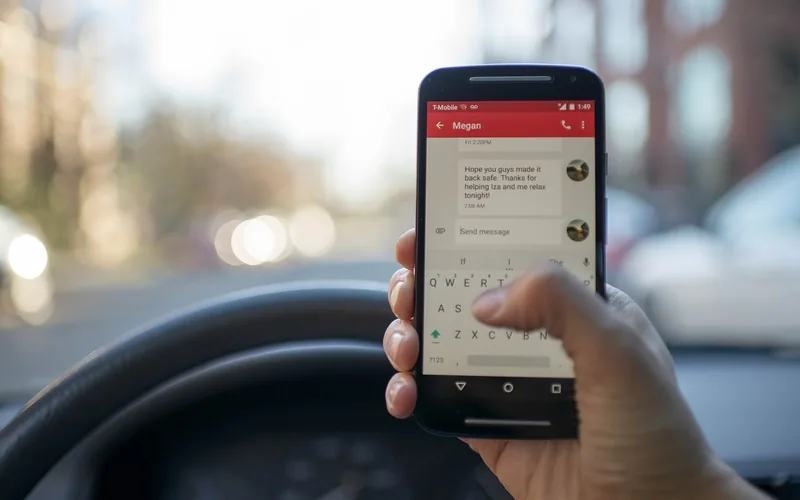
Some Android phones let you assign a default app to a specific paired Bluetooth device. Go to Settings > Connected Devices, tap your car’s Bluetooth entry, and look for an option labeled “automatic actions,” “media app,” or similar. Not every Android version or phone brand exposes this setting — Samsung, Pixel, and OnePlus phones each place it slightly differently, so search your phone’s settings for “Bluetooth auto-launch” if you can’t find it under Connected Devices.
iPhone — Build a Bluetooth Automation in Shortcuts
iPhones don’t offer a built-in “launch this app on Bluetooth connect” setting, so you’ll use the Shortcuts app instead. Open Shortcuts, tap Automation > Create Personal Automation > Bluetooth, select your car from the device list, and set it to trigger “When Connected.” Add an action to open Spotify and, if you want, a “Play Music” action targeting a specific playlist. Turn off “Ask Before Running” so it fires without a confirmation tap.
How to Set Spotify to Auto-Play in Android Auto or Apple CarPlay
Android Auto and Apple CarPlay give you far more reliable auto-play than plain Bluetooth, because both platforms are designed to hand off media control the moment they load. If you’re not sure your car even supports wireless CarPlay, check our breakdown of which cars support wireless CarPlay before assuming you need new hardware.
Android Auto Setup
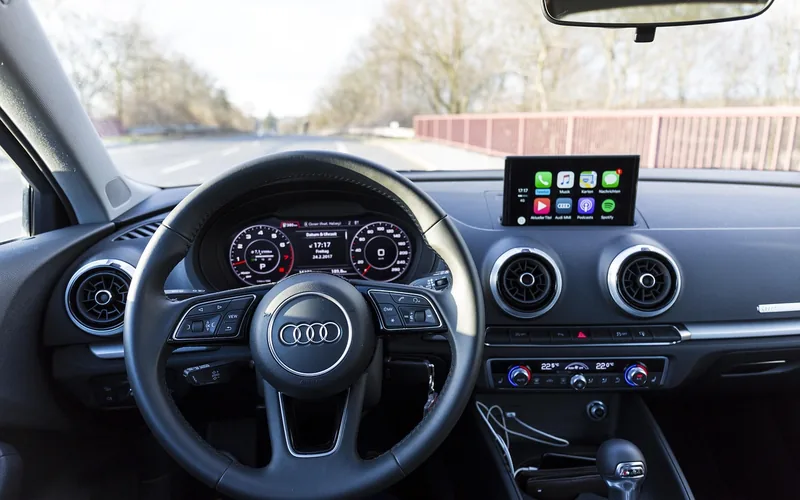
- Install Android Auto: Confirm the Android Auto app is installed — most phones from 2019 onward have it pre-installed.
- Connect your phone: Plug in via USB, or pair wirelessly if your car and phone both support wireless Android Auto.
- Set Spotify as default: In your phone’s Android Auto settings, choose Spotify as the default music app.
- Enable auto-launch: Turn on “Start Android Auto automatically” so the platform opens without a manual tap.
- Enable resume: Turn on “Automatically Resume Media” (sometimes labeled “Continue Playing Music”) so your last Spotify session picks up where it left off.
- Test the connection: Start your car, wait for Android Auto to load, and confirm Spotify begins playing without you touching the screen.
Apple CarPlay Setup
CarPlay itself doesn’t have a direct “auto-launch Spotify” toggle, so you’ll build a Shortcuts automation the same way as the Bluetooth method above, but with “CarPlay” as the trigger instead of a Bluetooth device. Open Shortcuts > Automation > Create Personal Automation > CarPlay > When Connected > Any. Add an “Open App” action for Spotify, then a “Play Music” action, and turn off “Ask Before Running.”
One current caveat worth knowing: Apple’s own developer forums have documented CarPlay-triggered Shortcuts automations that stopped firing reliably after certain iOS updates, even with “Ask Before Running” already disabled. If your automation suddenly stops working, re-open Shortcuts, re-toggle that setting off, and re-save the automation — this often re-registers it with iOS.
Best Wireless CarPlay/Android Auto Adapter Pick
AAWireless TWO+ Wireless CarPlay & Android Auto Adapter
Plugs into your car’s existing wired CarPlay or Android Auto port and adds a dual Bluetooth + WiFi wireless connection, so the auto-launch behavior in this guide keeps working without a cable.
- Best for: drivers whose car has factory wired CarPlay or Android Auto but no wireless option built in
- Why we picked it: the dual Bluetooth + WiFi connection is built specifically to keep auto-launch-on-startup working reliably instead of requiring a cable every time
- Main drawback: pricier than basic single-purpose adapters, and there’s still a one-time pairing step on first use
Compare more wireless CarPlay/Android Auto adapter options
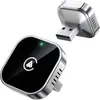 Option 1 Teeran 2-in-1 Adapter
|
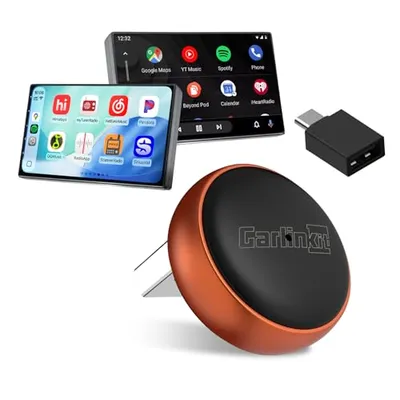 Option 2 Carlinkit Mini Ultra 3 Wireless CarPlay & Android Auto Adapter
|
 Option 3 Compact Wired-to-Wireless Adapter
|
As an Amazon Associate we earn from qualifying purchases.
How to Stop Spotify From Auto-Playing (If It’s Too Aggressive)
Some drivers want the opposite problem solved — Spotify blasting the moment the engine starts, before they’ve even backed out of the driveway. The fix is the same settings above, just switched off.
- Android: Settings > Connected Devices > Android Auto (path varies by phone brand and Android version) > turn off “Automatically Resume Media” and “Start Android Auto Automatically.”
- iPhone: Open Shortcuts > Automation, find your CarPlay or Bluetooth automation, and either disable it or delete it entirely.
- Either platform: confirm Spotify’s own in-app Autoplay is a separate, unrelated setting — turning it off will not stop the car-launch behavior, since it only governs what plays after a queue ends.
Android Auto is built so a connected phone’s chosen media app can resume playback automatically once the platform finishes loading — that resume behavior is controlled through your phone’s connected-device settings, not chosen at random by Android Auto itself.
Advanced Automation With Tasker and IFTTT (Android)
If your phone’s built-in settings don’t give you enough control — say, you want a specific playlist on weekday mornings and a different one on weekends — third-party automation apps go further than Android’s native options.
Tasker lets you create a Profile that triggers on “Bluetooth Connected” to your car, then a Task that launches Spotify, sets media volume, and — with conditional logic — picks a different playlist based on the day of the week or time. It’s powerful but has a real learning curve.
IFTTT is simpler: create an applet where “This” is your car’s Bluetooth connecting, and “That” is Spotify playing a specific playlist. It’s less flexible than Tasker but takes minutes to set up instead of hours.
Troubleshooting: Spotify Won’t Auto-Play or Plays the Wrong Track
Most auto-play failures trace back to one of these four causes. Check them in order before assuming your phone or car is broken.
| Symptom | Likely Cause | Fix |
|---|---|---|
| Spotify never opens | Background app refresh or “Autostart” permission disabled | Allow background activity and disable battery optimization for Spotify in your phone’s app settings |
| Connects but doesn’t play | Auto-launch setting is on, resume-media setting is off | Enable “Automatically Resume Media” (Android Auto) or re-check your Shortcuts automation (iPhone) |
| Plays the wrong app or song | A different app was used more recently than Spotify | Set Spotify as the default media app in Android Auto/CarPlay settings |
| Worked before, stopped after an update | iOS or Android system update reset connected-device permissions | Re-toggle the relevant setting off and back on, or re-save your Shortcuts automation |
If none of these fix it, clear Spotify’s cache (Android: Settings > Apps > Spotify > Storage > Clear Cache) or reinstall the app (iPhone, since individual app cache clearing isn’t available). Also confirm Spotify itself is updated — car-integration bugs are frequently patched in routine app updates.
Frequently Asked Questions
Why does Spotify sometimes not auto-play when I connect to my car?
Usually it’s a permissions issue, not a bug. If Spotify’s background app permissions are restricted, if battery optimization is killing the app, or if another app was used more recently, your phone may resume that app instead of Spotify. Check background activity permissions and confirm Spotify — not another player — is set as your default media app.
Is Spotify’s Autoplay setting the same thing as auto-launching Spotify in my car?
No. Spotify’s own Autoplay toggle (Settings and Privacy > Playback) only controls whether similar songs keep playing after your queue ends — it has nothing to do with the app launching when you get in your car. That’s controlled separately, by your phone’s Bluetooth, Android Auto, or CarPlay settings, or an iOS Shortcuts automation.
How do I stop Spotify from auto-playing every time I start my car?
Turn off “Automatically Resume Media” and “Start Android Auto Automatically” under Settings > Connected Devices > Android Auto (path varies by phone). On iPhone, open Shortcuts, find your CarPlay or Bluetooth automation under the Automation tab, and disable or delete it. This stops the launch behavior without touching Spotify’s own Autoplay setting.
Can I make a specific playlist auto-play instead of my last-played music?
Yes, on iPhone. In Shortcuts, edit your CarPlay or Bluetooth automation, tap the “Open App” action for Spotify, add a “Play Music” action, then choose a specific playlist instead of leaving it on “last played.” On Android, Tasker and IFTTT can both launch a named playlist instead of just opening the app.
Why did my CarPlay Shortcuts automation stop working?
Apple’s own developer forums have documented reliability issues with Shortcuts-based CarPlay automations after certain iOS updates, even when “Ask Before Running” is already disabled. If yours stops firing, open Shortcuts, re-toggle “Ask Before Running” off, and re-save the automation — this often re-registers it with iOS.
Do I need Spotify Premium for auto-play to work?
No. Spotify Free supports auto-play and Android Auto/CarPlay connections the same way Premium does, though Free accounts play in shuffle mode with occasional ads and can’t select an exact track on demand. Premium is only required if you want to auto-play a specific song rather than a shuffled playlist.
Getting Spotify to auto-play in your car comes down to one setting living in two different places — your phone’s connected-device preferences, not Spotify’s own app settings. Set Spotify as your default media app, turn on auto-launch and resume-media, and test it once before you rely on it. If it ever gets too aggressive, the exact same settings switch it back off.
For the quick, no-frills version of these steps, see our companion guide: How to Get Spotify to Automatically Play. If you’re setting up your phone in your car for the first time, start with how to hook up your phone to your car.
Products related to this article
Sponsored / affiliate links. As an Amazon Associate I earn from qualifying purchases. I may earn additional commission from eligible campaigns.